





Tips Index
There are many reasons why YouTubers may want to back up their YouTube videos and playlists. Those reasons may consist of random deletions, malevolent deletions, illicit law-breaking account violation, unavailable videos, and etc. In this article, we will enlighten you on why you need to back up your YouTube videos and playlists.
Google is famous for flagging accounts unjustly for suspected Terms of Services violations. Even if the account is returned at a later time, there are still users that have had all of their videos deleted from their Google account and they were not able to recover it. If you have your files backed up, you will not encounter troubles on losing videos due to a Google error.
There are numbers of YouTubers building up their playlist or multiple playlists with many videos in it, and sometimes the person who uploaded the video will erase it, and there are times Google will delete the video also. Sometimes Google will delete the videos that you uploaded, and if you don’t have a backup copy of the video, it will be gone for good. Other times videos may be unavailable in specific locations due to different licensing restrictions. Videos will disappear from YouTube at any time, so it’s a wonderful idea to back up all videos in order to prevent the misfortune of losing any video and audio files.
In this article, we will help you how to back up YouTube data. Whether it is your own video or your favorite Youtube Channels, saving a copy has never been this easy.
Using a powerful and reliable app that can download various kinds of videos in any video sharing site like YouTube, Facebook, Twitter, Twitch, Dailymotion, Vevo, and etc. VideoPower RED ultra-fast downloading speed and satisfying quality results. Just click the link below to download this free app and follow through the guide on How to back up YouTube Channel videos.
You can try to use the software for free by downloading its trial version below.
Method 1: Copy and Paste
Step 1: Paste URL of the Youtube Channel
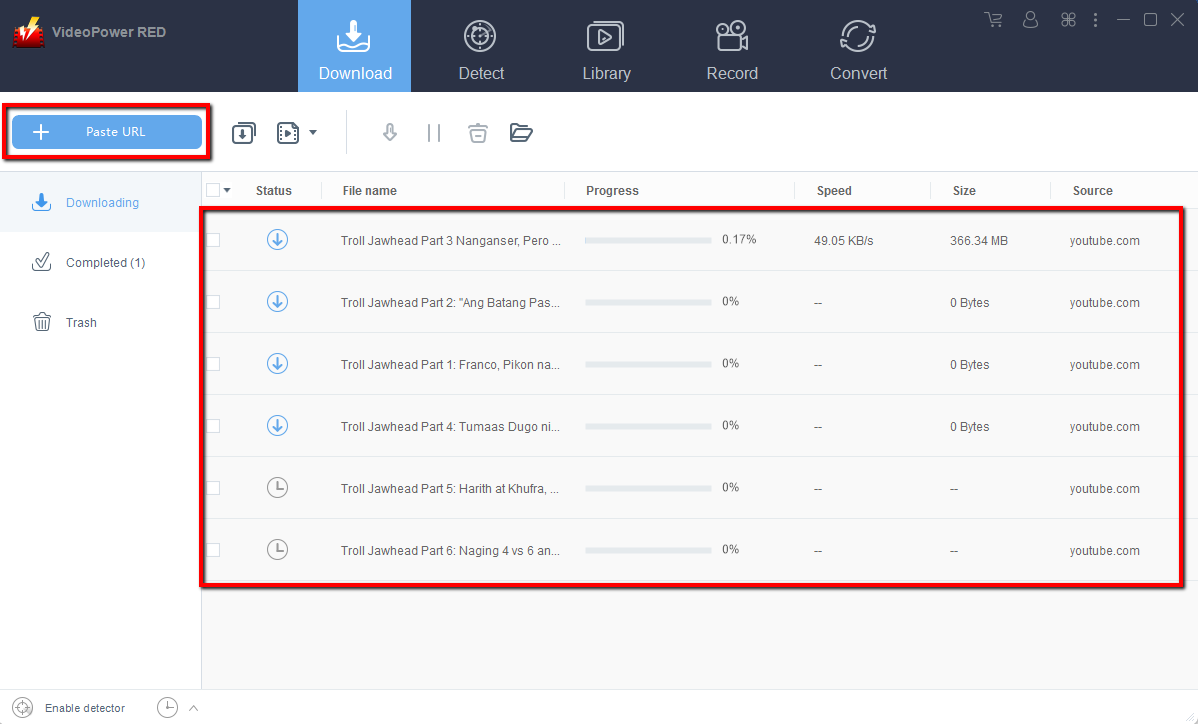
Copy the link of the YouTube channel that you want to download and then paste it into the program by clicking the “Paste URL” button. After that, you will see the video is downloading in the download control panel.
Step 2: Check the downloaded file
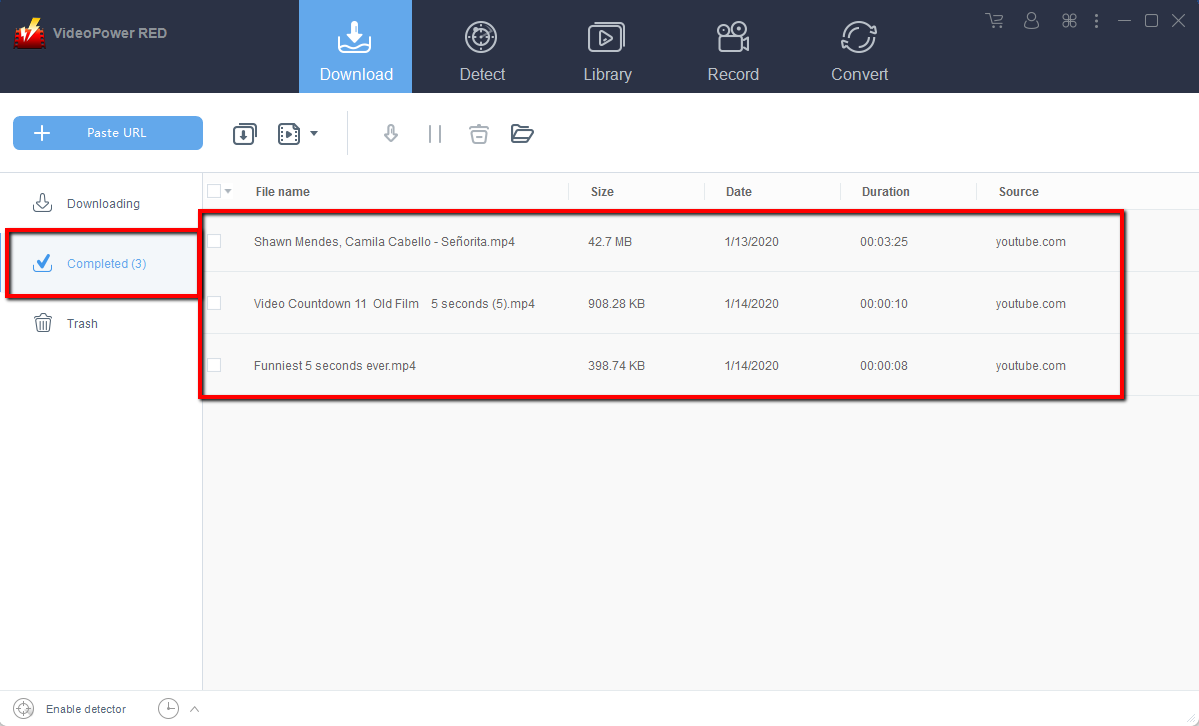
Wait for the download to finish, and then go to the “Completed” section to find the downloaded videos.
Method 2: Use the Embedded Browser
Open the video page via an embedded browser
If the program supports the site, the video will be downloaded by clicking the download button below.

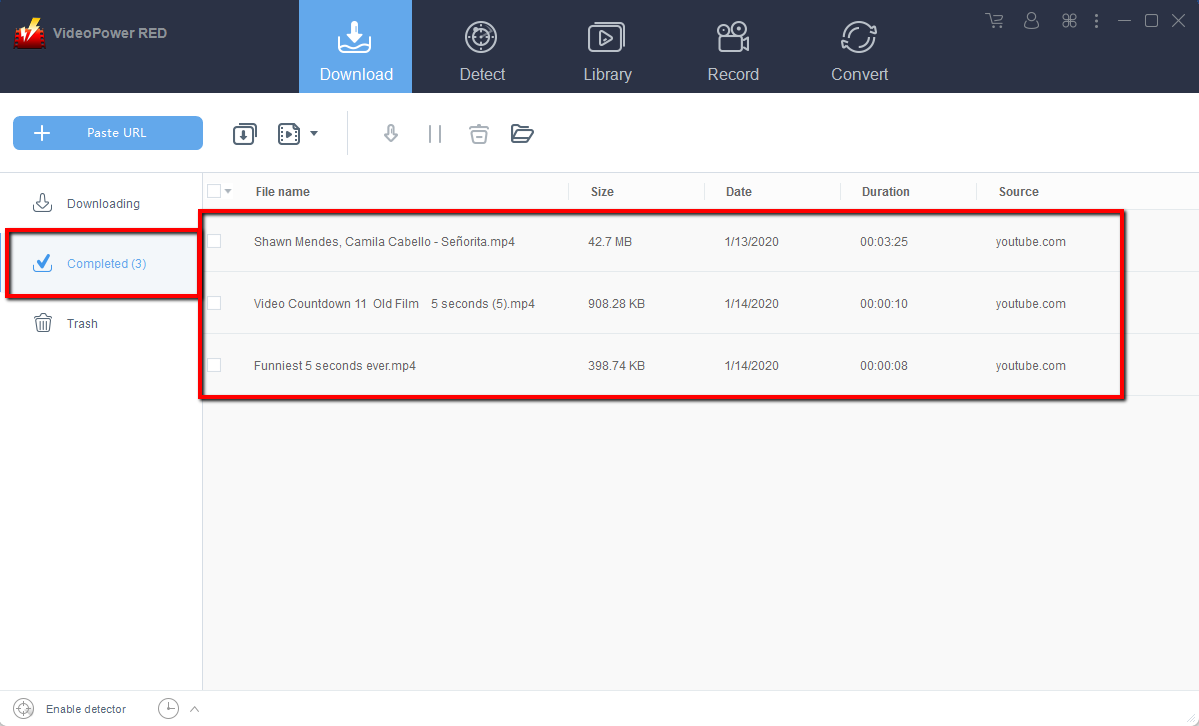
Wait for the download to finish, and then go to the “Completed” section to find the downloaded video.
Method 3: Record video
Sometimes because of the web update or slow internet connection, the program can’t download the video anymore but you can still save the video by using the recording function.
Step 1: Record video
Click the “Record” tab to record the video and Select from “Region, Fullscreen, around mouse or Web camera” as preferred.

Step 2: Check the recorded video.
After recording, the recorded file can be seen in the record interface.

Conclusion:
VideoPower RED one of the most powerful and fast video downloader software. The best in video downloading performance with very satisfying results. There is more to it than downloading, the app is also capable of recording and converting files into different kinds of formats like MP4, MP3, VOB, MKV, AVI, WMV, and etc. Isn’t it amazing to have VideoPower RED? Now, downloading videos is very easy. So what are you waiting for? Download now.


