Tips Index
There are tons of online software out there that promise to download whatever videos you like online especially the ones that are popular or convert them to whatever format you like. Unfortunately, these online downloaders sometimes fail and may give you harm instead of the benefits you are after. Pop up advertisements can be annoying too as it further delays your download, internet connectivity can be an issue too, and some may give you bugs and unwanted malware and viruses that will just ruin your download experience.
Convenience will always lie in the independent software available for download just like the Replay Media Catcher. Upon Replay Media Catcher review, It is actually a software that enables you to download media on every website there is. Having a trusty software to download whatever video you want will bypass annoying ads and are sometimes trusted by many users will be virus and malware-free. But the downgrade to Replay Media is that it can’t download on YouTube and that’s a big no-no. Replay Media Catcher on Youtube is a bit difficult due to updated YouTube restrictions.
VideoPower RED is a powerful software that enables you to download videos in many ways anywhere on the web. It is free from ads and viruses, and ultimately it can download from the impenetrable giant YouTube.
Method 1: Copy and Paste
Step 1: Copy and Paste the URL and download
To start downloading videos, copy the link of the video that you need to download and launch VideoPower RED. Click the “Paste URL” button at the upper left most part of the “Download” section and video will be processed in the “Downloading” tab.

Step 2: Check the downloaded file
Go to the “Downloaded” tab to see and check the downloaded blog videos. Right-click the file if you want to do more operations like “Play” to watch the video playback.

Method 2: Auto-Detect (Embedded Detector)
Step 1: Open Video through an Embedded Detector
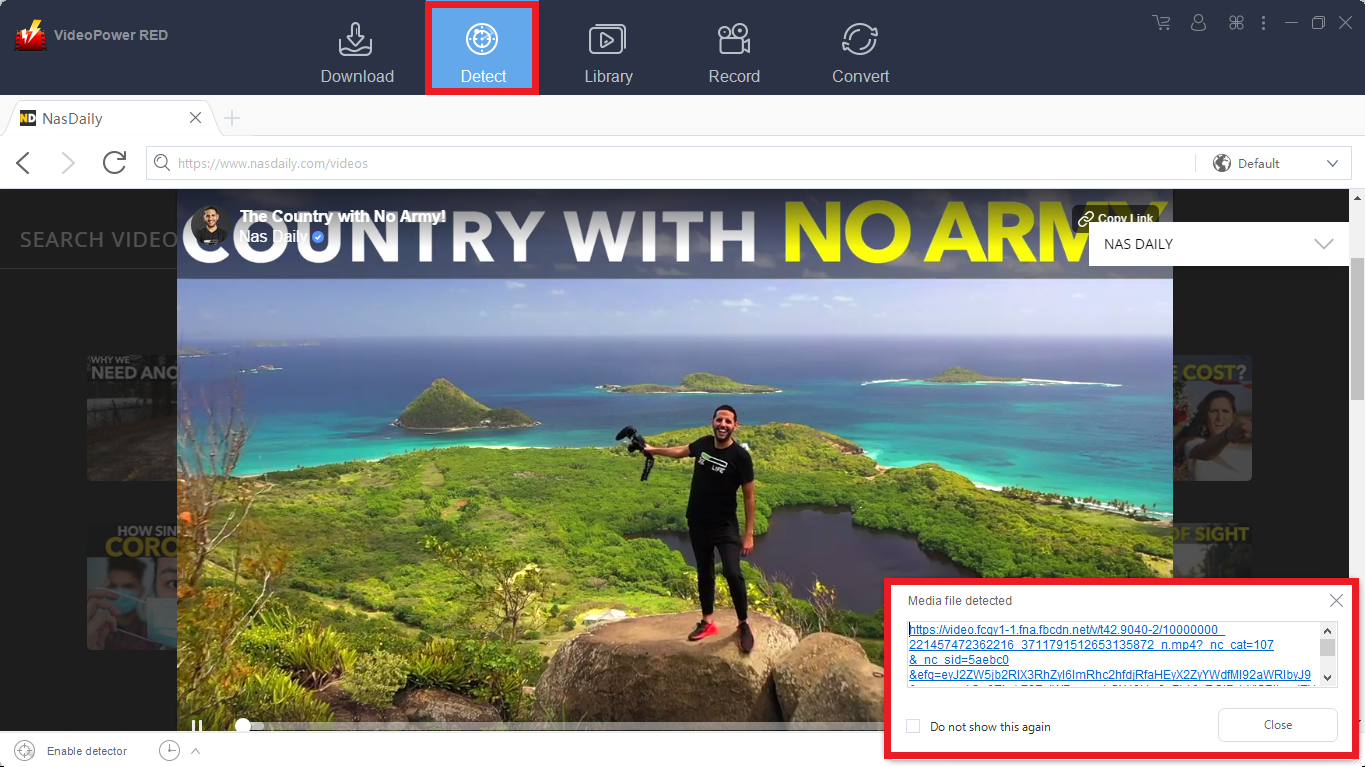
This embedded browser has an embedded detector that could analyze the video file on the browser and automatically download the video.
1) Open your preferred site and look for the video that you want to download.
2) Play the video and a “Media File Detected” notice will appear to notify that the chosen file has been detected and will be downloaded automatically.
Step 2: Check Downloaded File
Go to the “Downloaded” tab to see and check the downloaded videos. Right-click the file if you want to do more operations like “Play” to watch the video playback.
Method 3: External Detector
Step 1: Activate the “Enable Advanced Detector” and start downloading
Activate the “Enable Advanced Detector” and start downloading.
1) Click the settings menu bar on the upper-right corner of the interface and navigate to the “Download” tab.
2) Set “Enable Advanced Detector” on the download settings and click “OK”.

3) Enable the detector located on the lower-left corner of the software interface.
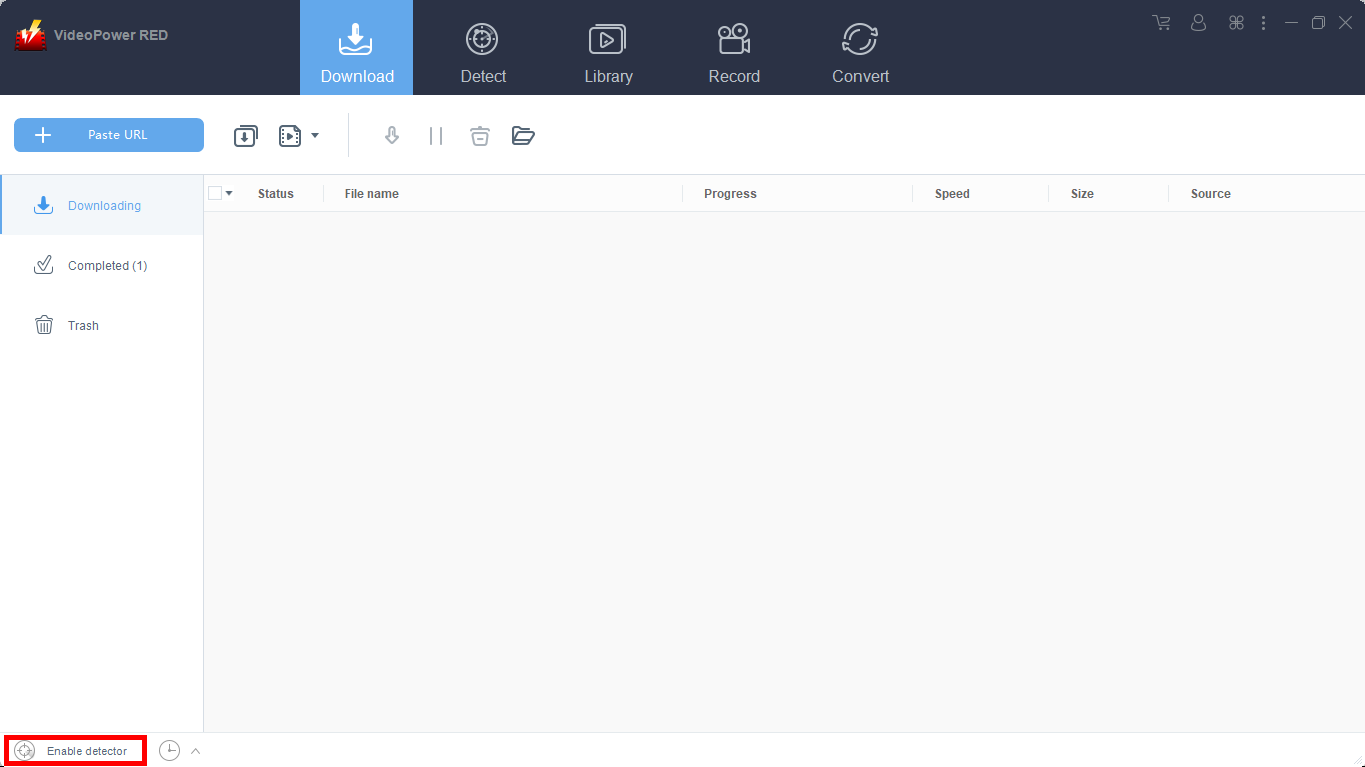
Open your preferred website to search for your preferred Video. Play the video and it will be downloaded automatically.
Step 2: Check Downloaded File
Go to the “Downloaded” tab to see and check the downloaded videos. Right-click the file if you want to do more operations like “Play” to watch the video playback.
Method 4: Screen Record
Note: This method is best for protected video files and for a slow internet connection.
Step 1: Choose a recording mode
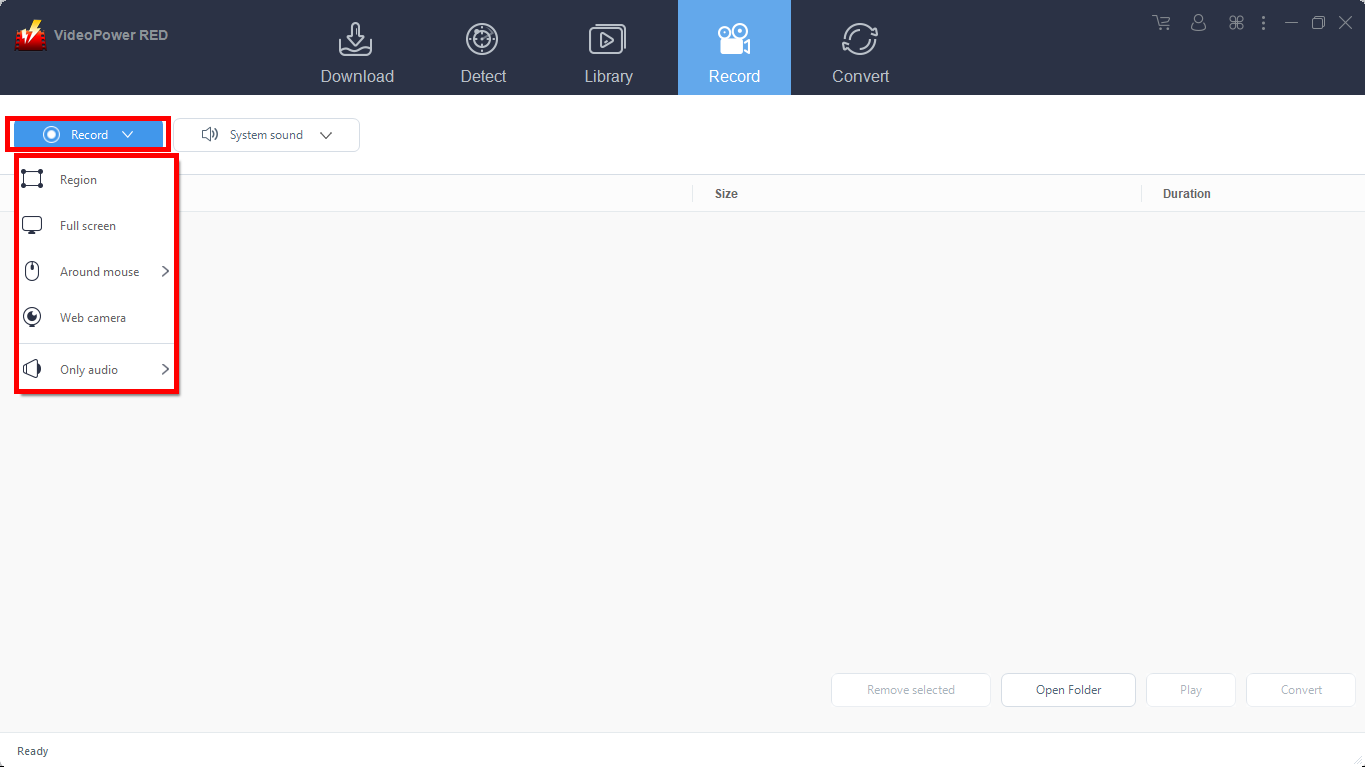
Click on the “Record” tool to select your display recording option for your online meeting.
Full Screen:
The recording area will be the whole screen of the computer.
Region:
The recording area will only be a specific area of the computer screen.
Audio only:
Select “Only Audio” to record the audio-only.
You can save your files like MP3, AAC, OGG, WMA, WAV, FLAC, and other file formats.
Web camera:
Select this option to record video from an external webcam or a built-in laptop camera.
Around mouse cursor:
The mouse position is the center of the recording range. If you move the mouse during recording, the recording range will follow the movement of the mouse.
Since we are recording a video, options like “fullscreen” or “region” can be selected. Select the option you prefer and the recording will automatically start.
Step 2: Recorded File List
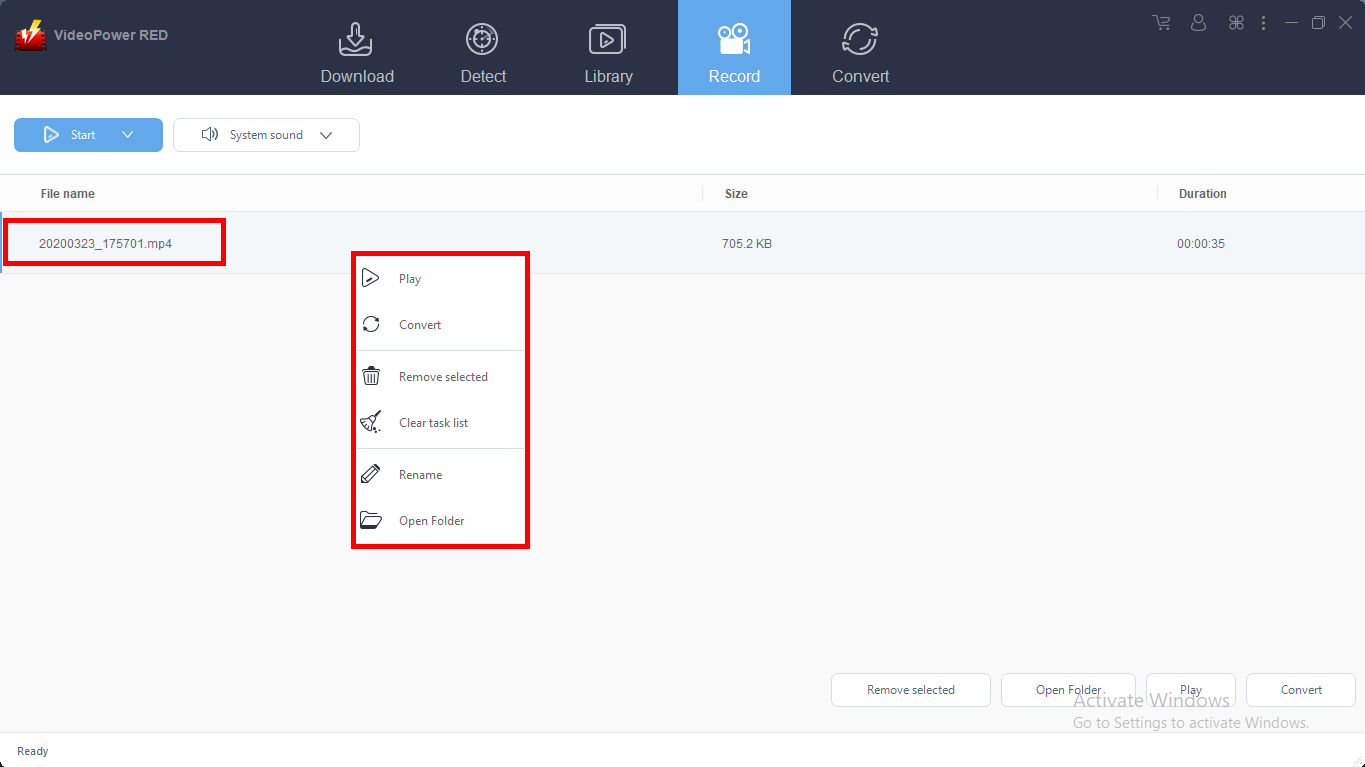
Recorded videos are displayed in the Record section. Right-click the recorded file and do more operations if necessary.
Conclusion:
VideoPower RED is not only a Replay Media Catcher Alternative, it is also a powerful software that can convert any video file to any format and readily converts for any device compatibility including some Apple devices and Android devices. It can also convert several audio file types to another one. More to that, it can edit videos from the downloaded clips of recorded ones in the interface. Try it now!