





Tips Index
There has to be a lot of reasons to record computer screen activities, whether you might be making a video for YouTube, composing a software tutorial, or preparing a presentation for work, a good screen recorder is a must.
Fortunately, with the development of software comes along a wide range of screen recorder that gets the job done. Among this popular software are ExKode Dxtory and Fraps recording software.
To consider a screen recorder as great, a lot of considerations must be taken thoroughly. For readers to comprehend more about the differences between Dxtory and Fraps this article has been made.
ExKode’s Dxtory
Better known as just Dxtory, this screen recorder software captures DirectX and OpenGL video data directly from surface memory for fast and lossless recording. Users can maximize write speed to storage by creating multiple folders and setting custom bit rates for each. Dxtory is free to try but with limitations like a watermark on output.
It’s also possible to customize screenshots with margin, scaling, and clipping options, save clips in multiple formats, enable High Speed and Auto Repeat options, and specify JPEG quality.
The interface might be a bit overwhelming for new users because of some of its feature complications but once you learn to navigate your way through it and experiment a bit, you will realize that its numerous settings options are there to give you a lot more configuration and set-up options.
One of the features that make Dxtory stand out of all other recording software is that you can fully customize the layout of the program. You can change the color of the status indicator and position it anywhere you want on the screen.
Another unique feature of Dxtory is that it lets you record audio from multiple sources simultaneously. It records audio from multiple sources and supports third-party video codecs and broadcast output.
Fraps
Fraps is a great real-time recorder for DirectX and OpenGL games and applications. It captures onscreen video and audio, adds timestamps and counters, and benchmarks frames per second, frame times, and minimum-maximum average. It can save screenshots as JPG, PNG, or BMP files, with frame rate overlays that are optional and repeat screen capture.
Adding frame rate overlays to screenshots and setting the software to capture screenshots at specific intervals until the Screen Capture hotkey is pressed. raps include many hotkey options like Benchmarking and Overlay hotkeys. The software can be set to stop benchmarking after a specific number of seconds, hide overlays, and configure other options.
Video capture settings include common and custom frame rates, full and half size frames, loop buffer length, and the option to split movies every 4GB of recording capacity – just enough for a DVD. Movies can record Windows, stereo, or multichannel sound, as well as external inputs.
Trial limitations: The free trial limits recording time to 30 seconds, disables loop recording, saves screenshots in BMP format, and adds a watermark.
Fraps is a useful tool most especially in the hands of anyone who wants to capture onscreen video or benchmark their video performance. Underlying issues with Fraps keeps happening like it decreases game performance while recording, lagging, and freezing gameplay in video games.
Another downside is it does not let you record in any chosen resolution. So how to record desktop with Fraps? The answer is easy. You open the software, and really the only thing you need to set is the frame rate and the output folder and you are good to go.
VideoPower GREEN
Another great software and solution as Dxtory alternative and Fraps alternative is a dependable screen recorder called VideoPower GREEN. This amazing software allows you to easily record anything on the screen and save it locally in a high-quality video file. It works great for making high quality and high frame-rate videos which is a must-have for recording games.
This software can record games, whether it be online or offline, more than Fraps and Dxtory can. It has low requirements for the user’s computer configuration which allows synchronization compared to other products. This makes it an amazing alternative tool for Fraps and Dxtory which also can record gameplay and performs better in recording and has other awesome functions that that recording software doesn’t have.
This software is very flexible so that you can record the whole screen, a specific window, a section, or then trim, to save the resulting footage.
Moreover, with it, you can record either the system sound or your narration through a microphone or use both sound sources.
Although there are many desirable ways to screen record your PC activities, nothing beats a packed and reliable software like VideoPower GREEN.
An amazing auto-scheduling screen recorder that performs the tasks you specify, on its own, without you having to manually begin the process.
Customizations are super easy with this software.
Make your recordings unique by modifying settings like adding annotations while recording. VideoPower GREEN provides you a video editor tool that includes trimming, rotating, adjusting the resolution, speed, volume, brightness, adding subtitles, and a lot more.
Below is a summary table comparison.
| Functions | Dxtory | Fraps | VideoPower GREEN |
|---|---|---|---|
| Video Recording | Y | Y | Y |
| HD & Full HD Recording | Y | Y | Y |
| Video Editing (trim, crop, watermark, etc) | N | N | Y |
| Record screen and audio with real-time annotation | N | N | Y |
| Create a scheduled task to record screen and webcam | N | N | Y |
| Take a screenshot and annotate | N | N | Y |
| Windows 7, 8, 8.1, 10 (32/64bits) | Y | Y | Y |
Record Screen
Step 1: Choose a sound source
If audio is needed in recording, choose the desired sound source among System sound, Microphone, System sound and microphone, and choose None if audio isn’t needed.
Users can either use “System sound” or “System sound and Microphone”.

Step 2: Choose a recording area
Click on the “Record” button to choose the recording mode for among Full screen, Region, Audio, Web camera, and Around mouse. To record game play, selecting Full screen is the best choice.

Step 3: Record screen activities
After choosing a recording area, a prompt pop-up will appear. Click “Ok” to start the recording.

Note: This is optional. User’s may choose to use this tool or not.
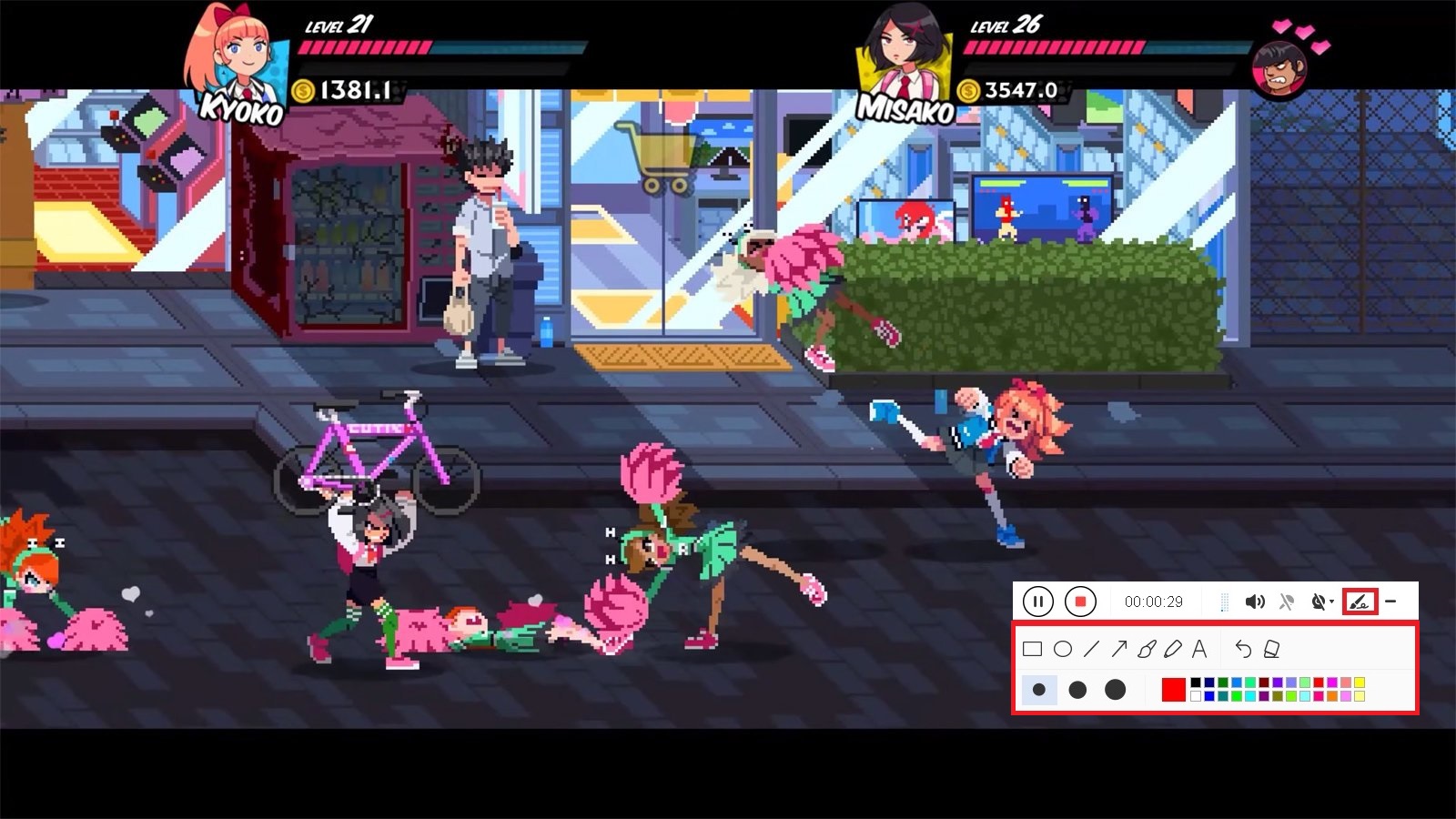
While recording, adding annotations like lines, arrows, shapes, texts, highlight, blur, etc. is possible. Just click the edit button to show the editing toolbox.
Step 4: End the recording
Click the “Stop” button to stop recording.

After recording, the screen will automatically redirect to the recorded file list on the main interface window.

Conclusion:
With this short review for comparison on Dixtory and Fraps, we are hoping this would give you some basic ideas before choosing a screen recorder. Each software is good for its own reasons, with the major difference is that while Fraps is aimed at users who are new to screen recording and want an easy to use interface.
Dxtory software is for the more advanced users who do not mind taking some time to configure things and figure out the software before they start using it.
VideoPower GREEN is highly recommended for users who want to save Netflix content for later viewing and offline purposes. Using this best and easy to access screen recording application software can help users record any on-screen activities with professional results.


