





Tips Index
Screenshots generate an image file of the data directly being presented on your screen. This is mostly done by just pressing the Print Screen button on a Windows computer. Screenshots are very beneficial for different kinds of reasons, such as a better understanding of questions about what is asked or simply showing someone what you have on your screen.
Seeing that screenshots are images, you can’t edit the data through any standard means, but you can always edit a screenshot in plentiful ways using a free and simple editor.
It is likely to happen that the inclusion of screenshots and images during your content makes it not difficult and quick for your audience to receive your message. The aspect of the modern digital world is never-ending change. And if you usually use screenshots, then you know that this adjustment results in screenshots becoming outdated.
So, how can we swiftly bring up to date the images without having to recapture a bunch of screenshots? There are various reasons to just edit a screenshot instead of trying to recapture it again. The basic and most distinct reason is to save time. While the most fundamental screenshot might not take long to recapture, but it might take a long time to re-create the perfect same scene in order to capture it again. In case you are using screenshots for assistance on your website, training, or documentation there are some circumstances when a simple and smooth edit or small adjustments will do the trick and will save you some time. The question is, how to edit a screenshot on pc or how to edit a screenshot on windows? What would be the right thing to use?
In this article, we are going to teach you how to edit a screenshot on Windows 10 with a third-party app. Introducing VideoPower GREEN, a simple yet powerful third-party application software with multiple functions and features such as screen recording, audio recording, task scheduler, and screenshot with editing tools.
Just click the link below to download this free app and follow through the steps on How to Edit a Screenshot with VideoPower GREEN.
Step 1: Manage settings.
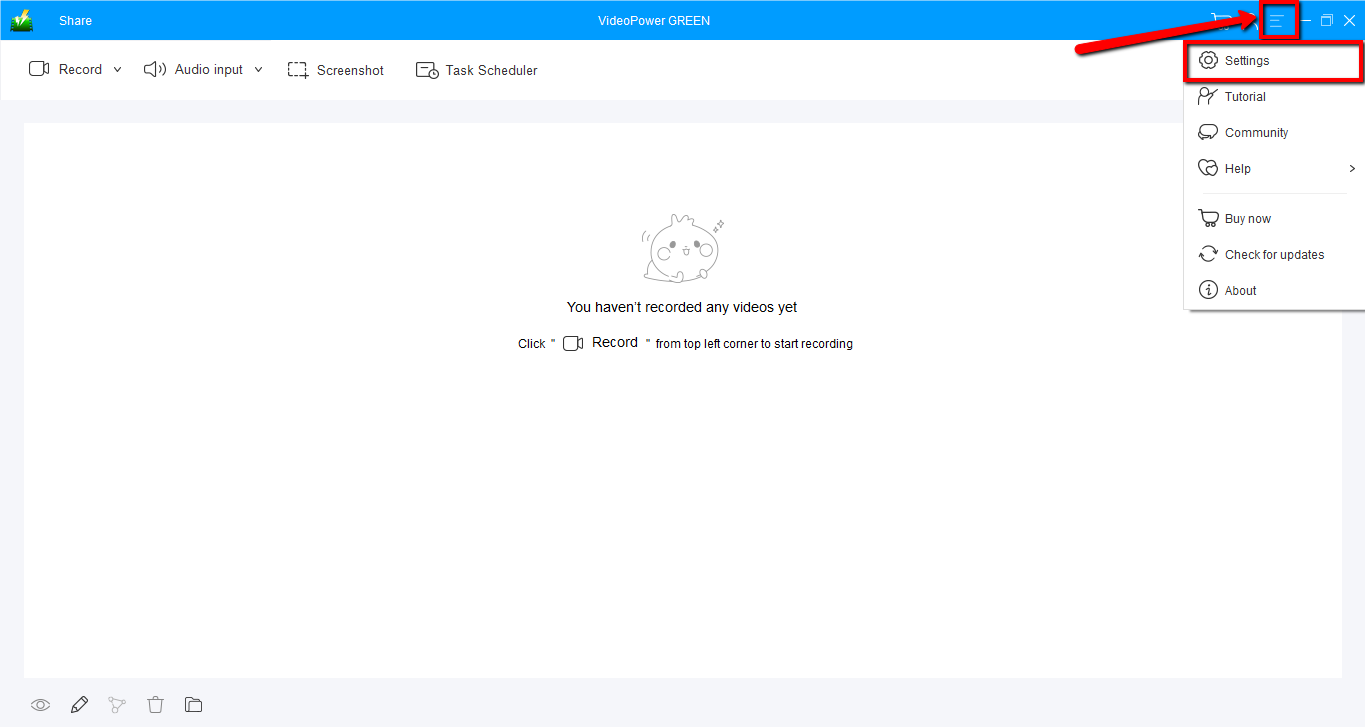
1) Click the menu button on the upper-right corner of the interface and choose “Settings” from the drop-down menu.
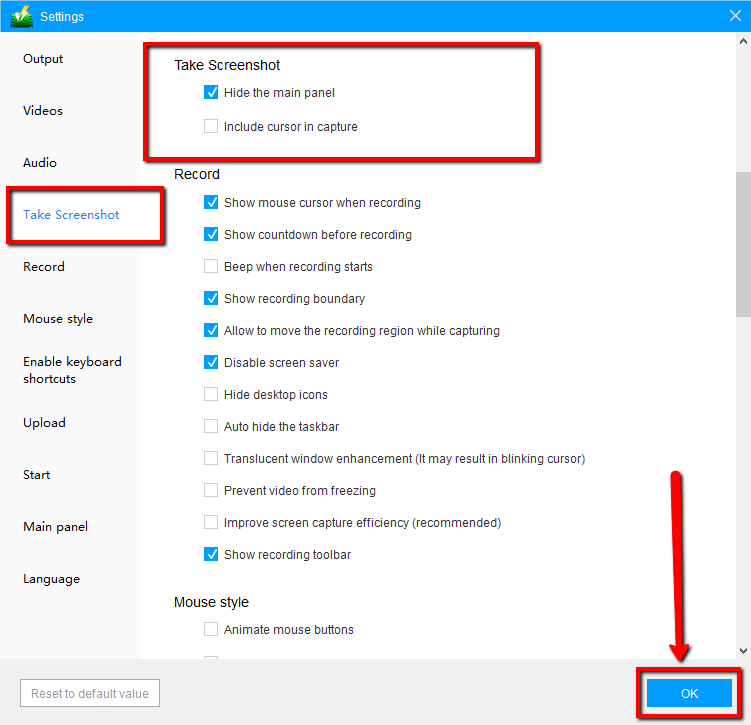
2) Navigate to the “Take Screenshot” section. Make changes accordingly then click “OK.”
Step 2: Take a screenshot on your PC
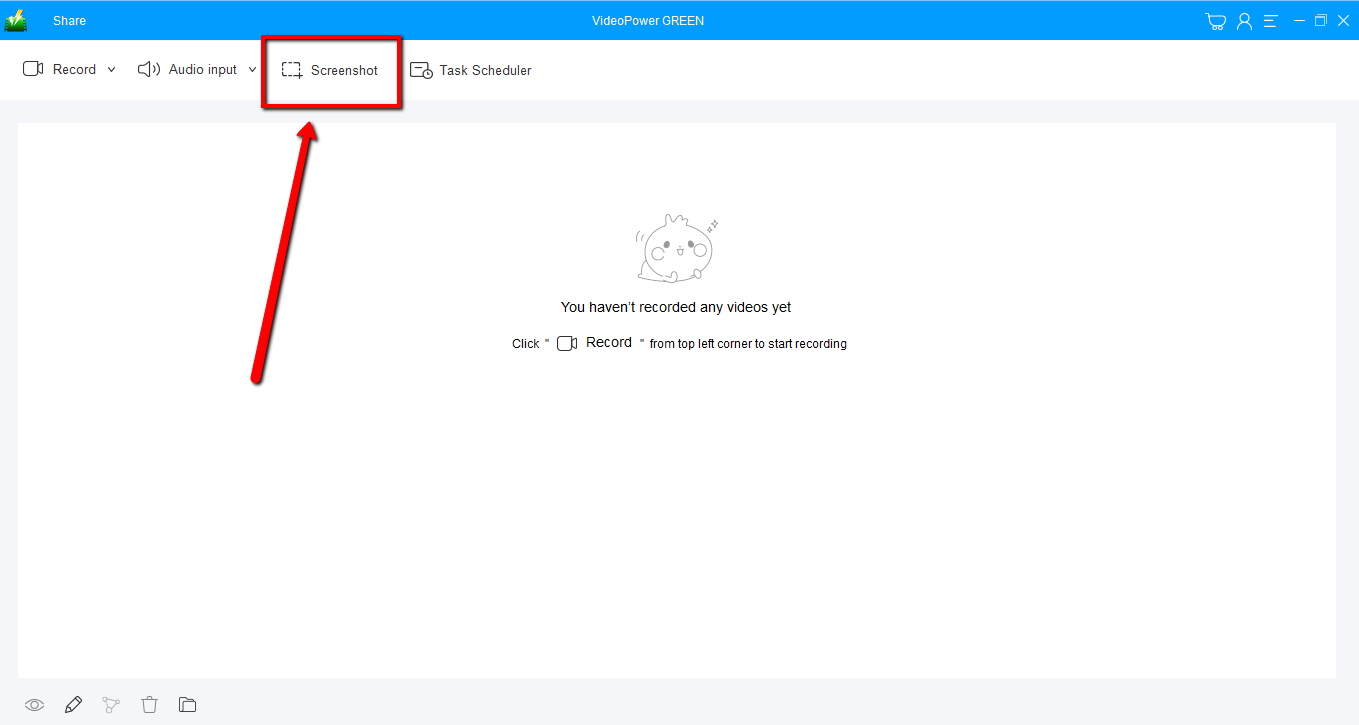
1) Click on the “Screenshot” tab.
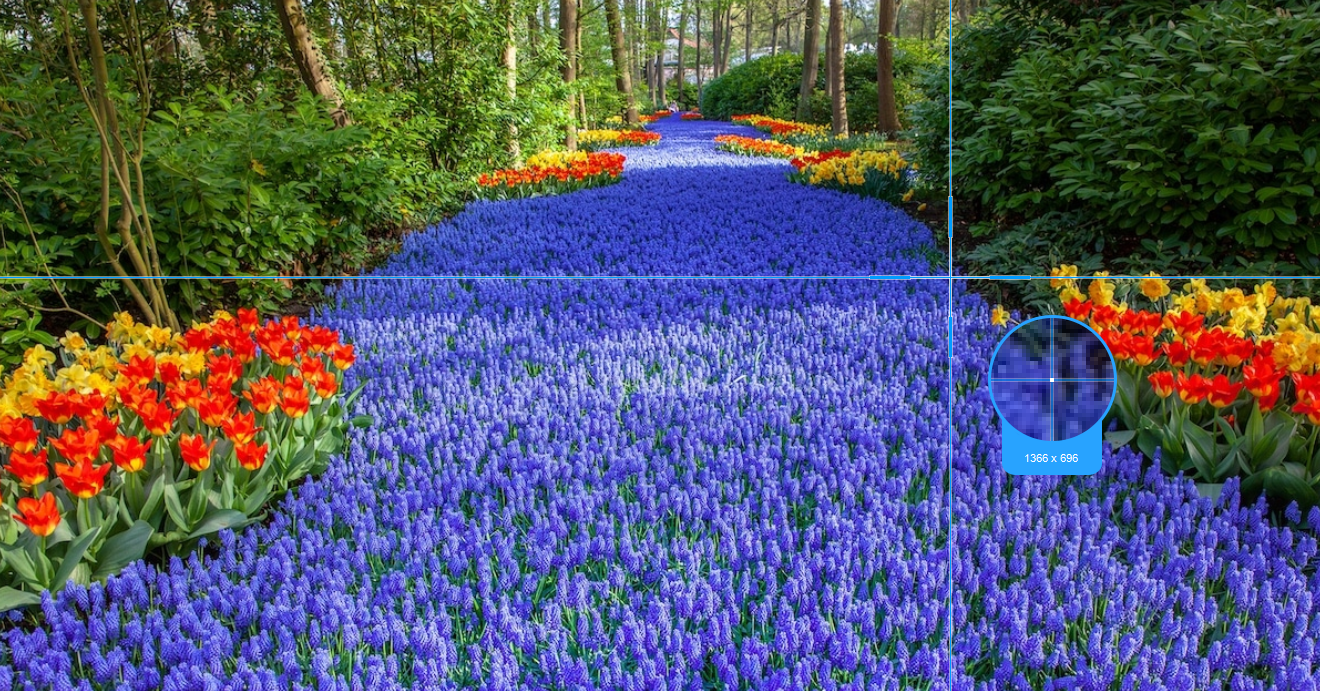
2) Select the region on the screen that you want to take a screenshot of. By moving the mouse around the screen, you’ll be able to see what types of screenshots you can do.
3) After clicking, you will get a snapshot of the selected region. You can make changes to it accordingly by exploring the menu (highlighted in red) before saving the screenshot.

Conclusion:
Once you know the steps on taking a screenshot, things will now be easy for you. VideoPower GREEN, an ultimate reliable and easy to use screen capture software with various useful functions. This app will help you make things easier and smoother. Download the free trial and experience its free features but with professional results.


