





Tips Index
Some people might miss important meetings and would like to have it documented through video recordings. Thanks to software that enables us to record our screen and to be updated and of whether we can’t attend meetings or we just don’t like the idea of missing anything, screen recordings are best kept for later review.
Adobe Connect is a collaborative software that enables users to conduct meetings virtually. It can hold conferences to multiple people who are greatly separated by distance and would like to engage in an important meeting that shouldn’t be missed out. It can also conduct classes, seminars, and training online which is a great way to be at the comfort of your place and at the same time at a learning pace.
But there are still instances that even in the comfort of an online meeting, people still tend to lose time to attend on time due to a more important reason or technical issues along the way. To give remedy to this, how do you record a meeting video?
To record online meetings, download, and try VideoPower GREEN, it is a powerful software that records screens for several important tasks just like a future missed out conference or meeting. More than that it can edit videos and apply highlighters and texts to further emphasize a particular frame of the recorded meeting.
You can try to use the software for free by downloading its trial version below.
Record a Meeting
Step 1: Choose a sound source
Online meeting recording requires audio, choose the source of the sound among “System sound, Microphone or System sound and microphone” on the “Audio Input” menu. In recording online meetings, choose “System sound and Microphone”.

Step 2: Choose a recording area
Click on the “Record” tool to select your display recording option for your online meeting.
Full Screen:
The recording area will be the whole screen of the computer.
Region:
The recording area will only be a specific area of the computer screen.
Audio only:
Select “Only Audio” to record the audio-only.
You can save your files like MP3, AAC, OGG, WMA, WAV, FLAC, and other file formats.
Web camera:
Select this option to record video from an external webcam or a built-in laptop camera.
Around mouse cursor:
The mouse position is the center of the recording range. If you move the mouse during recording, the recording range will follow the movement of the mouse. In the events of Web camera usage and “around mouse feature”, it can be utilized in online training to portray an instruction.
To record a meeting, suitable recording options are Fullscreen and Region for video interfaced meetings, and Audio only for voice conferences.

Step 3: Record screen activities
After choosing a recording area, a prompt pop-up will appear. Click “Ok” to start the recording.

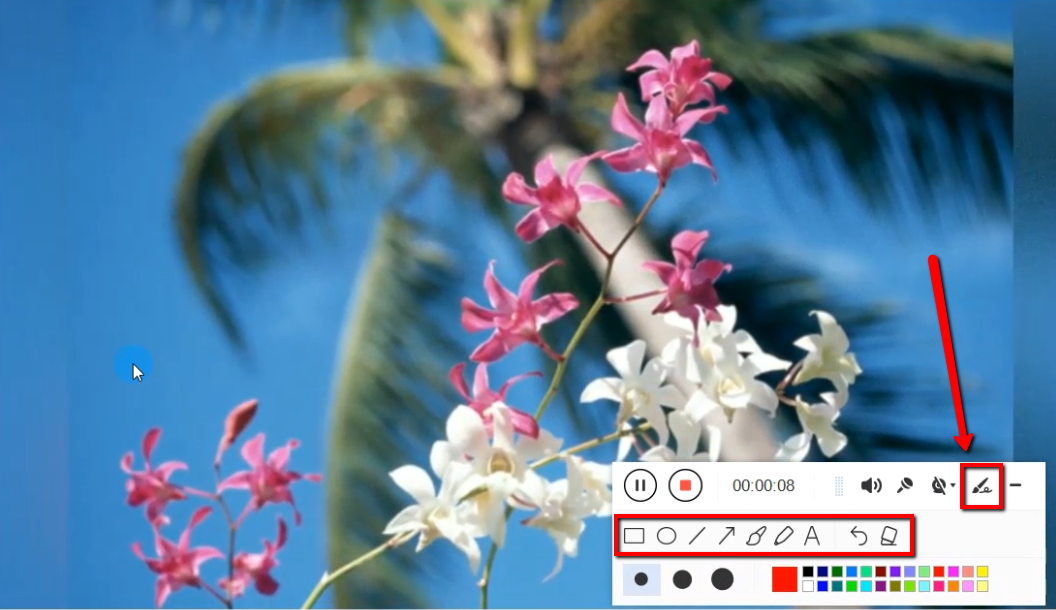
While recording, adding annotations like lines, arrows, shapes, texts, highlight, blur, etc. is possible. Just click the edit button to show the editing toolbox.
Step 4: End the recording
Click the “Stop” button to stop recording.

After recording, the screen will automatically redirect to the recorded file list on the main interface window.

Conclusion:
It is very important not to miss anything from a meeting or conference especially when it requires the presence of each member, maybe for school, project, or business-related aspects.
Screen recording software has been an aid for this gap since everything is at a fast pace. There are lots of software that record online meetings but VideoPower GREEN not only allows you to conduct a meeting recording for whatever purpose a user may want but it is also packed with different useful amenities that could go beyond recording.
It can edit videos and convert them to a proper format in whatever device it may be utilized. Try it now!


