





Tips Index
Bigo is one of the popular live streaming applications available online. You can video chat with other people around the globe using Bigo live video call. Through this, you can chitchat and communicate with your loved ones and with other people who’s far away from you. Also, you can show the world how skillful you are with the use of a live broadcast to showcase your God-given skills on creative talents that a human being possesses.
In addition, Bigo live video play along with your taste. Thus, except for connecting with other people who’s far away, it also helps you stream video gameplays and host your own shows worldwide. Bigo live is free to download and is accessible for iOS, Android, and of course in PC devices. This app can be used anywhere and anytime as long as there’s an internet connection.
Bigo is indeed a popular live streaming application online but apparently not offline. However, saving it for offline viewing isn’t entirely impossible at all. Thus, many people are looking for Bigo live video download software for recording purposes. Storing videos locally isn’t always through downloading, users can screen record streaming videos and make it as a local video to enjoy offline anywhere and anytime without worrying about the internet connection.
But the question is how to record Bigo live video? With the help of third-party recorder application software called VideoPower GREEN, recording live video is attainable.
VideoPower GREEN, the best Bigo live video recorder application software allows you to record from your Windows PC. It captures videos and other activities on your computer screen effortlessly. So, at the moment, you can use this Bigo live video downloaded free version software and be reminded of its trial version limitations.
Record Screen
Step 1: Choose a sound source
If audio is needed in recording, choose the desired sound source among “System sound, Microphone or System sound and microphone” on the “Audio Input” menu. If audio isn’t needed, just choose “None”.

Step 2: Choose a recording area
Click on the “Record” button to choose the recording mode among “Full screen, Region, Audio, Web camera, and Around mouse” and then select the area you are going to record.

Step 3: Record screen activities
After choosing a recording area, a prompt pop-up will appear. Click “Ok” to start the recording.

While recording, adding annotations like lines, arrows, shapes, texts, highlight, blur, etc. is possible. Just click the edit button to show the editing toolbox.
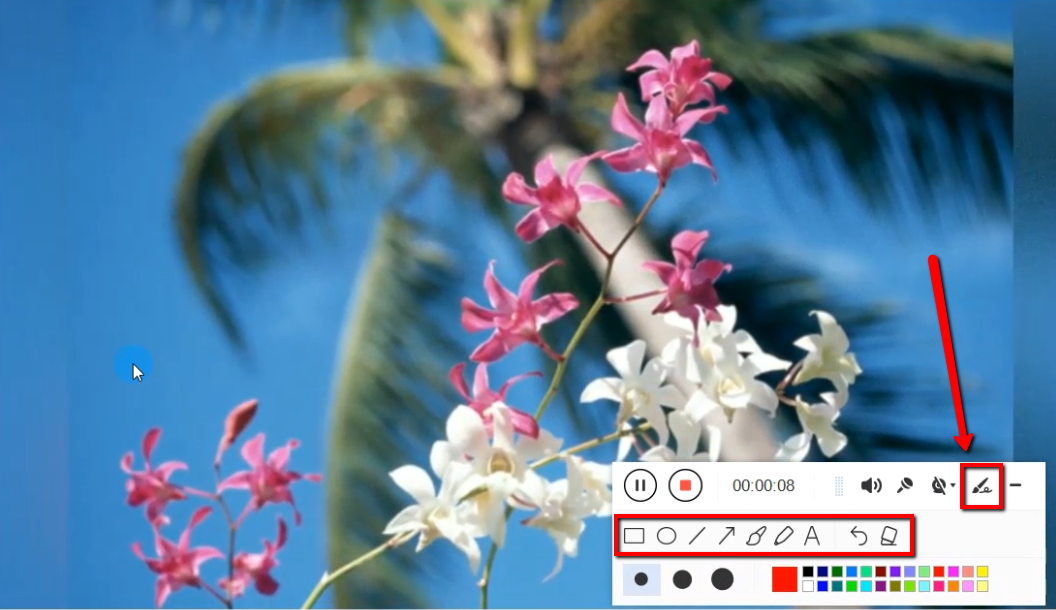
Step 4: End the recording
Click the “Stop” button to stop recording.

After recording, the screen will automatically redirect to the recorded file list on the main interface window.

Video Editor
Step 1: Edit the Recorded File
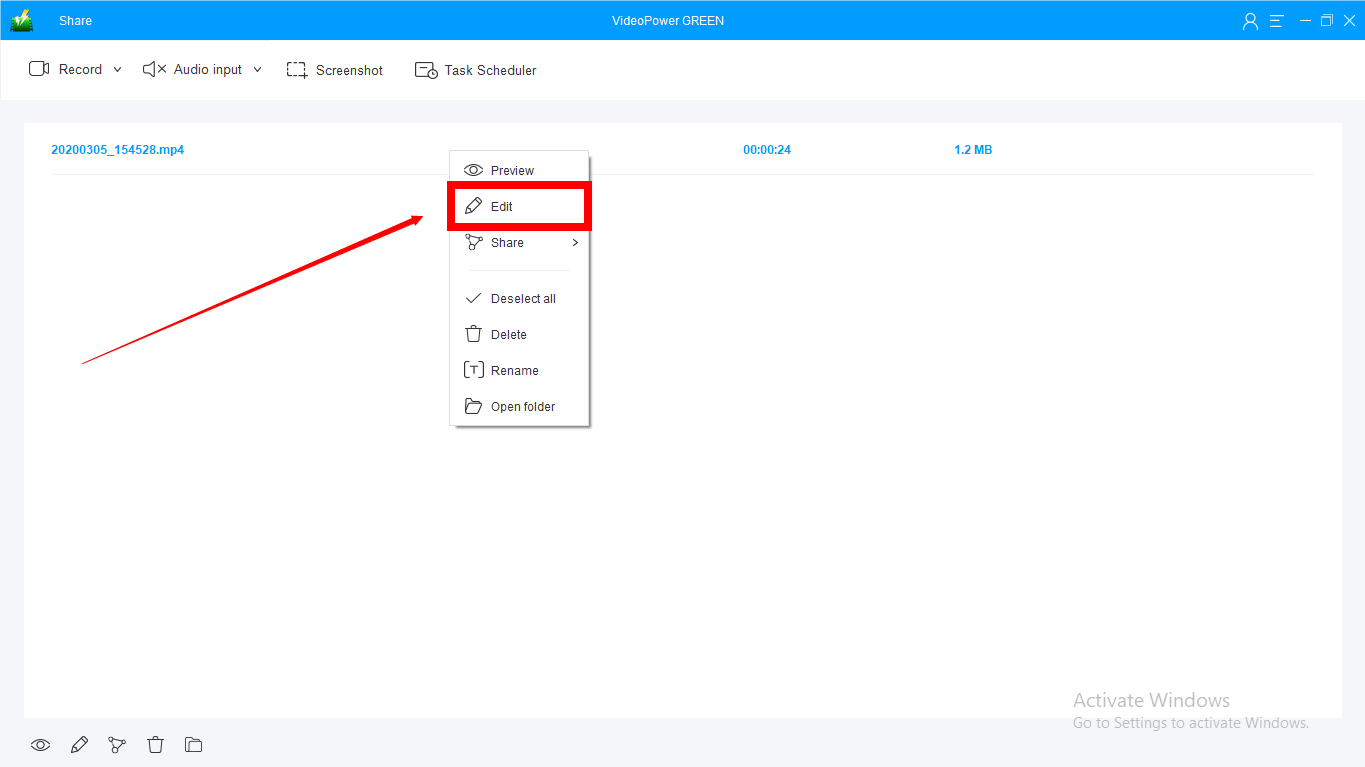
After recording, the screen will automatically redirect to the recorded file list on the main interface window. Right-click the file and click “Edit” to be directed on the Video Editor.
Step 2: Open the editor
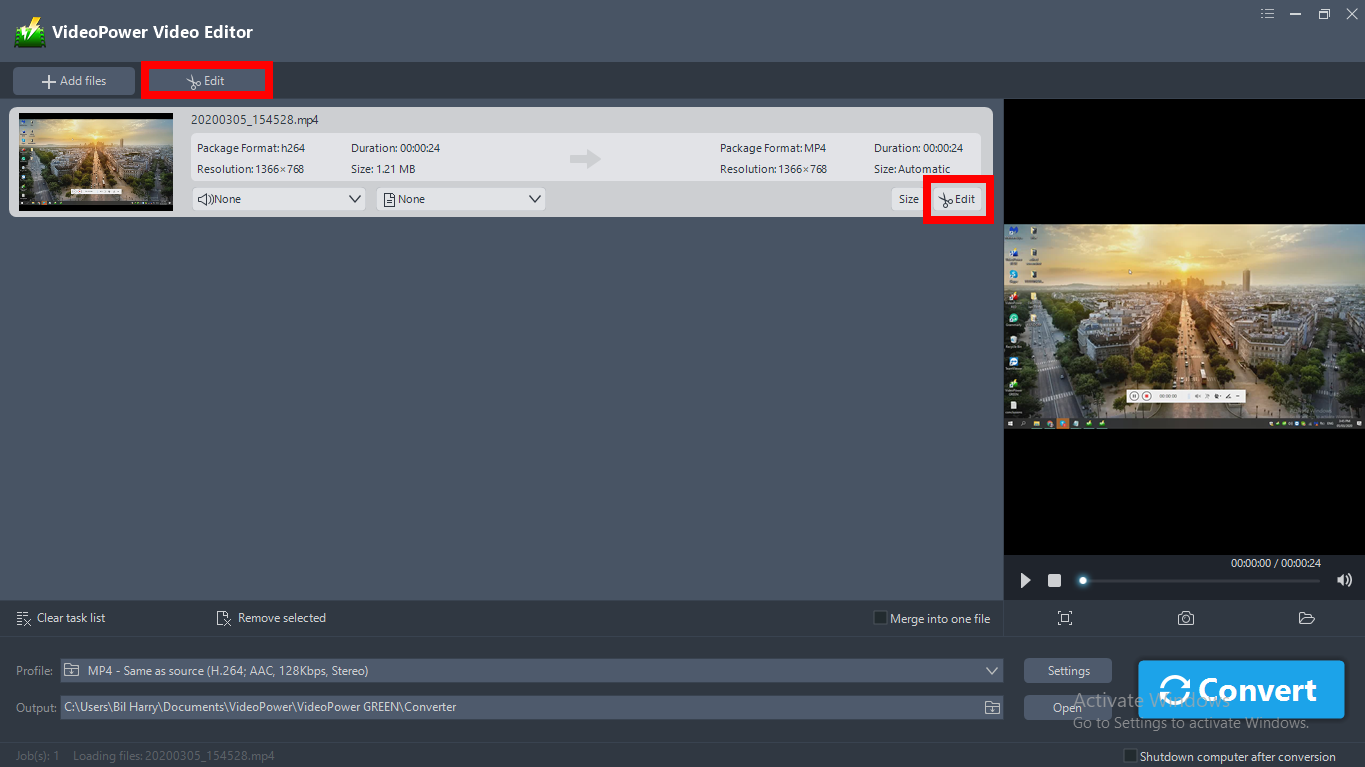
A video editor will open another window. Click the “Edit” button on the right side of the recorded video file to start editing.
Step 3: Edit Process
3.1 Trim Video
You can do the following edits like trim your video:
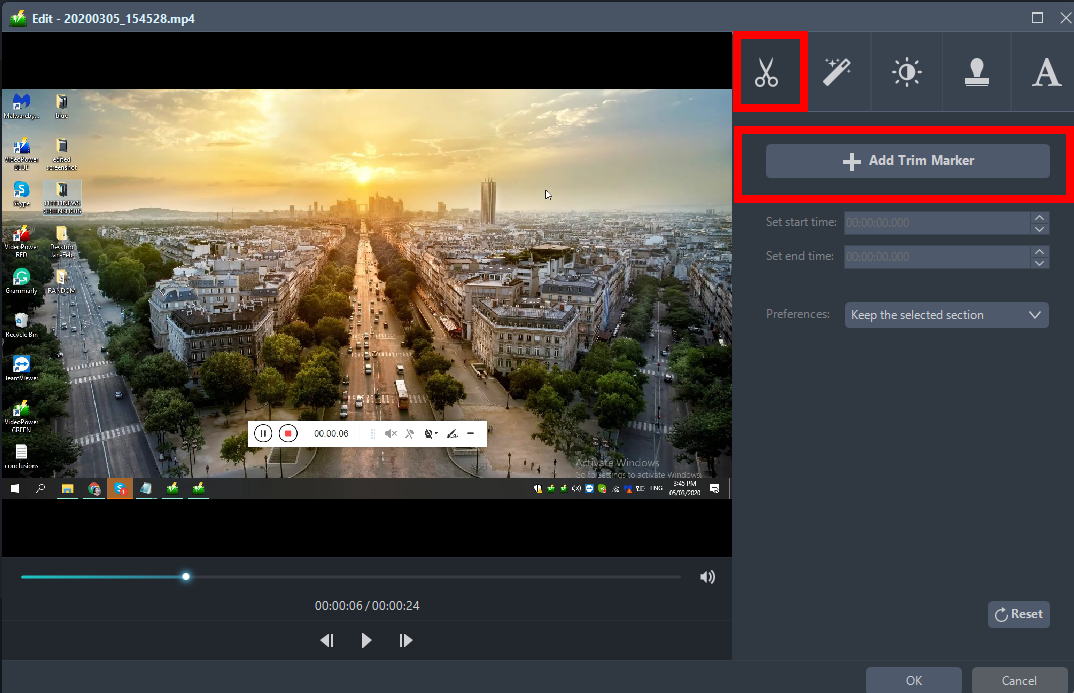
1) Click “Add Trim Marker” to add a trim marker to the progress bar, you can also add multiple trim markers by clicking this button multiple times.
2) Drag the slider to select the part you want to hold.
3) You can click the up or down button to set the start and end time as well.
4) Now you can choose to keep or delete the selected section.
Step 4: Save Edited Video
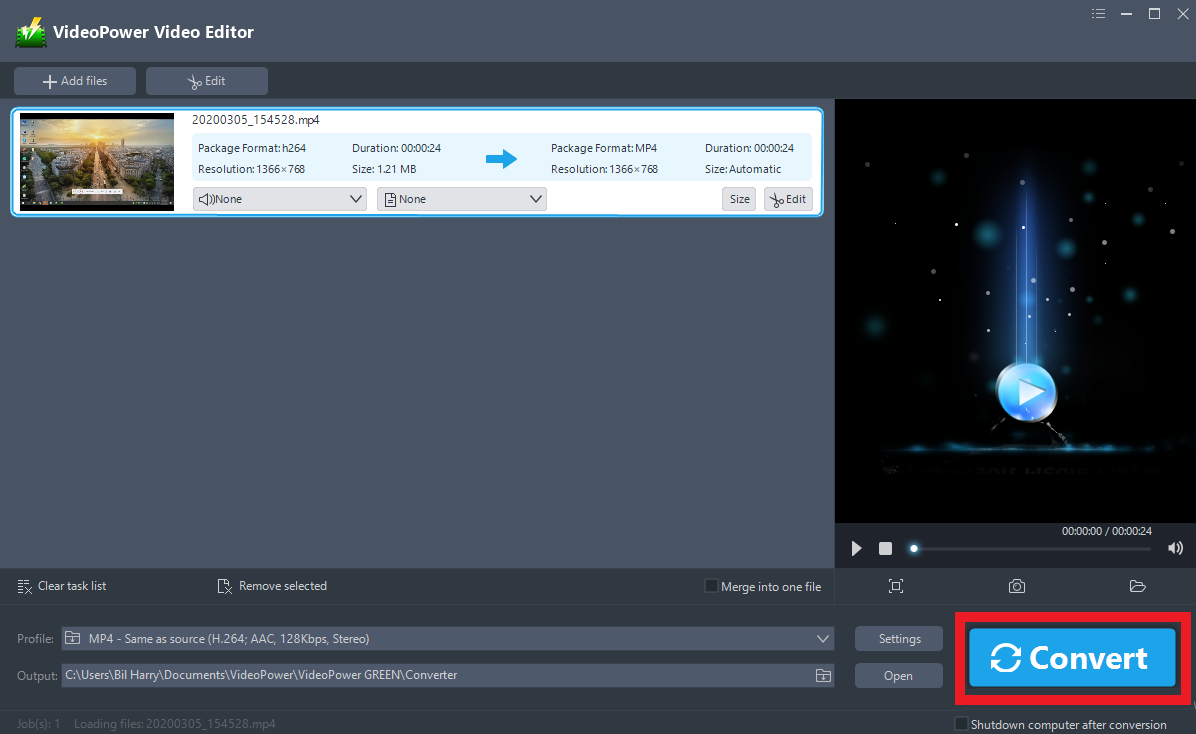
When the edits are done, click the “Convert” button, then the software will start to convert and save the edited video in MP4 format by default.
Find the File
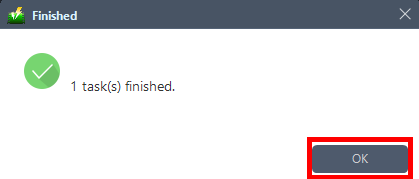
A pop-up window from the program will appear informing you that the conversion is complete.
Click “OK” to open the folder of your saved converted files.
Conclusion:
Communication and entertainment is not a problem nowadays. Many and many application software was born to entertain people and to help them easily communicate with another person around the globe. However, communication and entertainment online aren’t enough to satisfy most of the people. Thus, people thought of recording screen activities to enjoy their desired stuff offline.
To make it possible, third-party application software called VideoPower GREEN is recommended as a Bigo live video recorder to capture varied screen activities.
In addition, this app is really helpful for digital users as it also has a variety of useful professional features such as audio recorder, screenshot capturer, and task scheduler which can help users go through their digital task easily, smoothly, and hassle-free.
Furthermore, the app allows users to configure recording settings like resolution, audio volume, and screen size. Users may also pause and resume the recording in order to include the parts they really need. Moreover, there is a feature for adding texts, lines, shapes, or arrows that can help emphasize things on the video they recording.


