





Tips Index
Ask anybody to name a Pokémon, and chances are they’ll come up with Pikachu. Since the year of 1996, Pikachu has been the face you see on most Pokémon merchandise, a spectacle that Pikachu is really famous for.
Pikachu was specifically designed to be cute. Pikachu’s electricity-holding cheeks were inspired by squirrels. Pikachu’s name came from the word “Pika-Pika,” which is a Japanese onomatopoeia for shining and glittering, and “chu,” which is akin to a mouse squeak.
Pikachu’s simple but appealing design is what makes it a fan favorite. Indeed, the love of Pokemon fans for Pikachu for over seven generations is continuing for more. That’s why a lot of fans want to download Pikachu videos for offline playback. One best way is to use a third-party tool called VideoPower RED you can easily download your favorite Pikachu video and save it to your specific file format making it the best video downloader.
There are three methods with VideoPower RED to keep a copy of your favorite video like Pikachu movies or even Pikachu songs for offline playback. You can either copy the URL of a video to download it or else let the program detect and save the video that you want automatically the moment you play it.
There are videos that can’t be downloaded directly because of copyright issues and other website issues but don’t worry, this software is prepared for anything. The screen recording function can record those with exact same quality from the downloaded ones.
Try to use the product for free by downloading the trial version below. Click the download button to install the app.
Method 1: Copy and paste URL
Step 1: Copy and Paste URL and Download
Go to the website where you want to download Pikachu videos. Copy the URL of the selected video file that you want to download and then paste it on VideoPower RED by clicking the “+ Paste URL” button. After this, the video will be processed in the “Downloading” control panel.

Step 2: Check the downloaded Pikachu Video
After the downloading process is complete, go to the “Downloaded” control panel to see if the download video is completed. Right-click to do more operations and double-click to preview.

Method 2: Use the embedded browser
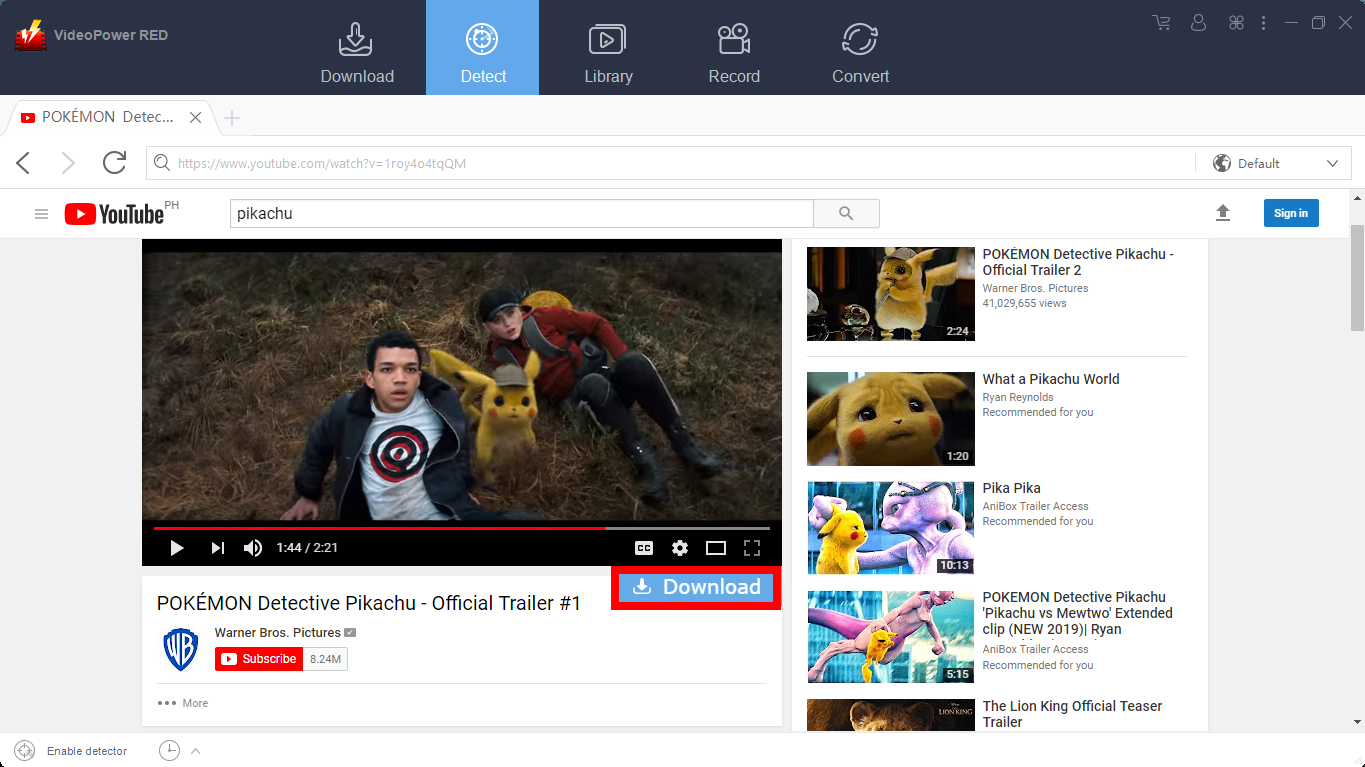
Step 1: Download Pikachu Video
Open the video page via an embedded browser to Download Pikachu videos. If the program supports the site, the Pikachu videos will be downloaded by clicking the download button below.
Step 2: Check the downloaded video
Wait for the download to finish, and then go to the “Completed” section to find the downloaded Pikachu video. Right-click to do more operations and double-click to preview.
Method 3: Screen Record Pikachu Video from a Website
In some cases, because of slow internet connection, downloading would be problematic. To continue saving the desired video file, use a screen recording feature.
Note: This method is best for protected video files
Step 1: Select the recording mode and start screen recording.
You can record the desired video through five different modes; Region, Fullscreen, Around mouse, Web camera, Only audio. Select one and the recording will start automatically.
For recording videos like Pikachu videos, it’s recommended to choose Fullscreen.

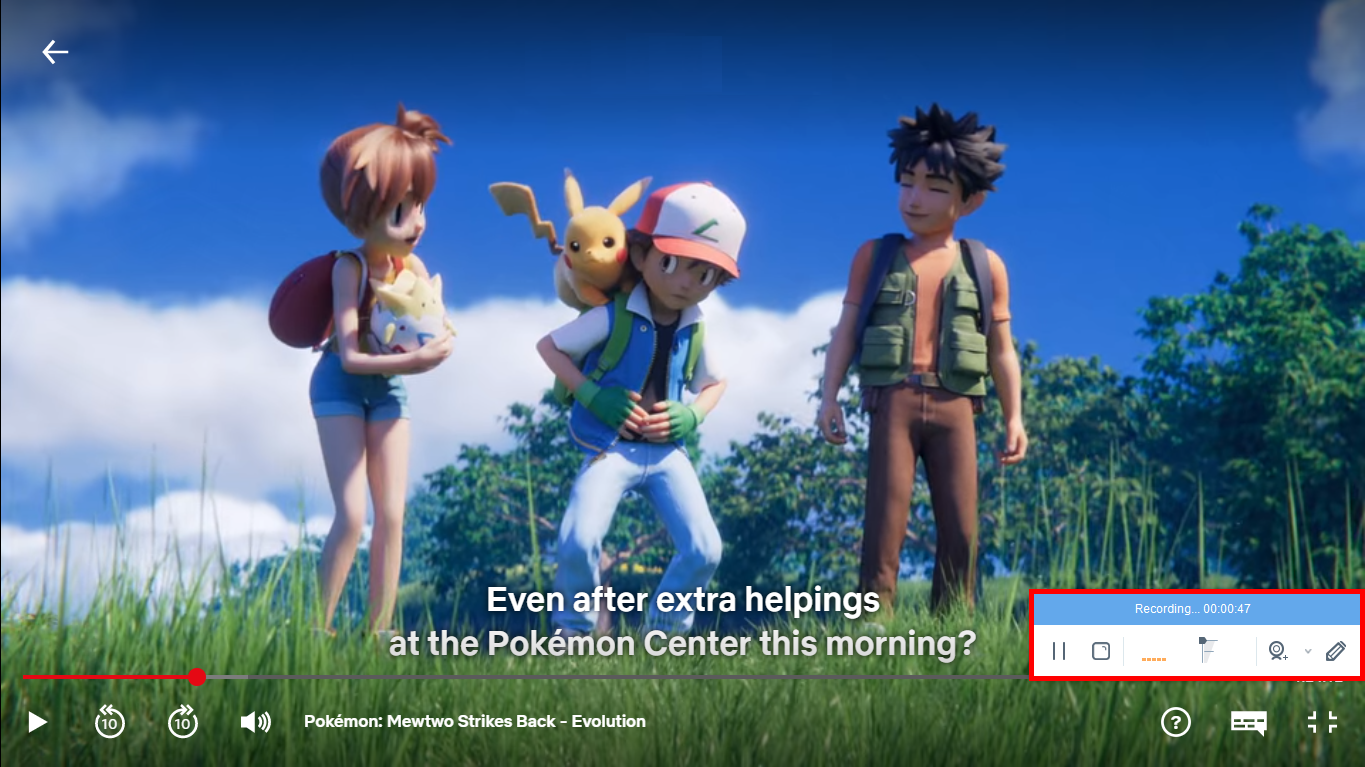
Step 2: Insert Webcam and Start Recording
While recording, you can turn on your camera or put annotations by clicking the specific button in the editing toolbar. This toolbar can also be hidden according to your preference.
Step 2: Check Recorded File
After recording, the recorded file can be seen in the interface of the “Record” tab. Right-click to do more operations and double-click to preview.

Conclusion:
Downloading online videos like Pokemon and Pikachu videos with VideoPower RED, an amazing and hassle-free application software. Downloading speed is fast compared to other download software and has a built-in video editor that will enable you to apply watermarks, effects, and other basic video editing options such as trimming or cropping.
This has other useful professional features like screen recording and detecting multimedia files.


