Tips Index
VideoPower YELLOW is a Windows-based metadata editor that supports an extensive unit of audio formats. The program can handle MP3, MP2, M4A, OGG, WMA, FLAC, AC3, AAC, and WAV. It is one of the most dynamic audio editors that allow users to get the audio tracks from their beloved YouTube videos.
It can arrange and tag most of the famous audio formats, and it automatically fills in tag identification information while the audio track is downloading. It can also play the music while you are waiting for the other songs to download completely and it’s not just for YouTube, you can add or change the photo of the audio downloaded. The software allows you to download and extract audio tracks from other websites such as Vimeo to MP3, Twitter to MP3, Facebook, and many more.
VideoPower YELLOW has a lot of set of audio editing tools which allows you to do tons useful functions with audio files including editing of music, Cd burning and ripping, converting audio files to make it compatible with your mobile devices, creating ringtones, repair wrong tag information, recording sound, join audio clips, and many more.
It has a very simple and user-friendly interface which means you don’t necessarily need to be experienced in audio to use it. While the app may not have as many painstaking features as some other audio editors do, but it includes the most basic needs that the majority of users today will need.
Just click the link below to download this free app and follow through the steps on How to Download YouTube to MP3 with Tag editor.
Part1: Convert YouTube Video to MP3
Step 1: Launch VideoPower YELLOW
Open VideoPower YELLOW, go to the “Download” section of the app and click on “Video to MP3 Converter” located near the upper right.

Step 2: Download MP3
Make sure to copy the link of the video or audio file that you want to download as an MP3 file.
Paste the link in the program. Notice that the software will automatically detect the video source. Click “Add to download” to start.

After clicking “Add to Download” it will automatically start the downloading process.

Step 3: Open file
After the downloading process has been done, it will be transferred to the “Completed” download list. Open the file destination by clicking the “folder” icon.

Part 2: Edit ID3 Tag Information
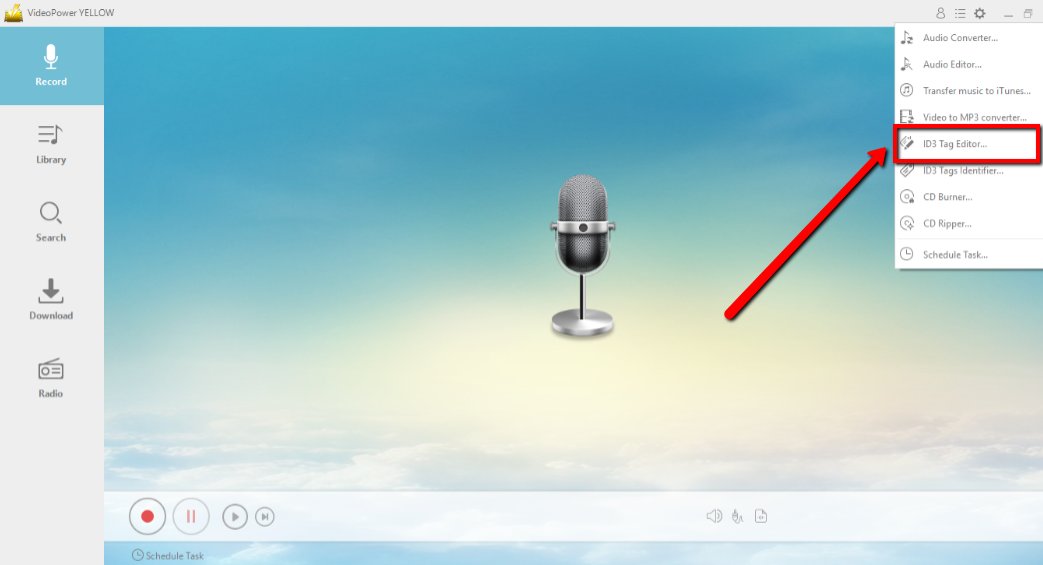
Step 1: Open ID3 Tag Editor
If you want to edit the ID3 tag information such as Title, Artist, Album, Year and Genre. Just click the “dropdown menu” at the upper right part of the main interface to open “ID3 Tag Editor”.
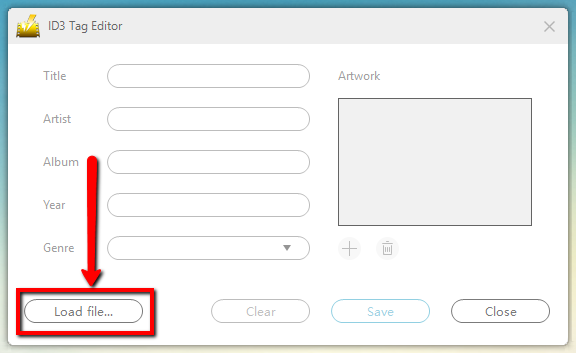
Step 2: Load File
An “ID3 Tag Editor” interface/mode will pop up, click the “Load File” to upload the audio that you want to edit.
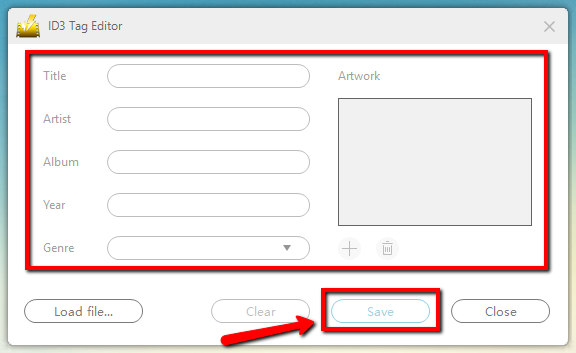
Step 3: Edit the ID3 Tag
You can now edit the Title, Artist, Album, Year, Genre, and Change the Icon. Click “Save” after you are done with editing.
Conclusion:
Introducing VideoPower YELLOW, a free MP3 tag editor that can download and record music with a quality results. Here you can also upload and edit the id3 tags of your mp3 files without a hassle and that is all for free. You can change the icon/photo of the mp3 songs. So download now this free app and start uploading your files, enter new tags and enjoy downloading new songs.