





Tips Index
Wistia is a good platform for making or watching video content. While not as good as YouTube or Vimeo, it is a platform that displays some promise to maximize its range in the future.
YouTube has various useful tools you can operate to capture and download videos as per your needs. But what about Wistia?
To be honest, YouTube and Wistia are both very useful because each of them provides different benefits. YouTube gives you the benefit to expand exposure for your videos and your video content.
If you’re going to carry on being active on YouTube and use it for both traffic and a place to issue your content, then this will be very beneficial for you. Additionally, YouTube allows more exposition which can lead them to your homepage.
Indeed, when trying to embed the video on your homepage the traffic leaks and your account will outflow and the people will view on the video watch page, or they can click it and see more of your content on YouTube.
Wistia, unlike YouTube, allows you to try various options for embedding and calls to action on a page. Wistia allows more thoughtful calls to action, customization choices on-page for your explainer video, and/or email captures.
If you plan on building a video content strategy and drive traffic through search use YouTube and if you want to do page customization options for embedding, email capture, and profound calls to action Wistia is the best bet. So it is up to you because it depends on your goals for the content.
In this post, we’ll take a look at the steps on how to download the Wistia video in under a minute. Just click the link below to download this free app and follow through the guide on how to download Wistia Video with VideoPower RED.
Method 1: Copy and Paste Video URL
Step 1: Paste URL to download video
Open your browser, locate the video you want to download and copy its link. Launch VideoPower RED and click “Paste URL” button at the upper left most part of the “Download” section and video will be processed in the “Downloading” tab.

Step 2: Check the Downloaded Task
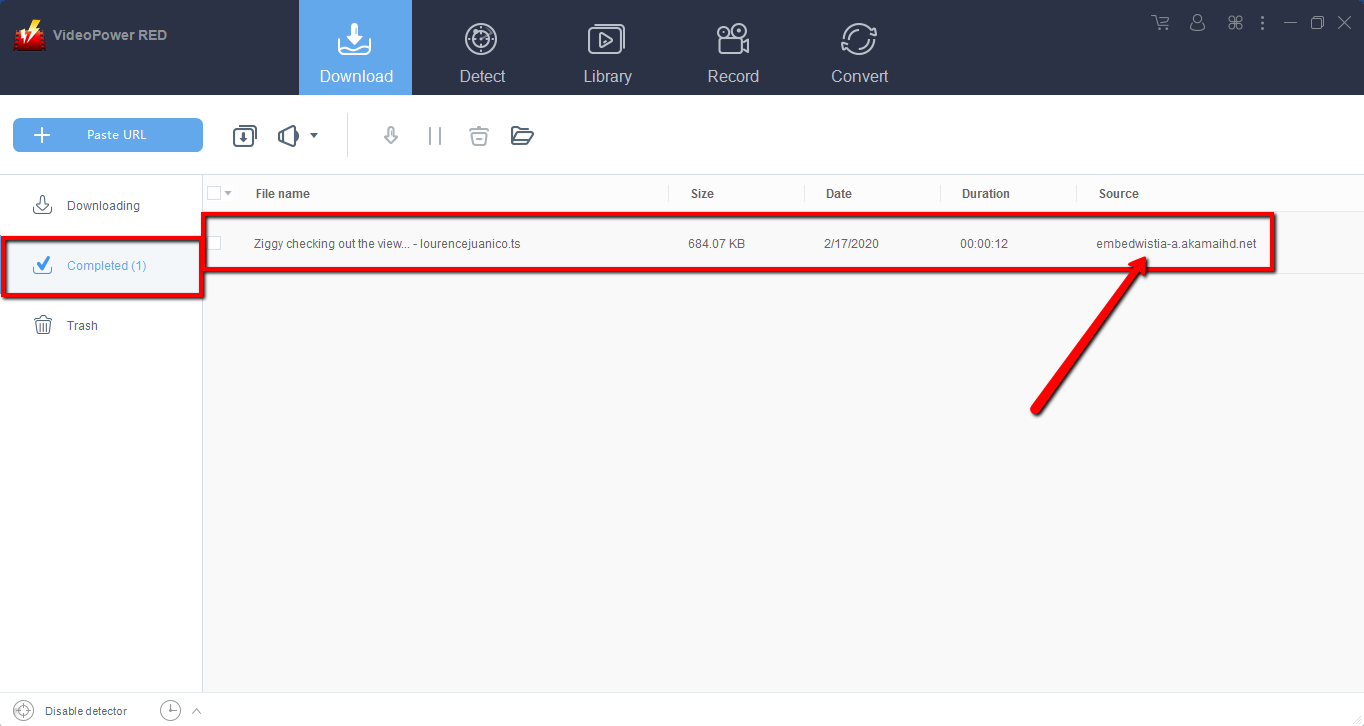
Go to the “Completed” tab to check if the download process is done. Right-click the file if you want to do more operations like “Play” to watch the video playback.
Method 2: Auto-Detect (Embedded Detector)
Open the video page via an embedded browser
If the program supports the site, the video you play will automatically be downloaded.
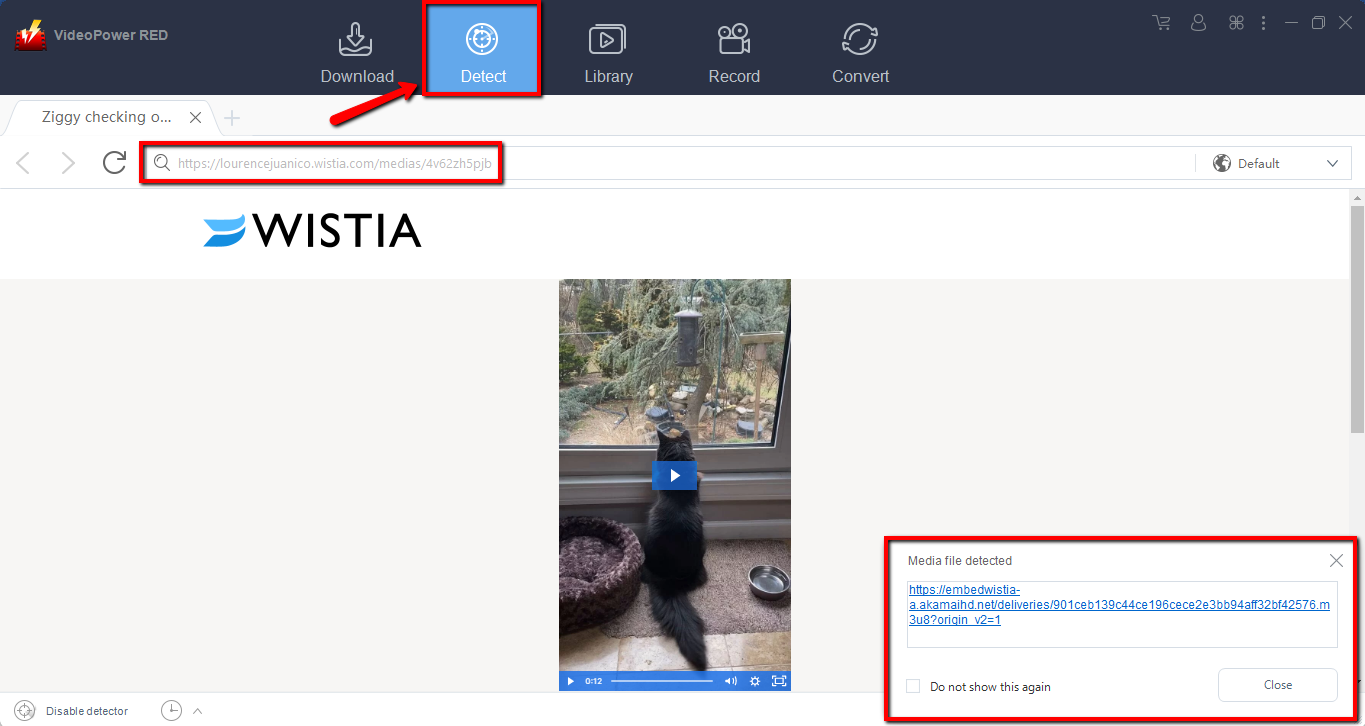
Wait for the download to finish, and then go to the “Completed” section to find the downloaded video.
Method 3: Record video
Sometimes because of the web update or slow internet connection, the program can’t download the video anymore but you can still save the video by using the recording function.
Step 1: Record video
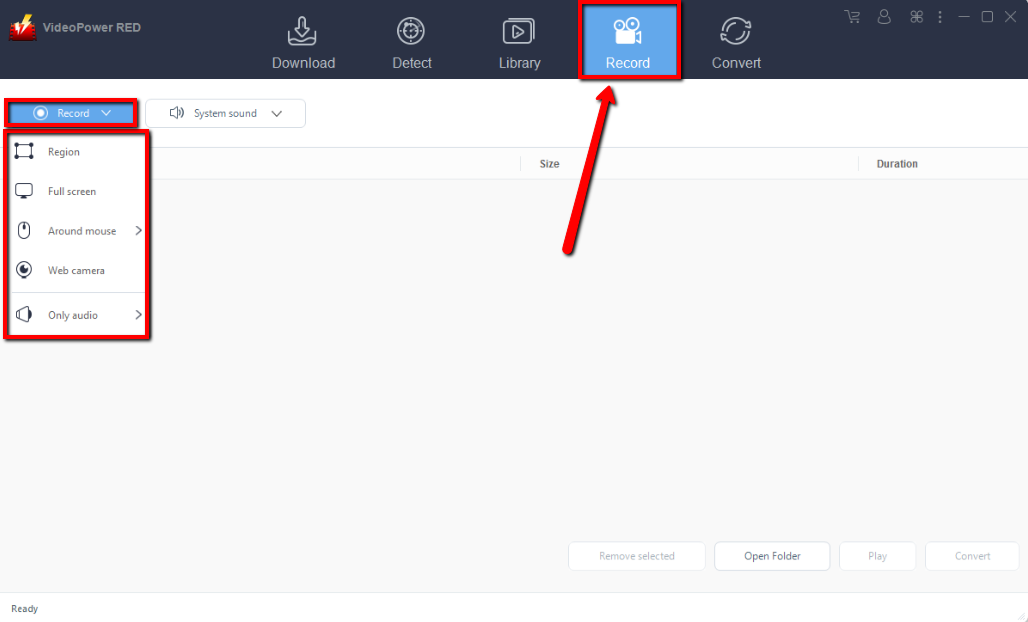
Click the “Record” tab to record the video and Select from “Region, Fullscreen, around mouse or Web camera” as preferred.
Step 2: Check the recorded video.
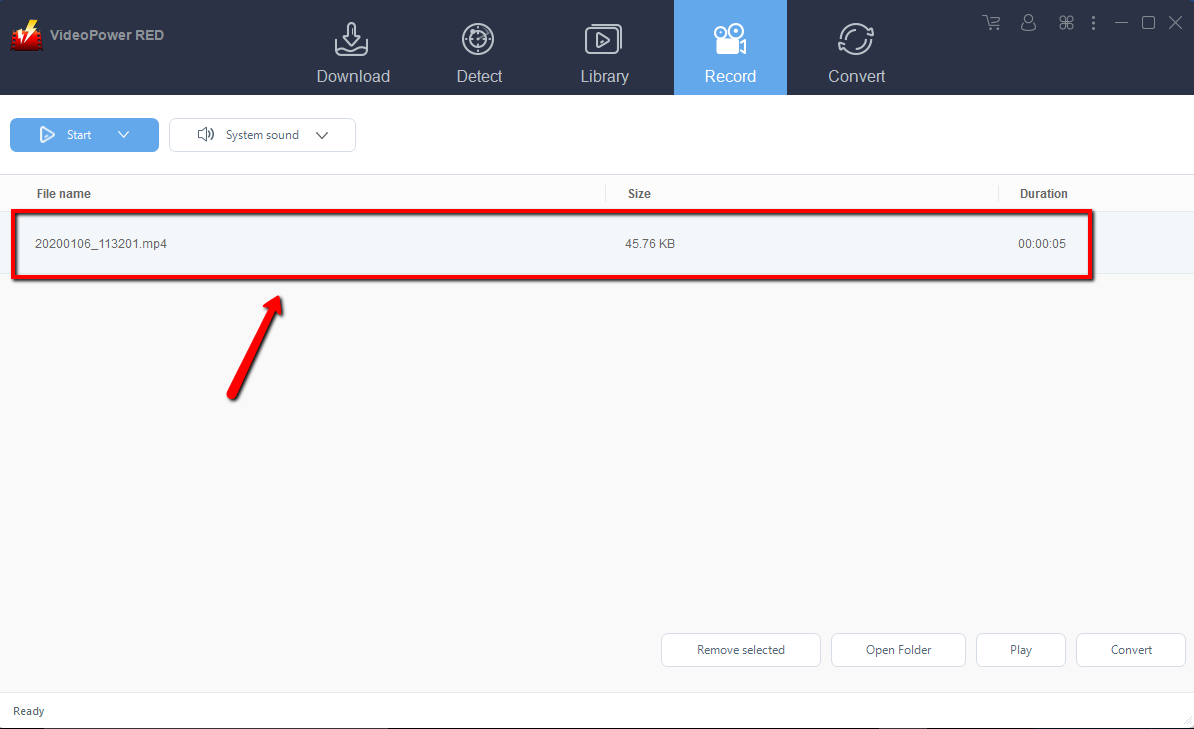
After recording, the recorded file can be seen in the record interface.
Conclusion:
Wistia doesn’t let you download videos on their website automatically, but thanks to VideoPower RED and its powerful video downloading performance, downloading videos from Wistia is now easy.
Not just download, VideoPower RED also lets you convert videos into different kinds of formats. Download now to experience what it’s like to download without a sweat.


