





Tips Index
YouTube Live is an easy way to reach and allow users to connect with their audience in real-time. It helps them broadcast live when they are playing some video games, tutorials, or hosting a live event. This platform of YouTube is very similar to Twitch, they have the same PiP, which is the “Picture-in-Picture” where one camera is on the other player and the other one is on the game itself. The only difference is that YouTube is more flexible on contents. It could just be a funny Livestream or just a person who sings songs to his/her audience.
If you are a gamer fond of watching live streams on YouTube, you may have found a Livestream or broadcast that you want to download or record to watch offline or at a later time. You may also want to create a game or whatever kind of video tutorial you want to share online. The only problem is that you don’t know how to download YouTube live stream videos and what app you should exactly use. For you to successfully download youtube live stream videos and shows without any hassle, a third-party tool should be present.
Fortunately, this article has a solution on how to download youtube live stream video. It introduces you to the most powerful and reliable video downloader called the VideoPower RED. It is capable of downloading hundreds of thousands of videos including Livestreams from any video sharing sites such as Twitch, Vimeo, YouTube, Vevo, Facebook, Dailymotion, Instagram, Twitter and etc.
In downloading videos from any sites, you can use four methods of downloading with this third-party app. These methods are the Copy and Paste, Embedded Detecting, External Detecting, and Recording methods. In saving YouTube live stream videos, the recording method is the best option to use and it is recommended for you by this article. It is because, you can’t really download live stream videos, thus, recording it would be the wise alternative and the best and smartest possible solution for saving live stream videos locally.
Step 1: Record YouTube Livestream Video
In recording Live Stream videos, select the preferred recording modes first. Click the “Record” tab and choose from the following: “Region, Fullscreen, around mouse or Web camera”. The recording will start after clicking the mode you’ve chosen.
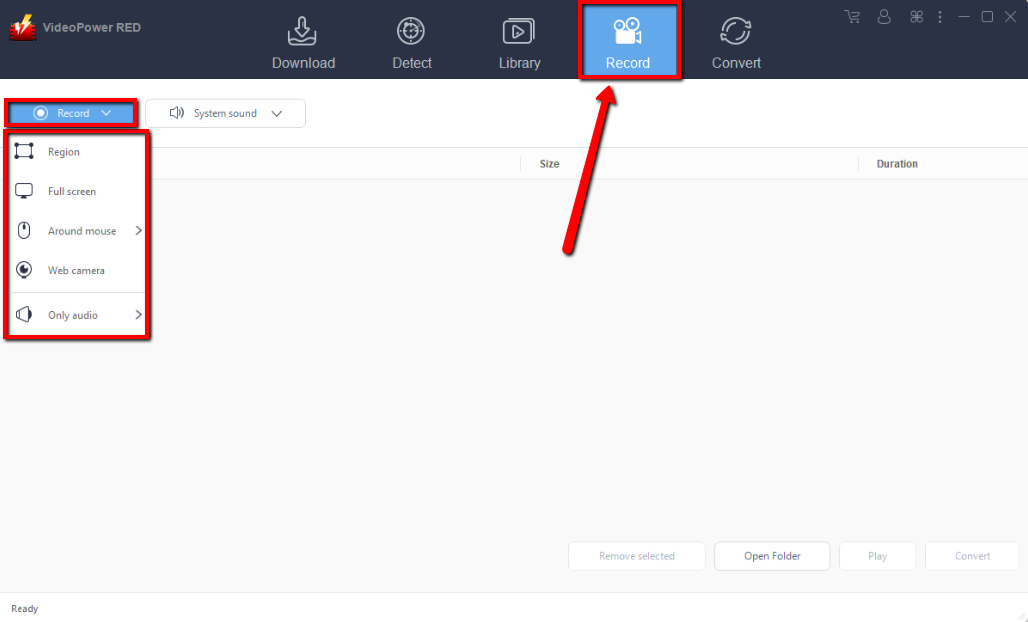
Step 2: Edit video while recording
While recording you can edit your video by clicking the pencil icon button on the editing toolbox. You can add lines, shapes, words, colors and etc. to modify, beautify and emphasize contents in your video.
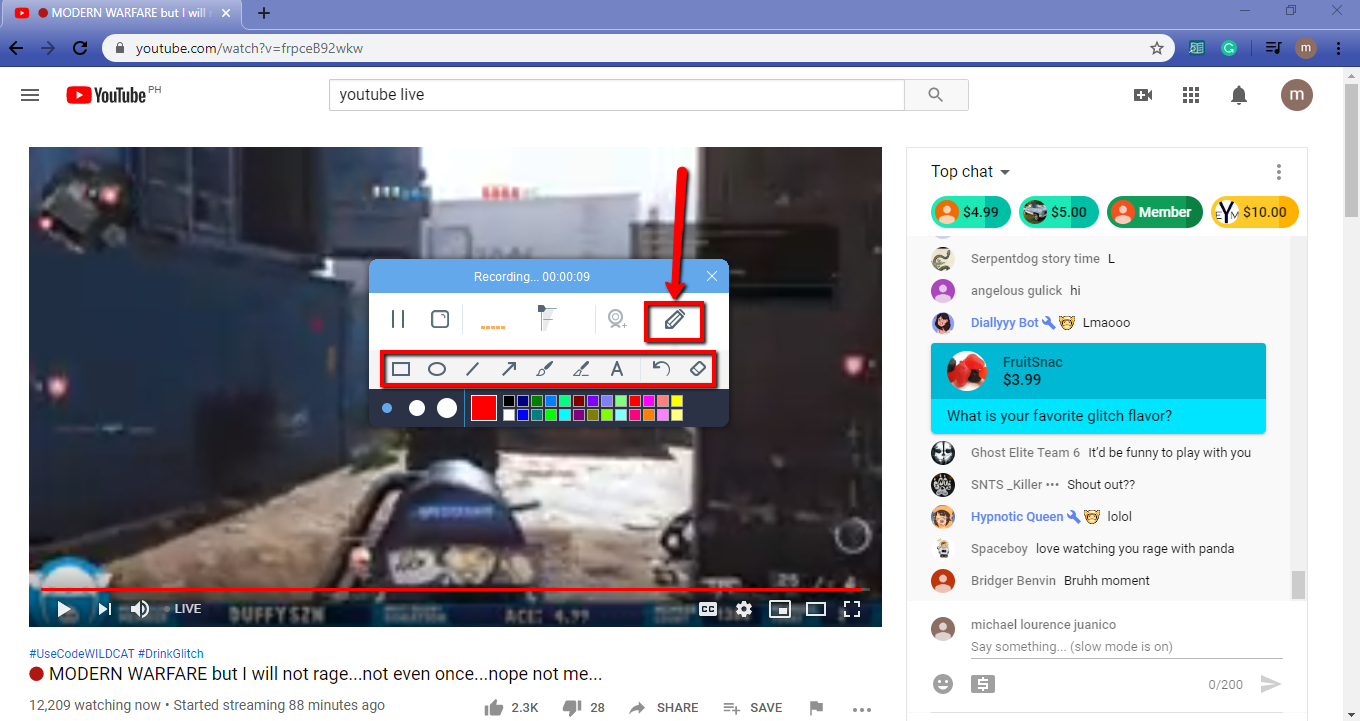
Step 3: Check the recorded video
After recording, you will automatically be redirected to the record interface to check the file. You can right-click to do more operations and double-click to preview.
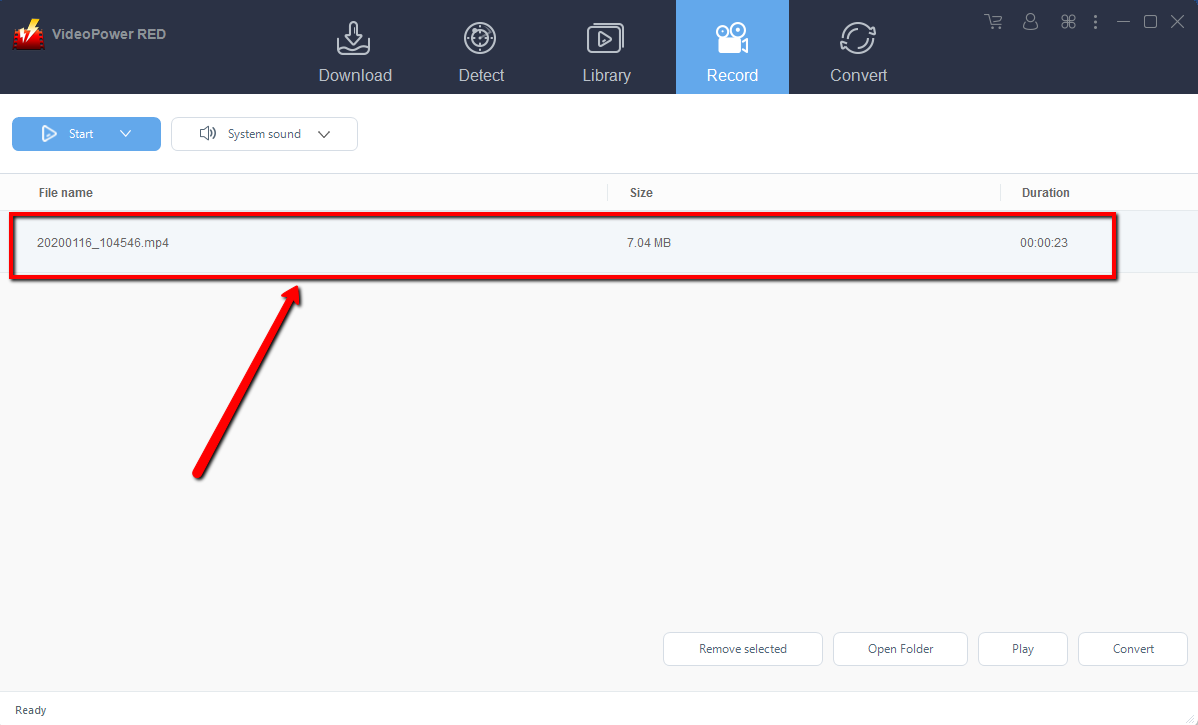
Conclusion:
VideoPower RED is one of the most powerful and amazing apps that can download dozens of thousands of videos in just one click. It has the ability to download or record videos in high definition and faster downloading speed results. It can also convert all video and audio files into common formats suited for different devices easily. Moreover, it can convert files into different kinds of formats like MP4, MKV, AVI, MWV, 3GP, and many more. It’s handy and reliable that you can even convert in batches simultaneously while preserving good quality.
It has a built-in video editor that will enable you to edit slideshows or videos, apply watermarks, effects, and other basic video editing options such as trimming or cropping. Moreover, it has a split-screen tool for your photos and videos and a screen recorder which allows you to capture any on-screen activity on your computer. There’re so many advanced functions equipped in this program, which offer more options for you to convert and edit media files.


