





Tips Index
Ever encountered these words, “We are sorry. Converting Music Videos from YouTube is not possible in your Territory/Region?” Annoying as it may sound but it occurs frequently, especially videos with copyright. We all listen to music, admit it, and we might have different genres to listen with but for the past years people have been downloading trendy music through links available on YouTube.
We use a third-party online application to download whatever file we like it to be, video or audio and sometimes these online video sites don’t cater so well to our requests when these words pop up! How saddening! From the likes of Vevo in YouTube to film narration copyrighted from the producers who published it, it is sometimes or almost impossible to download stuff.
Why do these things happen? Is there any way that can skip through this dilemma of downloading stuff? Many of these reasons are the following; the online converting or downloading site is outdated, videos that are somewhat protected by copyright and ownership, your computer has antivirus software that blocks every download happening on this third party sites, and lastly, your connection is just funny slow.
VideoPower RED is a very professional software, it is a video download software fit for every video website there is. It specializes in downloading videos not only on YouTube but also on other sites. It has some of the most powerful tools other than video downloading. It can even convert videos of varying formats to another, or even convert video to an audio file. The awesome thing is you will never have those annoying ads before pushing through to the conversion step or have some cuts on the clip due to weak connection. This article shows you how to download videos from any website.
Method 1: Copy and Paste
Step 1: Paste URL and download the video.
Copy the link of the video that you would like to download, for this example we will try YouTube, then paste it into the program by clicking the “+ Paste URL” button. After that, the video will be downloaded into the program.

Step 2: Check the downloaded file
Wait for the download to finish, and then go to the “Completed” section to find the downloaded video. Right-click to do more operations and double-click to preview.

Method 2: Use the Embedded Browser
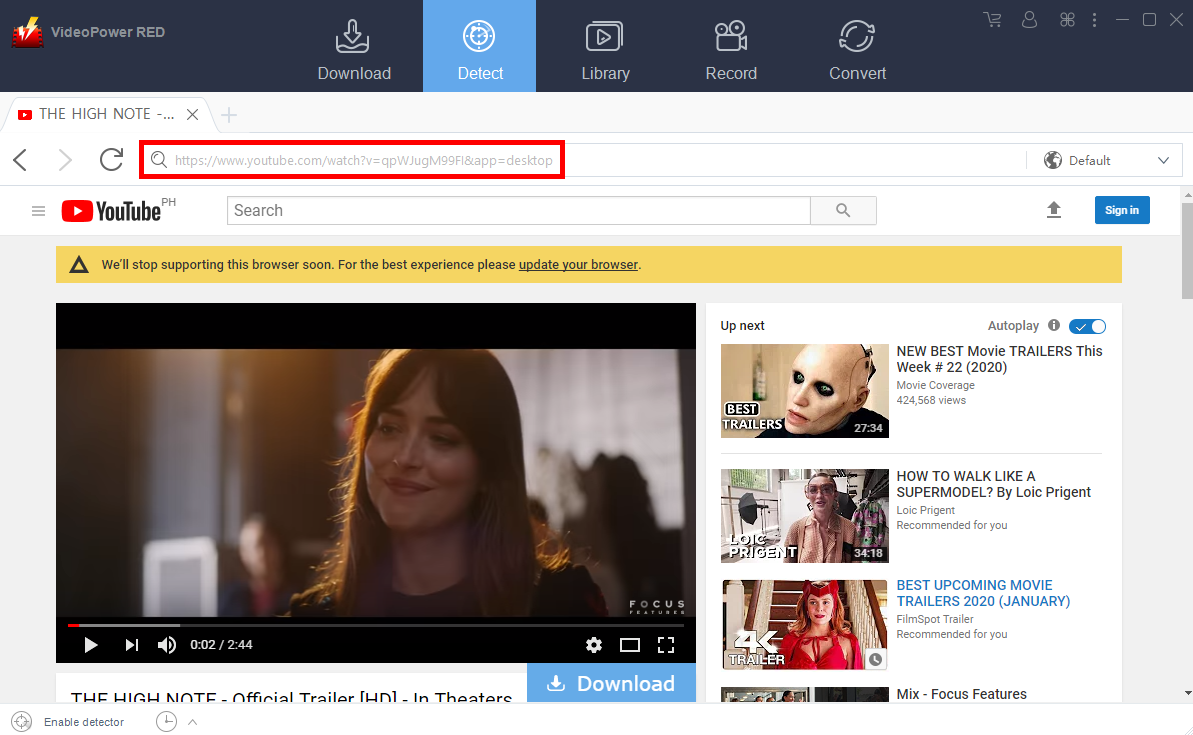
Step 1: Open the video page via an embedded browser
Play the YouTube video through the embedded browser, click the “Download” button below it to start the download process.
Step 2: Check Downloaded Video
Wait for the download to finish, and then go to the “Completed” section to find the downloaded video.
Method 3: Record the YouTube video
For people in areas with a slow internet connection, you may opt to use the record function instead.
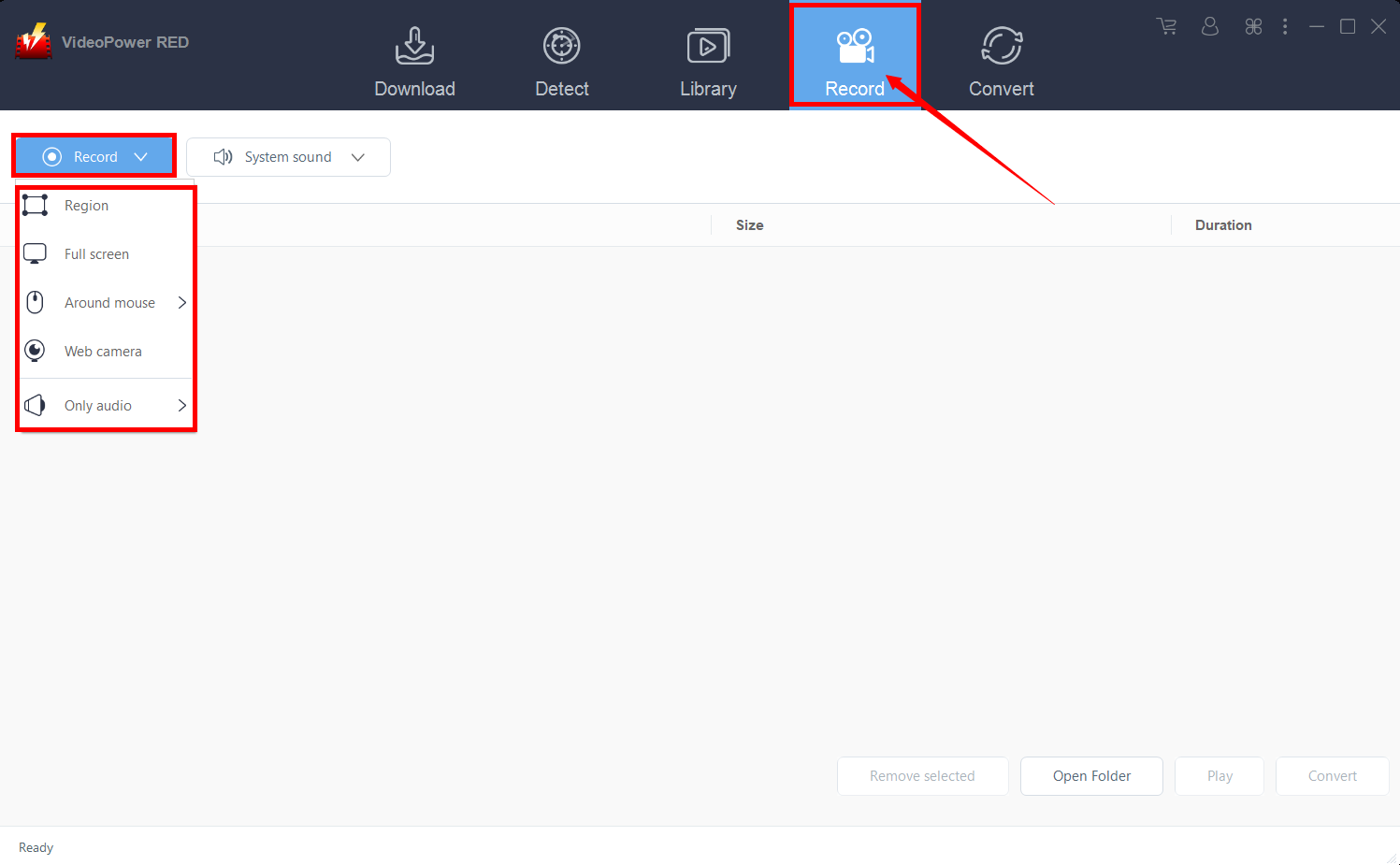
Step 1: Record video.
Click the “Record” tab to open the record window and select among the following recording modes such as “Region, Fullscreen, around mouse, and Web camera” to capture the exact and desired range of your screen. Click the preferred one and start recording.
Step 2: Check the recorded video.
After recording, the recorded file will be seen in the record interface. Right-click to do more operations and double-click to preview.

Conclusion:
Regardless of the reason for downloading website videos, VideoPower RED has multiple functions more to video downloading. The tool has the ability to download on restricted video sharing and music sites through the use of the auto-detection function which other software can’t execute.


