





Tips Index
In an era where digital technologies and applications developed rapidly, users can absolutely encounter various amazing online sites that can cater not only to work and study needs but also most of the entertainment a user is looking for and one of those is the Twitch.
Twitch is a live streaming service operated by Twitch Interactive, a subordinate of Amazon. It is known as an online streaming platform that is developed to provide every user a site to watch and stream digital broadcasts that are designed primarily for gaming platforms dedicated to game videos alone. But then, because of the popularization of other sites, Twitch also hosted a bunch of different types of streams now.
However, videos offered by Twitch can only be watched and enjoyed online. Thus, this becomes a problem for users who cannot often go online. Therefore, to make watching offline possible, there should be a third-party tool a user should use to download Twitch videos. VideoPower RED, amazing hassle-free and trusted downloader application software is the best answer to users’ questions on how to download Twitch online videos. In addition, this product isn’t only helpful in downloading online videos but with its various features, this product is also useful in converting any files to a new format file and in recording screen activities that either include sounds or not. So, to enjoy Twitch videos anywhere you are and anytime you want, download twitch videos to watch offline.
In downloading videos using VideoPower RED, you can use four methods to do it. The “Copy and Paste”, “Auto-Detect (Embedded Detector)”, “External Detector” and “Screen Record” methods. However, in downloading Twitch videos, the “Copy and Paste” method is not applicable since Twitch is an online platform that specializes only in “LIVE” streaming where URL cannot be copied to download. So, use the remaining three methods to download Twitch videos successfully.
Method 1: Auto-Detect (Embedded Detector)
Download the desired video file using Auto-Detect on the “Detect” control panel. The software can detect the video being played on it and it will be downloaded automatically in any sites except for YouTube videos wherein YouTube, there’s the need to click first the download button before it will be downloaded.
Step 1: Open the video file through an embedded detector.
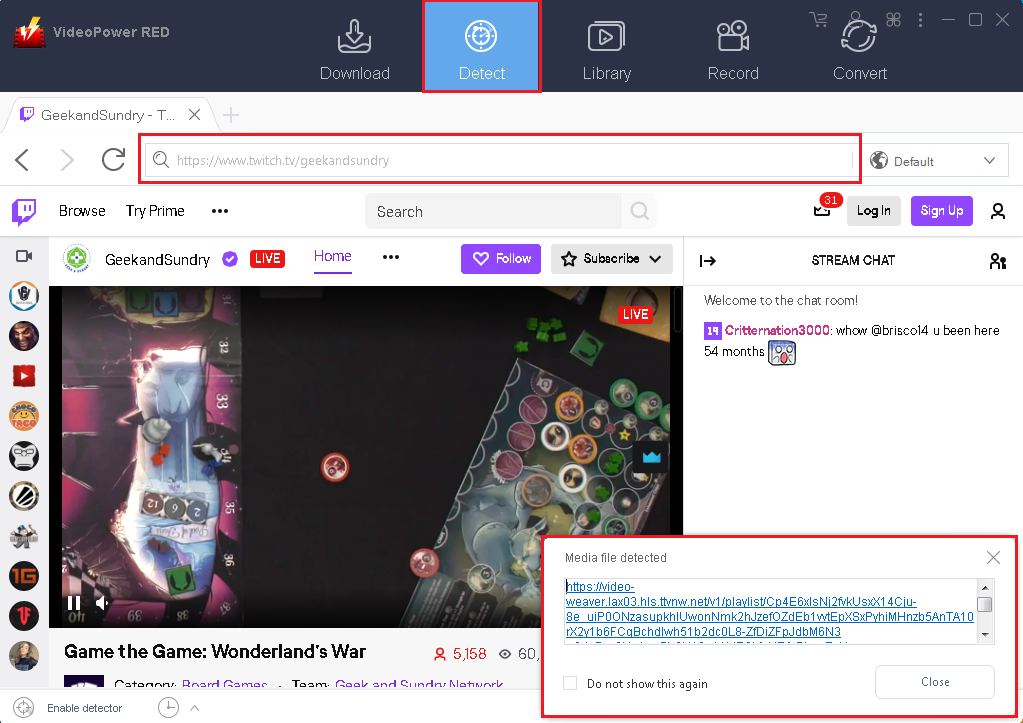
Open Twitch and select the desired video file. After selecting, a “Media File Detected” notice will appear to notify that the chosen file has been detected and will be downloaded automatically.
Step 2: Check download processing.
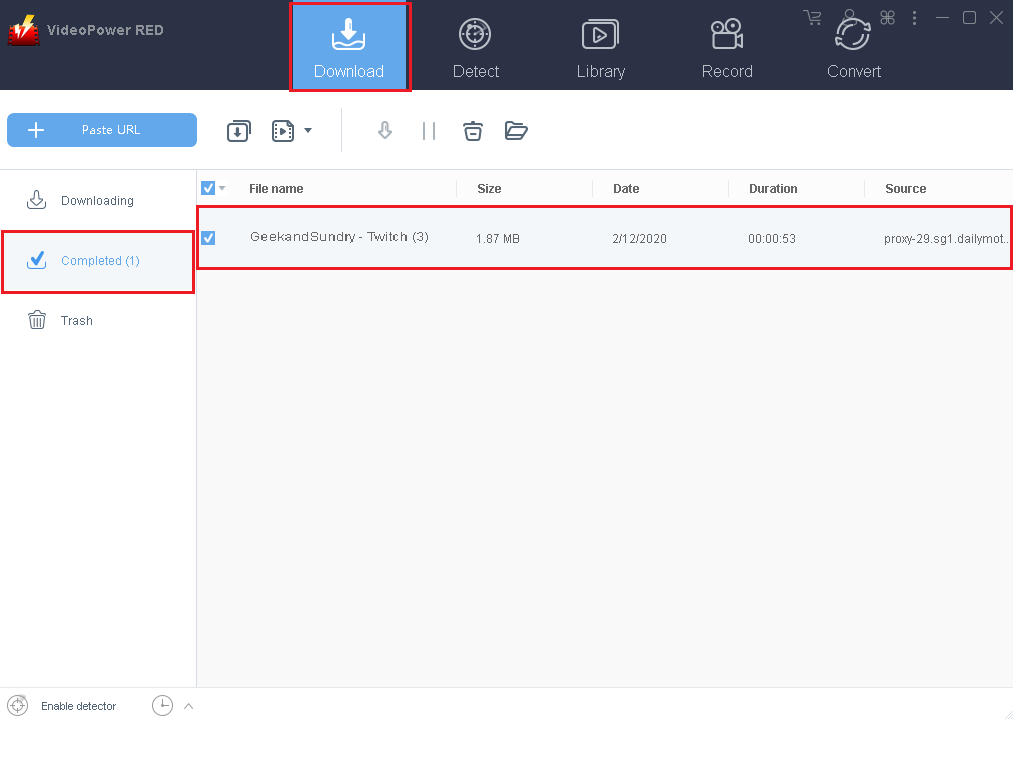
The detected file will be navigated to the “Download” panel to process the download. Wait for it to finish.

Step 3: Check the downloaded file.
After the download is finished, the file will automatically be moved on the “Completed” panel. Right-click to do more operations and double-click to preview.
Method 2: External Detector
Step 1: Activate Advanced Detector.
Detect videos being played in any sites through an external browser and download it automatically after activating the “Enable Advanced Detector” on the download settings window and enabling the detector located on the lower left of the software.
Enable Advanced Detector (Support HTTPS)

Enable Detector

Step 2: Check download processing.
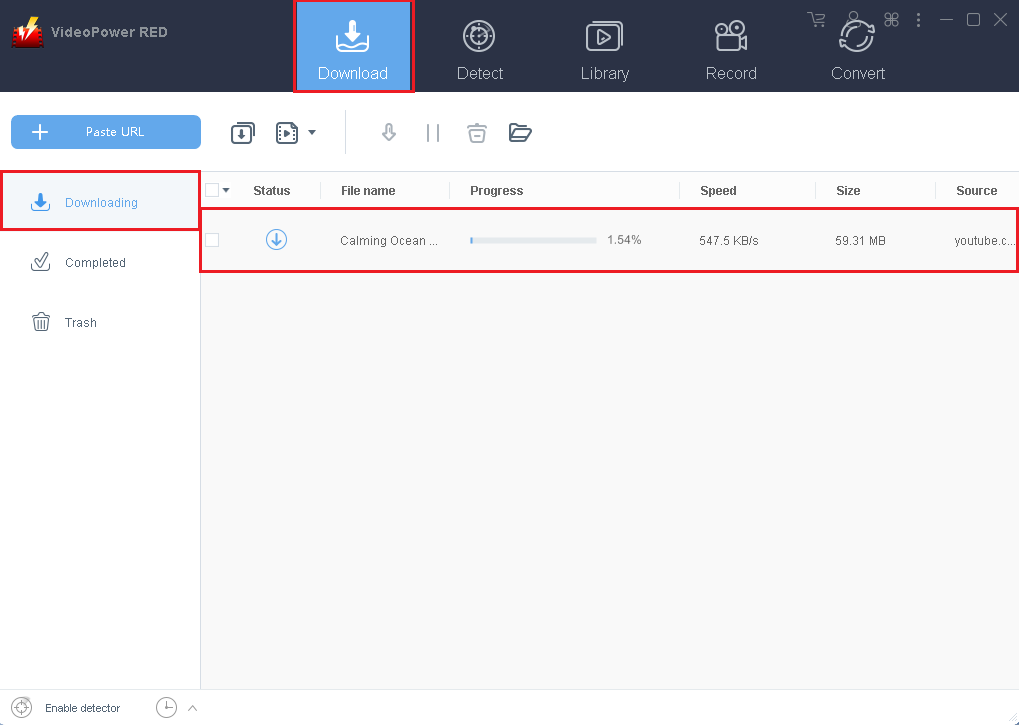
After selecting the “Enable advanced detector” and “Enable Detector”, navigate to the “Download” panel to process the download. Wait for it to finish.
Step 3: Check the downloaded file.
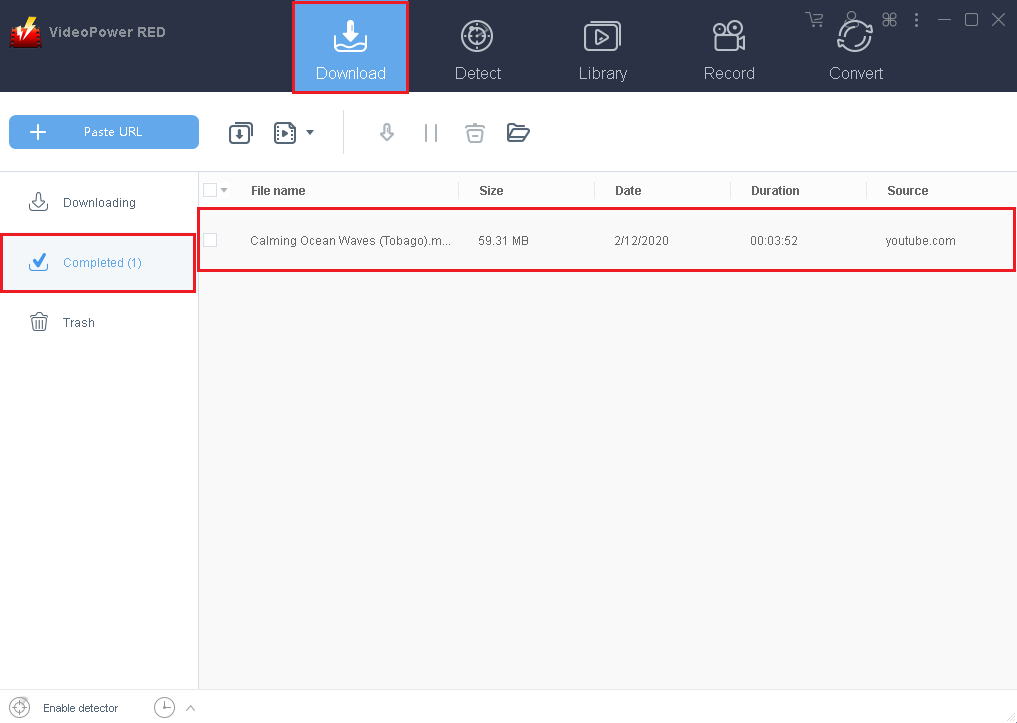
After the download is finished, the file will automatically be moved on the “Completed” panel. Right-click to do more operations and double-click to preview.
Method 3: Screen Record
In some cases, because of slow internet connection, downloading would be problematic. To continue saving the desired video file, use a screen recording feature.
Step 1: Set Recording Mode
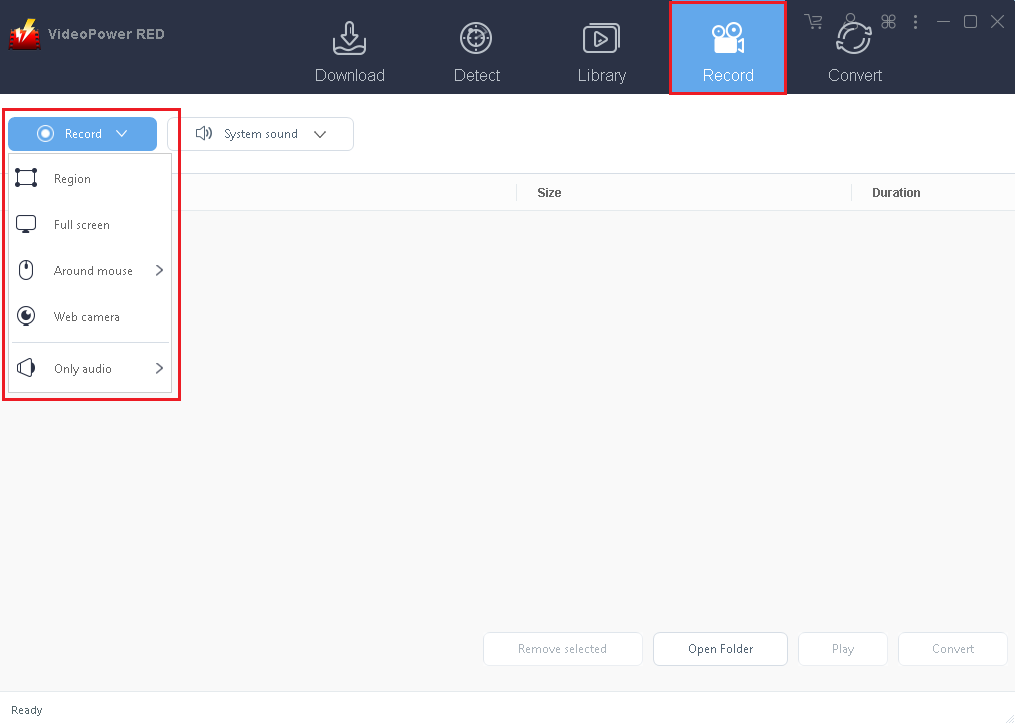
Record the desired screen through five different modes; Region, Full screen, Around mouse, Web camera, Only audio. Select one and the recording will start automatically.
Step 2: Check the recorded file.
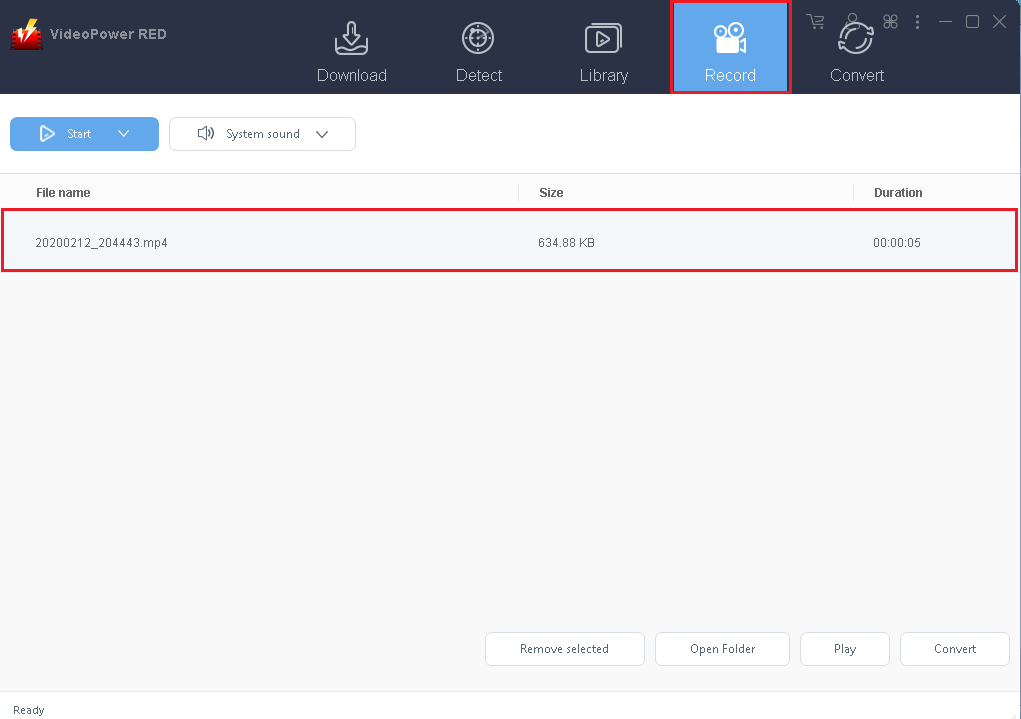
After the recording is finished, check out the recorded file on the “Record” control panel. Right-click to do more operations and double-click to preview.
Conclusion:
Many online sites nowadays are lining up in front of the online users to help them cater to their needs and wants and one of these is the Twitch, an online streaming platform for watching and streaming digital broadcast on gaming platforms and nowadays, for other streaming sites also. However, streaming with Twitch can only be done online and is impossible offline.
Therefore, VideoPower RED, and amazing, hassle-free, and trusted application software is recommended for Twitch users to help them download their desired videos to enjoy offline whenever they want and wherever they are. Moreover, VPR possesses various useful features such as; Downloading videos through copying URL or through auto-detect, recording screen activities in different modes and one of these is screen recording either with sound source or not, converting downloaded or local videos to different kinds of format, and of course editing videos to beautify or emphasize important details.


