





Tips Index
While watching videos or movies from the internet, users sometimes notice that the volume of the video isn’t loud enough. Thus, downloaded videos aren’t loud too. Most of the time, this has to do with the video itself and not with your device.
So can we increase the volume of the video?
The answer is yes! This is because the volume of the video itself is not high, so it can be increased through third-party software. Adjusting the volume of the downloaded file would be possible with the help of third-party software.
VideoPower RED, an amazing, hassle-free and trusted downloader application software has various professional features that can improve users downloaded files. One of these is the editing feature that can adjust the video’s volume.
Just click the link below to download and install the app.
Step 1: Add the video you want to adjust
You can do this by
1) Clicking on the “Convert” tab
2) Click on “Add files” to import the file from your computer.
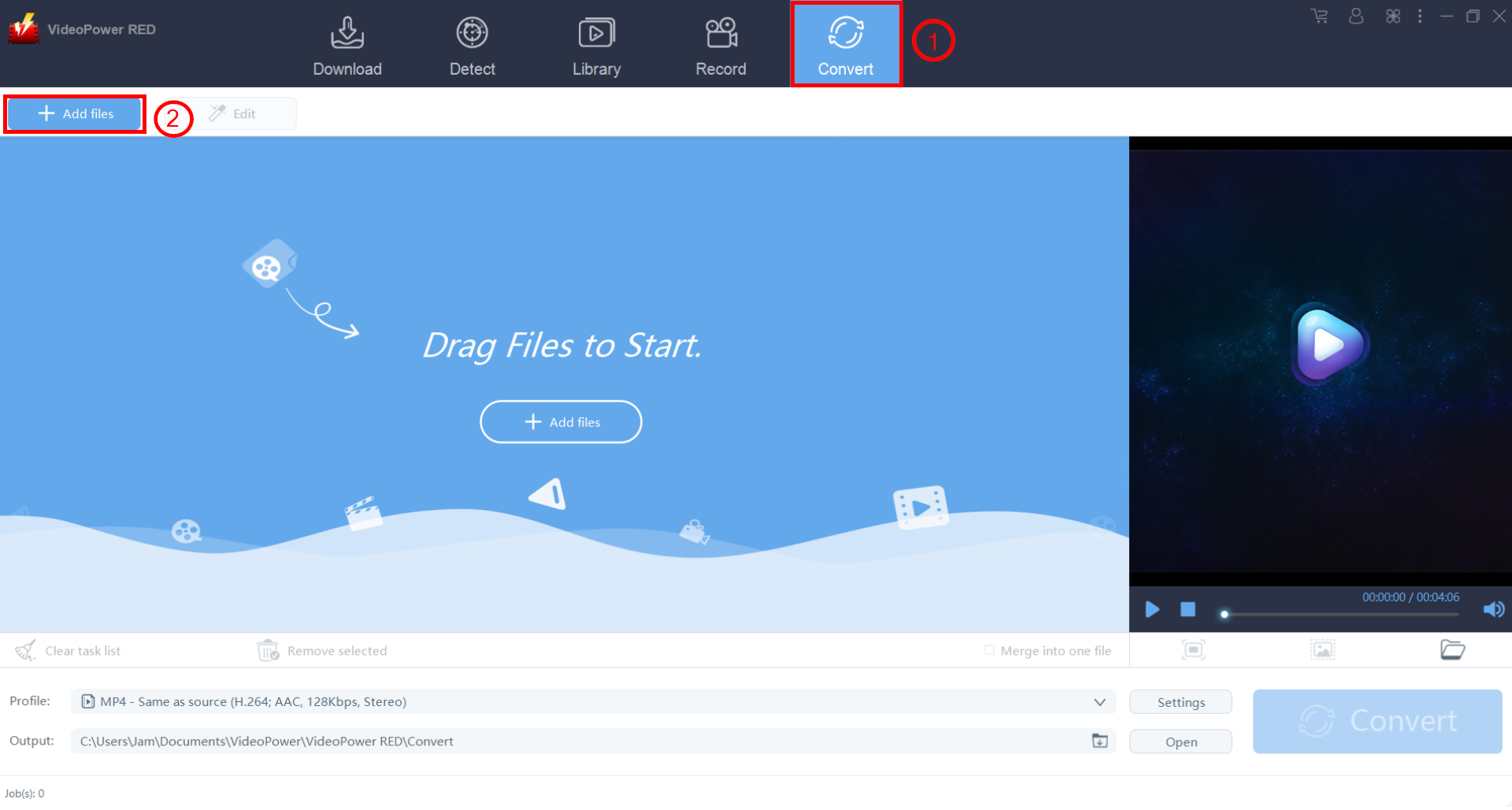
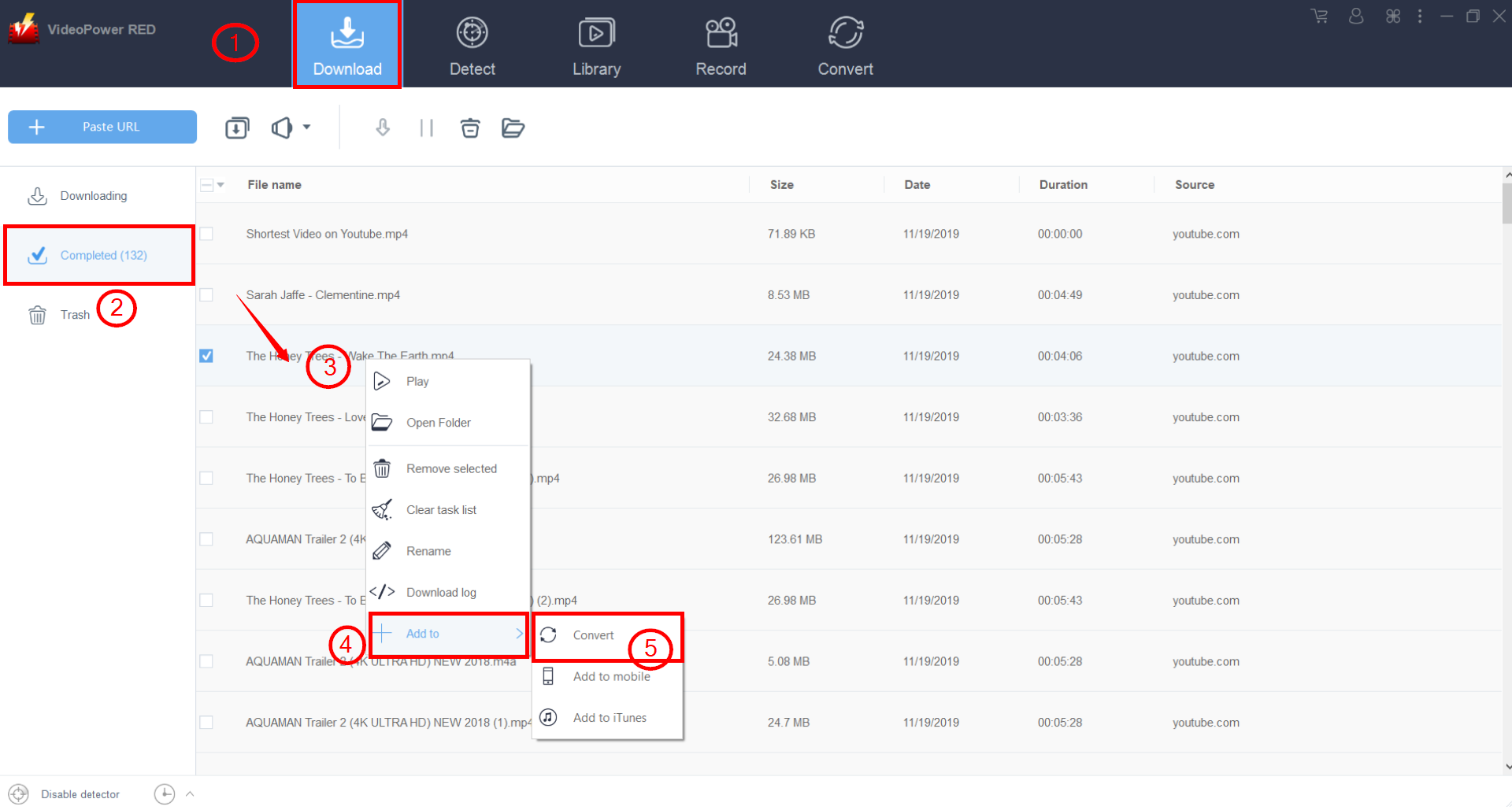
The other method is to add the downloaded video to the convert function:
1) Click on the “Download” tab
2) Click on the “Completed” tab to find the video that you want to edit.
3) Right-click on the video that you want to adjust the volume of
4) Click on “Add to.”
5) Click “Convert.”
After doing this, the video will be taken to the “Convert” tab.
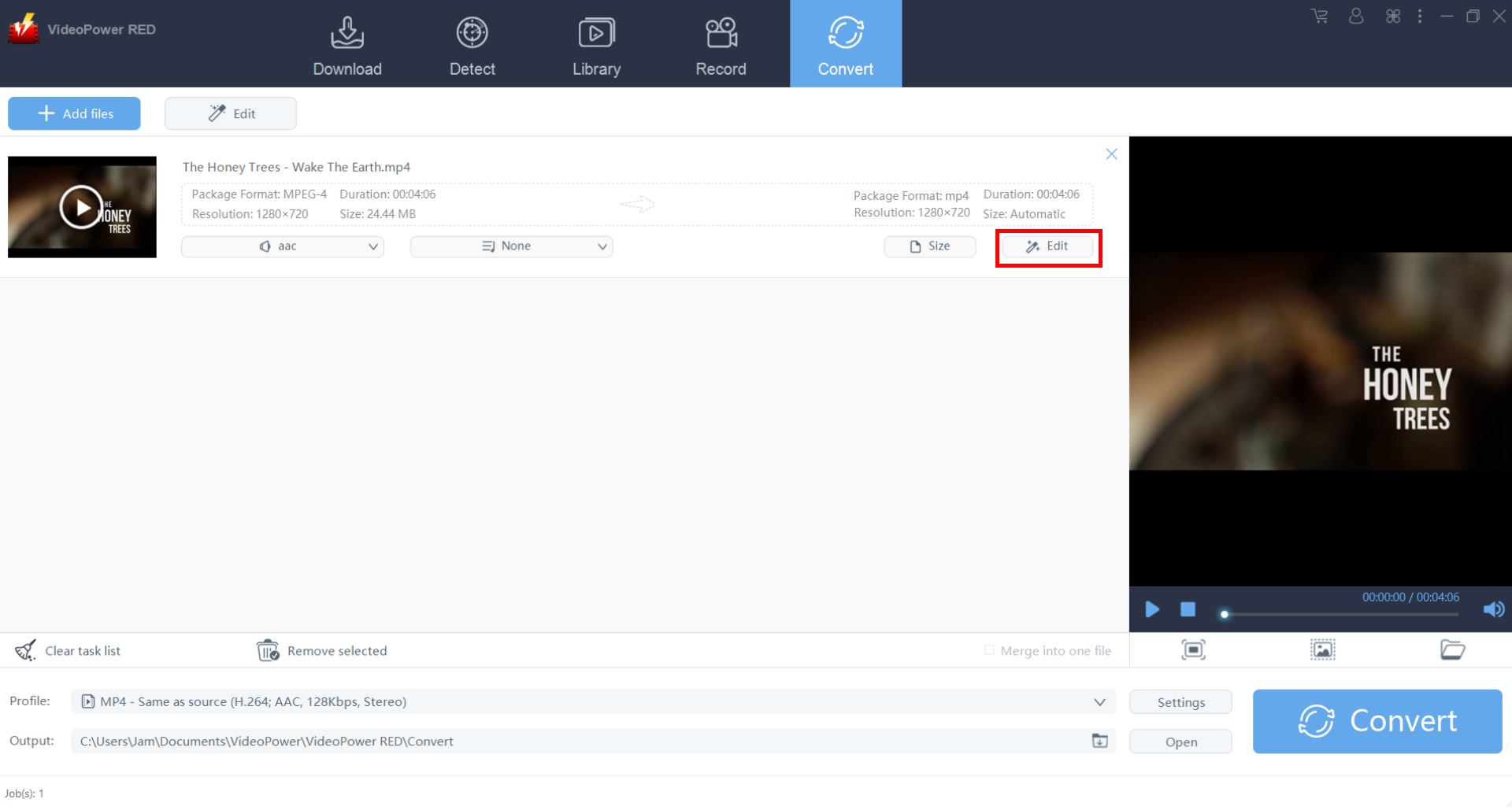
Step 2: Open the edit screen
You will be taken immediately to this page after doing the preceding step. Click on “Edit.”
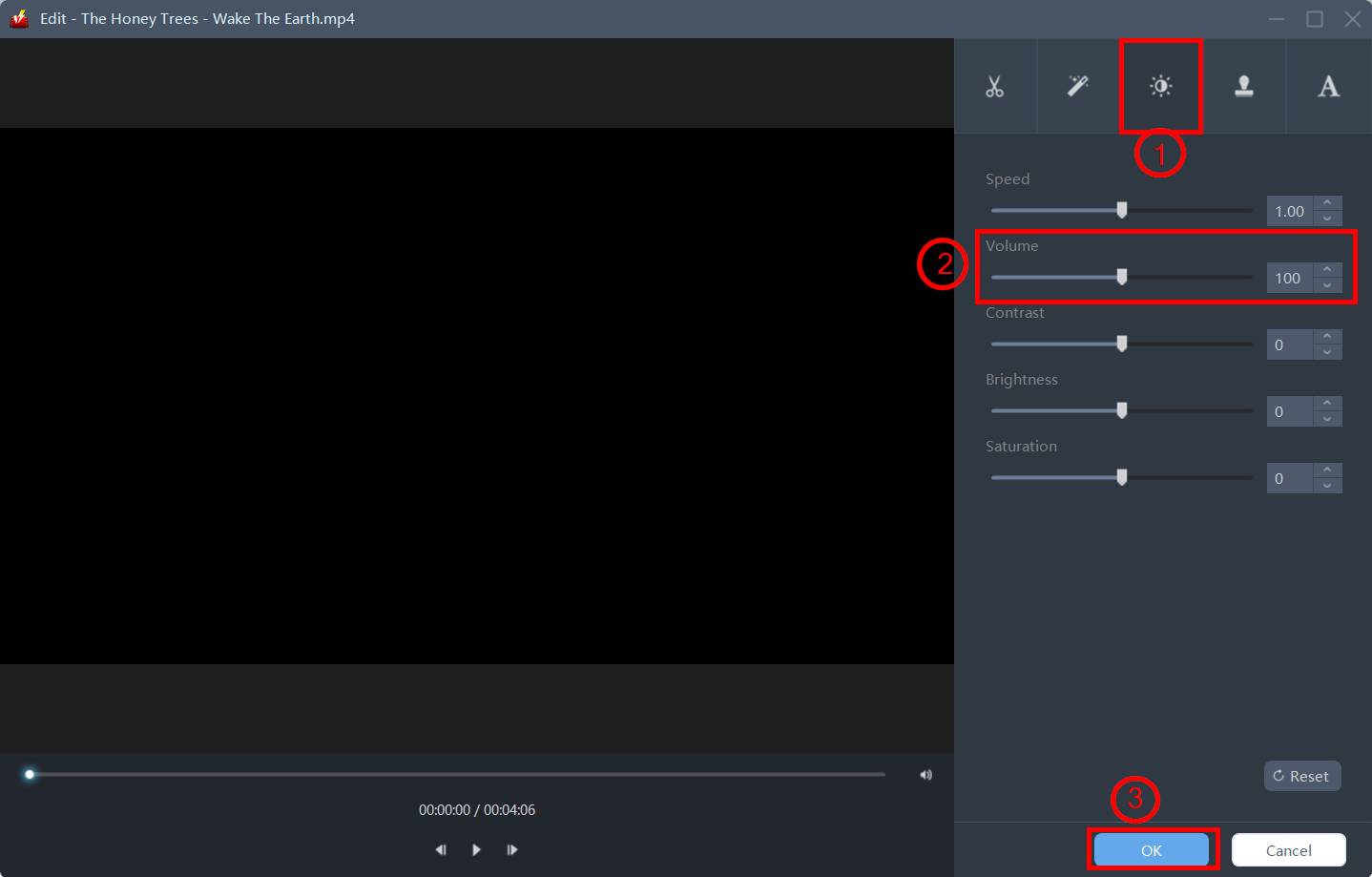
Step 3: Adjust the volume
Click on the icon shown below.
You can adjust the volume here. You can also set a number for the level – the higher the number, the louder the volume will be.
After you’re done with the adjustment, click “OK.”
Step 4: Save the file
After you’re finished modifying the volume settings, you must convert the file to save the settings.
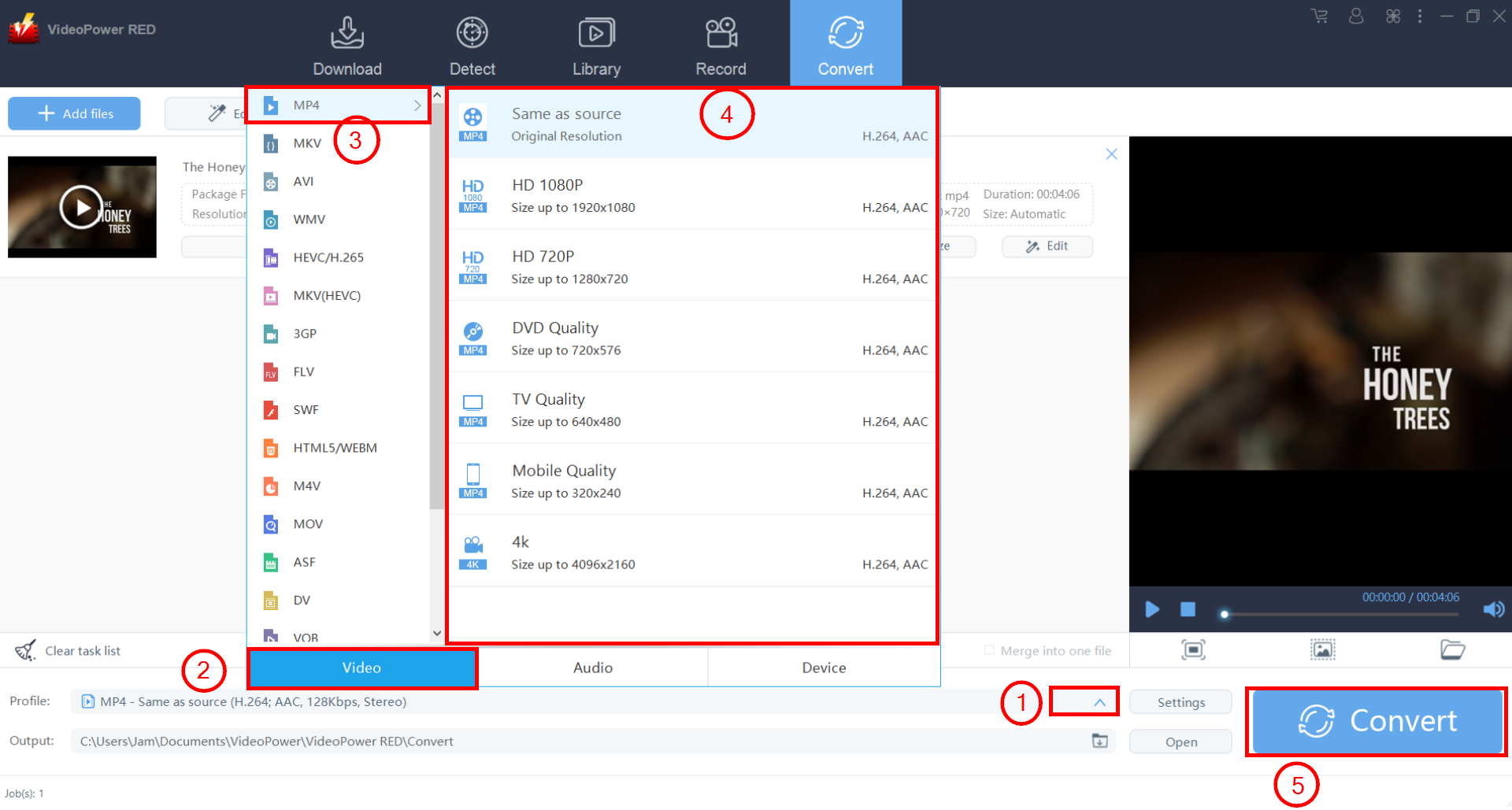
Choose output format before conversion by doing this:
1) Click on the drop-down menu on the “Profile.”
2) Click “Video.”
3) Click on whichever format you deem appropriate for your file. For this example, we’ll choose “MP4.”
4) Choose the quality that you deem fit for your video’s output format. For this example, we’ll choose “Same as source.”
5) Click “Convert.”
After the conversion is done, just click on the “Open” button to find your saved video.

Conclusion:
Videos or movies from the internet are sometimes noticed to have not loud enough volume that causes downloaded videos aren’t loud too.
Adjusting the volume of the downloaded file would be possible with the help of third-party software. VideoPower RED, an amazing, hassle-free and trusted downloader application software has various professional features that can improve users downloaded files. One of these is the editing feature that can adjust the video’s volume.


