





Tips Index
iPad is great for watching movies because it has a bigger screen compared to other devices, like smartphones. Regularly becoming slim and lighter over the years, the famous tablet is now ideal for viewing in horizontal, whether you’re wrapped up in bed or chair.
While it extends itself to the abundance of streaming video services out there, thanks to the following and usually very adept apps available, they require an Internet connection to watch.
But that’s not consistently possible, specifically if you only bank on a Wi-Fi for connection for your iPad, which can be a bit of a problem while you’re traveling with the tablet. And for these circumstances, you’ll want some movies, or videos of any kind already downloaded, for that, in the first place you’ll need to know how to get the data from your computer or the Internet, on to the iPad.
YouTube has many types of videos that can be downloaded and played on the iPad. The most popular videos are music videos, movies, gaming matches, and funny clips. In this article, we are going to help you download movies to iPad to watch offline.
Introducing VideoPower RED, one of the most powerful and reliable video downloader software that can download hundreds of thousands of videos from Facebook, Twitter, Instagram, Dailymotion, Vevo, Youtube, and etc. Just click the link below to download this free app and follow through the guide on How to Download Free HD Movies to your iPad.
You can try to use the software for free by downloading its trial version below.
Method 1: Copy and Paste
Step 1: Paste URL and download video
Copy the link of the YouTube video that you want to download and then paste it into the program by clicking the “Paste URL” button. After that, you will see the video is downloading in the download control panel.
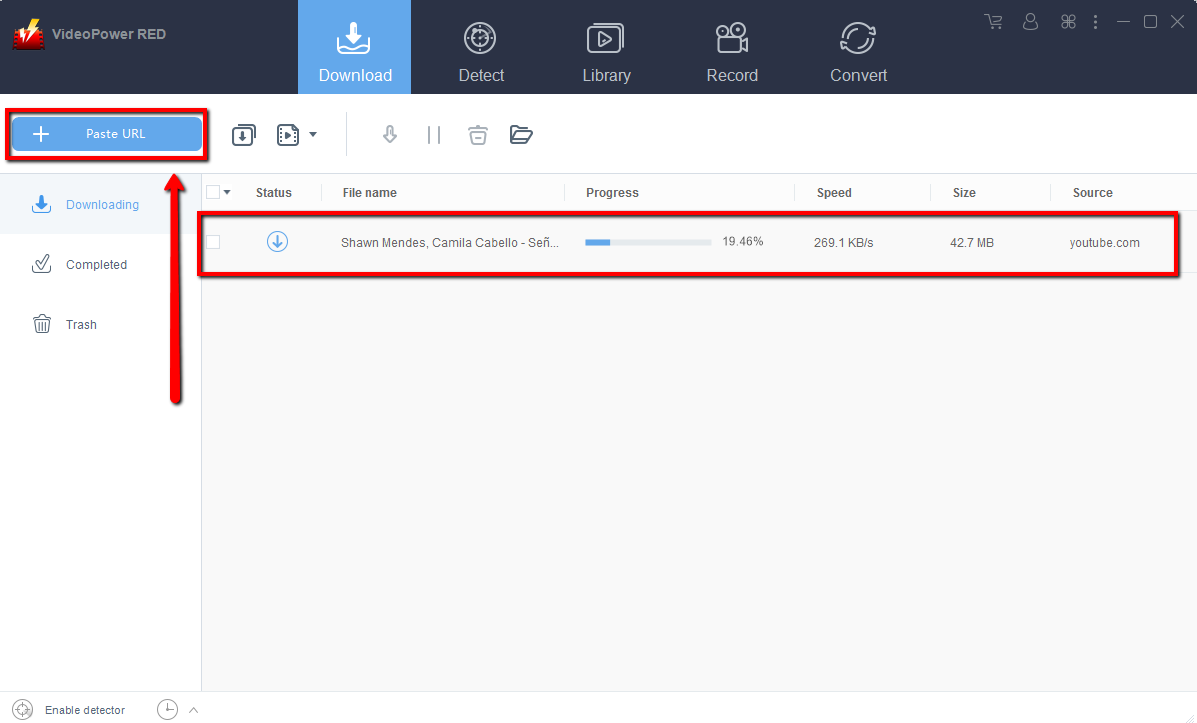
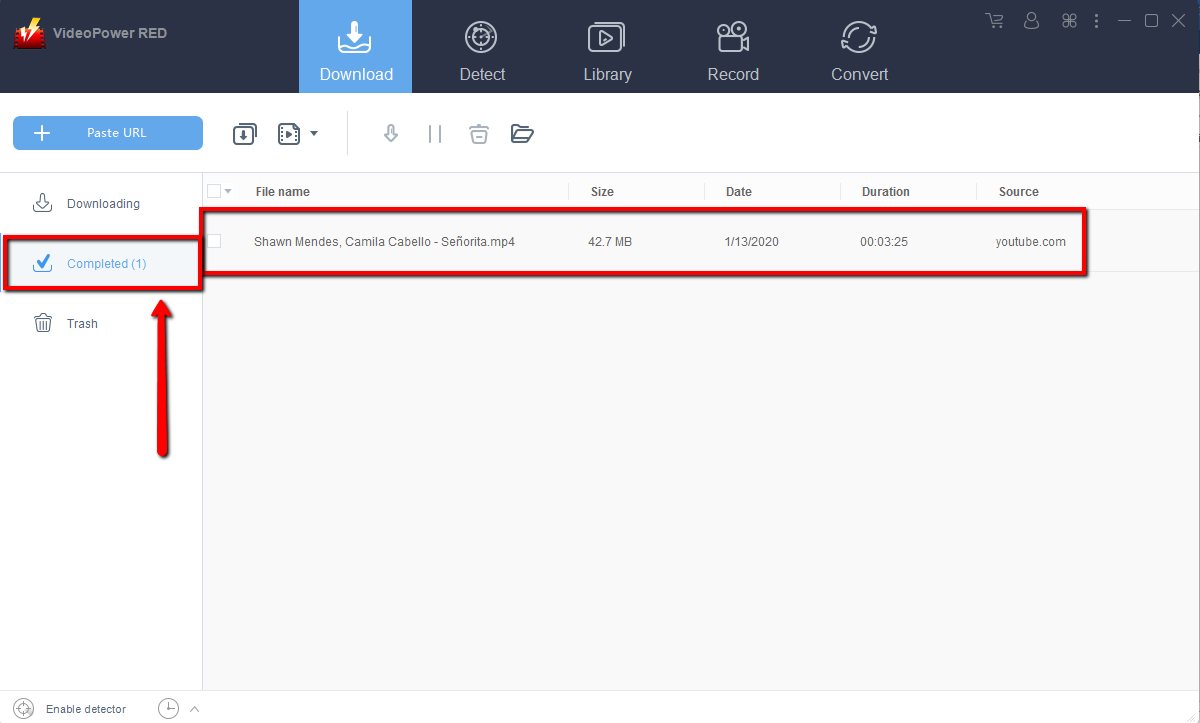
Step 2: Check the downloaded file
Wait for the download to finish, and then go to the “Completed” section to find the downloaded video.
Method 2: Use the Embedded Browser
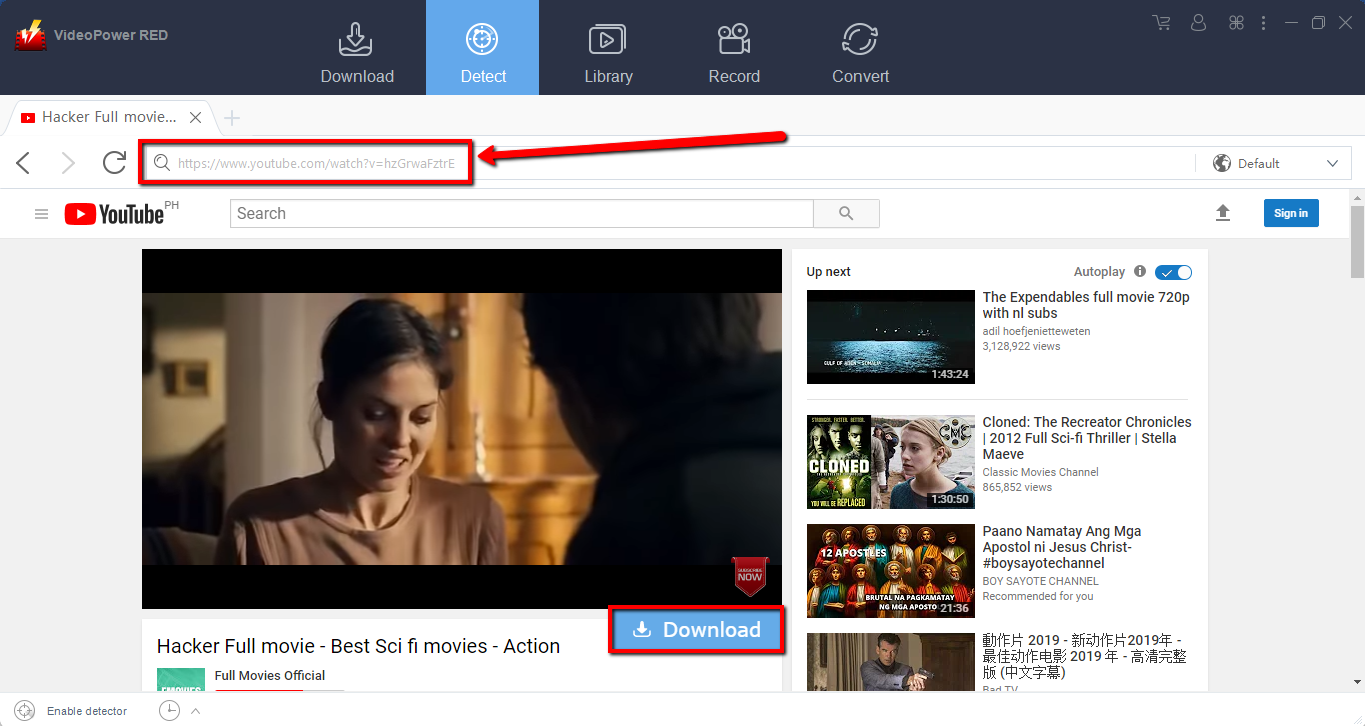
Open the video page via an embedded browser
The video will be downloaded by clicking the download button below.
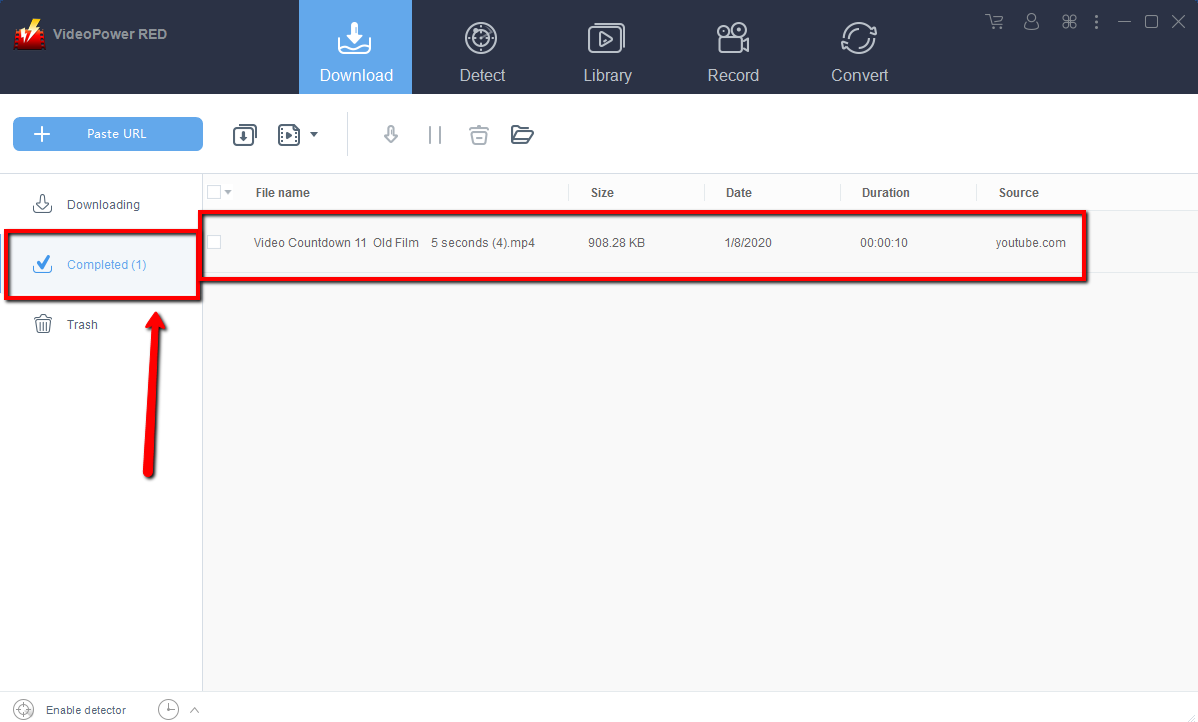
Wait for the download to finish, and then go to the “Completed” section to find the downloaded video.
Method 3: Record video
Sometimes because of the web update or slow internet connection, the program can’t download the video anymore but you can still save the video by using the recording function.
Step 1: Record video
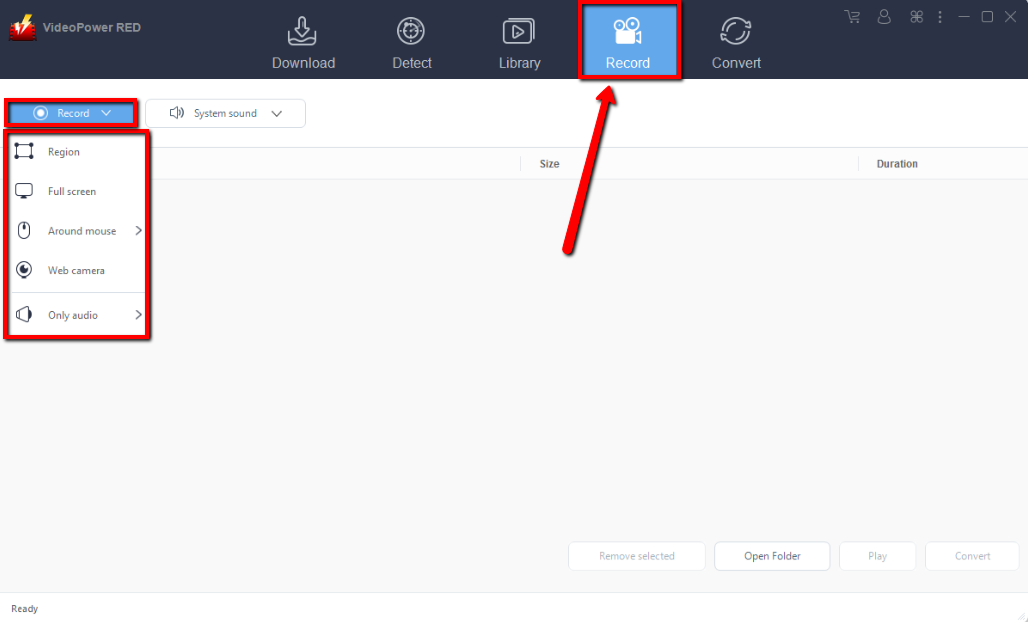
Click the “Record” tab to record the video and Select from “Region, Fullscreen, around mouse or Web camera” as preferred.
Step 2: Check the recorded video.
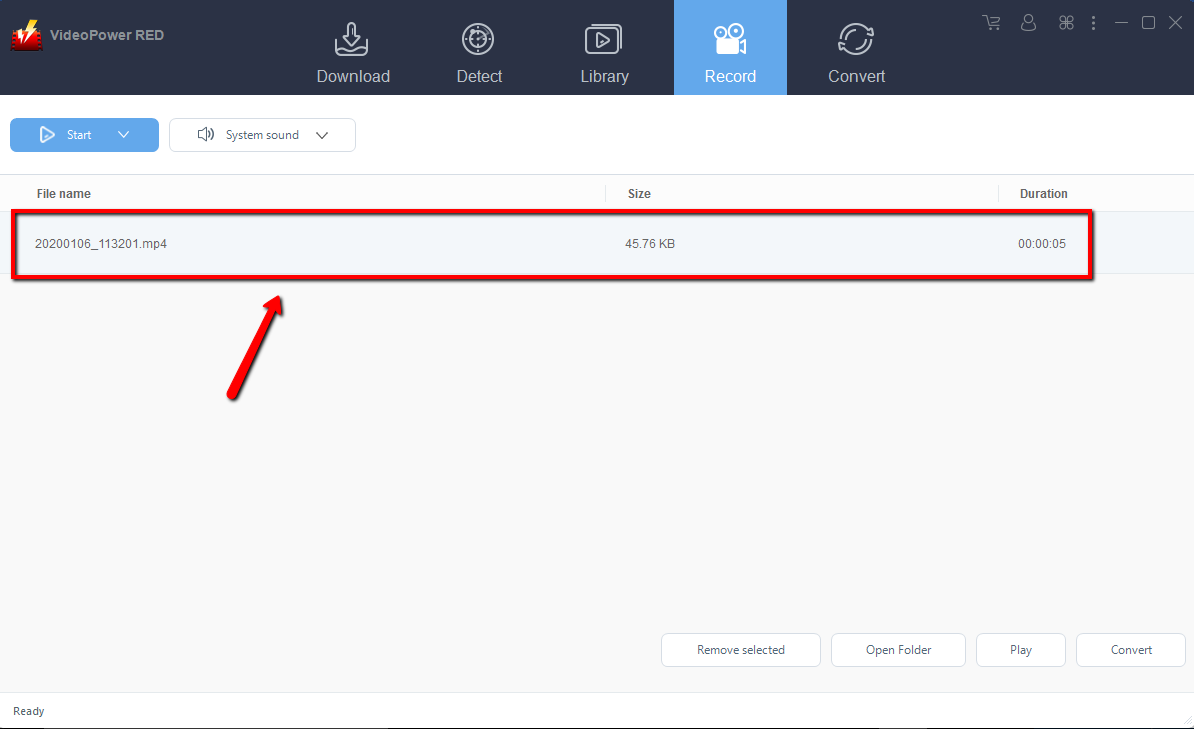
After recording, the recorded file can be seen in the record interface.
Conclusion:
VideoPower RED is one of the versatile and easy to use video downloader software. It has powerful video downloading performance with very satisfying results and can download hundreds of thousands of videos in just one click.
The app has more to it than downloading, it can also record and convert files into different kinds of formats like MP4, MKV, AVI, WMV, and ETC. Due to its wide array of formats to choose from, VideoPower RED is the best converter for videos especially for device compatibility issues making it the best converter out there.
VideoPower RED, a powerful downloader and converter that support any video formats with video editing function, enables adding subtitles, apply watermarks, make MV and split-screen videos. More importantly, it can record screen activity in many different ways, offline and online.
Isn’t it cool to have VideoPower RED? Download now to experience its full features.


