





Tips Index
Wanted to take photos from your device without other devices available around? Taking screenshots would be the finest choice. But the question is what would be the best tool for it? This must be the common question asked by the Surface Pro users.
Surface Pro is a tablet series made by Microsoft with the biggest advantage among others. This tablet series can run almost all Windows applications, making them an alternative to Windows laptops. Surface Pro series products are also equipped with handwritten pens for artistic creation and note-taking. But then, this pen would be out of help if you need to take photos from your screen.
Some of the times, you may need to take screenshots to share information from your Surface Pro screen like pictures you can’t download, the technical terms you can’t copy and paste, wordy instructions and procedures and many more. However, capturing screenshots on Surface Pro can be kind of troublesome.
In this case, to make Surface Pro screenshot convenient, we strongly recommend using VideoPower GREEN. An amazing software that can take a screenshot on a specific area depending on your needs. A comprehensive screen capture tool that supports various capturing modes including full screen, scrolling screen, menu, window, fixed area, and so on.
So without further ado, Download VideoPower GREEN in the link below, follow the steps and have fun capturing.
Step 1: Manage settings.
1) Click the menu on the upper right corner of the interface.
2) Choose “Settings” from the drop-down menu.
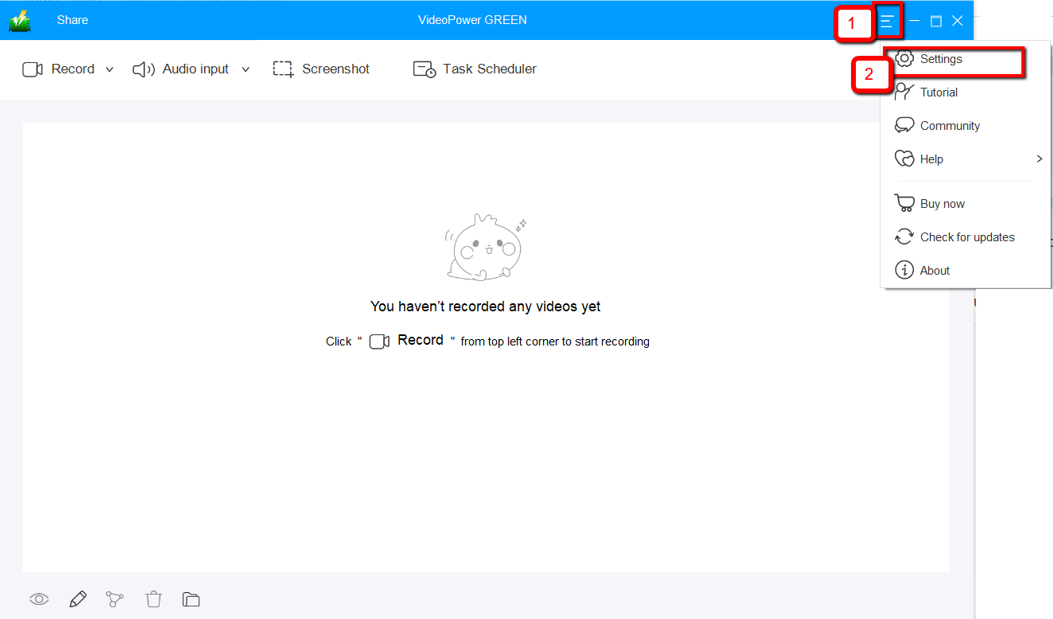
3) Navigate to the “Take Screenshot” section. Make changes accordingly then click “OK.”

Step 2: Take a screenshot on Surface Pro.
1) Click on the “Screenshot” tab.
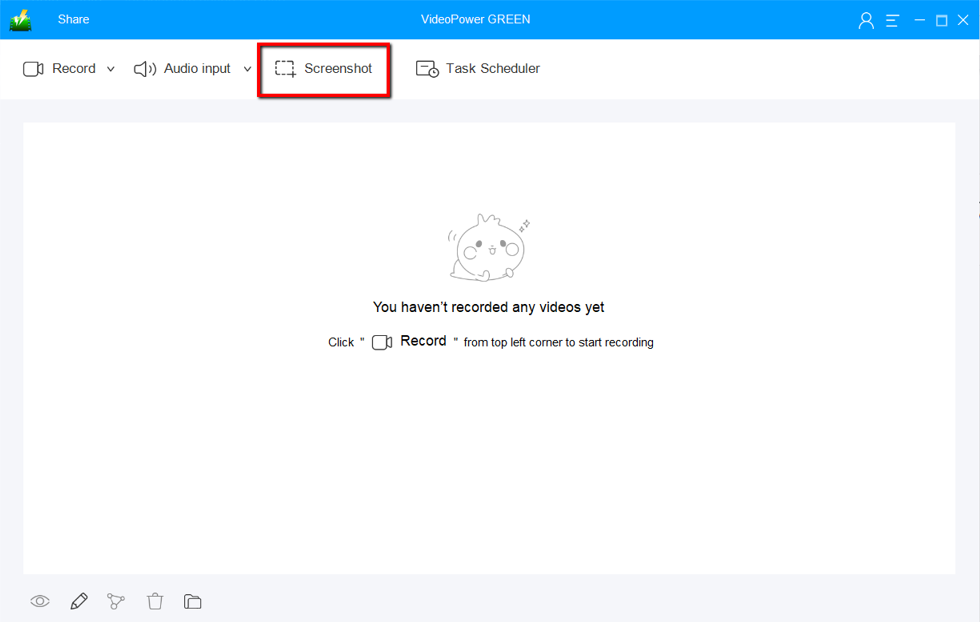
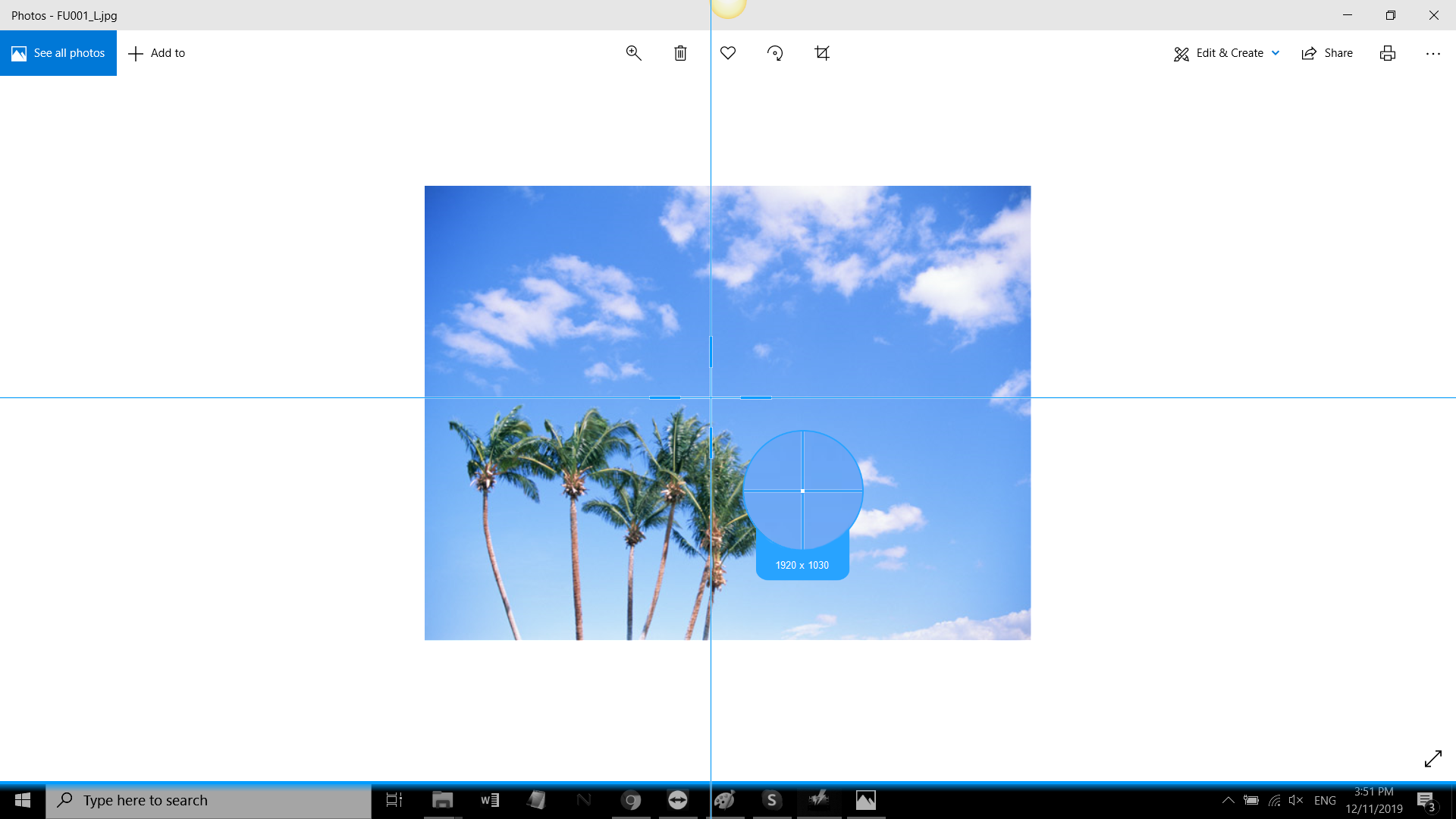
2) Select the region on the screen that you want to take a screenshot of. By moving the mouse around the screen, you’ll be able to see what types of screenshots you can do.
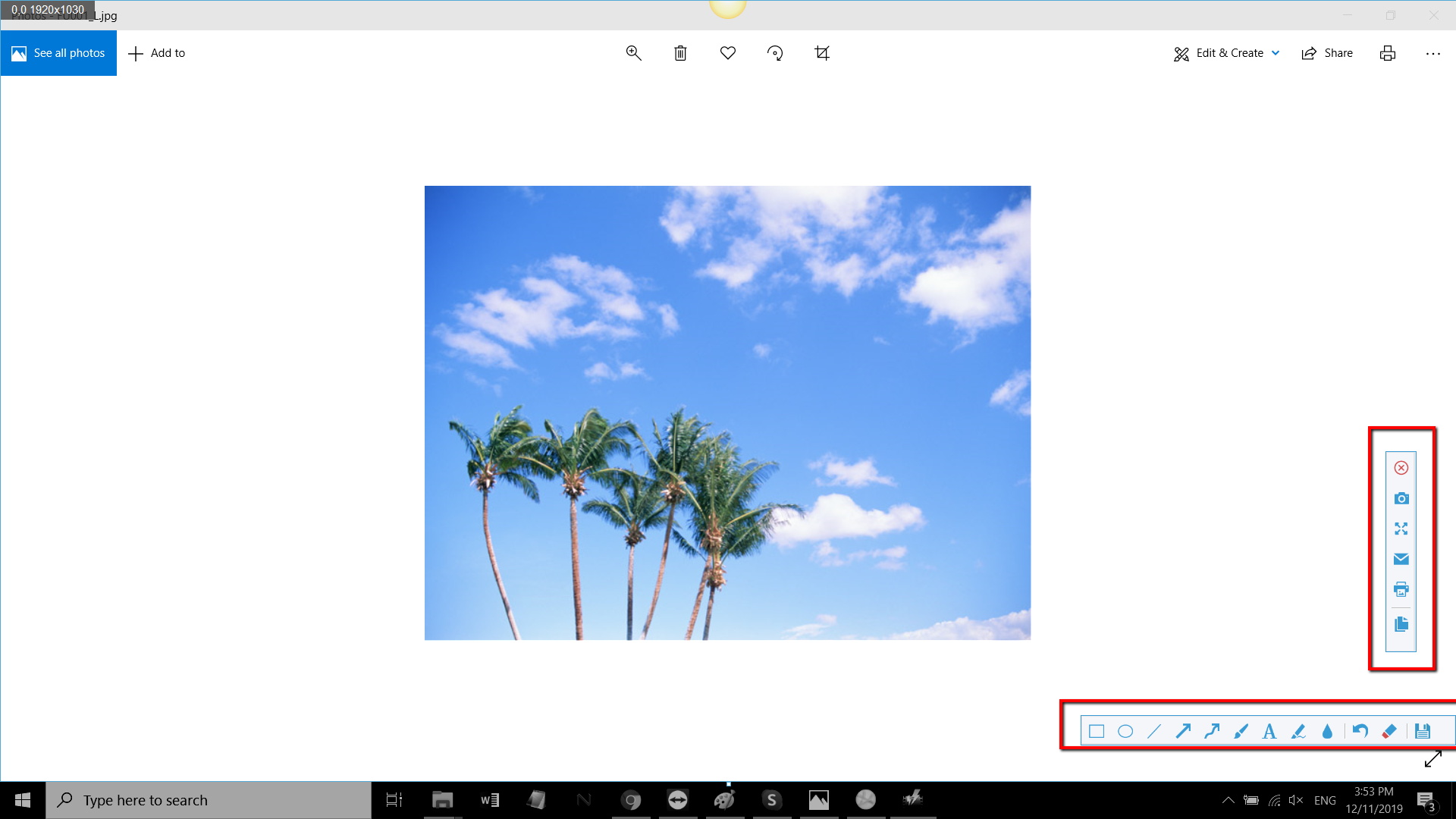
3) After clicking, you will get a snapshot of the selected region. You can make changes to it accordingly by exploring the menu (highlighted in red) before saving the screenshot.
Conclusion:
Using VideoPower GREEN to take screenshots is great. It captures in high quality and lets you choose different ways to do it. Not only that, it enables users to record their screen too, such as a full screen, a specific window or a specific area. It also has a feature where you can record the audio being played!


