





Tips Index
Google Maps is a very practical application that can show almost any place you want to go to. Whether you drive, take a bus, ride a bicycle or go on foot, you can be guided by the route figured out by Google Maps.
Taking screenshots would be the finest choice in capturing Google maps for convenient use. In fact, VideoPower GREEN can offer you a better and easy screenshot features. It is equipped with various screen capturing modes, awesome instant image editing, quick social media sharing, and task scheduler.
Download the software with the link below and quickly save a screenshot of a map by following the step by step guide below.
Step 1: Download and install VideoPower GREEN on your PC
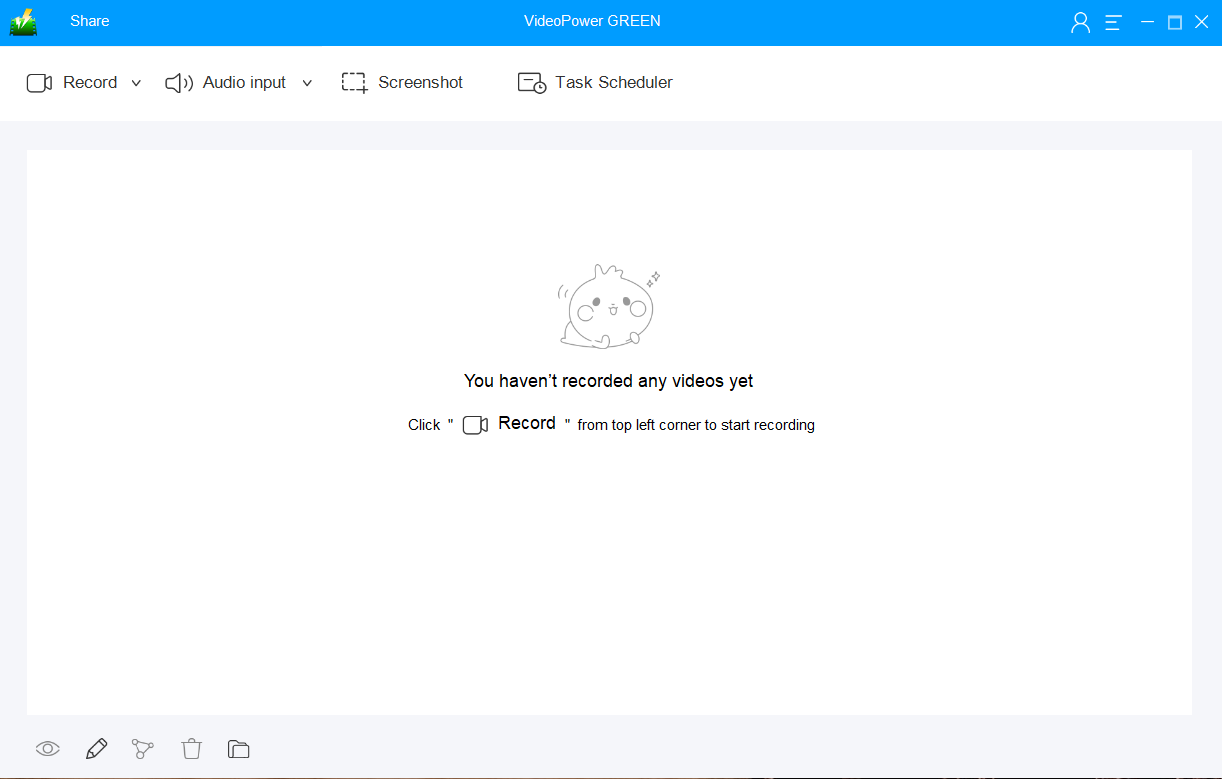
Run VideoPower GREEN if you have installed it successfully on your PC. The main interface of the software should look like this:
Step 2: Manage settings
2.1 Open settings
1) Click the menu on the upper right corner of the interface.
2) Choose “Settings” from the drop-down menu.

2.2 Chang “Take Screenshot” settings
Make changes accordingly then click “OK.”

Step 3: Take a screenshot on Google Map
3.1 Open Screenshot
Click on the “Screenshot” tab.

3.2 Capture area
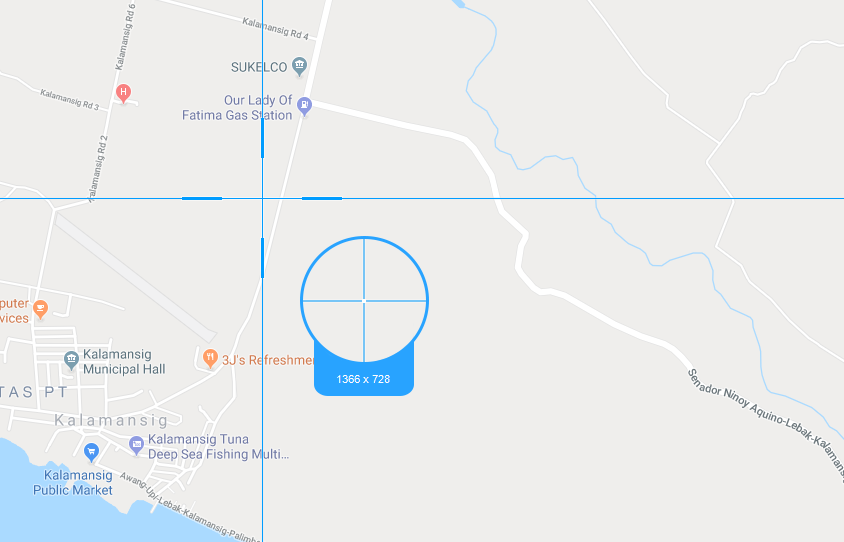
Select the region on the screen that you want to take a screenshot of. By moving the mouse around the screen, you’ll be able to see what types of screenshots you can do.
3.3 Annotations
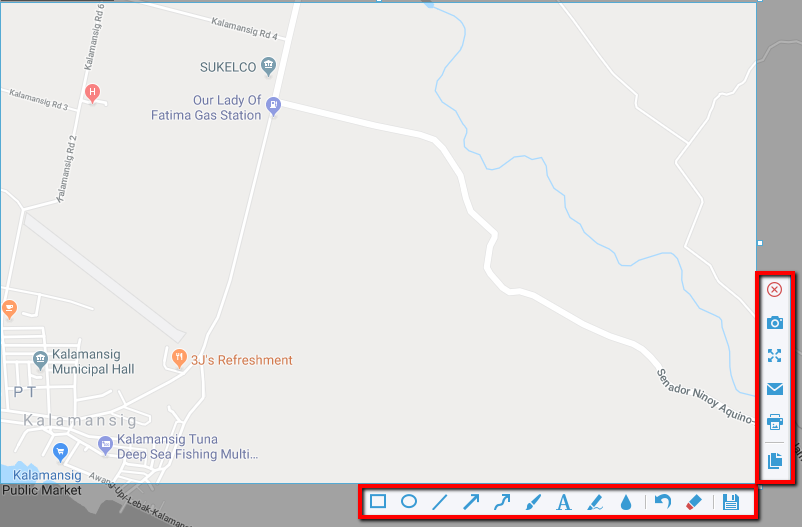
After clicking, you will get a snapshot of the selected region. You can make changes to it accordingly by exploring the menu (highlighted in red) before saving the screenshot.
Conclusion:
Using Google Maps requires an internet connection so taking screenshots are necessary especially if there is a scarcity of Internet availability. Good thing there is VideoPower GREEN that lets you easily take screenshots on Google Maps.
It captures HD photo quality and lets you choose different ways to do it such as full screen, a specific window or a specific area. You can also record your screen activity and the audio being played. Record your audio through microphone and system sounds as well.


