





Tips Index
When we talk about live streaming everyone in the world wide web knows about it making a significant trend. Many people watch live streaming videos due to the various and wide categories of content.
In many instances, users need a reliable live screen recorder to record the live video streams and save them for reviewing purposes like offline watching.
VideoPower GREEN is a flexible desktop application that allows you to record any activity on your computer screen in high quality as it is an amazing, hassle-free and trusted screen recorder software that is highly recommended.
This is probably the best screen recording tool in the market to date. A live screen recorder for Windows or Mac PC’s. Proving you with various features such as recording, video editing which includes trimming, rotating, adjusting the resolution, speed, volume, brightness, adding subtitles, and a lot more.
Try to use the software for free by downloading its trial version below.
Step 1: Set Sound Source
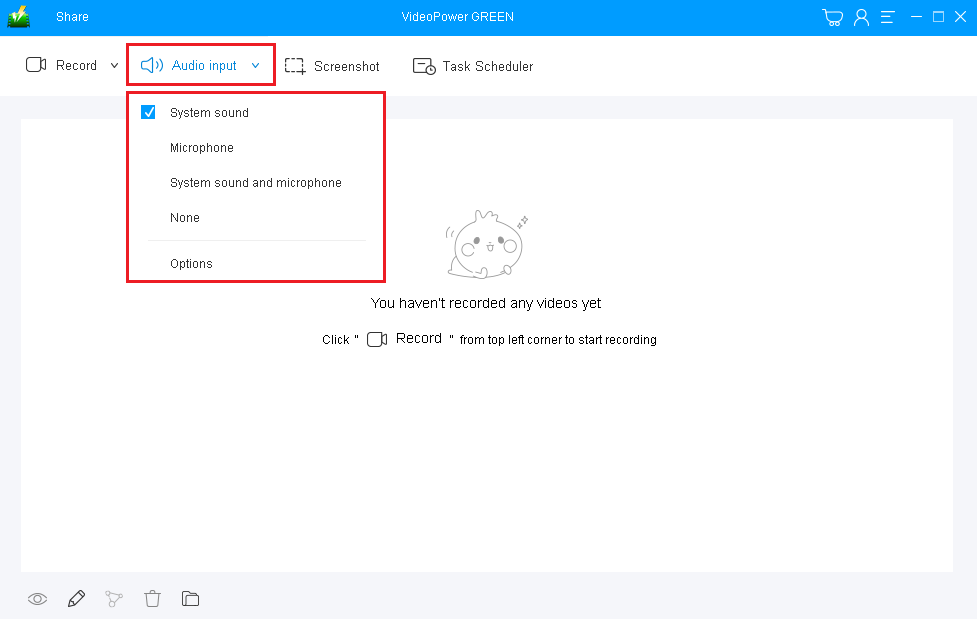
If audio is needed in live screen recording, choose the desired sound source first.
You can choose:
1) System sound
2) Microphone
3) System sound and microphone
4) None
Note: To record streaming video, you can select “System sound”.
Step 2: Set Recording Mode
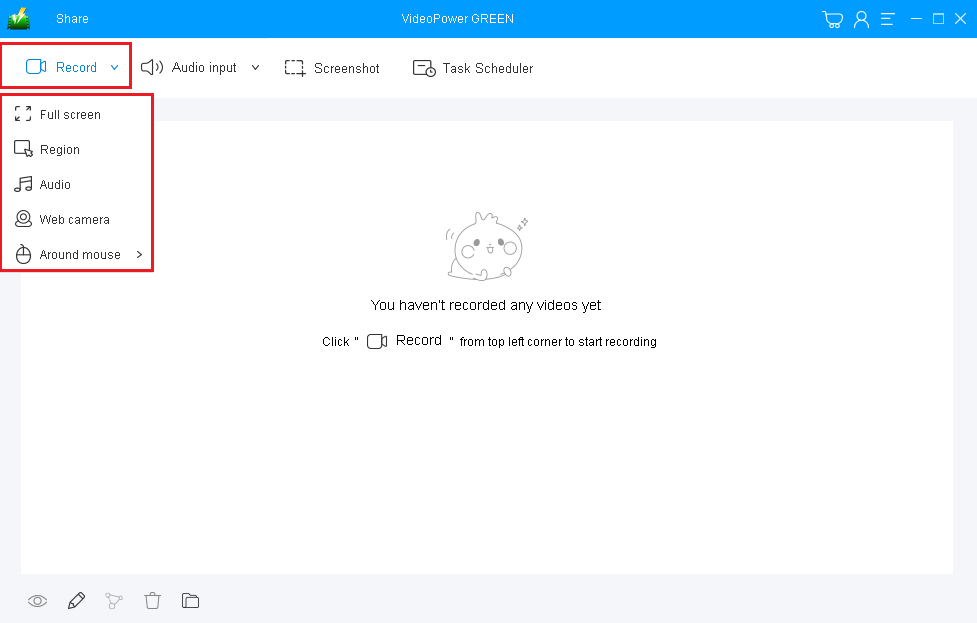
Click on the “Record” button to choose the recording mode.
1) Fullscreen
2) Region
3) Audio
4) Web camera
5) Around mouse (select the area you are going to record)
Step 3: Start Recording
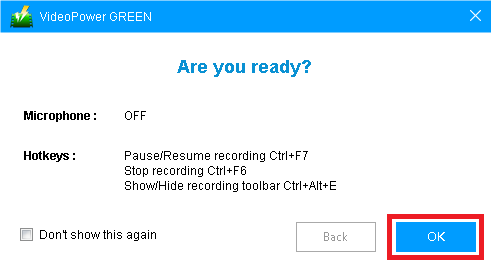
3.1 Confirm to Start Recording
If you are ready to record, then click “Record”. A pop-up window will show to confirm whether to start the recording or not. Click “OK” to start the recording.
3.2 Annotate Recording
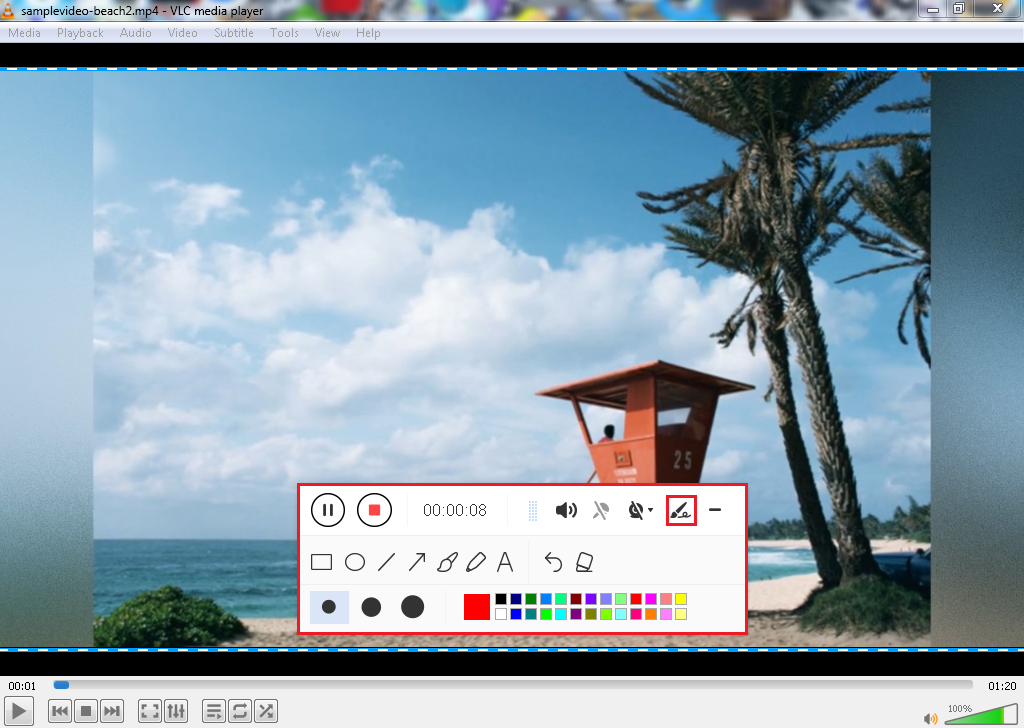
While recording, adding lines, arrows, shapes, texts, highlight, blur, etc. is possible. Just click the edit button to show the editing toolbox. It is also possible to turn on the webcam while recording.
If you don’t want this menu to appear in your recording, don’t worry because you can do that easily as well.
Step 4: End Recording
4.1 Stop the Recording
Click the “Stop” button to stop recording.

4.2 Redirect to Recorded File List
After recording, the screen will automatically redirect to the recorded file list on the main interface window. Right-click the file and do more operations if necessary. Double click the file to play or view it.

Conclusion:
Using this best and easy to access a screen recording app, users can record any live screen PC activities with professional results and can help users access recorded content anywhere they are and anytime they need and want.
VideoPower GREEN is a full-featured application that supports the capabilities to record screen, adjust the speed, change the volume, and insert background music into recorded videos, etc.
It is really inconvenient and time-consuming if a screen recorder doesn’t have a video editor. VideoPower GREEN can save you a lot of time and effort if you wish to make adjustments to your recorded videos easily.
Download VideoPower GREEN now to explore its functions!


