





Tips Index
Are you in a search of software that takes not only a photo of your screen but also takes your worries away? Then you’ll need a better screen capturing tool from trusted and remarkable application software.
This software has a screen capturing tool that lessens the burden of taking pictures from any devices, sites, and documents most especially in your absence. It also enables you to take screenshots automatically and timely most especially in your absence. Taking screenshots with this software would be the best response to your worries.
Introducing, VideoPower GREEN, an excellent auto screenshot capture application equipped with various screenshot capturing modes, awesome instant image editing, quick social media sharing, and task scheduler.
Step 1: Run VideoPower GREEN on your PC
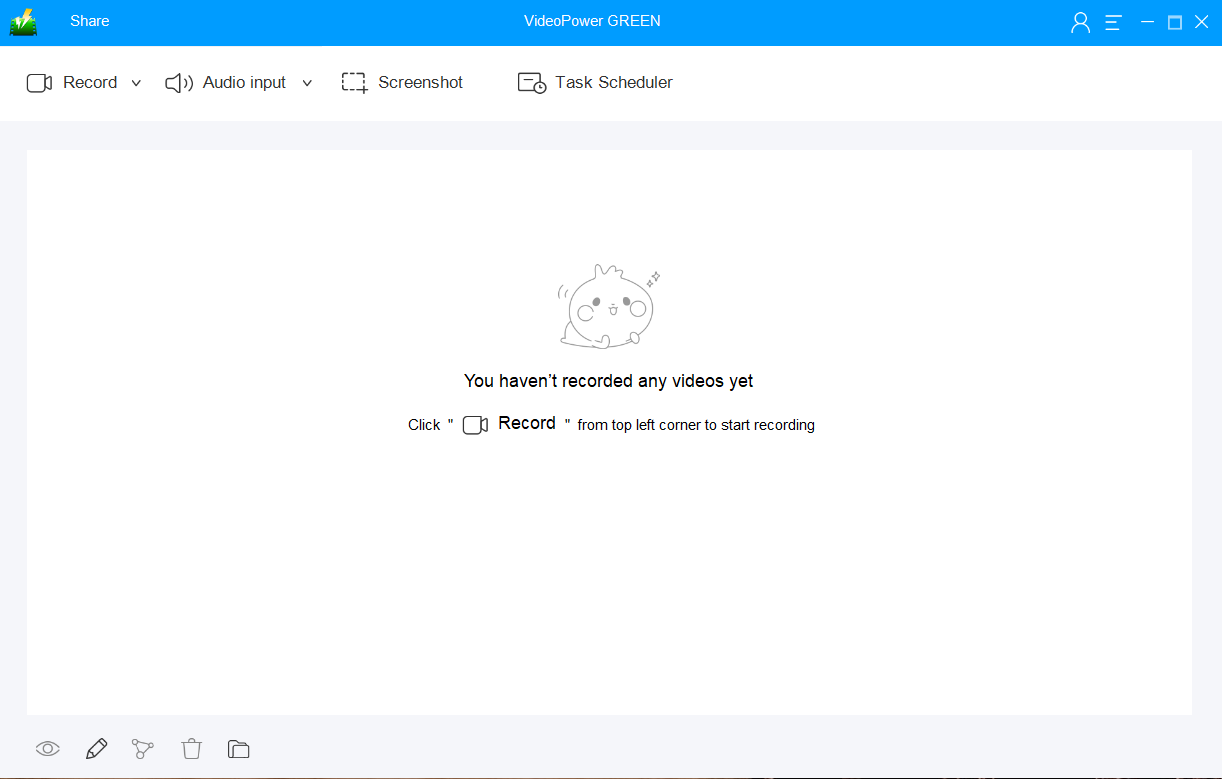
Run VideoPower GREEN if you have installed it successfully on your PC. The main interface of the software should look like this:
Step 2: Manage settings
2.1 Open Settings
1) Click the menu on the upper right corner of the interface.
2) Choose “Settings” from the drop-down menu.

2.2 Navigate to the “Take Screenshot” Section
Make changes accordingly then click “OK.”

Step 3: Create auto screenshot capture tasks
3.1: Launch the Task Scheduler
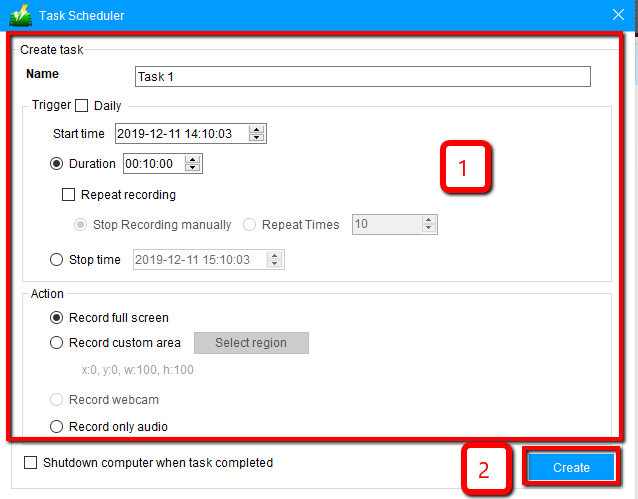
Click the “Task scheduler” on the main interface to set an auto screenshot.

3.2: Set the Task scheduler
1) Create a task by setting up a screenshot trigger including start time, repeat recording, stop time, and region for your screenshot task.
2) Click “Create” to save the task schedule.
Conclusion:
Now just let the software run in the background and it will capture the selected screen according to your requirement.
How easy is this? VideoPower GREEN will take care of your problems with its excellent auto-screenshot capture tool. Capturing in high quality and storing it in your default folder so it’s easy to find when you need it.
The task scheduler tool is not only helpful for screenshots but for screen recording as well. Record your screen on a specific time and date, it will automatically record what’s going on in your screen may it be streaming videos, webinars, web cameras, etc.


