





Tips Index
PowerPoint is the most popular and accessible software used to create presentations. It is a slideshow presentation program of Microsoft Office tools that make it easy to create, collaborate, and present ideas in dynamic and convincing ways. A presentation is a number of slides that contain information on a topic and work as one. PowerPoint presentations are commonly used for business meetings, training lectures, seminars, and especially for educational purposes.
PowerPoint presentation is a good visual aid alone, however, in some cases, presenting information shouldn’t only be good but also be pleasing to the eye, convincing, and more informative. The only way to make the presentation more enhanced, narration, and system audio sources should be included. Thus recording PowerPoint presentations is recommended for better presentation output depending on its purpose and delivery.
Therefore, VideoPower GREEN, an amazing, hassle-free, and trusted screen recorder application software is suggested. By using this best and easy to access screen recording app, users can record any on-screen activities specifically PowerPoint presentations with professional results. With this, users can access recorded content anywhere they are, anytime and any way they want. This app exactly answers users’ questions on how to record PowerPoint Presentations with Audio.
Just click the link below to download this free app. Try to use the software for free by downloading its trial version below.
Start Recording PowerPoint Presentation with Audio
Step 1: Choose a Sound Source.
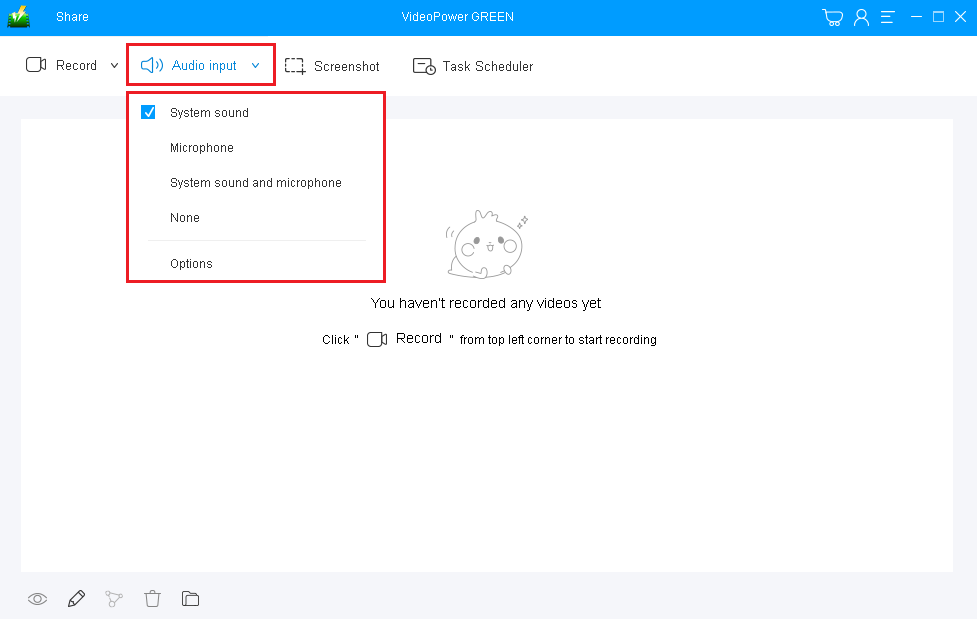
Choose the desired sound source among the following:
1) System sound
2) Microphone
3) System sound and microphone
In recording PowerPoint Presentation with Audio, select “System sound and microphone” to include the audio source from the computer and from the narrator.
Step 2: Select Recording Mode.
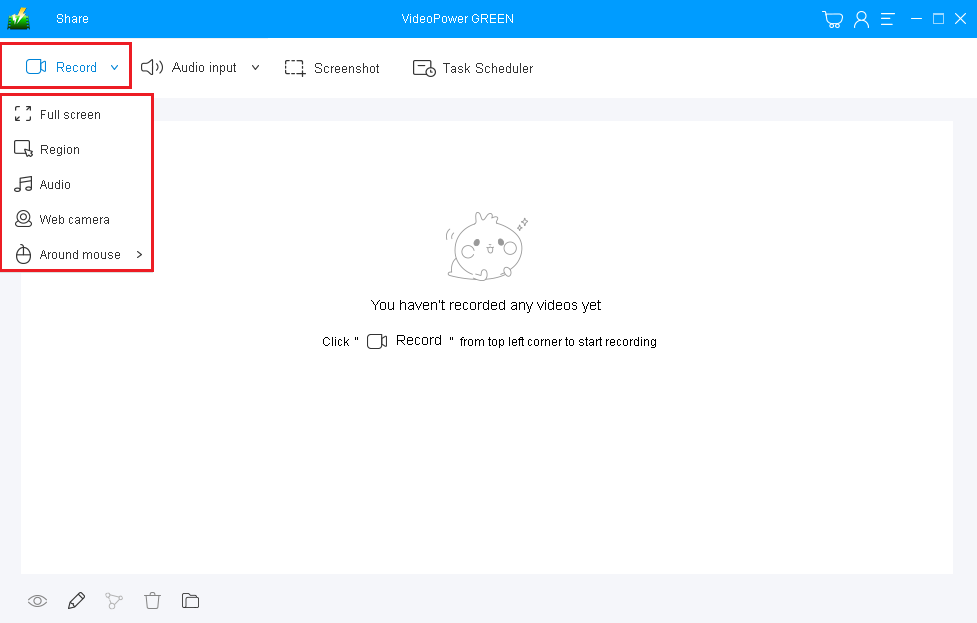
Click on the “Record” button to choose the recording mode among:
1) Full screen
2) Region
3) Audio
4) Web camera
5) Around mouse
Choose the desired modes and then select the area you are going to record.
Step 3: Record PowerPoint Presentation Activities.
A pop-up window will show to confirm whether to start the recording or not. Click “OK” to start the recording.

Step 4: Edit PowerPoint Presentation Video while Recording.
While recording, adding lines, arrows, shapes, texts, highlight, blur, etc. is possible. Just click the edit button to show the editing toolbox.

Step 5: End the Recording.
After recording, click the “Stop” button to stop recording.

Step 6: Redirect to Recorded PowerPoint Presentation File List
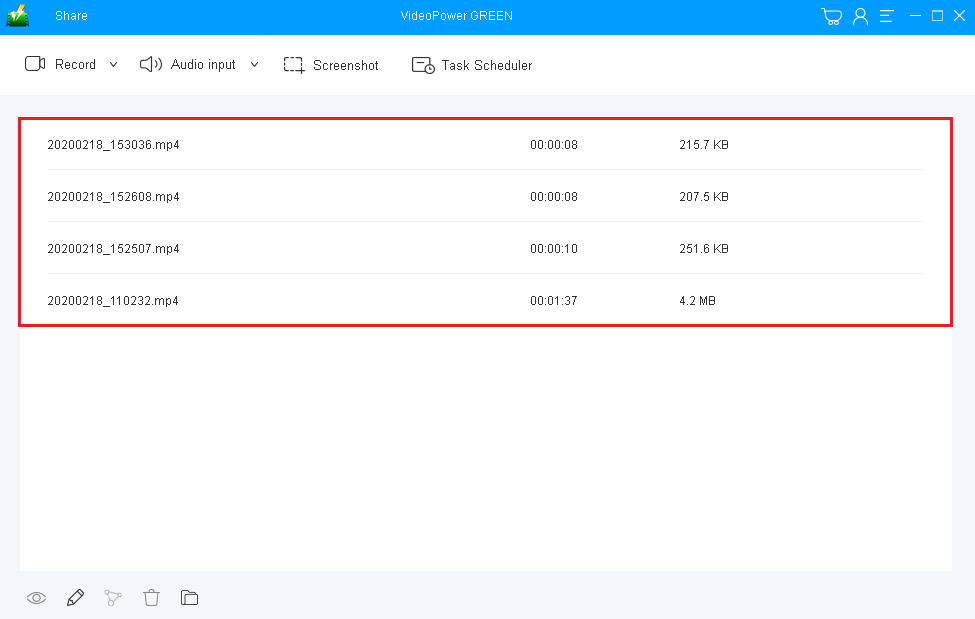
After clicking the stop button, the screen will automatically be redirected to the recorded file list on the main interface window. Right-click the file and do more operations if necessary. Double click the file to play or view it.
Conclusion:
Doing lectures at school, offices, and many other places because of different purposes is now modernized. Lecturers use PowerPoint presentations to deliver their topics well. With PowerPoint presentations, giving lectures to listeners becomes more interesting and less boring since the visual aid looks interesting and pleasing to the eye.
However, in some cases, presentations need to include narration and other audio sources to make the content more clear, convincing, and informative. Making it possible isn’t hard at all. VideoPower GREEN, an amazing, hassle-free, and trusted application software would be a great help to Record PowerPoint presentation with Audio.
Moreover, this product isn’t only good in recording screen activities but also has various professional features like audio recording, screen capturing, and task scheduler.


