





Tips Index
The internet has paved the way for streaming and video-sharing to dominate the majority of people’s preferences in consuming videos and audio. This, in turn, created a downward trend in downloading and offline viewing. However, for people that do not have a consistently stable internet connection, downloading videos is sometimes the best that they can do.
YouTube is one of the largest video sharing websites in the world. With billions of content available, there have been a lot of copyright issues in the past years – mainly known due to the content creators’ protests and objections. There are some cases that videos are disappearing especially those videos you prefer. Even though they are not that uncommon. It is also a smart way to save your preferred video before it disappears. But how would you save it? The answer to this problem is, of course, downloading the video and viewing it offline would be the best one. In doing so, you get to save a copy for yourself whenever your favorite video has the potential to become deleted.
So now, how to download video to ipad from internet? Worry no more because, in this article, you’ll learn you how to download videos from the internet to an iPad with the help of a third-party downloader application software called VideoPower RED.
VideoPower RED, a good video downloader for iPad is an amazing, simple and hassle-free app with various useful features that will help you download your favorite videos from different video sharing websites, convert it into the proper format and allow you to save it to your device. For this example, we’ll use a YouTube video to be downloaded.
To install the device, just click the link below to download the installer.
Part 1: Download Videos
In downloading videos with the use of VideoPower RED, you can successfully download your desired videos through 3 different methods.
Method 1: Copy and Paste
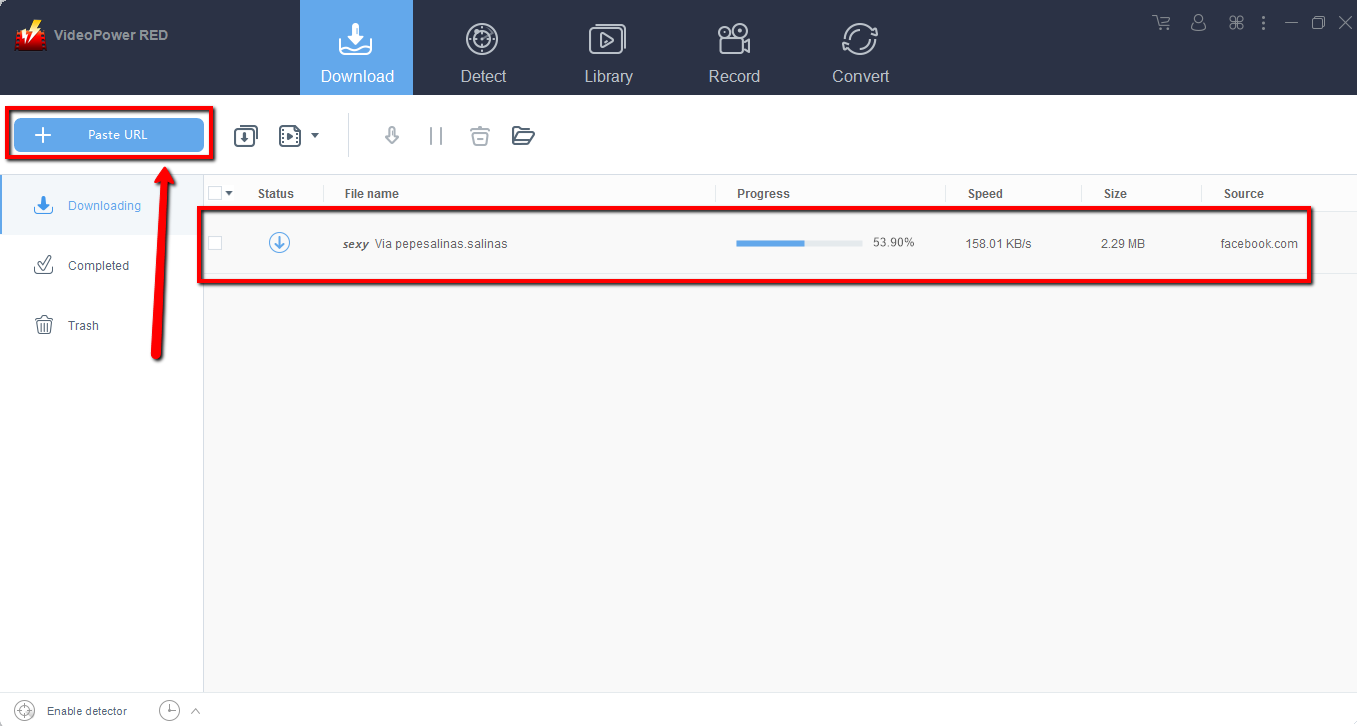
Copy the link of the video that you want to download and then paste it into the program by clicking the “Paste URL” button. After that, you will see the video is downloading in the download control panel.
Step 2: Check the downloaded file
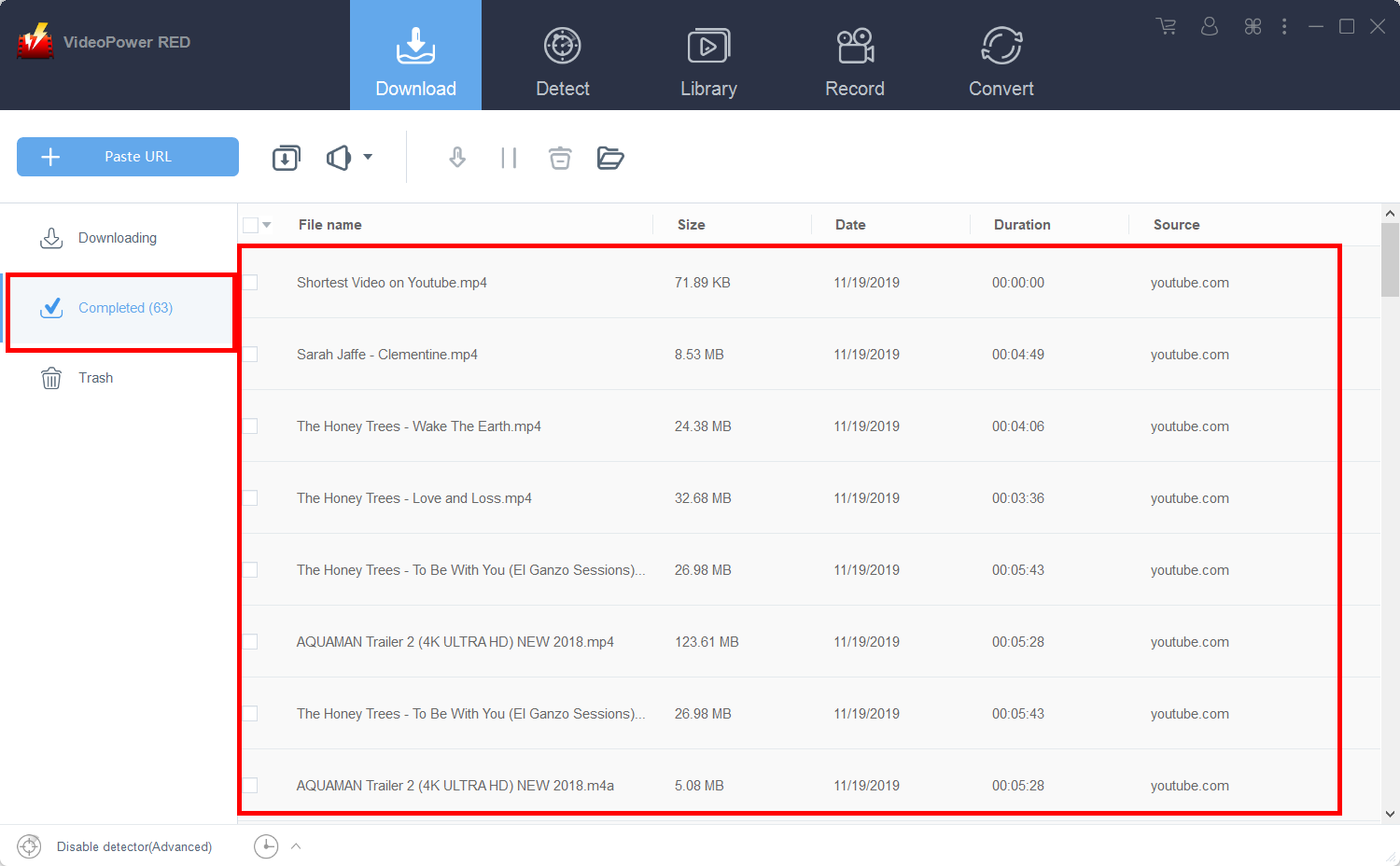
Wait for the download to finish, and then go to the “Completed” section to find the downloaded video. You can right-click to do more operations and double-click to preview.
Method 2: Use the Embedded Browser
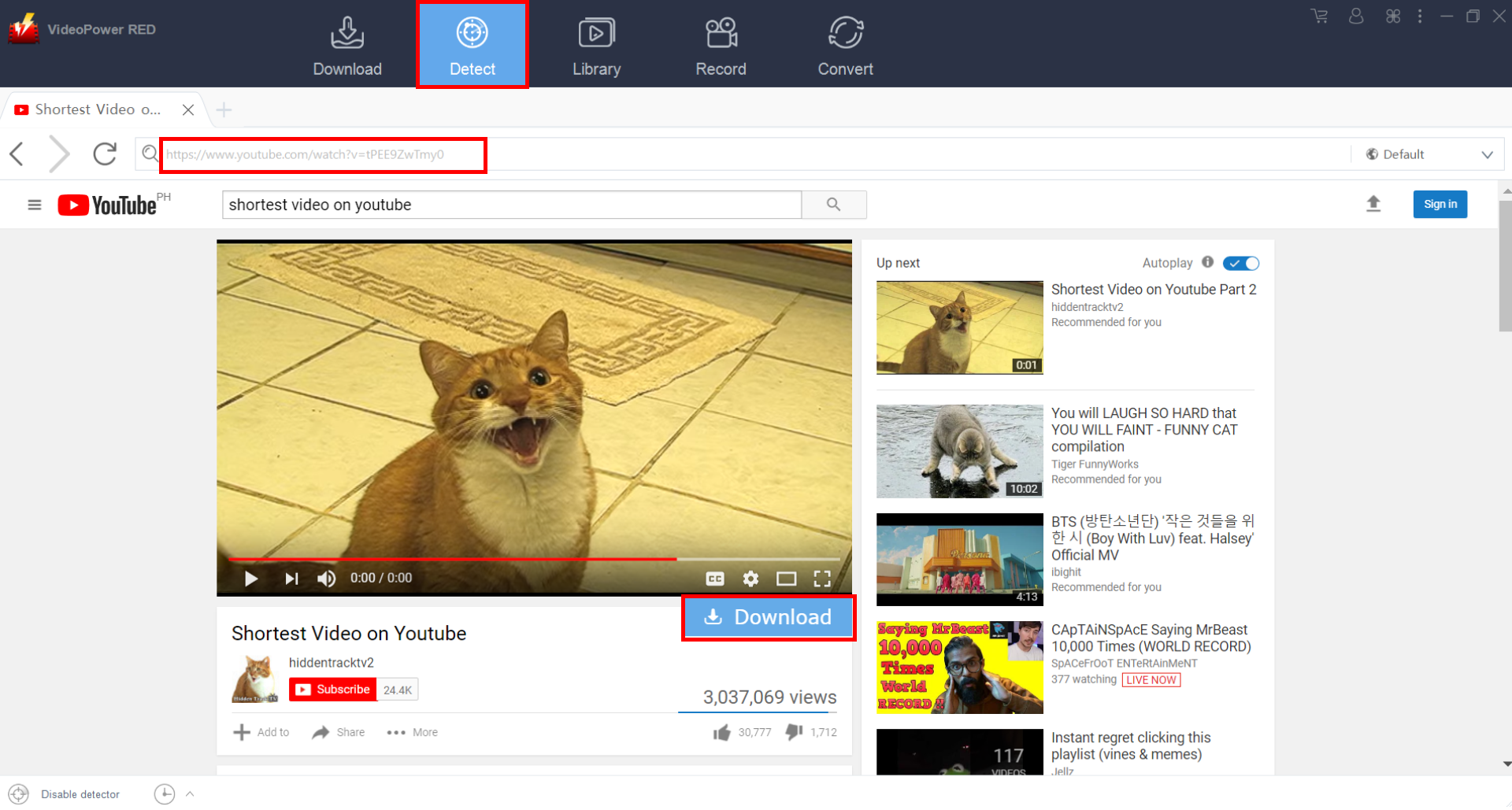
Step 1: Open the video via an embedded browser
If the program supports the site, the video will be downloaded after clicking the “Download” button below. In this example, we’ll use a YouTube video.
Step 2: Download Complete
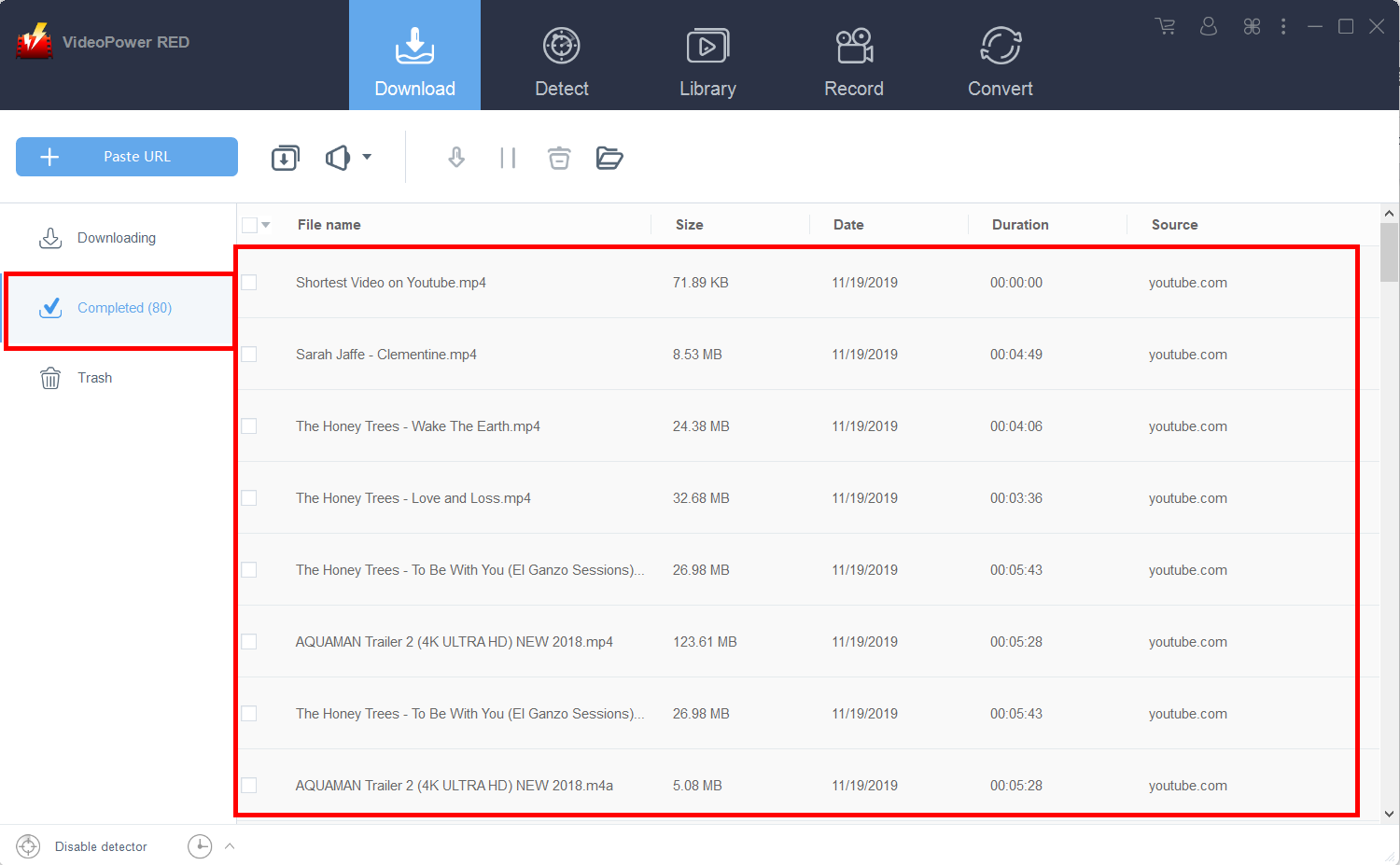
Wait for the download to finish, and then go to the “Completed” tab to find the downloaded video. Right-click to do more operations and double-click to preview.
Method 3: Record the video
For people in areas with a slow internet connection, you may opt to use the record function instead. This is also the best method to save protected video files.
Step 1: Start Recording
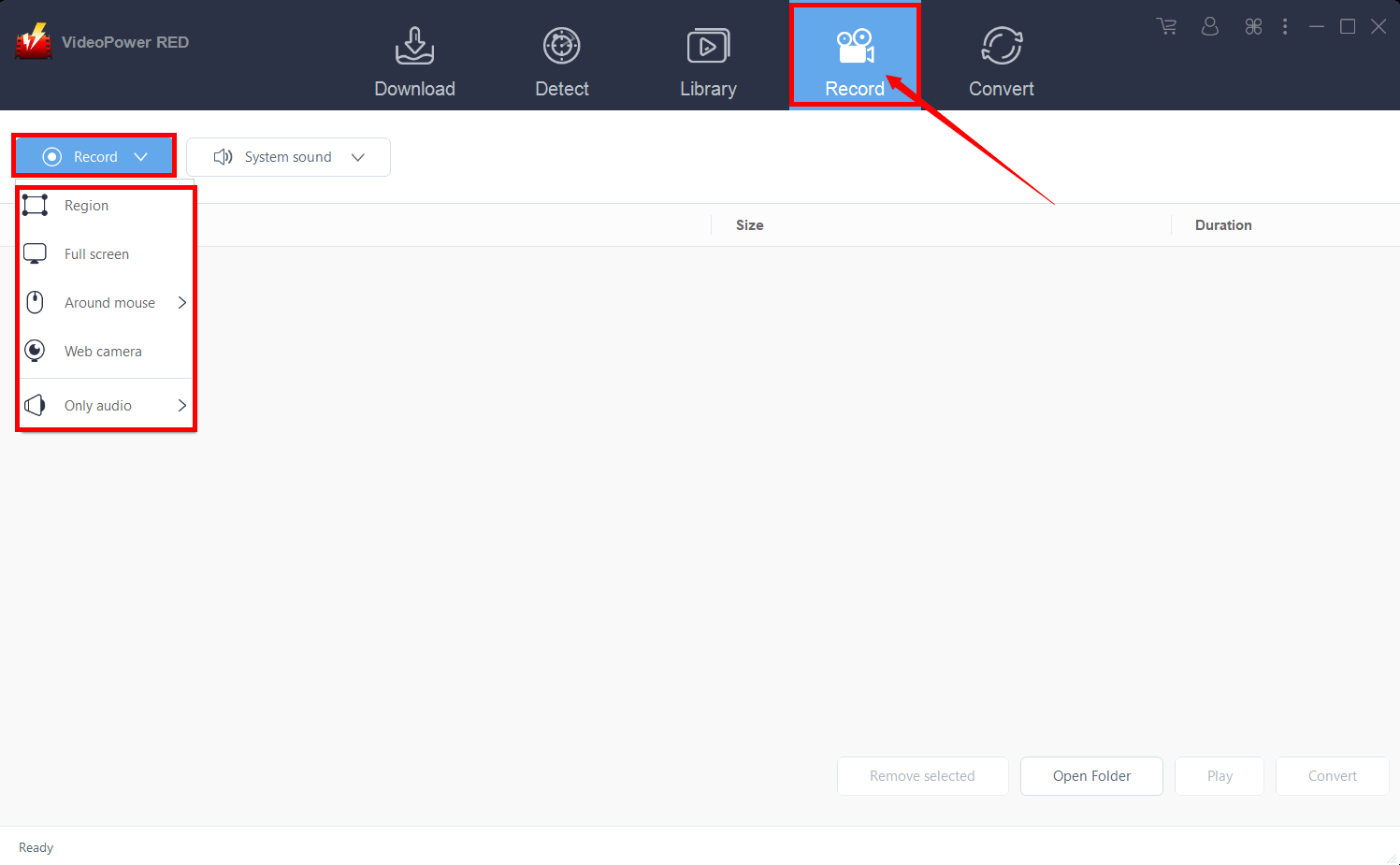
Click the “Record” tab to open the recording interface and select first from the given recording modes such as “Region, Fullscreen, Around mouse or Web camera” to capture the desired range of the video.
Step 2: Check the recorded video
After recording, the recorded file will be seen in the record interface’s completed tab. You can right-click to do more operations and double-click to preview.
Part 2: Convert the video to the iPad format
After picking the method that suits you best, you can now convert the downloaded video to the iPad format. Just follow the instructions below.
Step 1: Open Conversion Window
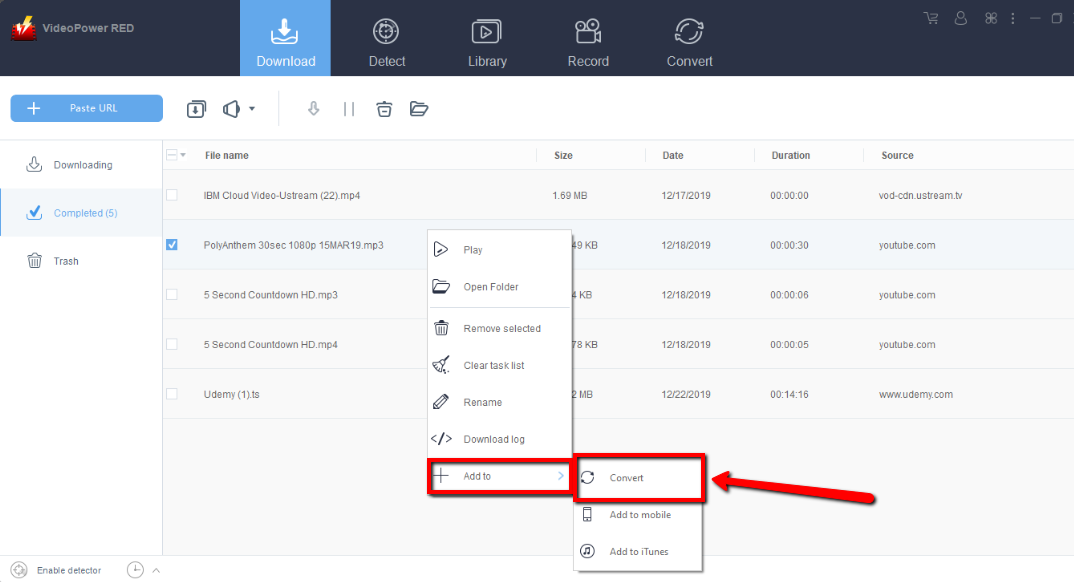
Right-click the downloaded file, click “Add to” and navigate to “Convert”. You will now be redirected to the Convert interface.
Step 2: Set iPad Format
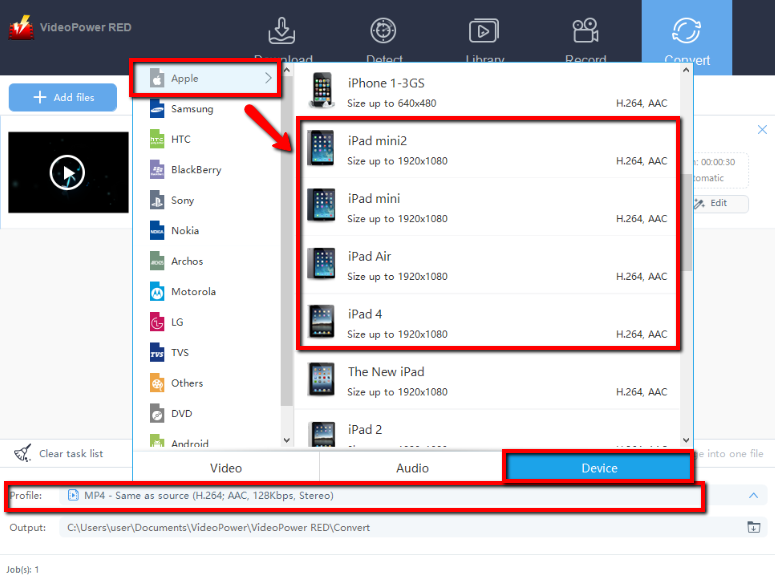
Click “Profile”, and navigate to “Device”, Choose from the “Apple” format, scroll down to see iPad format and choose as preferred.
Step 3: Start Conversion
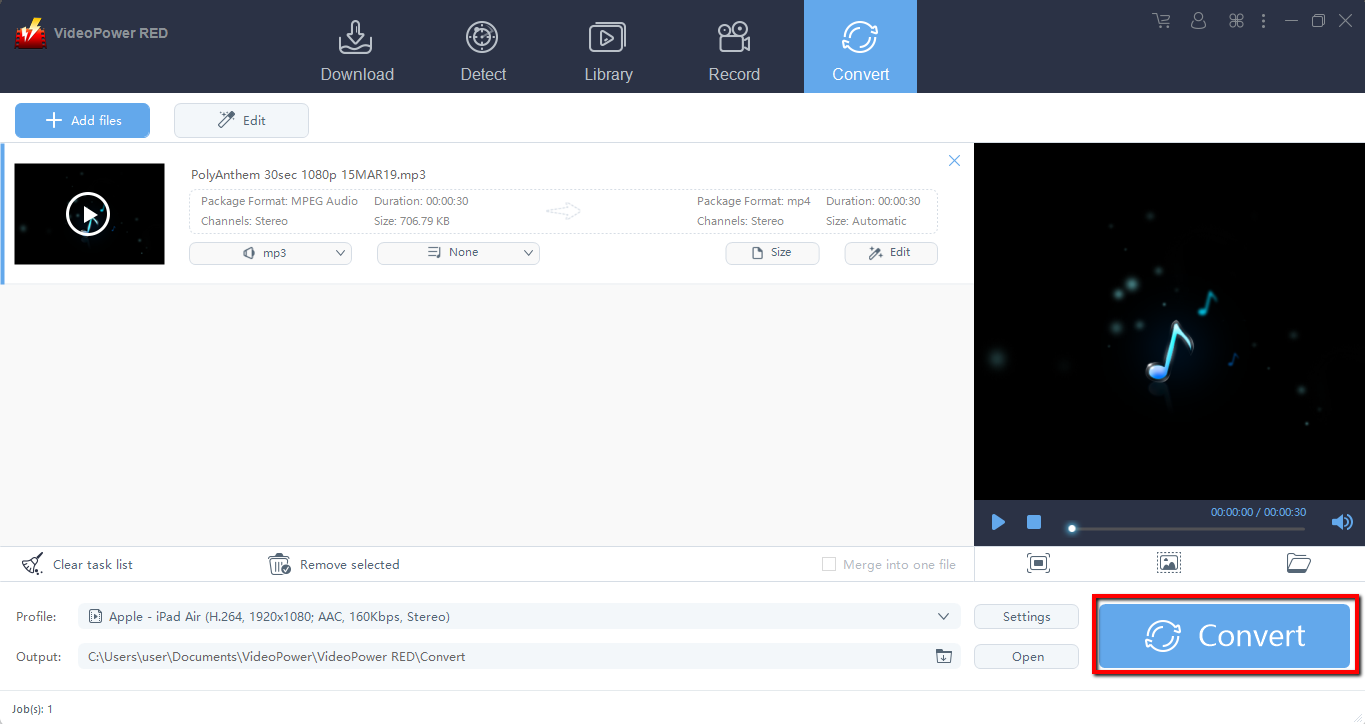
Hit the “Convert” Button to start Conversion.
Step 4: Open Output File Location
A new window will appear and let you know that the conversion was finished. You can find the file’s location by clicking the “OK” button.
Conclusion:
Despite the hassle-free method of downloading videos from YouTube and watching it offline, do keep in mind that this violated YouTube’s terms and conditions. Also, one more thing to take note of is that the author of the video worked hard on their material and it’s only right that by downloading the content for your own viewing convenience, that you do not redistribute it for your own profit. Having said that, VideoPower RED is a great software that allows you to download and quickly transfer files to your iPad.
More importantly, this software is a multi-faceted software that is a simple, easy-to-use and straightforward interface. These functions are built-in video editors that will enable you to edit slideshows or videos, apply watermarks, effects, and other basic video editing options such as trimming or cropping. Moreover, it has a split-screen tool for your photos and videos and a screen recorder which allows you to capture any on-screen activity on your computer.


