





Tips Index
Keynote is a presentation software exclusive for Mac computers of Apple Inc. It comes with plenty of themes, transitions, and animation effects that can help you enhance your presentation and keep your audience engaged. Keynote is actually simple and easy to use as PowerPoint. However, it does not have a built-in option for embedding videos in presentations. Users should download a video first before inserting it into the keynote.
Therefore, a third-party tool is recommended to download YouTube videos to let users easily embed YouTube in a Keynote presentation. Multimedia files, especially videos, can make the presentation look great. With it, the output becomes more informative and still manages to stay entertaining. It will also draw your audience’s concentration to focus on the discussion. With this thought, users ought to embed YouTube videos in Keynote.
To make this matter possible, VideoPower RED, an amazing, hassle-free downloader application software with various useful professional features, is best suited to answer the users’ concern on how to Embed a YouTube in Keynote.
Try to use the product for free. Just click the link below to download and install the app.
Part 1: Download YouTube videos
When you download a video or videos from any website with VideoPower RED application software, you’ll be given 4 methods on how to do it eaily. It is through, “Copy and Paste”, “Embedded Browser”, “External Browser” and “Screen Record” methods.
Method 1: Copy and Paste
Step 1: Copy and paste URL and download the video
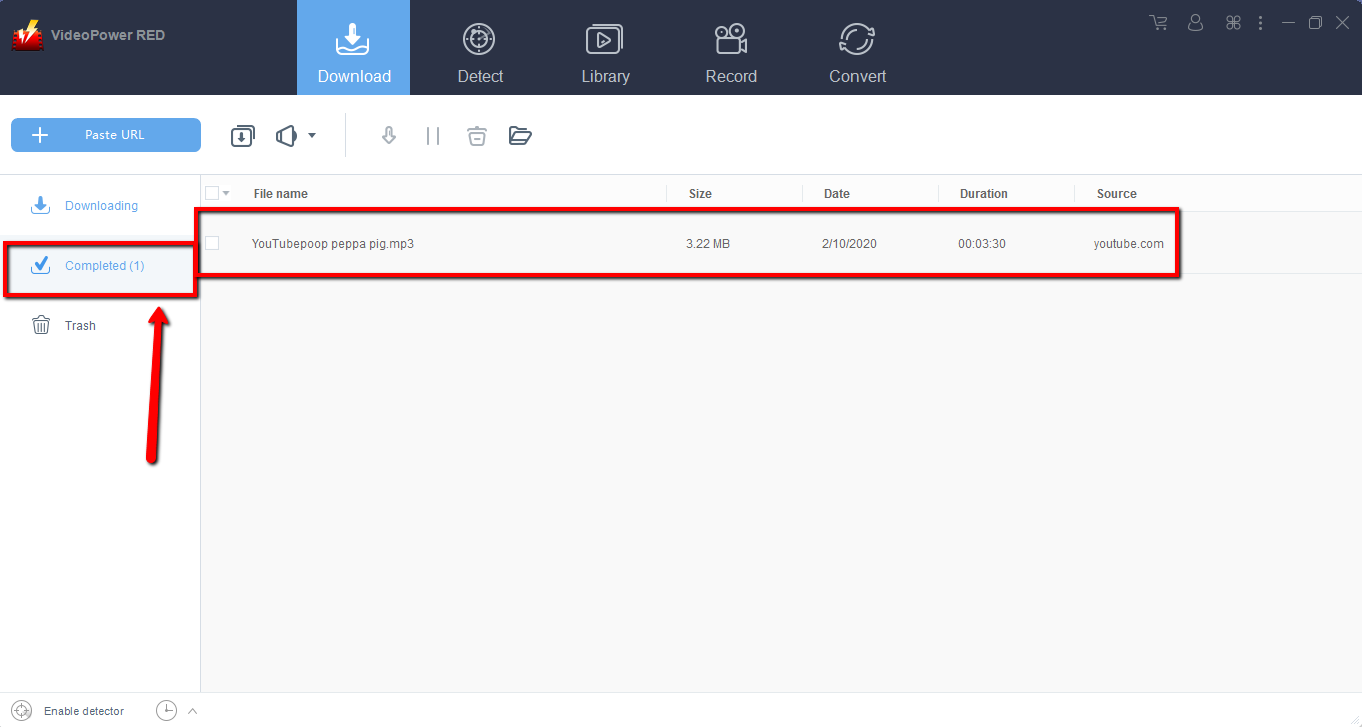
Copy the URL of the selected video file that you want to download and then paste it on the product by clicking the “Paste URL” button. After this, the video will be processed in the “Downloading” window then will be downloaded successfully and be shown on the “Completed” window.

Step 2: Check the downloaded file
Wait for the download to finish, and then go to the “Completed” section to find the downloaded video. Right-click to do more operations and double-click to preview.
Method 2: Auto-Detect (Embedded Detector)
Download the desired video file using Auto-Detect on the “Detect” control panel. The software can detect the video being played on it and it will be downloaded automatically in any site except YouTube. For YouTube videos, there’s the need to click first the download button before it will be downloaded.
Step 1: Download the video file through an Embedded Detector
Search and select the desired video file. After selecting, the “Download” link will automatically pop-up at the bottom of the video. Click the link to start downloading.

Step 2: Check Downloaded File
Wait for the download to finish, and then go to the “Completed” section to find the downloaded video. Right-click to do more operations and double-click to preview.
Method 3: Use External Detector
Step 1: Set-up Settings
1) Activate the “Enable detector” and start downloading the desired file. Detect the videos being played in any sites through an external browser and download it automatically after activating the “Enable Advanced Detector” on the download settings window.

2) Enable the detector located on the lower left of the software.

Step 2: Check Downloaded File
Wait for the download to finish, and then go to the “Completed” section to find the downloaded video. Right-click to do more operations and double-click to preview.
Method 4: Screen Record
In some cases, because of slow internet connection, downloading would be problematic. To continue saving the desired video file, use a screen recording feature.
Note: This method is best for protected video files
Step 1: Set-up Settings
Select the recording mode and start screen recording. Record the desired screen through five different modes;
1) Region
2) Fullscreen
3) Around mouse
4) Web camera
5) Only audio.
Select the preferred one and the recording will start automatically.

Step 2: Check the Recorded File
Wait for the download to finish, and then go to the “Completed” section to find the downloaded video. Right-click to do more operations and double-click to preview.
Part 2: Embed Downloaded YouTube videos in Keynote
Step 1: Open Keynote to start embedding
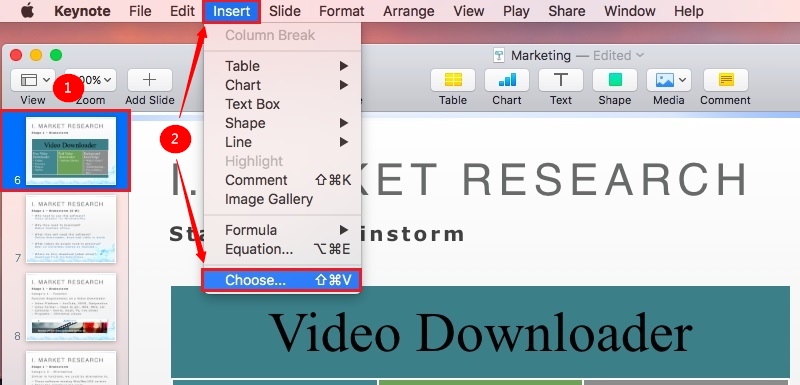
1) Open Keynote presentation software and navigate to the desired slide where the video should appear;
2) Then go to the insert menu section and select “Choose”;
Step 2: Insert Video File
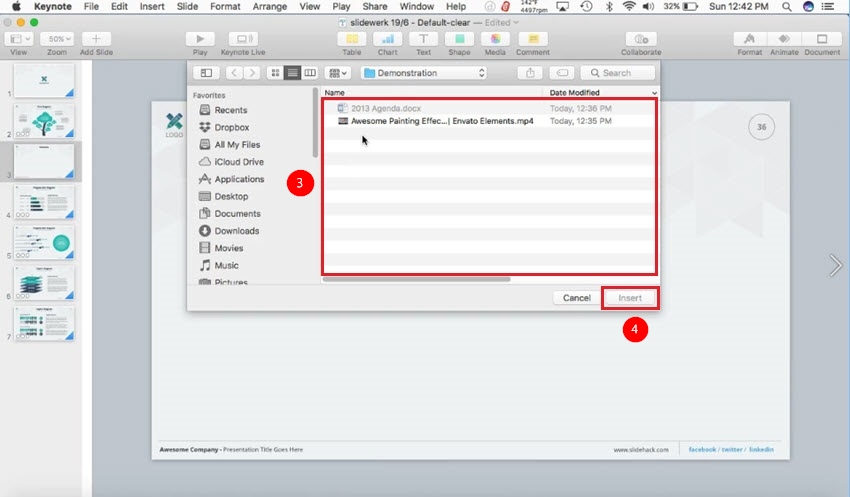
3) Search the saved video file and select it.
4) Click “Insert” to add it to the slide. The video will be inserted at full size.
Conclusion:
Technologies become great and amazing, but still, everything is still not perfect just like Keynote. It is presentation software that provides amazing performance and output for Apple products. However, this software cannot easily embed videos like YouTube videos on its slide. Users need to download first the video before embedding it on the Keynote slide.
Downloading videos would be easy through a third-party tool called VideoPower RED. It is an amazing, hassle-free and trusted downloader application software with various professional features that can modify and beautify files into a new trusted version of the downloaded video file. With this software, users who asked how to embed a YouTube Video in Keynote would be pleased.


