





Tips Index
People have been consuming entertainment stuff ever since, from the birth of television to the innovation that is the internet. More and more genres are generated from time to time, from the classic action to drama, to the rise of documentaries and vlogging entertainment to simple video tutorials. These new categories have been on the rise lately because of the availability of media that perfectly fits our palms. Smartphones and tablets have been pushing the industry too, but just like anyone of us, we do have our own favorite videos or clips to go back with and watch. Although we can always go back and search for it, we can always have the option of saving it in our drives. Online downloading has been very common these days, but some website limits download to Youtube, so how about other sites? and how to download videos from websites that don’t allow?
VideoPower RED is a software to download videos from websites, it is a video download tool fit for every video website there is. It specializes in downloading videos not limited to YouTube only but also to other sites. It has some of the most sophisticated tools other than video downloading. VideoPower RED can even convert videos of different formats to another, or even convert video to an audio file. The fun thing is you will never experience popping ads before proceeding to the conversion process, or have some cuts on the clip due to weak connection. This article shows you how to download videos from any website.
You can try to use the software for free by downloading its trial version below.
Method 1: Use Embedded Detector
Step 1: Search Video File
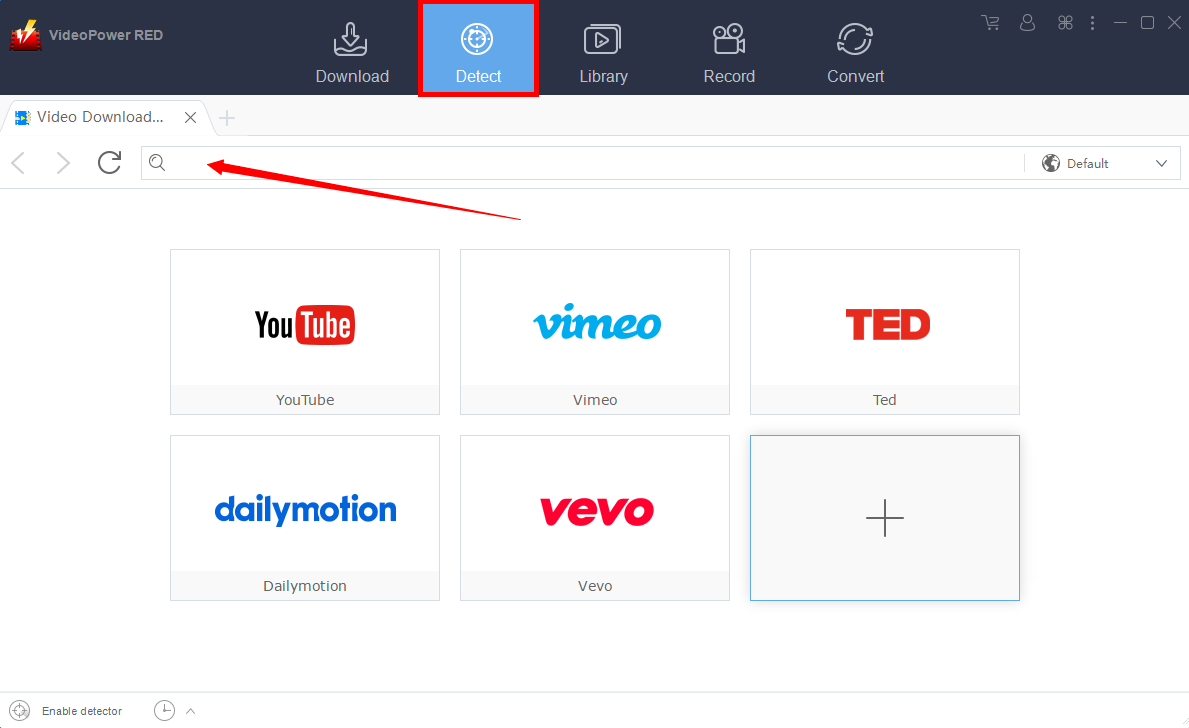
Open VideoPower RED’s Embedded Detector and select a web browser. Search the video you want to download.
Step 2: Start Download
When you play the video of your choice from any of the sites except YouTube, a “Media File Detected” notice will pop-up to notify you that the video will automatically be downloaded. Using YouTube, there is a “Download” button to click first to start downloading.

Step 3: Download Complete
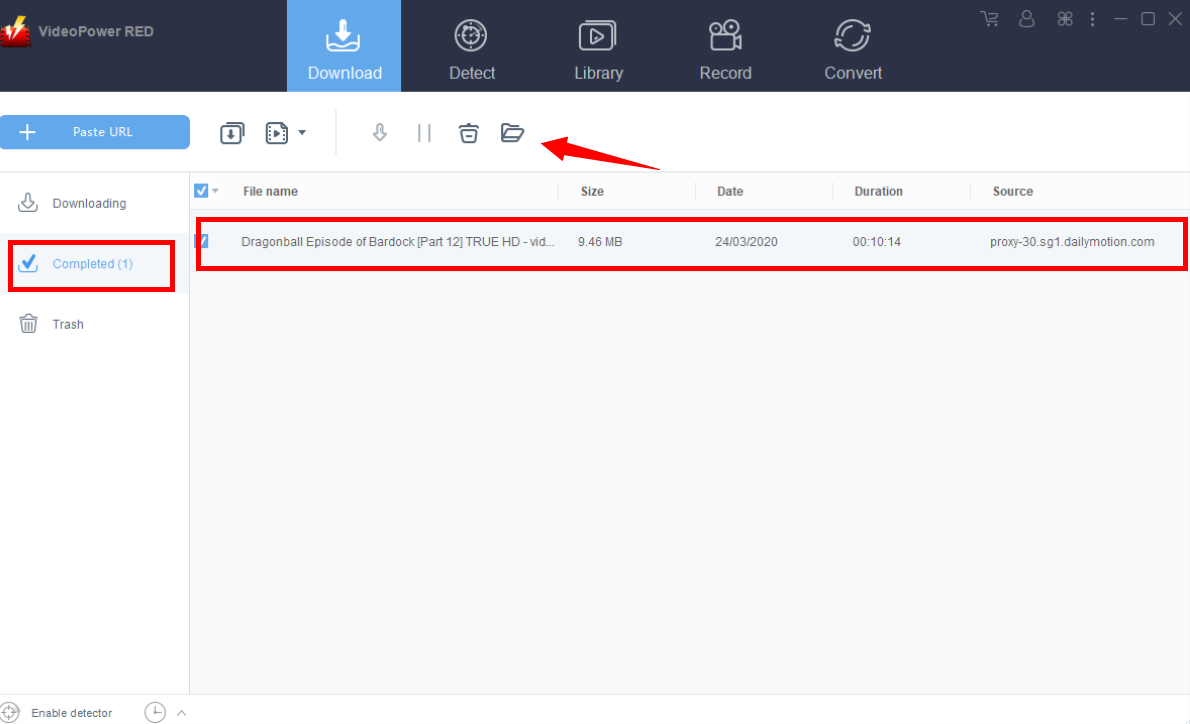
After the download process has been done, click on the “complete” tab to see the downloaded file. It can be located through the folder icon above. Before that, you can also right-click to do more operations and double-click to preview.
Method 2: Use External Detector
This method will enable you to do other tasks or while playing the video without tapping much in keys to download. Activate “Enable detector” will automatically start downloading the Video file. Detect videos being played in any sites through an external browser and download it automatically after activating the “Enable Advanced Detector” on the download settings window.
Step 1: Set Advance Detector
Open the setting window and navigate to the “Download” tab. Click the “Enable advanced detector (Support HTTPS)” and click “Okay” to activate it.

Step 2: Enable Advanced Detector
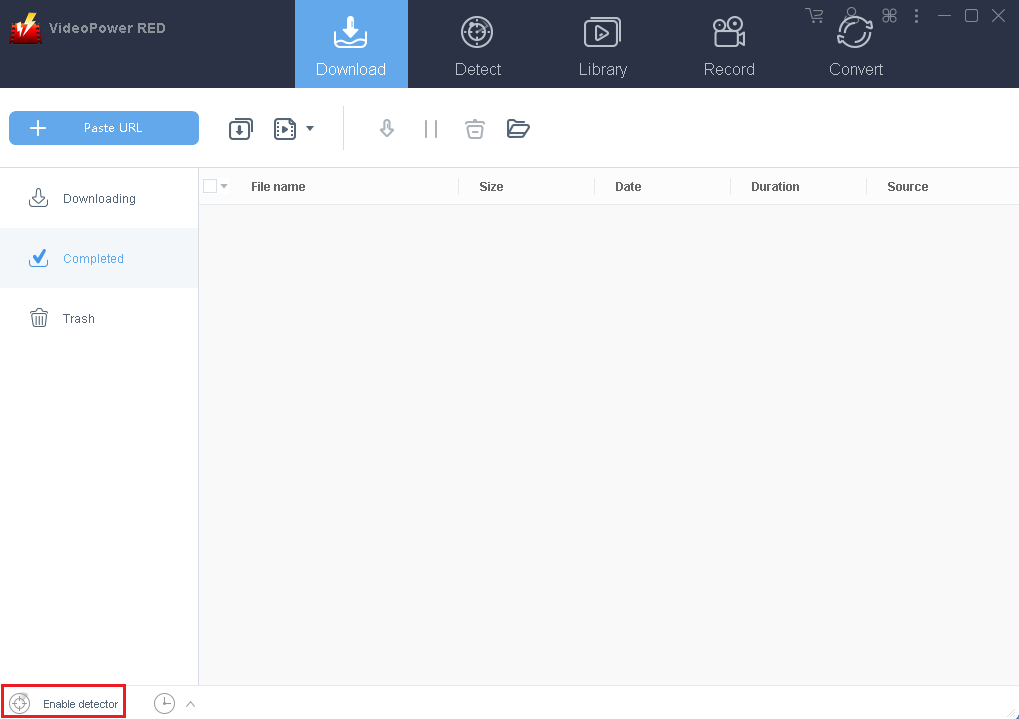
Enable the detector located at the lower-left portion of the software, click “Enable detector”.
Now you can play the video using an external browser, the software will detect and download it automatically.
Method 3: Record Screen
If the other options or methods fail, this screen recording method will surely grab the video you like by bypassing the latter issues mentioned. It is recommended for video files that are protected.
Step 1: Set Sound Source
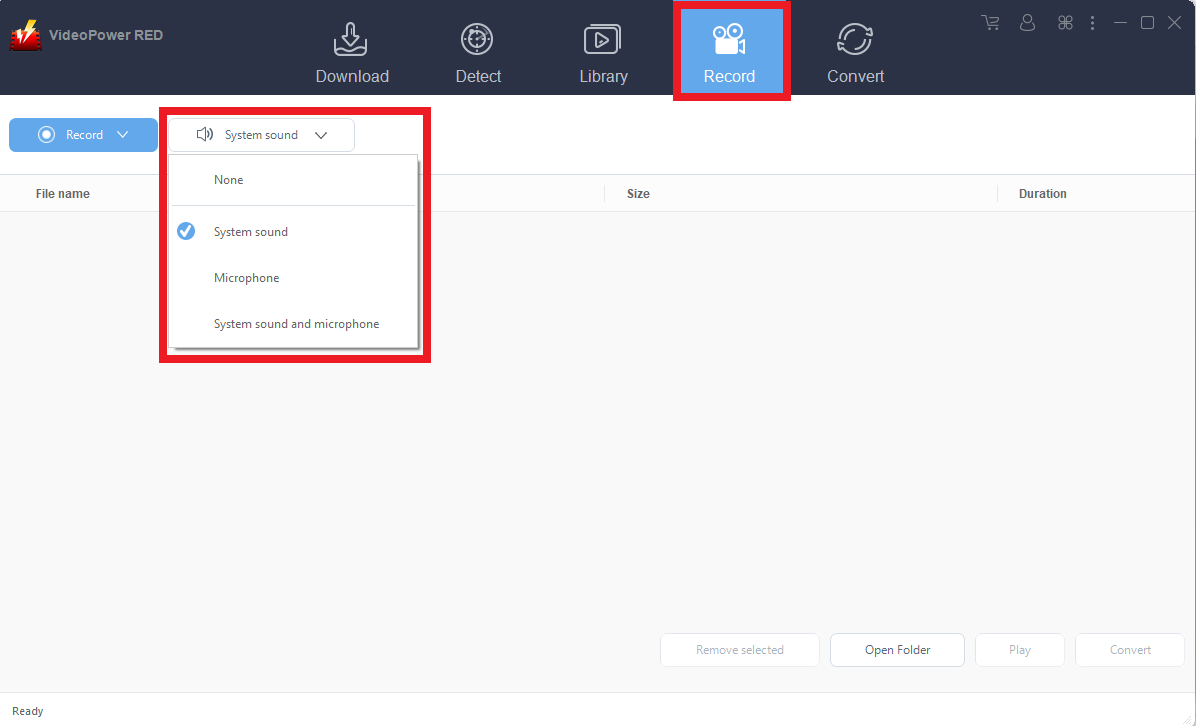
Go to the “Record” function of the app and choose the sound source. Since we are recording a video on a screen, select “System Sound”.
Step 2: Select a recording mode.
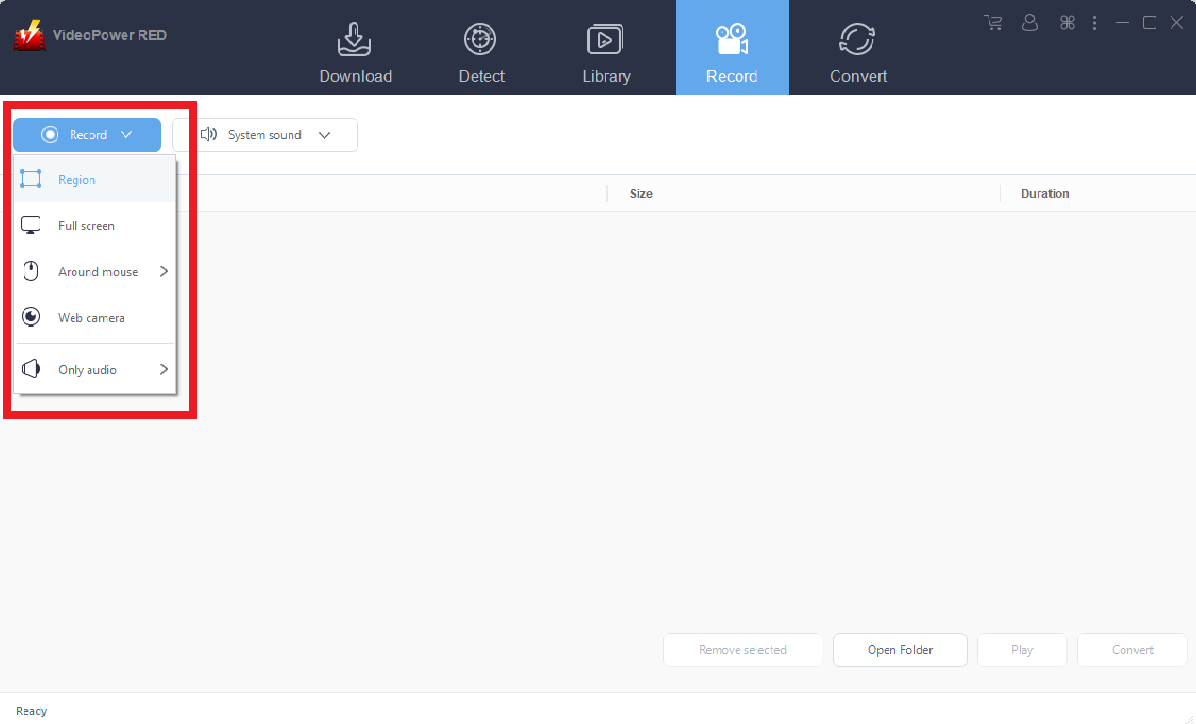
Click on the “Record” tool to select your display recording option. The following options are suitable for recording videos from websites.
Full Screen: The recording area will be the whole screen of the computer.
Region: The recording area will only be a specific area of the computer screen.
Conclusion:
More than just a software to download videos from websites, VideoPower RED has multiple functions more to video downloading. It can record screens for several tasks or projects.
Another fun feature of VideoPower RED is a built-in web camera within the app so you don’t have to open another app just to record yourself. It can even convert several media types like MP4 to WAVV. Adjusting qualities from standard to high is also possible. Editing videos can also be done in this video download tool.
People are now using apps that can do more than one task, since transferring to another software just to do another different task is a little bit too time-consuming.


