





Tips Index
Listening to music is a great way for people to relax and release stress. Thanks to the convenience brought by the internet, people can easily enjoy music online. However, some people still prefer offline consumption – you can use VideoPower YELLOW as an internet music downloader.
It lets you freely download music from the Internet, real-time record any sound from the computer, edit waveform of an audio file, and many other useful functions.
You can download this free Internet Music Downloader from the link below and grab your favourite music online with no hassle.
Method 1: Search and Download Music
Step 1: Search for either artist or song
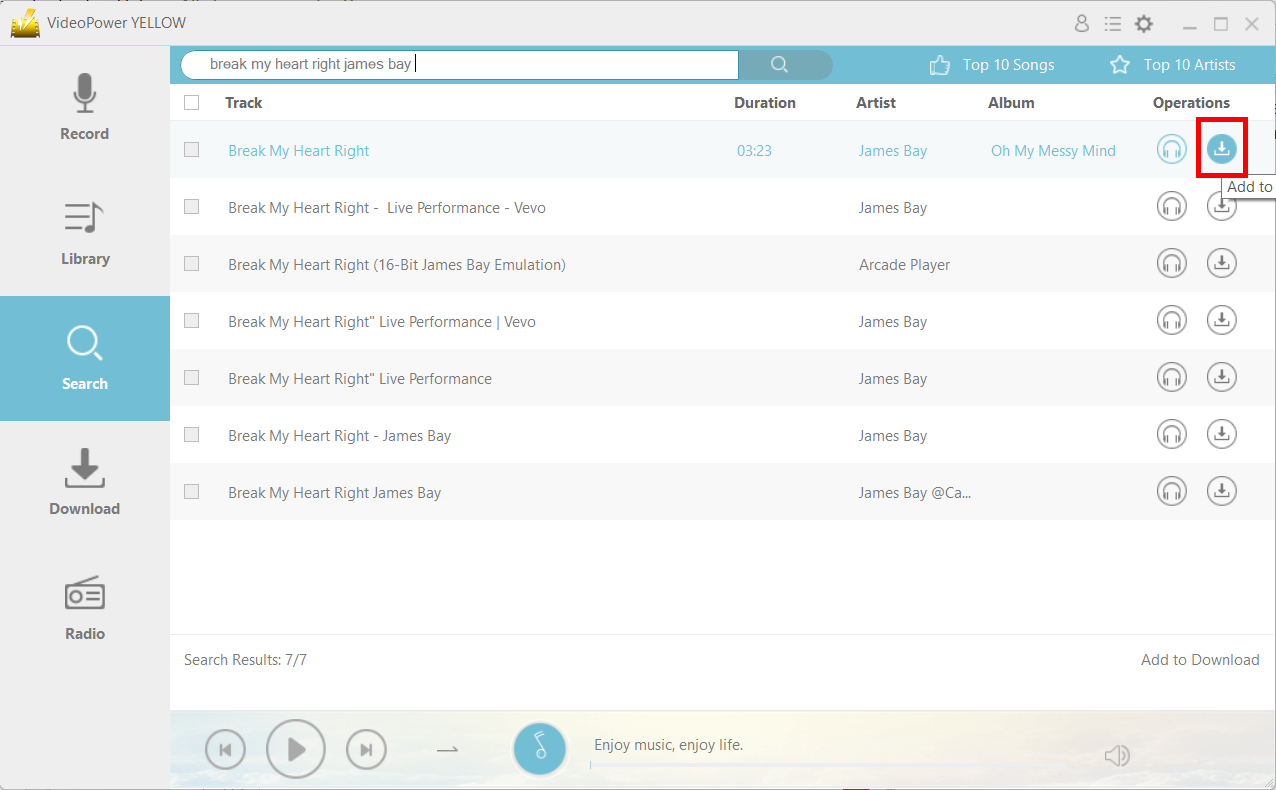
Launch the program after a successful installation. Go to the “Search” function and search the song that you want to download.

Step 2: Download music from the search results
The search results will display multiple tracks pertaining to the search inputs. The song’s details shown on the list includes duration, artist, and the album is displayed.
Click on the “Download” icon, to download the song.
Step 3: Check the download section
3.1 Downloading
After selecting the appropriate track, it will automatically be transferred to the “Download” button specifically at the “Downloading” list.
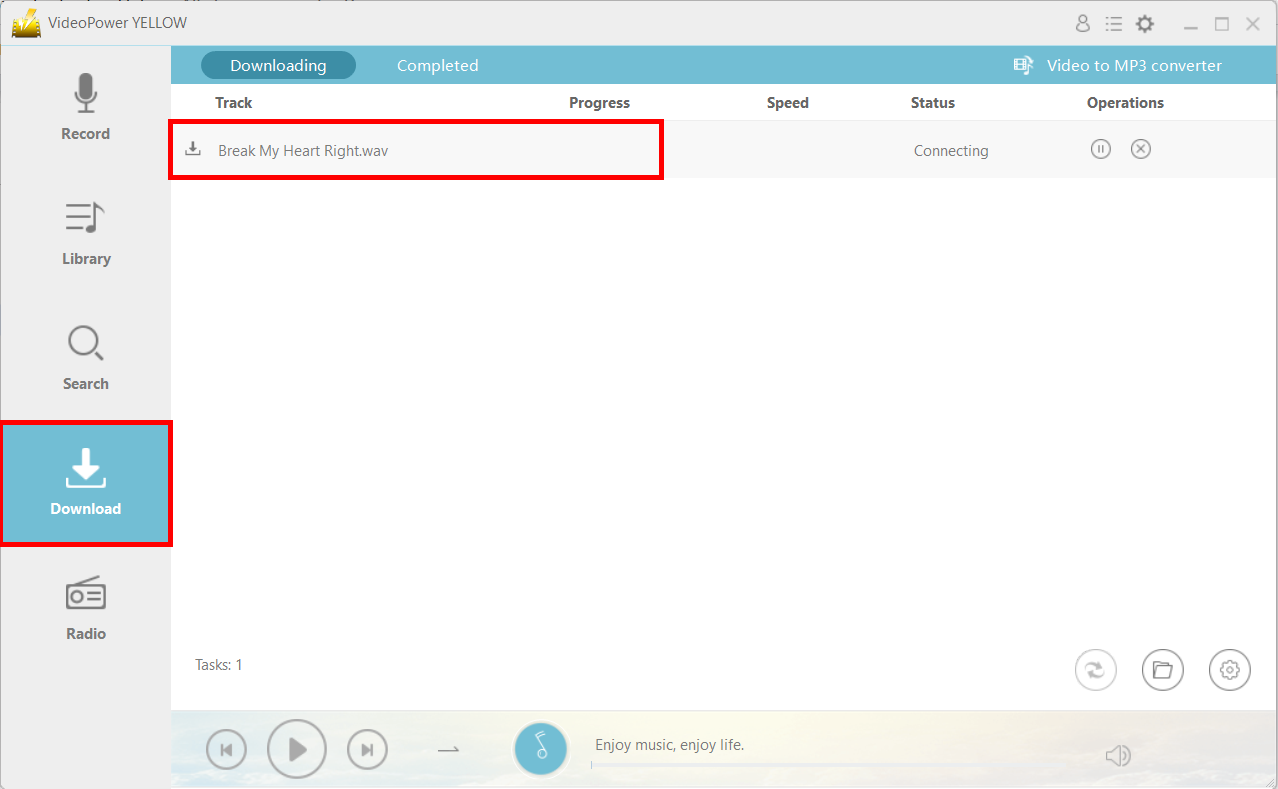
1) Pause – click on this button if found second-guessing about the track downloaded or if batch downloading is causing delays on each download, it can always be paused.
2) Stop – Click on this button to terminate the downloading process.
3.2 Download Complete
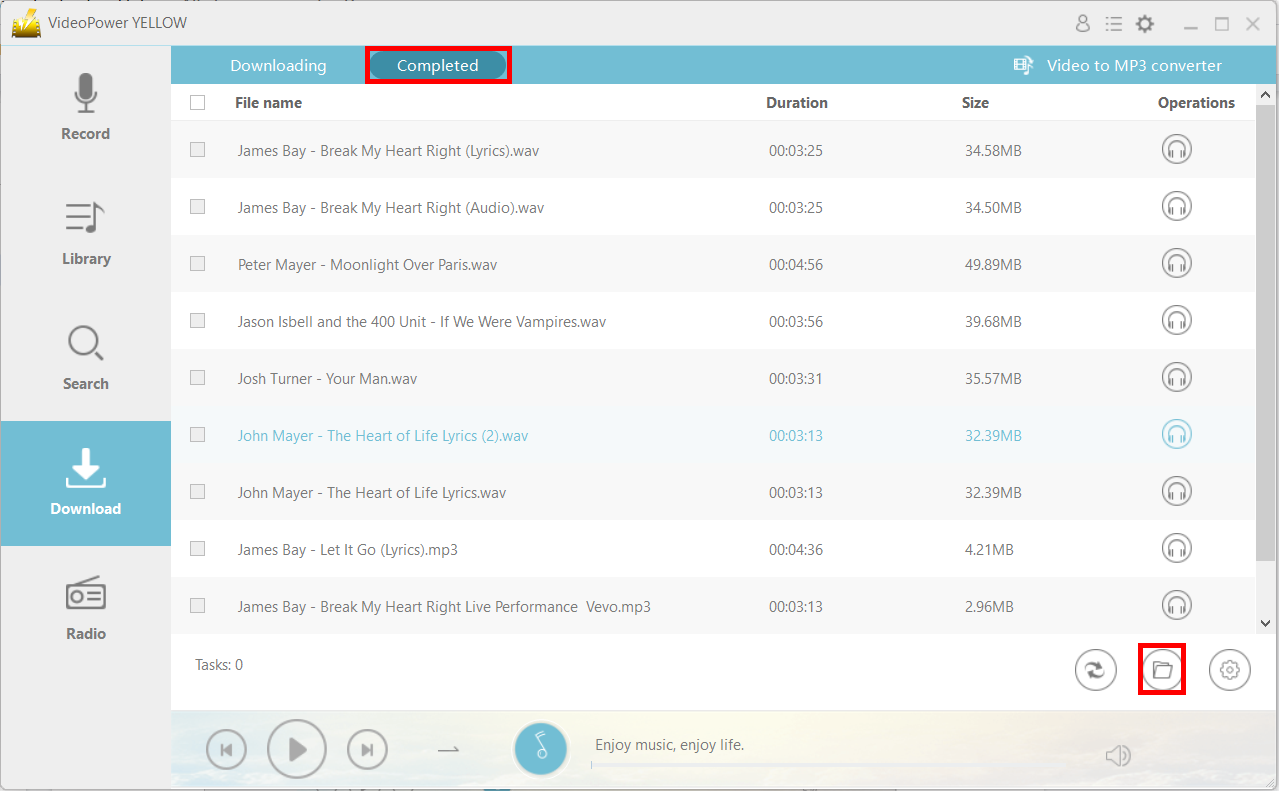
After downloading, the file will be in the “Completed” tab in the “Download” section. You can find the location of the file by clicking on the “File location” icon on the lower-right.
Method 2: Record the audio
For this final method, you can extract the audio by recording it directly.
Step 1: Set the sound source
Before recording the track, make sure that the sound source is set to “System sound.”

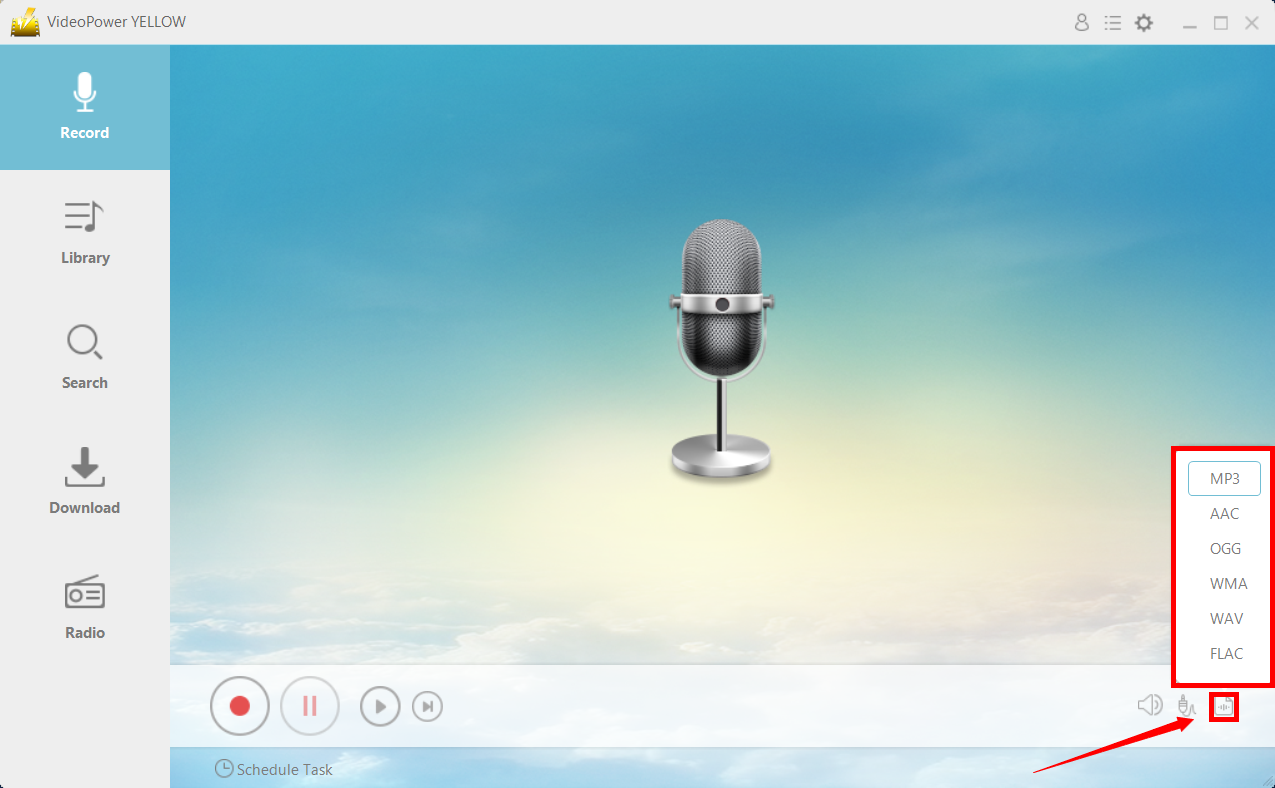
Step 2: Set the file format
Make sure that the recording is set in the format of “MP3.” – or whatever format you deem appropriate.
Step 3: Record
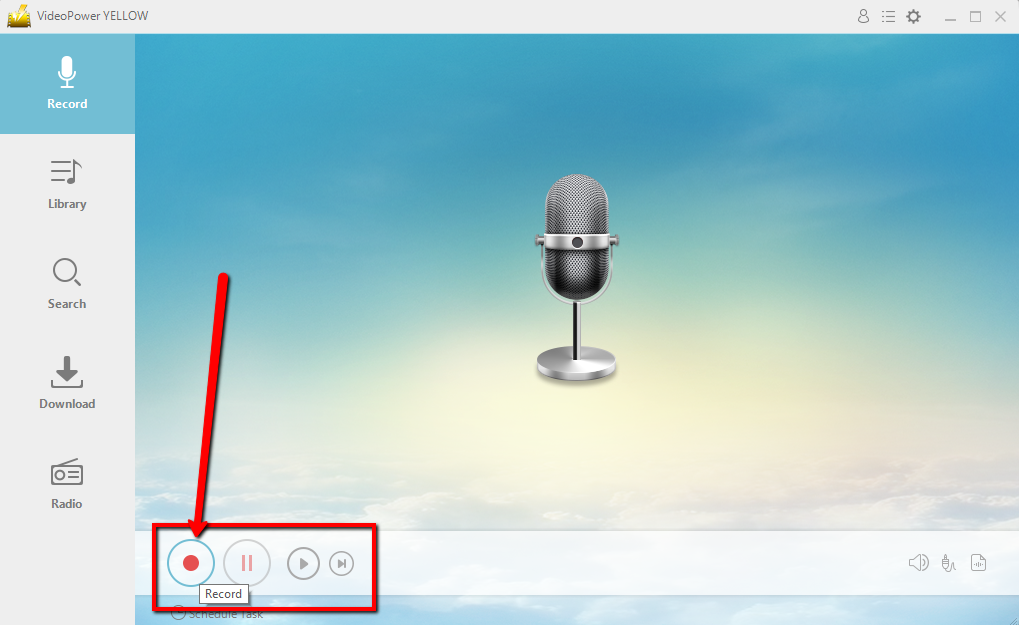
Click the “Record” button to start recording.
Play music.
Go to the track that you want to save. In this example, we’ll use a Spotify track.

Open the file location.
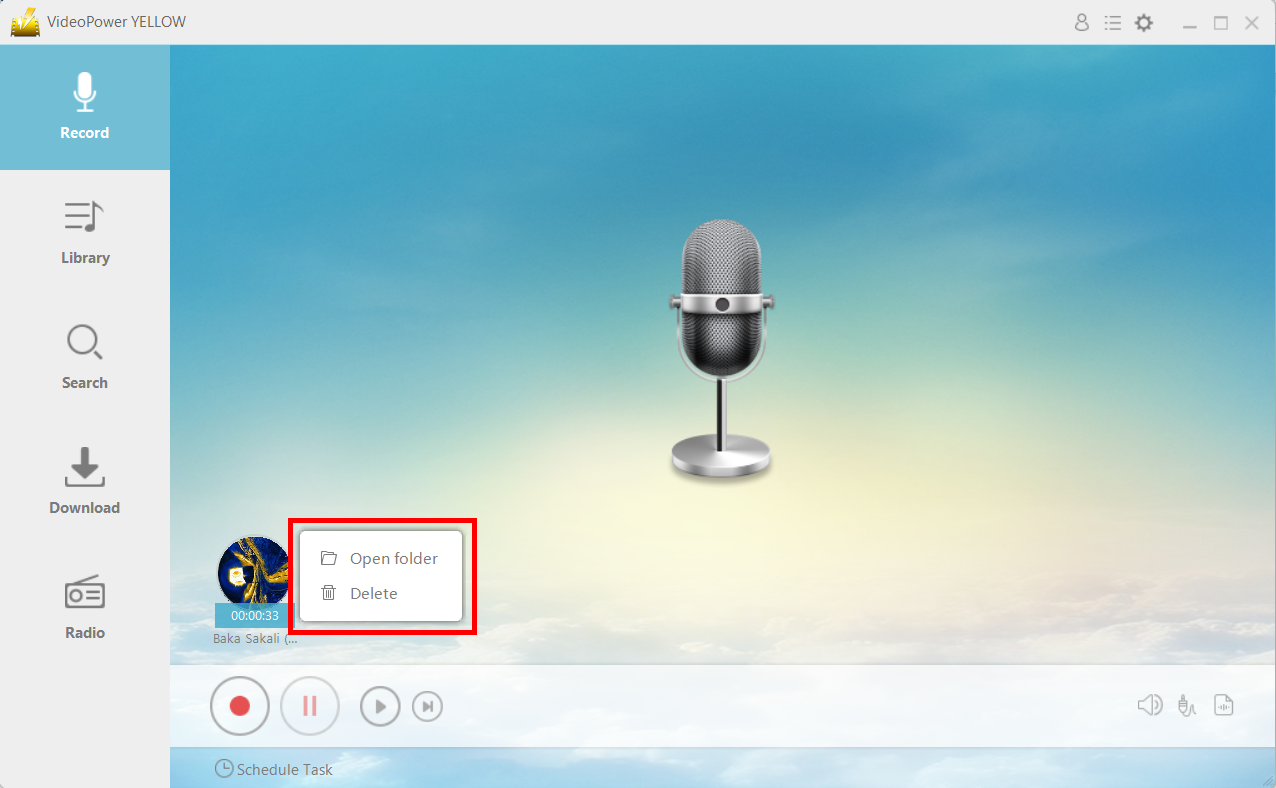
After recording, right-click the recorded track icon and click “Open folder” to open the storage location of the recorded audio file or click “Delete” if you want to delete the file and record again.
Conclusion:
VideoPower YELLOW delivers ultra-versatility in music, whether you want Youtube Music download, Amazon Music download or even Spotify, yes this software can extract the best audio from different websites or function as an independent player and downloader in one, and the best thing is that the tracks are free! It even has a built-in radio for that laid back afternoon chill. Other than the Video to MP3 conversion feature, it has a search engine ready to download your favorite music. It can also record any audio from your screen just in case if you’re unable to download your target song. Try it now!


