





Tips Index
Brief Screencast-O-Matic Review
Screencast-O-Matic is a fast and free screen recording and video editing software that can be launched directly from a browser. It is a software that is widely used in the education sector that helps schools’ classrooms to support student’s digital presentations.
In addition, this product can also record webcam activities, or simultaneously record screen and webcam, so that the camera screen can be displayed along with the main screen.
Thus, if you want to record gameplay or tutorial videos, the free version of this software can meet your needs.
Awesome Alternative to Screencast-O-Matic
In cases where Screen-O-Matic isn’t available or cannot be downloaded, VideoPower Green is the best alternative for it. This software is the finest choice in recording screen activities with audio support. It can record various games, YouTube videos, online chat in a window, PPT and so on.
The advantage of VideoPower GREEN lies in its low requirement for the user’s computer configuration. Some video recording software always
VideoPower GREEN is the best desktop tool for basic video/audio recording and screen capturing. It has multiple functions but easy to use with no tech knowledge required at all. It enables you to record movies, video tutorials, games, live streams, calls, and more.
You can try to use the software for free by downloading its trial version below.
Step 1: Open and jumpstart to record screens
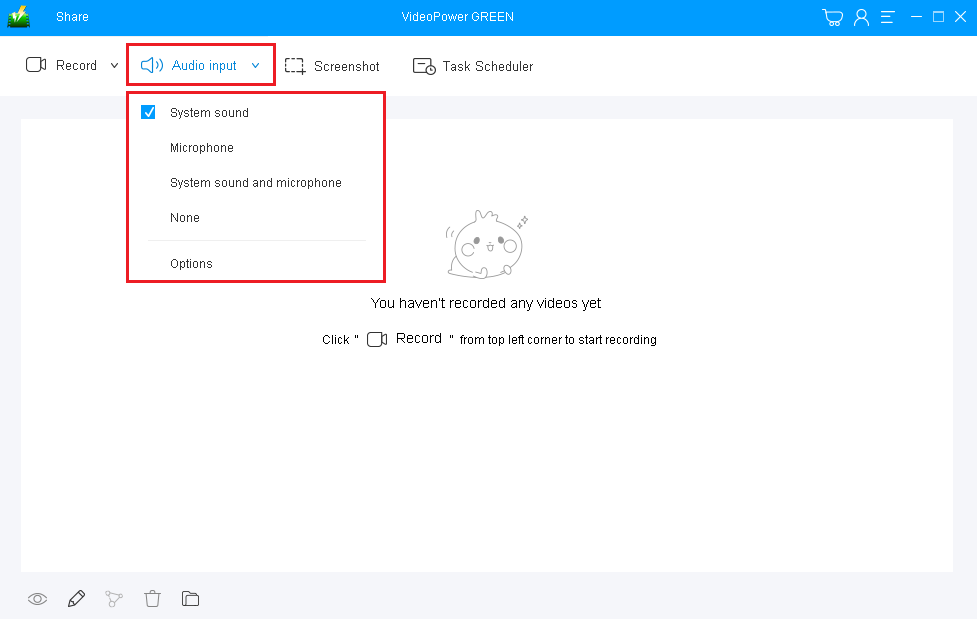
1.1 Choose a sound source
You can choose “System sound, Microphone, System sound and microphone or None.” To record streaming video, you can select “System sound”.
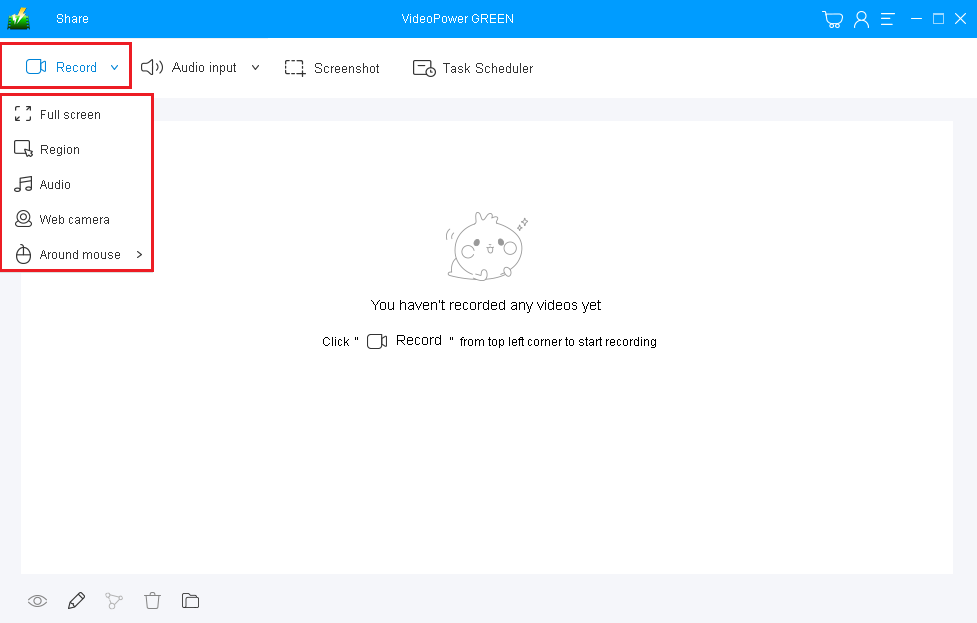
1.2 Select a recording area
Click on the “Record” button to choose the recording mode from “Full screen, Region, Audio, Web camera, Around mouse”. Select the area you are going to record.
Step 2: Start to Record
2.1 Confirmation Prompt
The pop-up window will ask whether you are ready to start recording, click “OK” to confirm when you are ready to record.

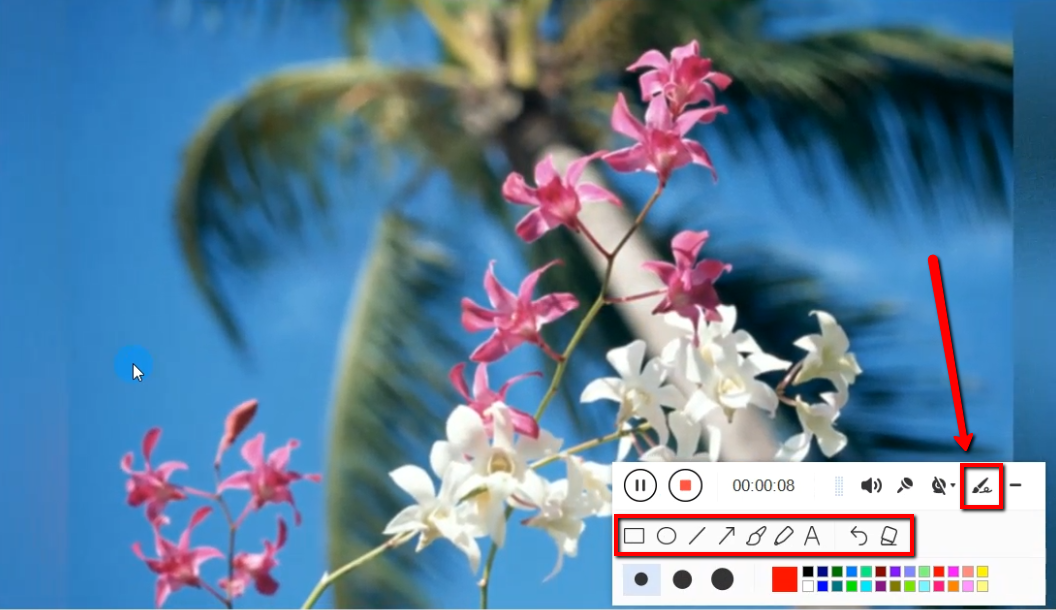
2.2 Video Editing Feature
Edit video while recording, while recording you can add lines, arrows, shapes, texts, highlight, blur, etc. by clicking the edit button.
Step 3: End the recording
Click the “Stop” button to stop recording.

After that, the recorded file is already saved in the pointed output folder.
1) Your recorded file can be seen in the main interface. You can right-click the file and do more operations if you like.
2) Click the folder icon to view it in the pointed output folder.

Conclusion:
Video recording application software isn’t already available for any computers. Some may have the problem in synchronizing its features and some are heavy for the device. Thus, simple and hassle-free software is in demand.
VideoPower GREEN, a powerful and trusted recording application software is best suited for screencasting and video editing most especially for educating purposes. In addition, this product can easily synchronize most of the devices and can also capture webcam activities along with screen activities.
Moreover, this product doesn’t only record screen activities for later viewing but also beautifies and shows an emphasis on the content of the recordings by using its editing feature. It can also help you save some time and effort by setting its task scheduler feature.


