





Tips Index
If you’re a student or just attending seminars and lectures are getting more boring and redundant you’ll get tired, bored and less interested in listening. Until they develop a different kind of approach and method in delivering their lectures. They started to use recorded videos representing contents and information relating to the topic while explaining.
On the other hand, for learners, recorded or recording lectures are very useful especially in their absence and when they have something they can’t understand. They can look at it once again later.
To make these things possible, a powerful recording application software would be of great help. Thus, VideoPower GREEN, an easy to use, hassle-free, trusted and with professional features recording application software would be best for this kind of job.
Just click the link below to download and install this app and don’t forget to check out this article to learn more.
Step 1: Screen record Lectures on laptop.
Run VideoPower GREEN if you have installed it on your PC.
1) Choose a sound source
You can choose “System sound, Microphone, System sound and microphone or None.” To record streaming video, you can select “System sound”.
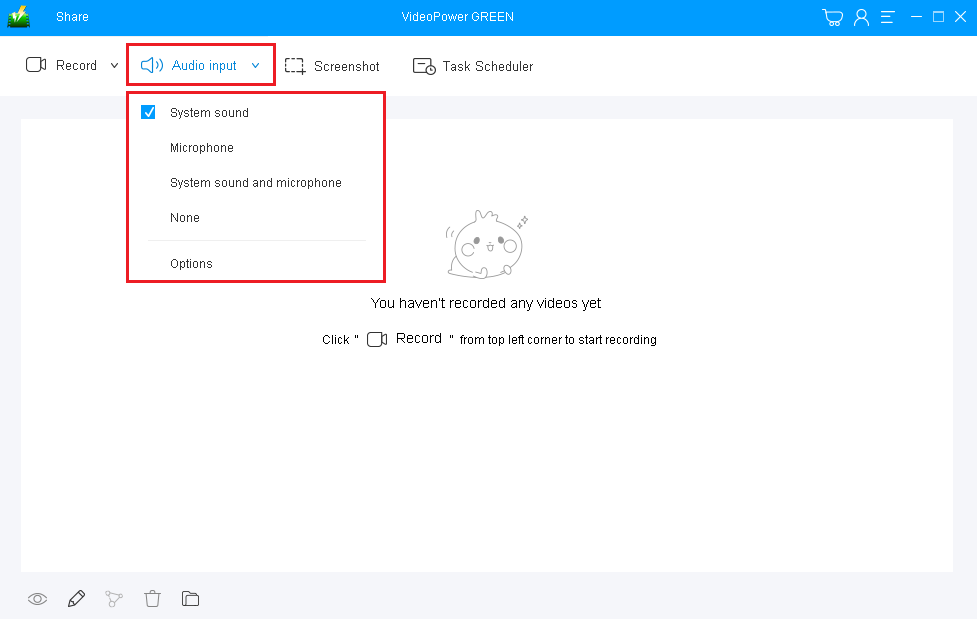
2) Select a recording area
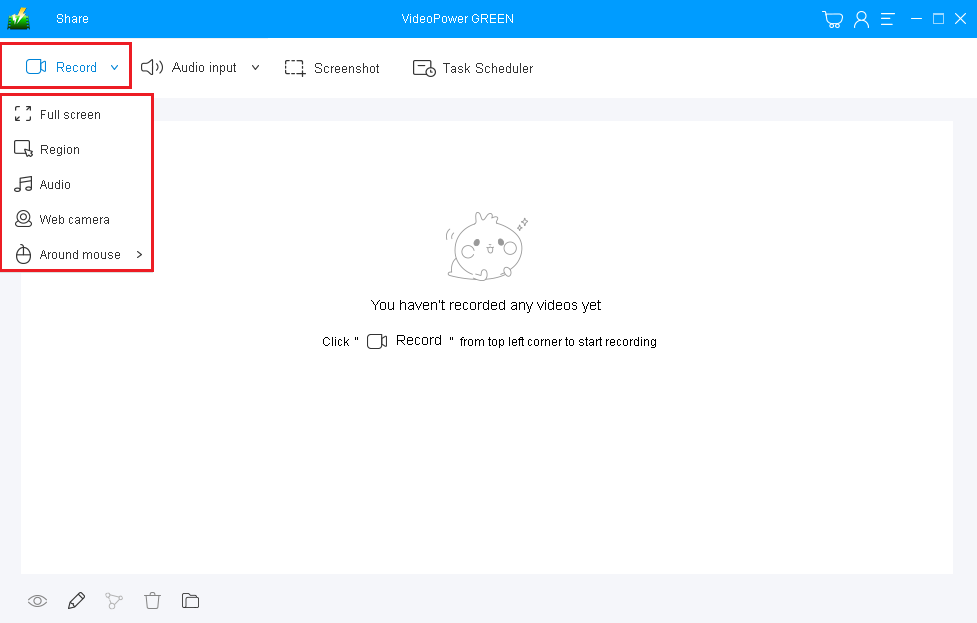
Click on the “Record” button to choose the recording mode from “Full screen, Region, Audio, Web camera, Around mouse”. Select the area you are going to record.
Step 2: Start recording lectures on laptop.
The pop-up window will ask whether you are ready to start recording, click “OK” to confirm when you are ready to record.

Annotate video while recording
While recording you can add lines, arrows, shapes, texts, highlight, blur, etc. by clicking the edit button.

Step 3: End the recording.
Click the “Stop” button to stop recording.

After that, the recorded file will be saved in the pointed output folder.
1) Your recorded file will be seen in the main interface. You can right-click the file and do more operations if you like.
2) Click the folder icon to view it in the output folder.

Conclusion:
Missing out important parts in the lecture is a bit of a problem. Looking at it once more can be of great help most especially for the learners. Making it possible is only with the help of screen recording software. Thus, VideoPower GREEN., a hassle-free, trusted and professional features recording application software is best suited for this kind of job.
Moreover, this app can help users beautify their presentations and emphasize important content on it with its editing feature. It can also help users save some time and effort by just activating its task scheduler feature.


