





Tips Index
Mozilla Firefox is an open-source web browser that is launched by Mozilla Foundation. It uses the Gecko engine to support Windows, Mac, and Linux operating systems. It has become one of the three giant browsers (including IE and Chrome) in the world, thanks to its own technology standard and characteristics.
Although Firefox 32.0.3 does not have many powerful new functions, there are still some improvements compared with previous versions, such as Firefox 32 with a new HTTP cache back end, and other improvements include request sorting optimization to provide faster load time and ability to improve for crashes and hangs.
Nowadays, as technology continues to develop, many users are looking for a Firefox Screen Recorder to help them record their browser activities, streaming videos, tutorials, etc.for offline and later viewing purposes.
In this article, we highly recommend using the best and easy to use screen recording software called VideoPower GREEN. Now, you can record on-screen activities on your computer in your own way with professional results.
Just click the link below to download this free app.
You can try to use the software for free by downloading its trial version below.
Step 1: Record Firefox screen activities.
Run VideoPower GREEN after installing it on your PC.
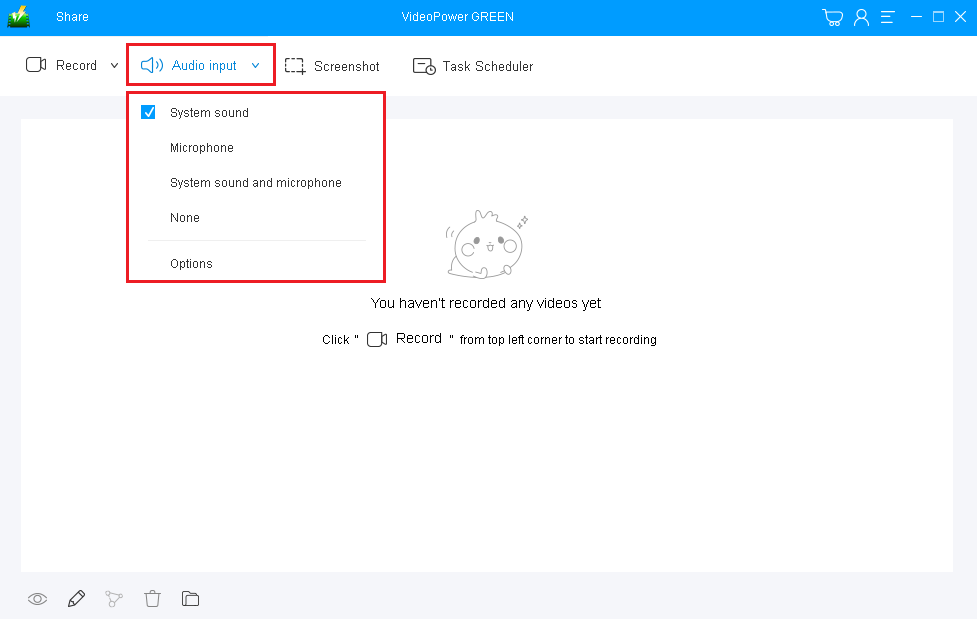
1) Choose a sound source
You can choose “System sound, Microphone, System sound and microphone or None.” To record Firefox streaming video, you can select “System sound”.
2) Select a recording area
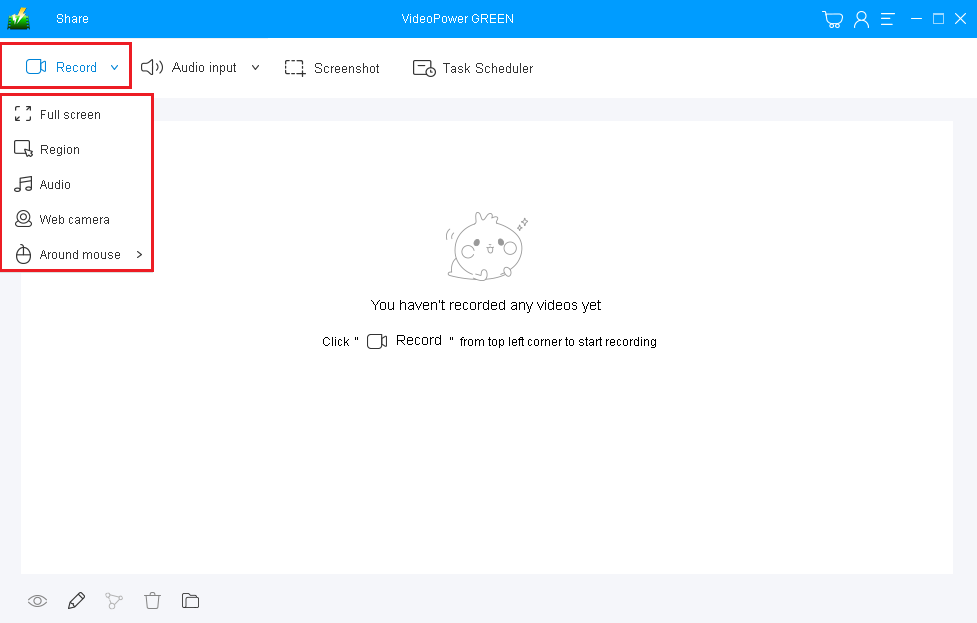
Click on the “Record” button to choose the recording mode from “Full screen, Region, Audio, Web camera, Around mouse”. Select the area you are going to record.
Step 2: Start recording Firefox screen activities.
The pop-up window will ask whether you are ready to start recording, click “OK” to confirm when you are ready to record.

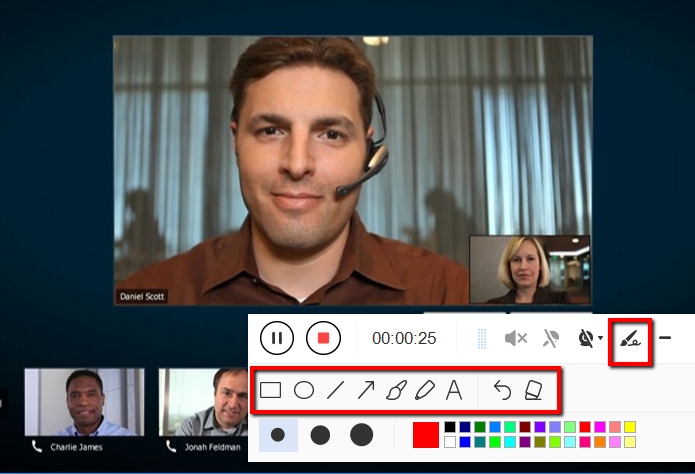
Edit video while recording
While recording you can add lines, arrows, shapes, texts, highlight, blur, etc. by clicking the edit button.
Step 3: End the recording.
Click the “Stop” button to stop recording.

After that, the recorded file will be saved in the output folder.
1) Your recorded file will be seen in the main interface. You can right-click the file and do more operations if you like.
2) Click the folder icon to view it in the output folder.

Conclusion:
As digital technologies and applications started to develop as a part of human’s life, open-source web browsers like Mozilla Firefox also grew and evolved.
Because of the evolution of this kind of browser, many things in people’s lives become simpler and easier than before. Complex information can be easily found and distant relatives and friends can be easily reached, desired movies and videos can be easily found and many more.
But then, many people are still not satisfied with this. They now also wanted to record some of the activities they will do in the browser for later viewing purposes and this would be possible with the help of an amazing and trusted recording application software called VideoPower GREEN.


