





Tips Index
Digital technologies develop dramatically nowadays so do applications and tools. Thus, work and game presentations also developed its quality. It now sometimes suggest highlighting the mouse cursor to show more clarity and beauty to the recordings.
VideoPower GREEN, an easy to use, hassle-free and trusted recording application software would be best for it. You can choose certain regions where the recording will occur on the screen. You can choose to have the settings set in such a way where the recording with mouse cursor highlight is on.
To download VideoPower GREEN, just click the link below and install the program.
You can try to use the software for free by downloading its trial version below.
Step 1: Start the program and open the settings screen.
1) Click the menu icon in the upper right of the interface.
2) Choose “Settings” to open the setting screen.
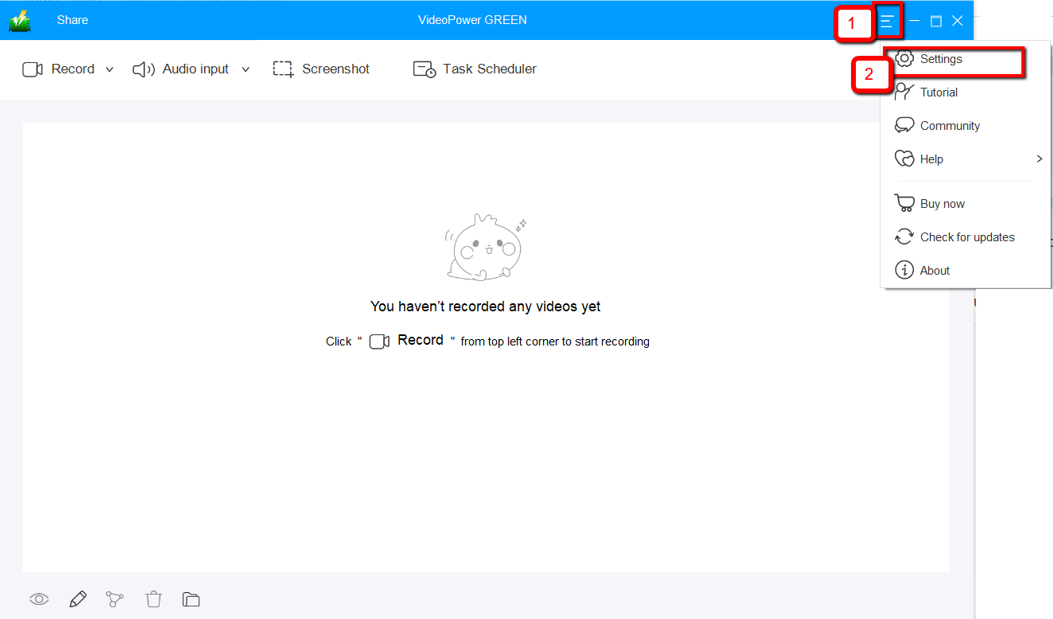
Step 2: Set the mouse cursor effect.
Click on “Mouse style” and here you’ll see the settings.
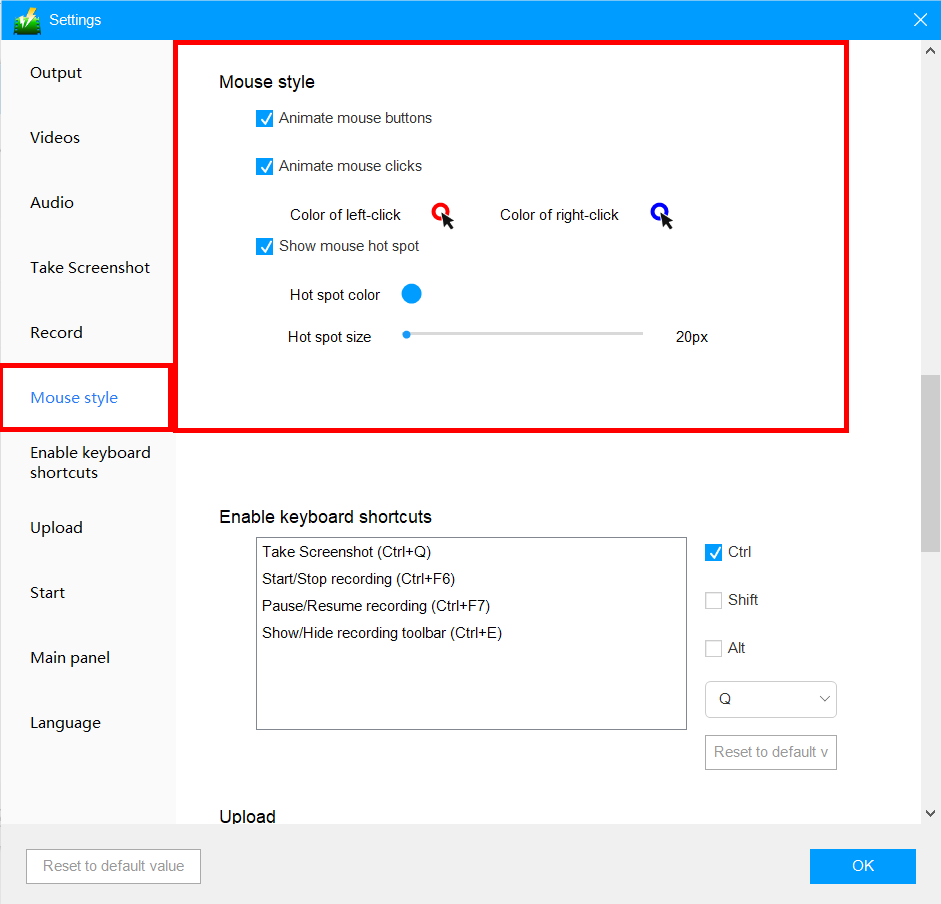
Three types of effects can be set.
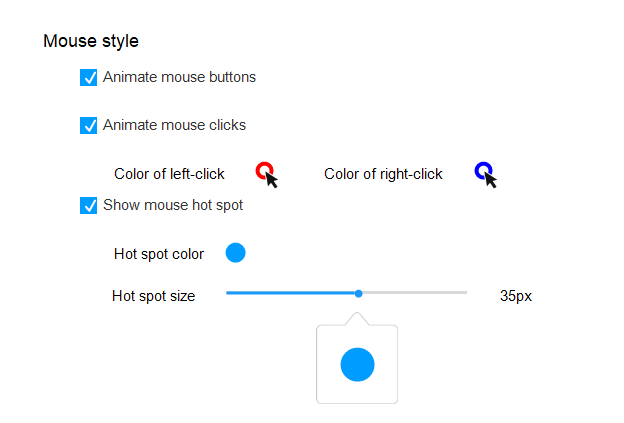
1 ) Animate mouse buttons
Turning this on and off will allow you to enable the setting for animation in the mouse buttons including the following settings.
Animate mouse clicks
2 ) Check “Animate mouse clicks” to circle the mouse with color when clicked.
Clicking on the “Color of left-click” will allow you to change the color of the designated click while clicking on the “Color of right-click” will allow you to change the color of the other one.
3 ) Show mouse hot spot
Check “Show mouse hot spot” to add a circular background around the mouse cursor. You can also change the color and size.
Note: These effects are not displayed on the screen during recording, which only shows up in the recorded video.
The appearance of the recorded mouse cursor with the default settings is as below.
From the left to right of the image indicates normal status, left-click effect, right-click effect.

Conclusion:
Digital technologies develop dramatically nowadays. Many and many human activities now require technologies. Whatever it is, entertainment or work, technologies are a must. As technologies unfold, so do applications and tools. Presentations in work, online tutorials, game commentaries, and much more needs excellent recorded visual images and audios.
As technologies, applications, and tools are now developed, presentations at work, tutorials and commentaries should also be developed. Users should specify and show clarity in their presentations by highlighting the mouse cursor. Therefore, users need a recording software that can also capture and highlight mouse cursor.
VideoPower GREEN, an easy to use, hassle-free and trusted recording application software would be best for highlighting mouse cursor in the recording.


