





Tips Index
Screen recording is a must in most of the digital applications that many people are hunting nowadays. VideoPower GREEN works flexibly as you can record anything that is happening on the computer screen. It allows you to record in many ways from different areas or points that make the best alternative for Bandicam.
Bandicam is a powerful video recording tool, which can record all kinds of high-definition videos most especially video games. This software can customize the location and size of the recording area on the computer. It also allows you to add your own customized logo when recording. Moreover, the Bandicam video recording tool is suitable for users who like to prefer small volume and high content clarity.
In this article, VideoPower GREEN let you know that it can help you not only record the content of your disk, movies you played, YouTube videos, music videos, tutorials, online lessons, streaming, video calls, online chat window, PPT but most especially record various high-quality games.
Below is the simple tutorial on how to use VideoPower GREEN tutorial.
Step 1: Launch VideoPower GREEN
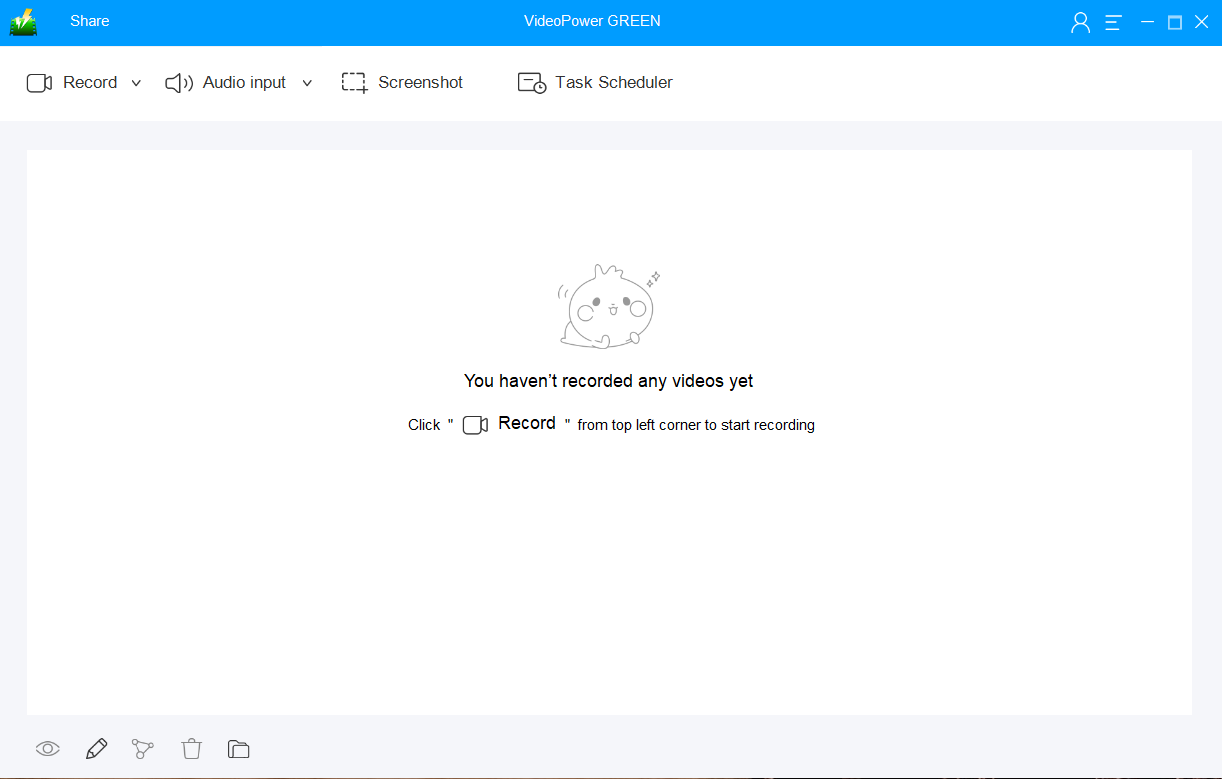
Launch VideoPower GREEN if you have installed it successfully on your PC. The main interface of the software should look like this:
Step 2: Record screen activities
2.1 Choose an audio source
You can choose:
1) System sound
2) Microphone
3) System sound and microphone
4) None
Note: To record streaming video, you can select “System sound”.

2.2 Select a recording area
Click on the “Record” button to choose the recording mode.
1) Fullscreen
2) Region
3) Audio
4) Web camera
5) Around mouse (select the area you are going to record)

2.3 Start to record
The pop-up window will ask whether you are ready to start recording, click “OK” to confirm when you are ready to record.

2.3 Annotations
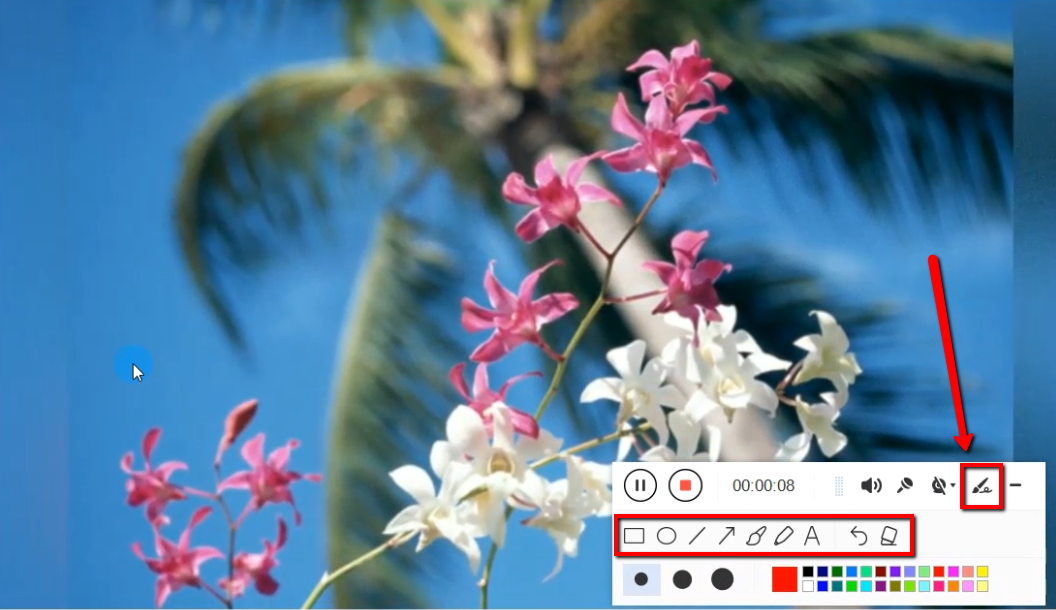
While recording you can add lines, arrows, shapes, texts, highlight, blur, etc. by clicking the edit button.
2.4 End the recording
Click the “Stop” button to stop recording.

Step 3: Manage your recorded video
1) Your recorded file list can be seen in the main interface. You can right-click the file and do more operations if you like.
2) Click the folder icon to view it in the pointed output folder.

Conclusion:
It’s not easy to compete with Bandicam’s reputation when it comes to video recording tool but VideoPower GREEN will count as one of the best alternative.
This software is not limited to just a mere recording tool, it can take screenshots where the area can be specified as well. Users can add text, arrows, highlights, comments, etc. while shooting.
A task scheduler tool is helpful if you want to record your screen on a specific time and date, it will automatically record what’s going on in your screen may it be streaming videos, webinars, web cameras, etc.


