





Tips Index
FLV or Flash Video is a container file format used to deliver digital video content over the Internet using Adobe Flash Player. It is a video format developed as Flash MX was launched.
This format makes it possible to watch video files online as it has a very small file size and fast leading speed. Most video streaming companies have switched from Flash videos to HTML now but there are still websites that use Flash. With VideoPower RED, you can save flash videos for offline viewing.
There’s a lot of videos, movies and animations on the internet that is easy to watch with the help of Flash Video format. However, for offline use and later viewing purposes, many people still don’t know how to store flash video.
Thus, a third-party tool would be the best option for this. Therefore, VideoPower RED, an amazing, hassle-free, trusted and has professional features downloader application software is the best choice for this kind of matter.
Check out this article to learn more and click the link below to download the app.
Method 1: Copy and Paste the URL of Flash Videos
Step 1: Paste URL and download video
Copy the link of the video that you want to download and then paste it into the program by clicking the “Paste URL” button. After that, you will see the video is downloading in the download control panel.

Step 2: Check downloading and downloaded file
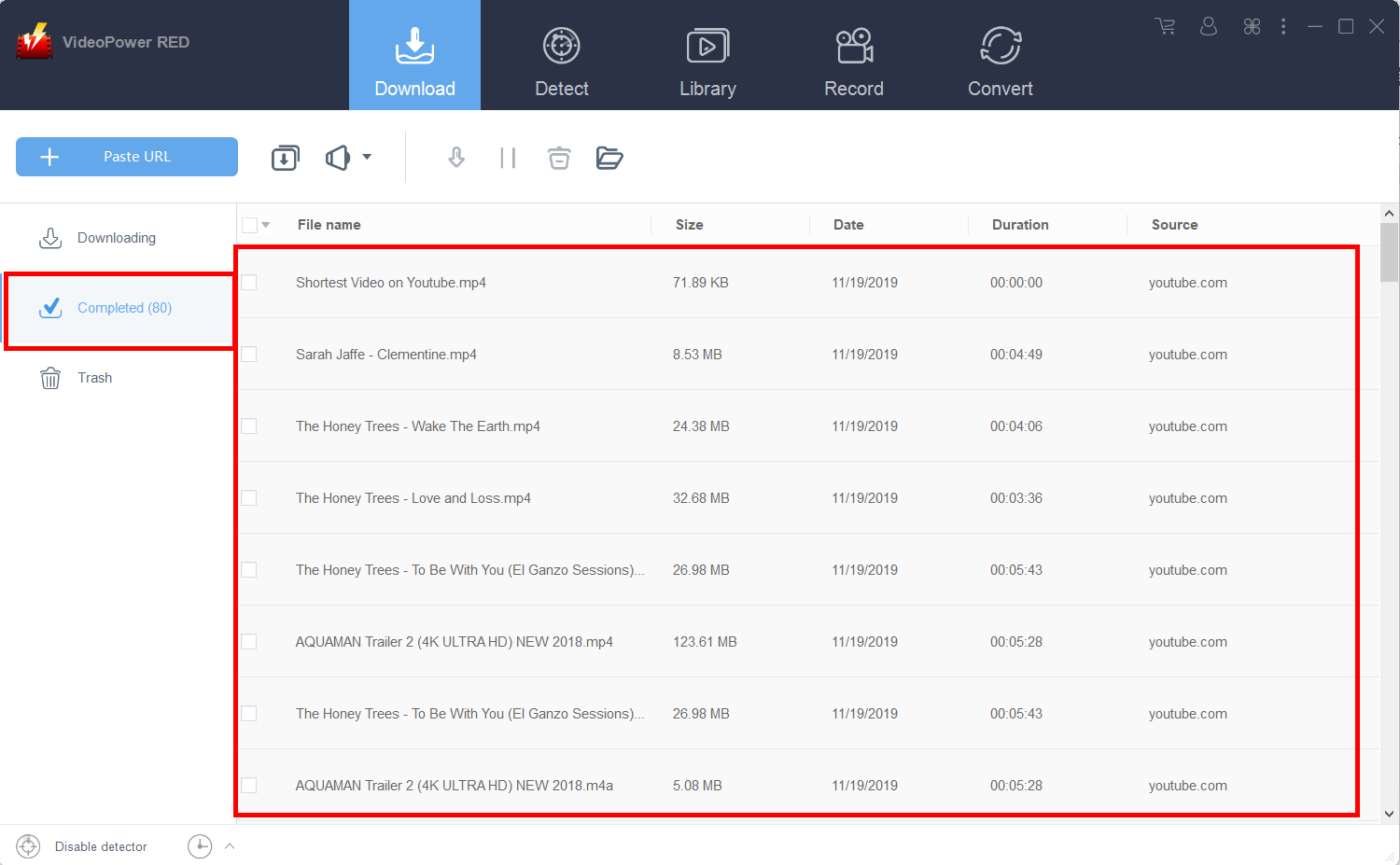
Wait for the download to finish, and then go to the “Completed” section to find the downloaded video.
Method 2: Use the Embedded Browser to Save Flash Videos
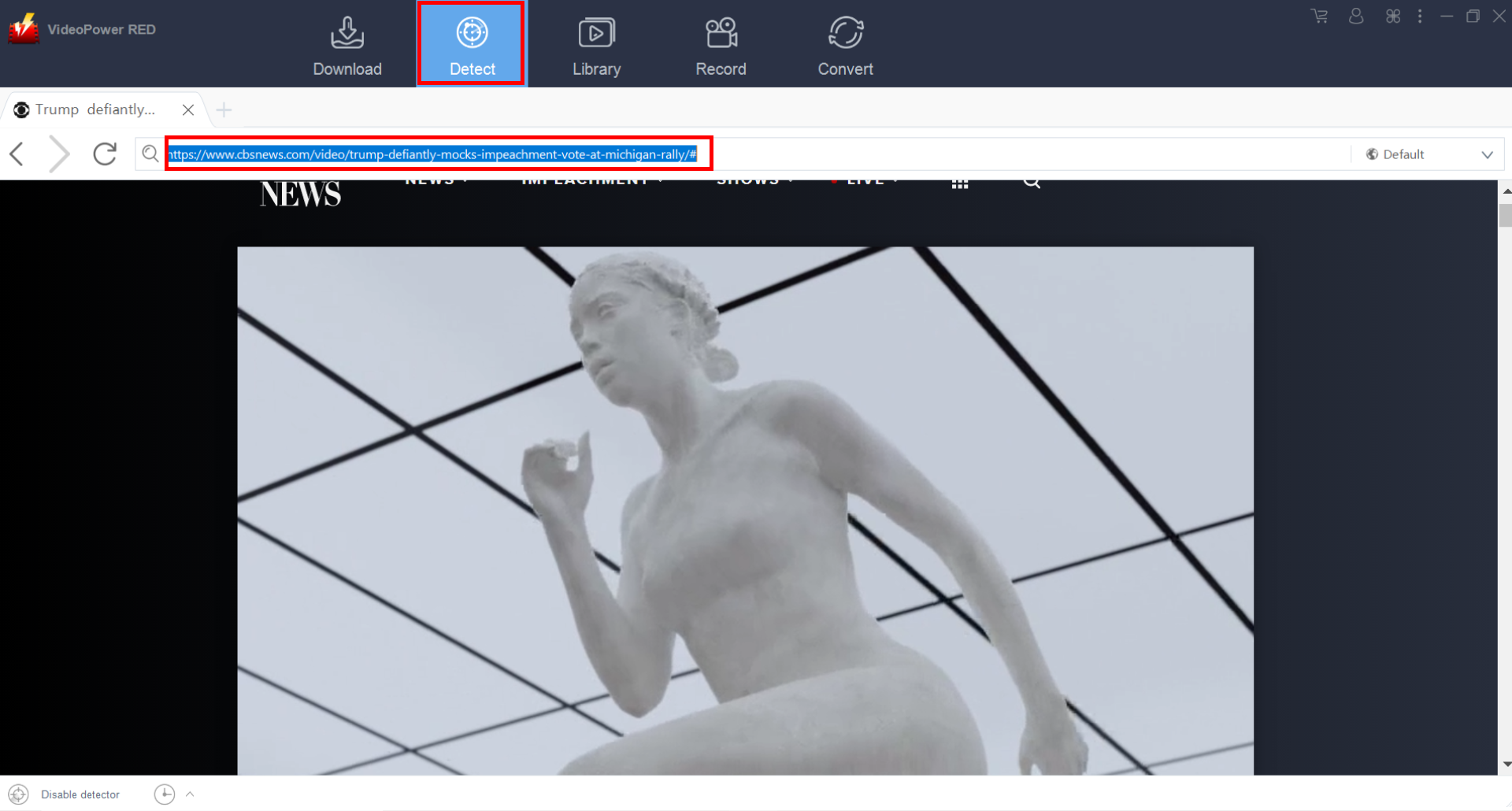
Open the Flash video page via the embedded browser
If the program supports the site, the video will be downloaded automatically.
Method 3: Record the Flash video
For people who are in areas with a slow internet connection, you may opt to use the recording function of the software instead. The video will not look as good compared to a downloaded one – it may contain some lagging issues or choppiness but the overall quality is still great.
Step 1: Record video
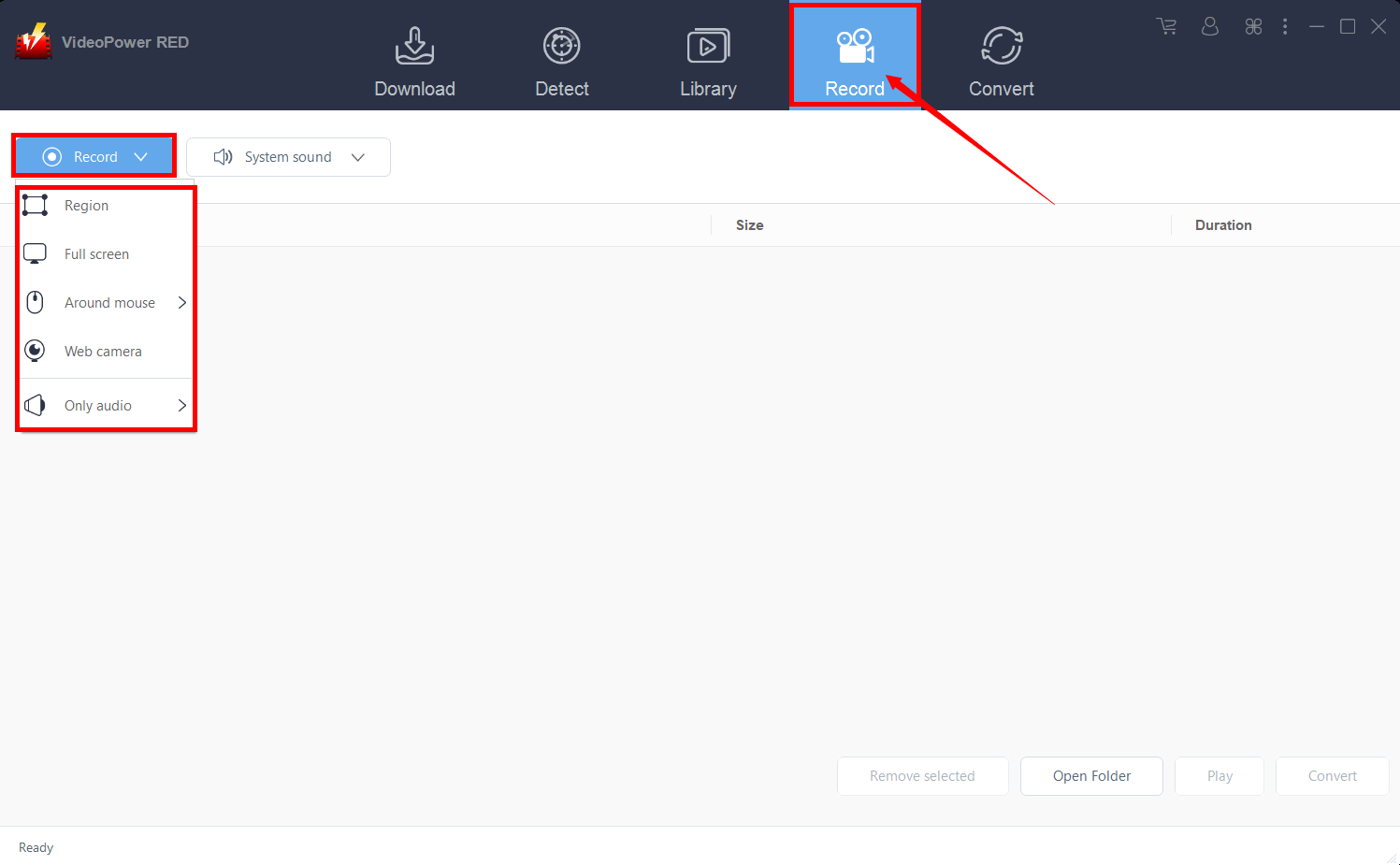
Click the “Record” tab to record the video and Select from “Region, Fullscreen, Around mouse or Web camera” as preferred.
Step 2: Check the recorded video
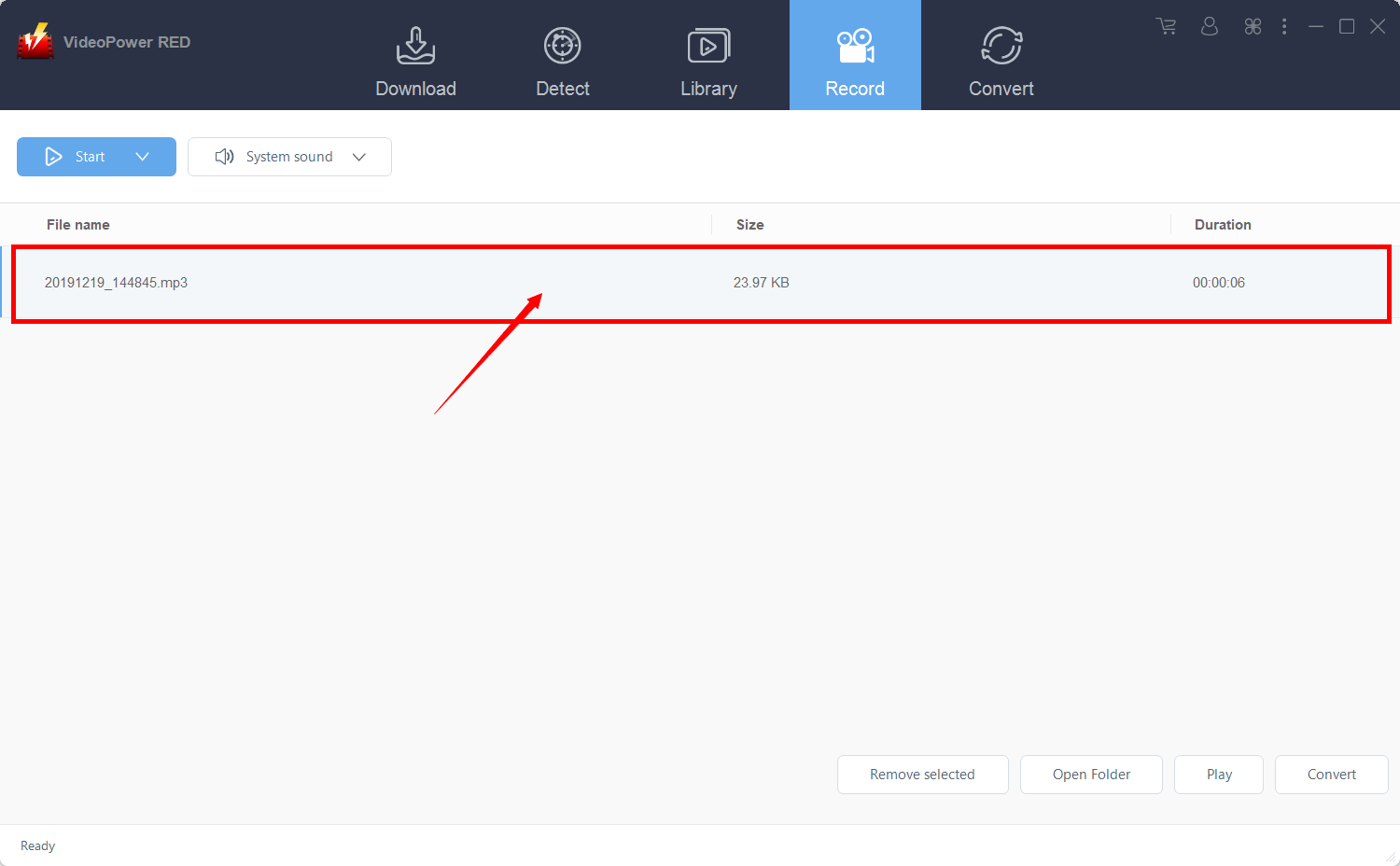
After recording, the recorded file can be seen in the record interface.
Method 4: Use External detector to Save Flash Videos
The last method is to use the external detector. This would allow you to download videos even if you are using an external browser – the software will automatically detect the video and it will be downloaded.
Step 1: Modify the settings
Click on the “Enable advanced detector(Support HTTPS)” under the “Download” tab.
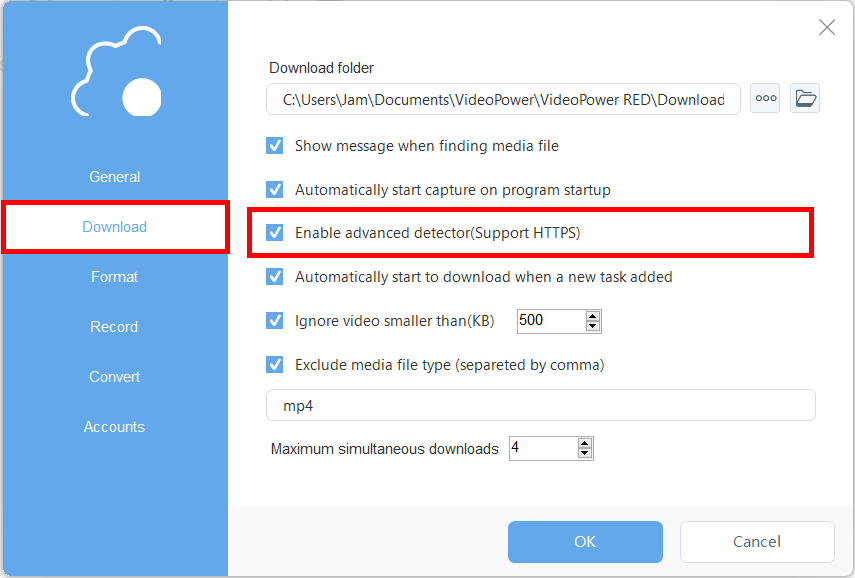
Make sure that the detector on the lower left is enabled.

Step 2: Download streaming video
After enabling the detector, you may now use an external browser for finding videos to download. For example, you may use Google Chrome and go to the video that you want to download. Play the video, and the software will automatically detect and download it.
Conclusion:
Many websites have now turned away from using Flash because they found a better alternative – HTML. However, there are still websites that use Flash such as HBO Go and CBS.
To enjoy watching your desired clips and shows in any way you want and anywhere you are, VideoPower RED, an amazing downloader application software would be a great help for this kind of matter.


