





Tips Index
As you noticed, observers absorb 95% of a message when they look at it in a video as to 10% reading it in text. If you’ve become proficient in uploading a video to YouTube or simply having a favorite YouTube video and now want to illustrate it in a proper business presentation, I highly recommend doing so.
Video is proven to be more appealing, effective, and historic than any other medium. So if you are about to give a presentation on the job and you’re bothered about maintaining the audience’s attention, try including a relevant video.
If you are demonstrating using a PowerPoint, adding a video may make you feel uncomfortable or simply you are thinking it is not very intuitive. In fact, it can be very frustrating for you to even think of it right now.
Actually, this should not keep you up at night all through the morning before the presentation. I’ll help you through the steps so you can give more time to more important things like improving the information and perfecting the message you want your viewers to understand before the big day.
This article indicates how to embed or insert YouTube videos in PowerPoint. Keep reading to learn how to Insert YouTube videos in PowerPoint offline from your files.
If you want to add a video that is saved on your computer, it is very easy in today’s generation. you only need to have a third-party application software like VideoPower RED. The good news with these is the internet connection will not actually matter in terms of video quality during your presentation.
Tip: You can download YouTube or Vimeo videos as per your need, just make sure you comply with copyright laws.
Download first this free app and follow through the steps below on how to embed a YouTube video in PowerPoint without an internet connection
You can try to use the software for free by downloading its trial version below.
Part 1: Download YouTube Video/s
When you download a video or videos from any website with VideoPower RED application software, you’ll be given 4 methods on how to do it eaily. It is through, “Copy and Paste”, “Embedded Browser”, “External Browser” and “Screen Record” methods. In downloading YouTube Videos for your PowerPoint presentation, “Copy and Paste” and “Screen Record” methods are recommended. To learn more about it, read the steps below.
Method 1: Copy and Paste
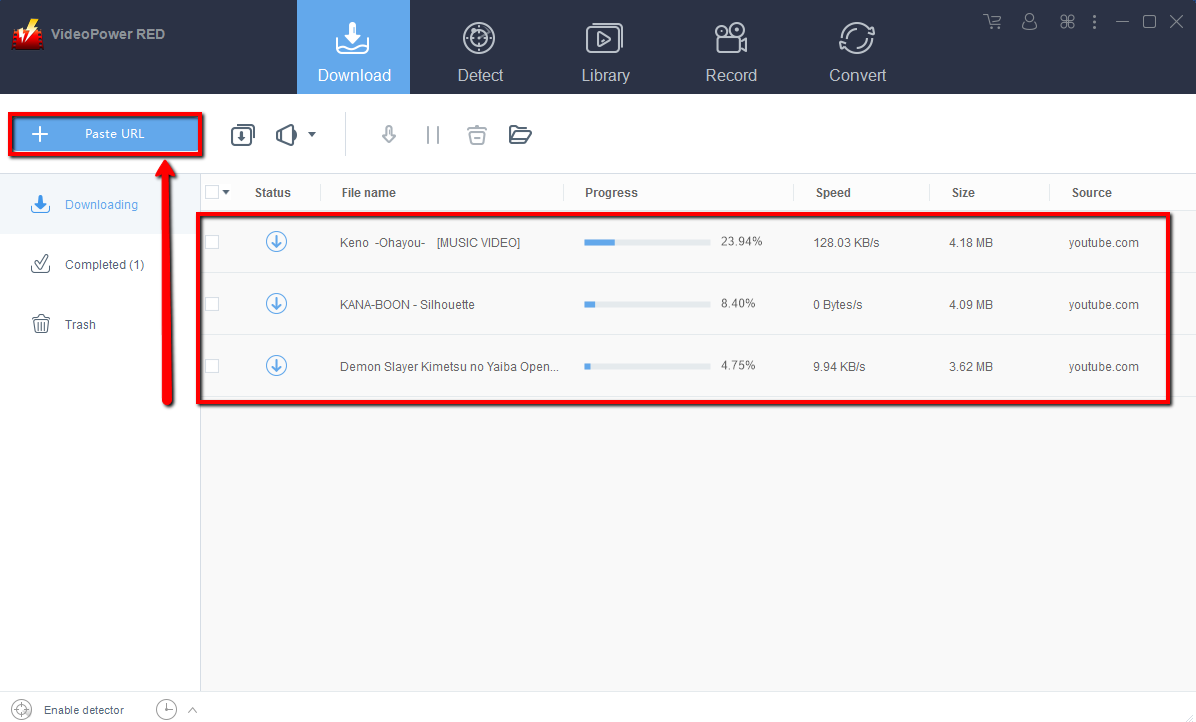
Step 1: Paste URL and download video.
Copy the link of the YouTube that you want to download and then paste it into the program by clicking the “Paste URL” button. After that, you will see the video is downloading in the download control panel.
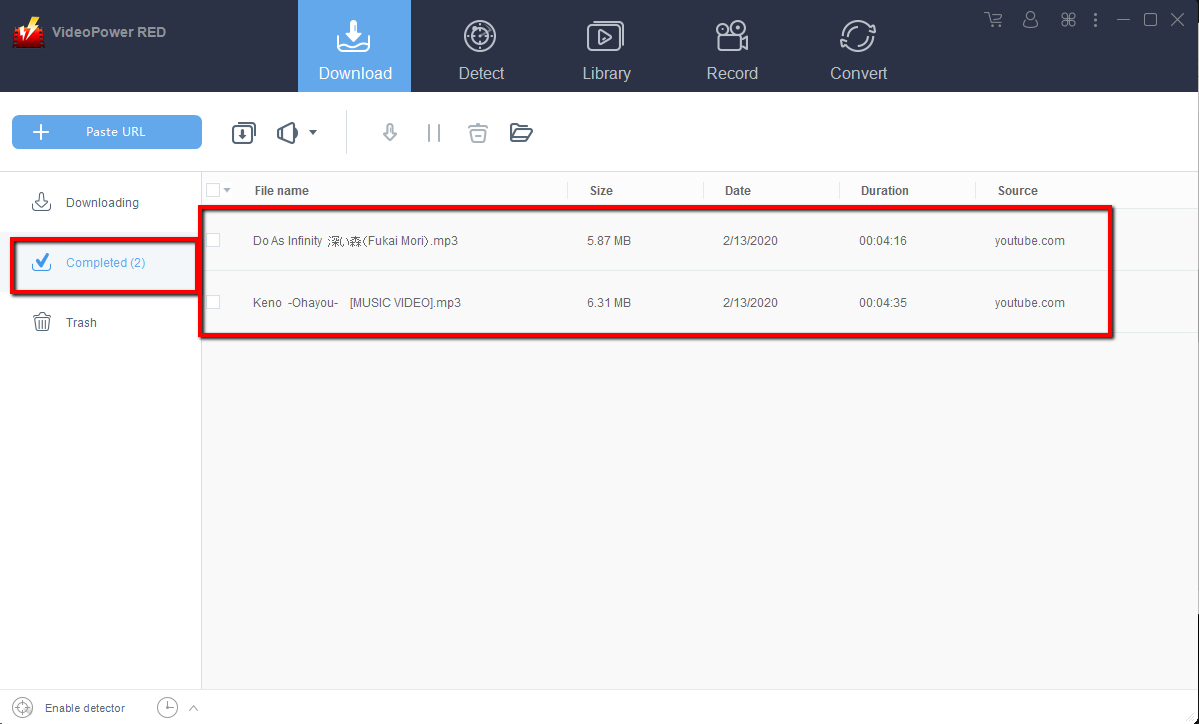
Step 2: Check the downloaded file
Wait for the download to finish, and then go to the “Completed” section to find the downloaded video. Right-click to do more operations and double-click to preview.
Part 2: Insert YouTube Video into Powerpoint Offline
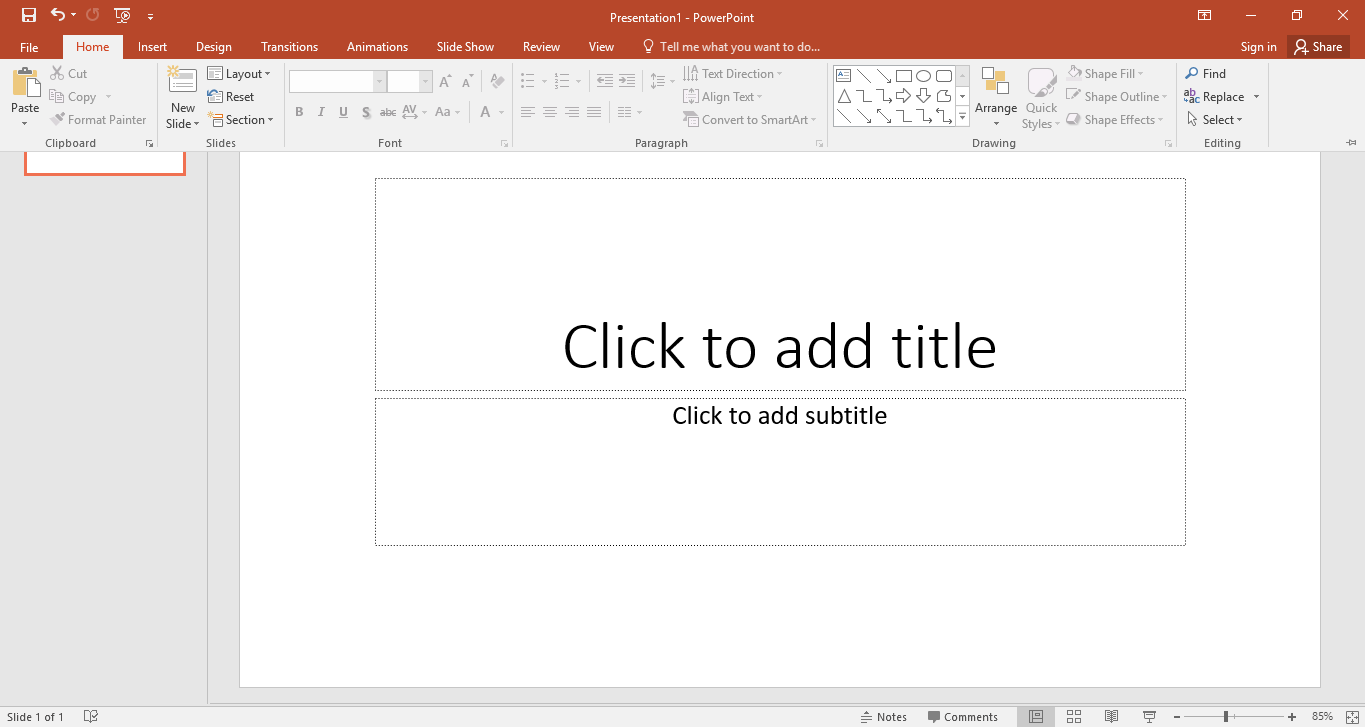
Step 1: Navigate to PowerPoint slide
Choose which slide you want to feature your video. Let that slide be enthusiastically solely to the video itself. If you try adding much text to the slide, it may become overwhelming. But, it is wiser to continue using the same background or color design throughout the presentation.
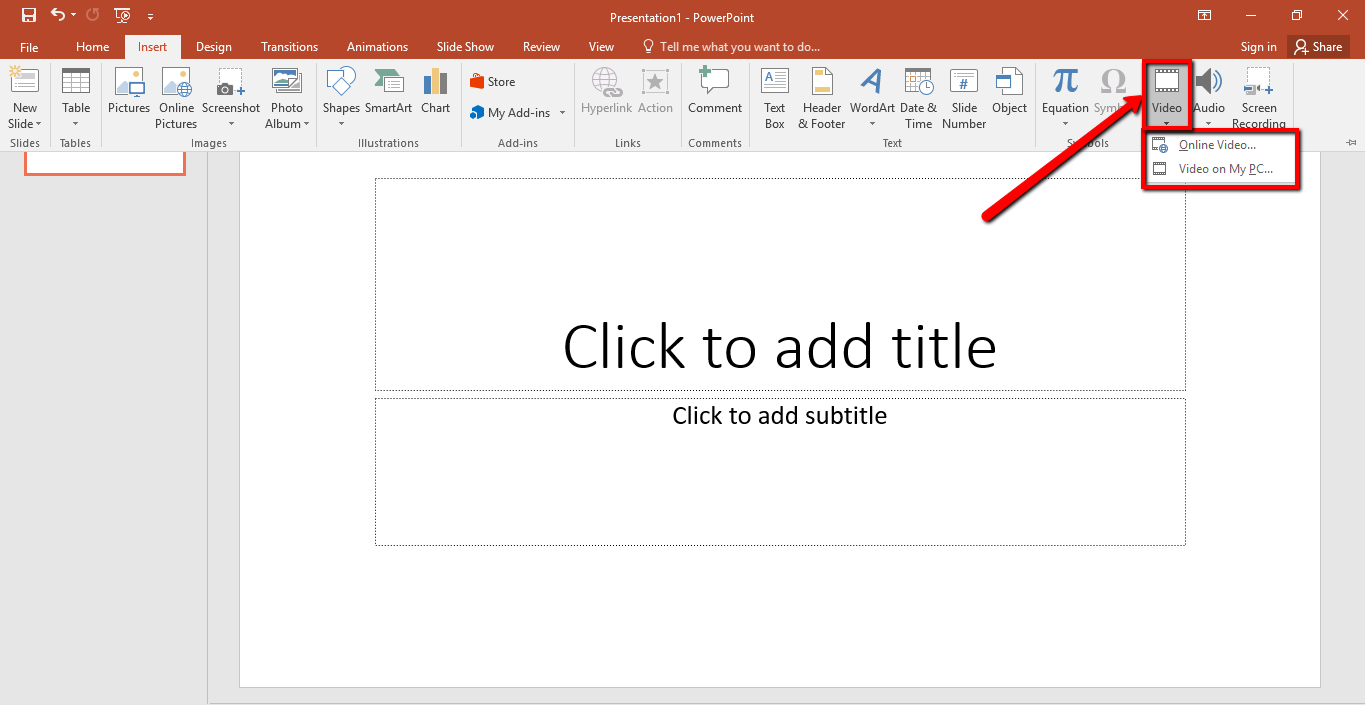
Step 2: Select your video
From your slide, click Insert from the second tab at the upper left menu bar right next to Home. A new menu bar will open up viewing all the Insert options. Navigate all the way to the right and click on “Video”. In that drop-down menu, select “Video on MY PC”
Step 3: Search video to be inserted in the PowerPoint
An “Insert Video” window will pop-up and open to you an access to all the files on your computer. Scroll and select the video you want to include in your presentation.
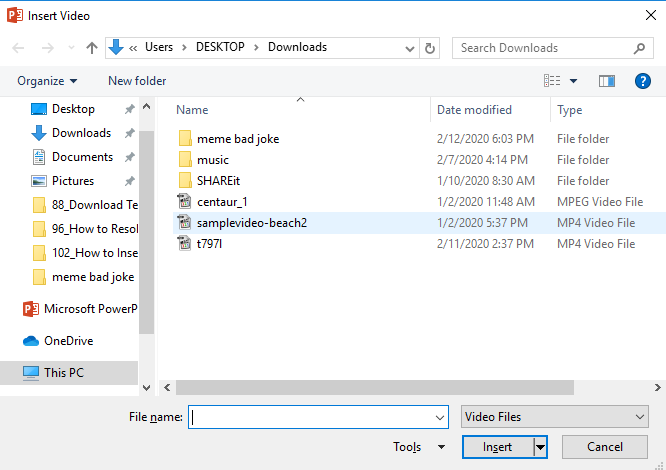
Step 4: Insert the Video into PowerPoint
Double click or simply click Insert in the bottom right corner of your screen. The window will disappear and your video will then appear within PowerPoint. Mostly after inserting the video it will take over the entire slide and looks overwhelming. And, you can also edit it as per your need.
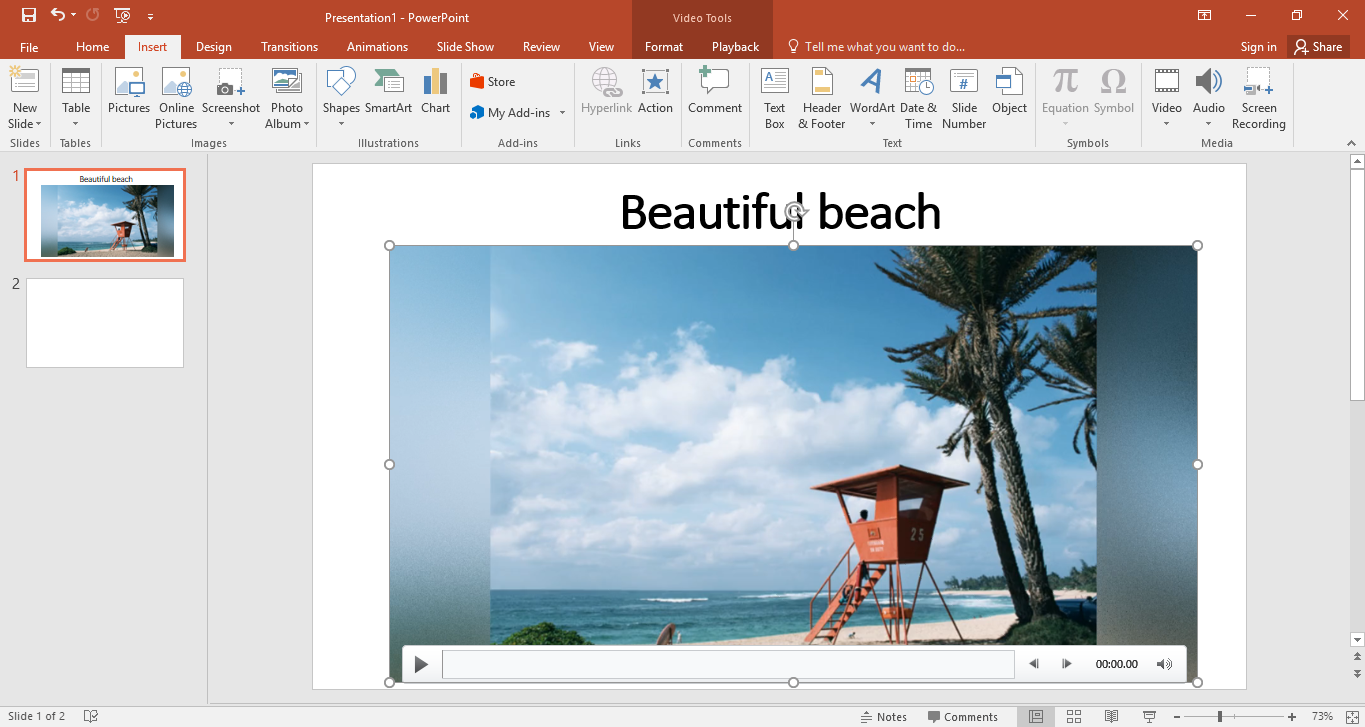
Step 5: Format video
Now it seems like you have your video in your PowerPoint, you can now play things around with the formatting of it. Click the “Format” menu to be directed to the editing menu bar.
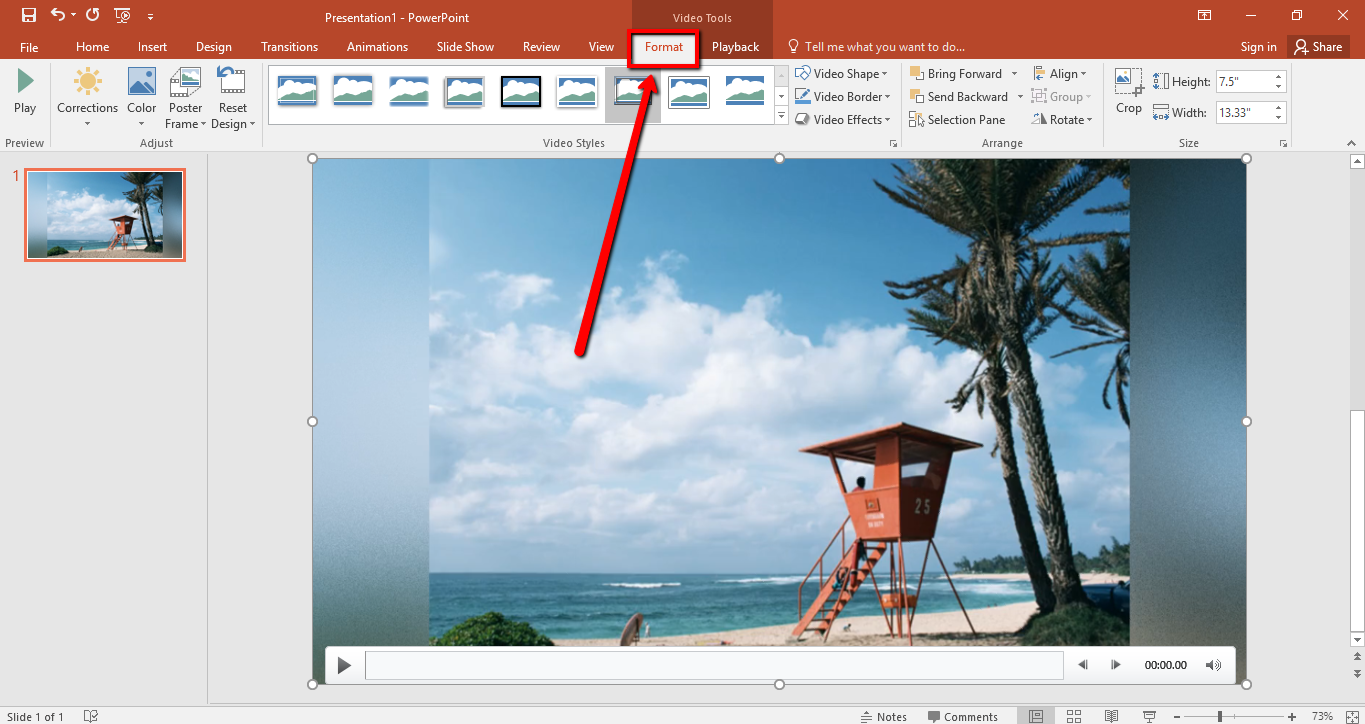
You can edit the brightness of the video shape, video border, add video effects, correct brightness, and crop video. Change the size of the video simply by dragging until you get it right as per need.
Conclusion:
By following the steps mentioned above, you can finish the task while having fun without complexity. However, it is still suggested to download the YouTube video first using VideoPower RED. Not that it can download and convert the video very fast, but it is also helpful in case you encounter internet connectivity problems you may not always want to bank on into your internet connection right? So what are you waiting for, download now.


