





Tips Index
Vimeo is a compilation of high-quality videos, animations, and films from people all around the world. You might want to save your favorite videos to your computer for offline use so you can watch them without Internet or mobile data connections.
Unlike most video services, videos can be downloaded to your computer if the download option for a video is available in Vimeo, just click the Download button below the video. After clicking it, a list of available formats is displayed. The most common video format available in downloading the video from the Vimeo website is SD format.
But take note that the download option might not be available for all the videos. You must have a Pro, business, or Plus account for you to enable downloading their videos.
So how to download private Vimeo videos?
There are some third-party tools that allow you to not just copy and paste the URL of the video/videos you want to save to your computer but also auto-detect and screen record it. VideoPower RED is the one that this article is emphasizing to. It is a reliable video downloader that can easily download any video from Vimeo.
Easy as that! You see, with this Vimeo video downloader, you can download any video at any time you want without a sweat. Additionally, the app supports downloading high-definition video, you can also change the “Clarity” of the video before downloading it in the options and all the videos downloaded can retain their original quality for a thrilling and enjoyable experience. We are not finished yet, you can also use VideoPower RED to download videos from YouTube, Twitch, Instagram, Facebook, Dailymotion, TED, Vevo, and etc. Apart from having its built-in browser, you can also change browsers like Chrome, IE, Firefox, Safari, etc. So, download Vimeo videos from chrome or from any sites now!
Just click the link below to download this free app and follow through the steps on How to Download Vimeo Videos using the Chrome browser.
Method 1: Copy and Paste
Step 1: Paste URL and download video.
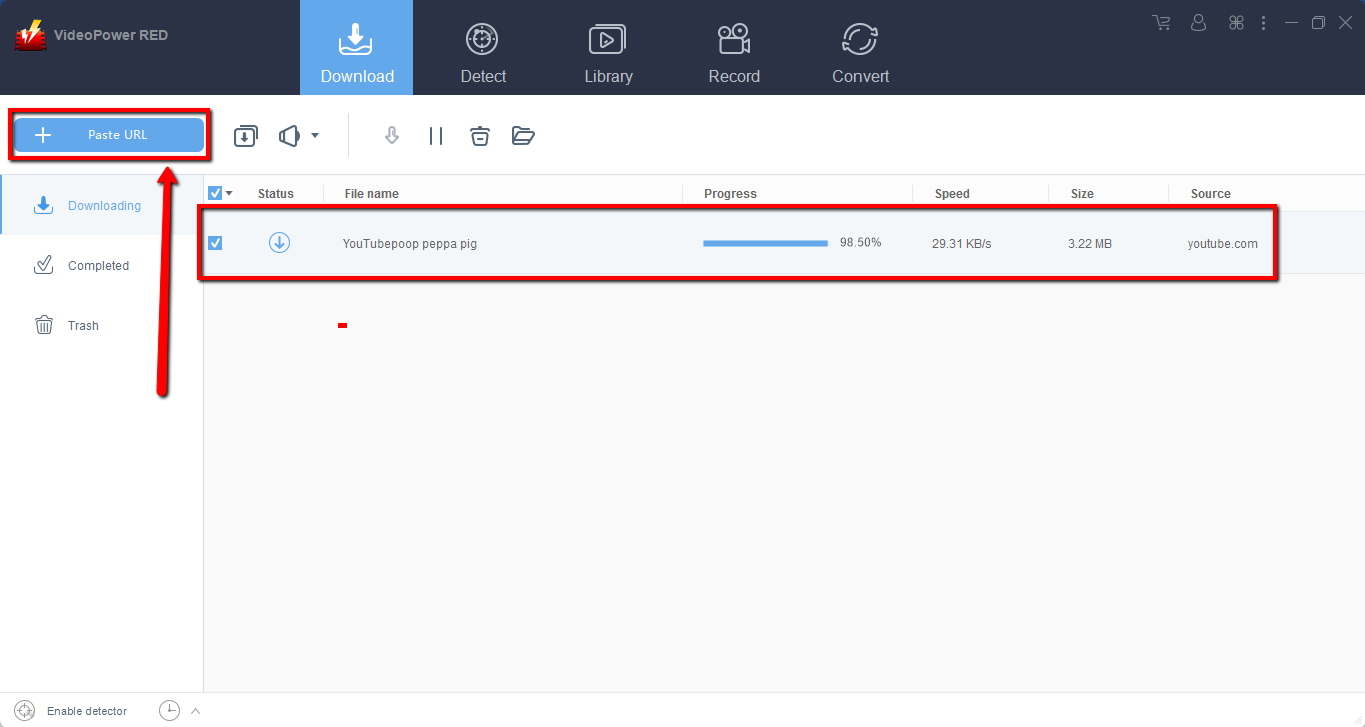
Copy the link of the video that you want to download and then paste it into the program by clicking the “Paste URL” button. After that, you will see the video is downloading in the download control panel.
Step 2: Check the downloaded file
Wait for the download to finish, and then go to the “Completed” section to find the downloaded video. Right-click to do more operations and double-click to preview.

Method 2: Use the Embedded Browser
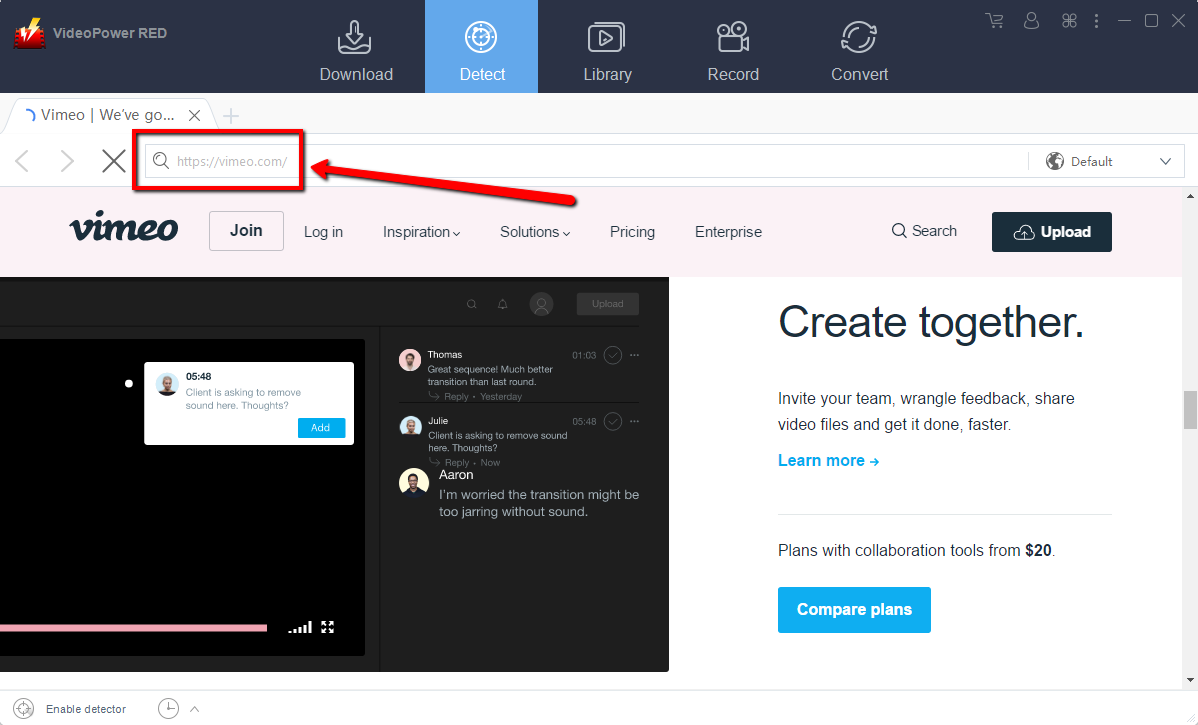
Step 1: Open the video page via an embedded browser
If the program supports the site, the Vimeo video will be downloaded automatically.
Step 2: Check Downloaded Video
Wait for the download to finish, and then go to the “Completed” section to find the downloaded video. Right-click to do more operations and double-click to preview.
Method 2: Record video.
Sometimes because of the web update or slow internet connection, the program can’t download the video anymore but you can still save the video by using the recording function.
Step 1: Set Recording Mode
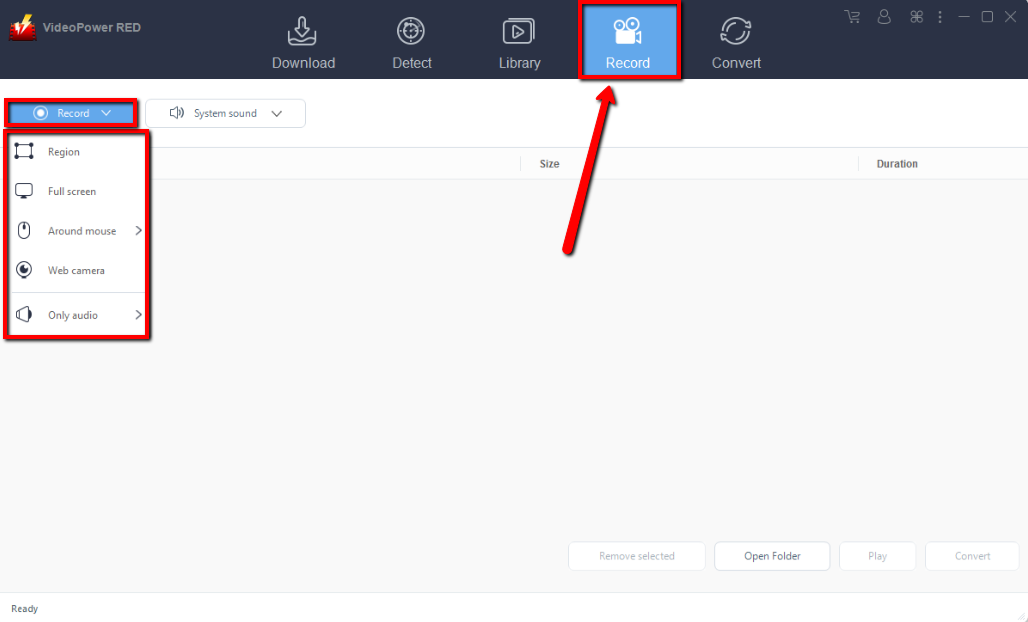
Click the “Record” tab to open the record window and select among the following recording modes such as “Region, Fullscreen, around mouse, and Web camera” to capture the exact and desired range of your screen. Click the preferred one and start recording.
Step 2: Check the recorded video.
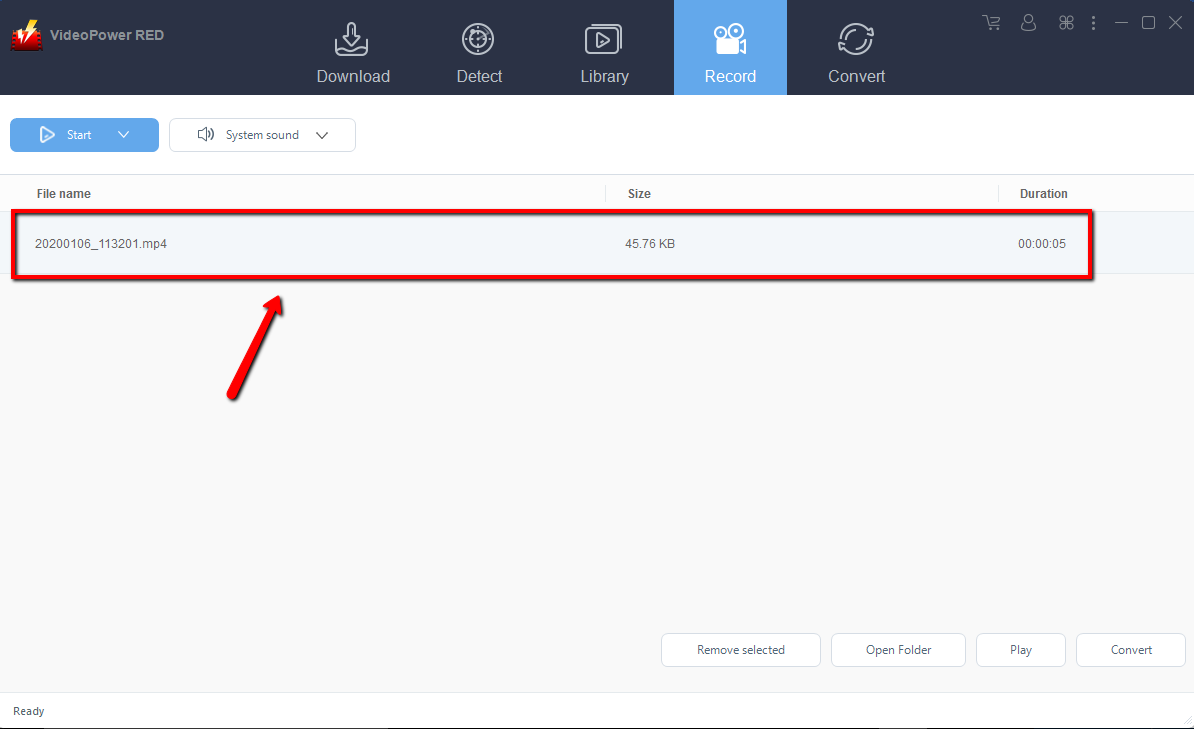
After recording, the recorded file will be seen in the record interface. Right-click to do more operations and double-click to preview.
Conclusion:
If you need to download videos from Vimeo to your Chrome, VideoPower RED is the best answer for you. Whether the Vimeo download button is available on the video or not, you can without a doubt download the video using the Vimeo Downloader for Chrome. Just paste the video URL to download videos from online and all the downloading tasks will be handled within your browsers in a smooth, fast and reliable way.


