





Tips Index
Are you always hustlin’ and going on about your everyday tasks and your favorite pastime is neglected because you can’t find time to insert it into your busy schedule? Like watching your favorite anime series but unstable internet when you go and about every day will not allow you to watch it?
To watch our favorite shows, you might have to download anime videos offline watching whether you are on the train, on the bus, or just having your lunch anywhere. Time for you to stop worrying as I have done your homework for you, like how to download anime videos for offline watching? Read on.
If you are an anime fan and looking for something where you can stream your favorite anime shows and download them to your phone or any portable device to watch them offline for free then this article is just perfect for you.
VideoPower RED is the ultimate solution to download anime videos easily. This is a great software if you preferred offline playback on your phone, tablet, iPhone, iPad, or PC.
This is a great video downloader, for it’s possible to download from more than hundreds of sites. It’s compatible with various browsers such as Internet Explorer, Google Chrome, Firefox, Safari, Opera, etc.
Click the DOWNLOAD button below to try VideoPower RED!
Method 1: Copy and Paste
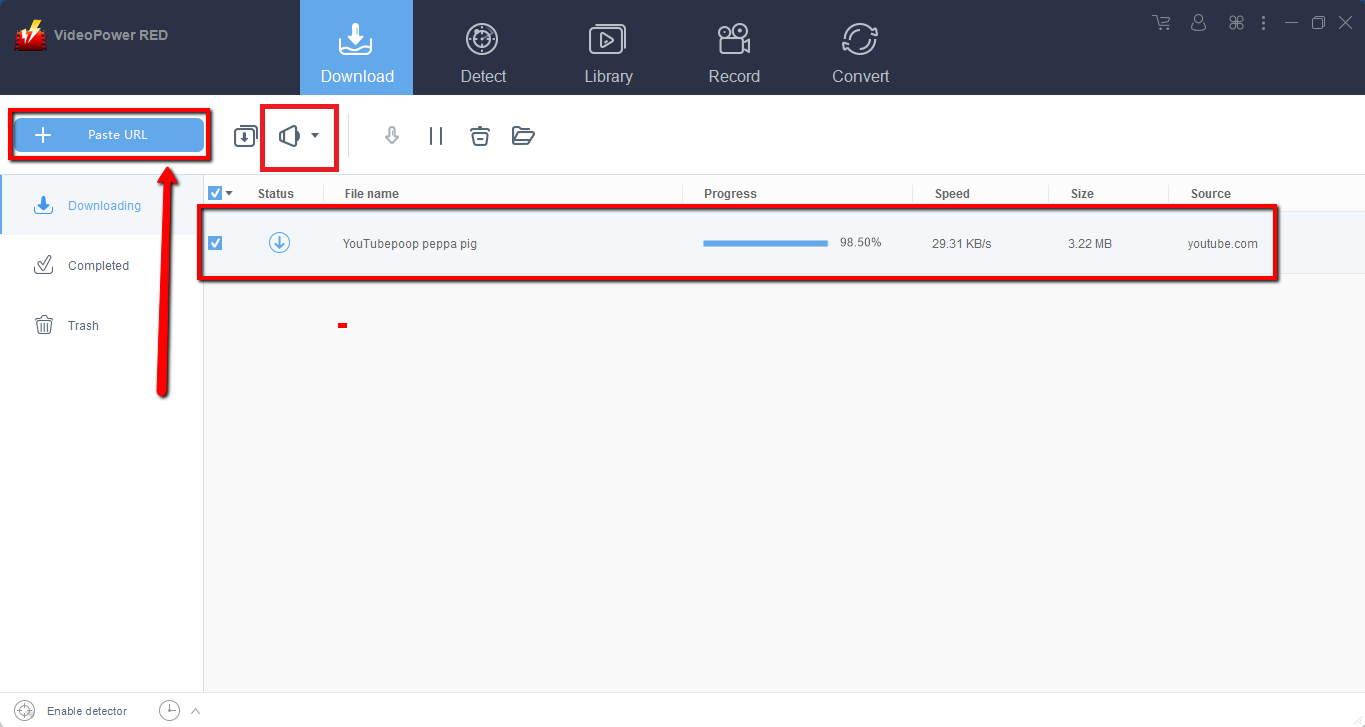
Step 1: Copy and Paste URL and download video.
Copy the link of the video that you want to download from the website and then paste it into the program by clicking the “Paste URL” button. See to it that the format is set to “video” before pasting the link. After that, you will see the video is downloading in the download control panel.
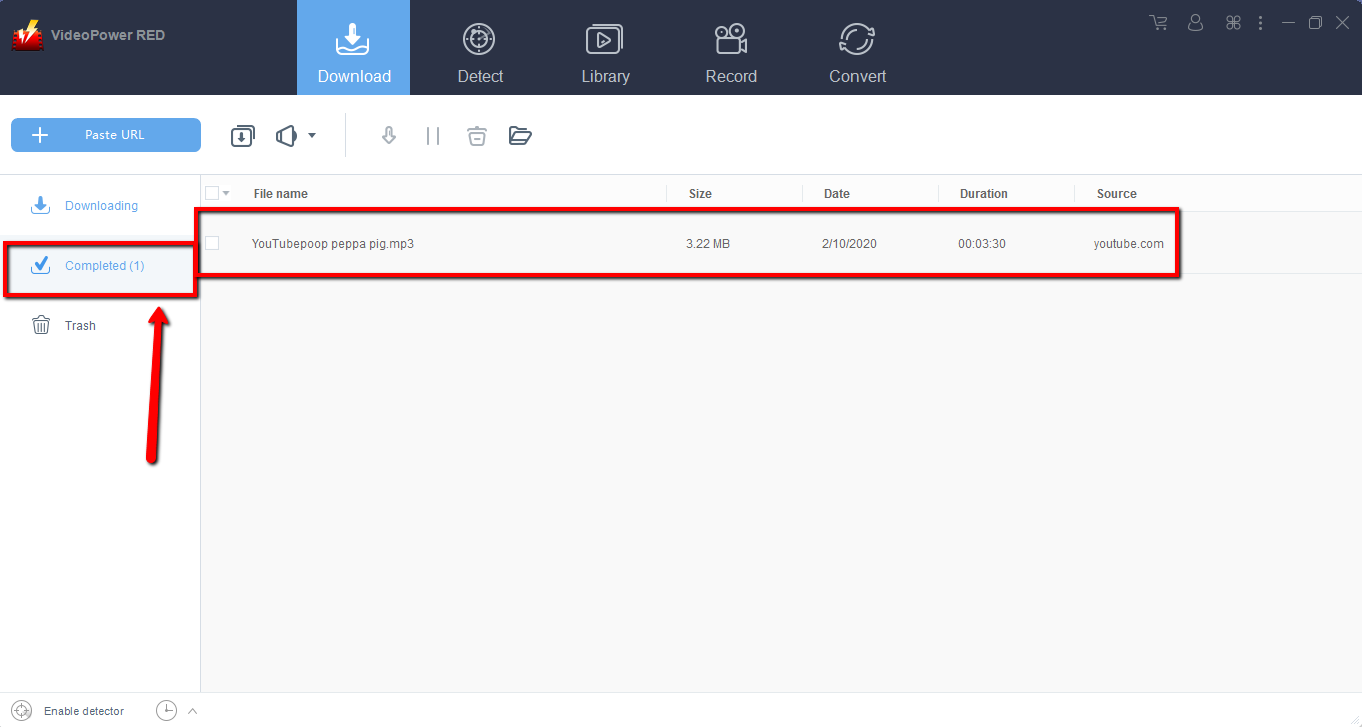
Step 2: Check the downloaded file
Wait for the download to finish, and then go to the “Completed” section to find the downloaded video. Right-click to do more operations and double-click to preview.
Method 2: Use the Embedded Browser
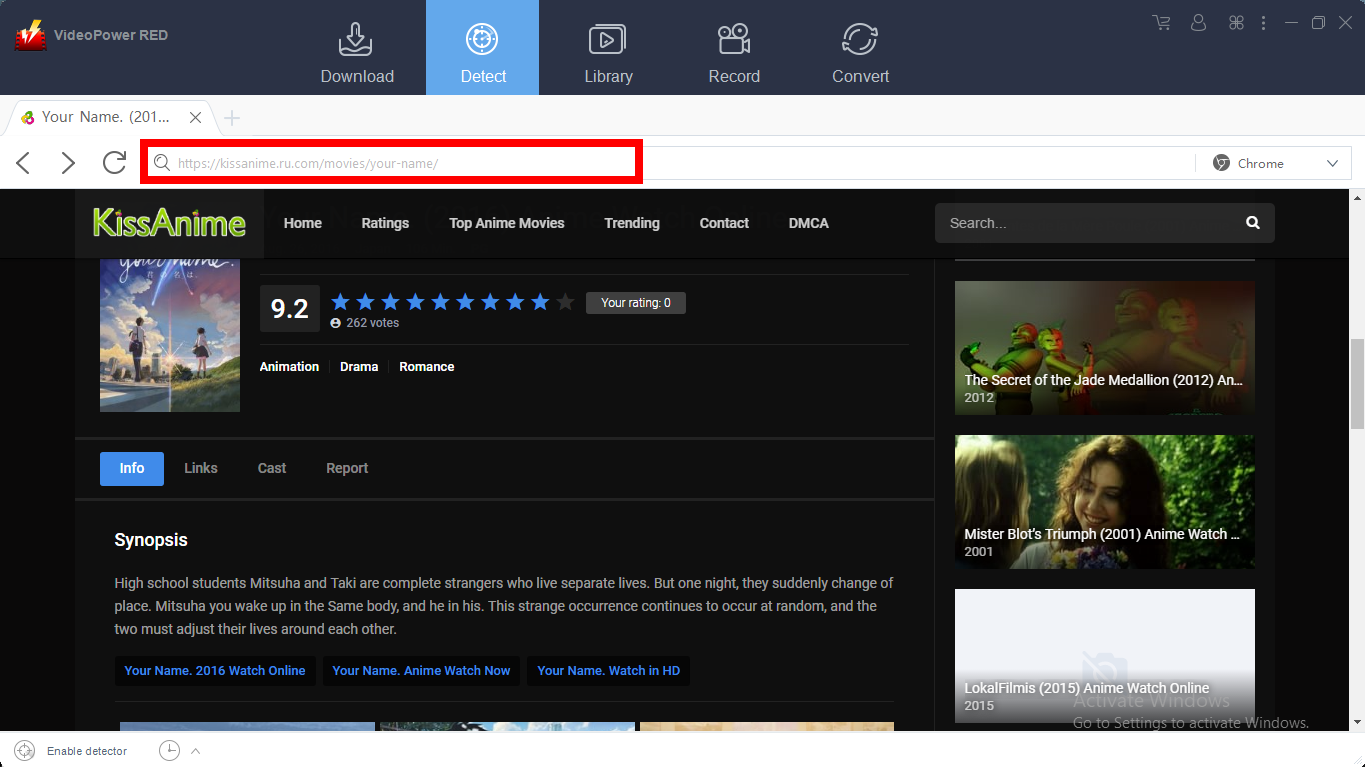
Step 1: Open the video page via an embedded browser
If the program supports the site, the video you have chosen will be automatically be downloaded after you play the exact video. After it was detected, you will be redirected to the “Downloading” window where the video will be processed. Then, wait for it to finish.
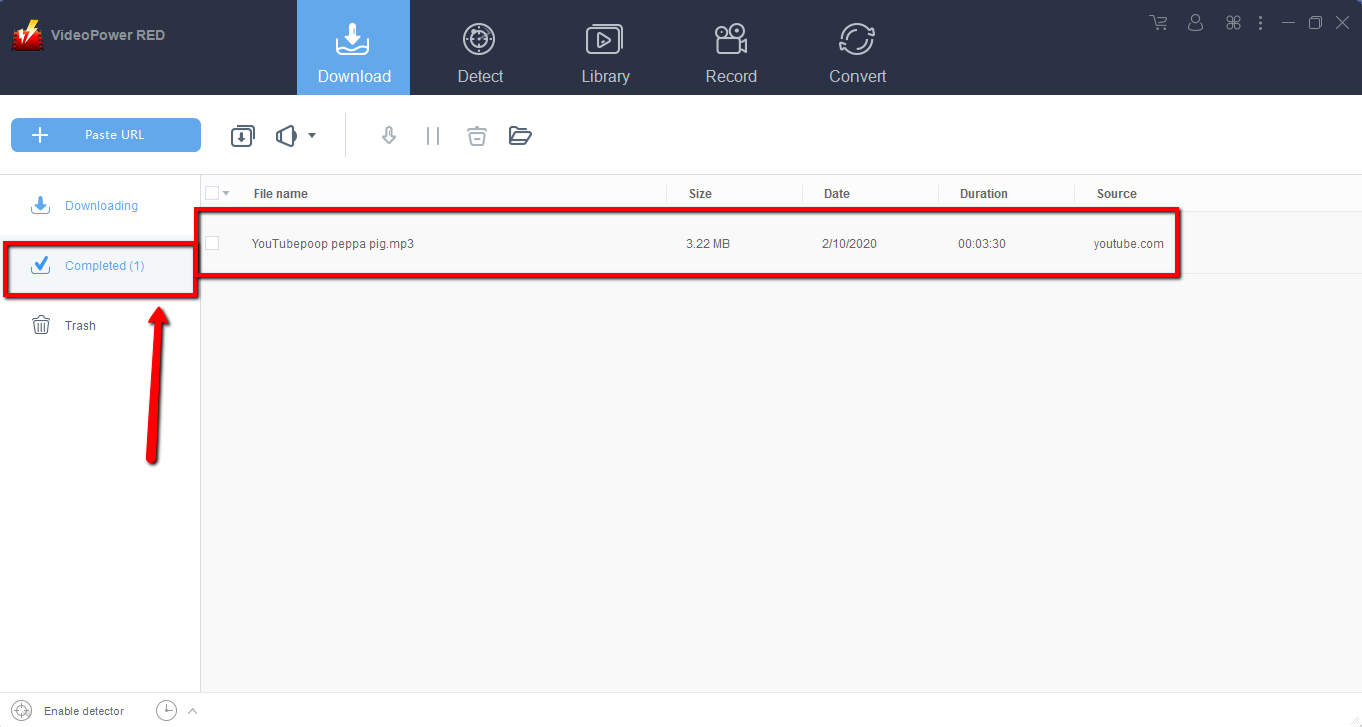
Step 2: Check Downloaded File
Wait for the download to finish, and then go to the “Completed” section to find the downloaded video. You can right-click to do more operations and double-click to preview.
Method 3: Screen Record
Sometimes because of the web update or slow internet connection, the program can’t download the video anymore but you can still save the video by using the recording function.
Step 1: Set Recording Mode
Click the “Record” tab to open the record window and select among the following recording modes such as “Region, Fullscreen, around mouse, and Web camera” to capture the exact and desired range of your screen. Click the preferred one and start recording.

Step 2: Check the recorded video.
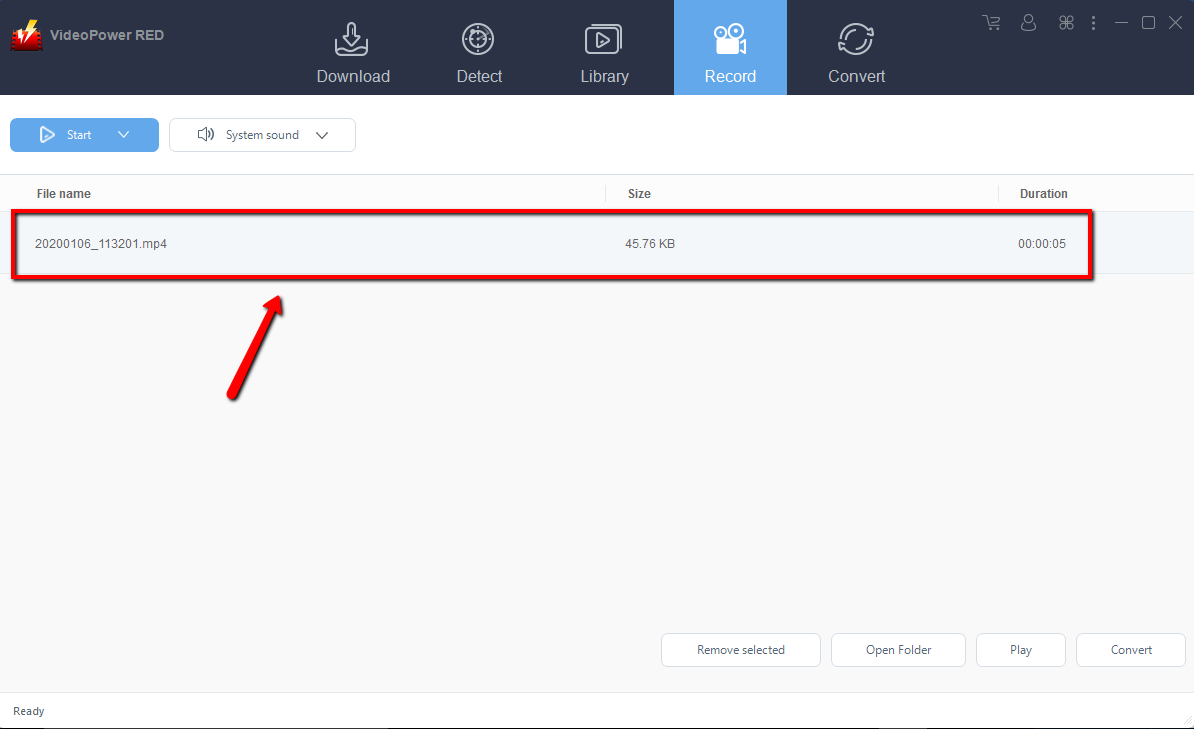
After recording, the recorded file can be seen in the record interface. Right-click to do more operations and double-click to preview.
Conclusion:
VideoPower RED is a flexible desktop application for your video downloading needs which is probably the best tool in the market to date. It has a video editing which includes trimming, rotating, adjusting the resolution, speed, volume, brightness, adding subtitles, and a lot more. Moreover, it includes features like split-screen feature for your photos and videos and a screen recorder which allows you to capture any on-screen activity on your computer and convert any video or audio file to the format of your choice.


