





Tips Index
VideoPower RED is the perfect tool to download videos from any website. Users can save videos from nearly any video sharing site on the internet.
A video downloader with an intuitive interface that makes downloading easy as 1-2-3. There are three methods with VideoPower RED to keep a copy of your favorite video for offline playback. You can either copy the URL of a video to download it or else let the program detect and save the video that you want automatically the moment you play it.
There are videos that can’t be downloaded directly because of copyright issues and other website issues but don’t worry, this software is prepared for anything. The screen recording function can record those with exact same quality from the downloaded ones.
It doesn’t matter wherever you want to enjoy watching your saved videos because VideoPower RED can convert and save it according to your specific device easily making it the best video downloader.
Try to use the product for free and enjoy unlimited time to download videos from a website. Just click the link below to download and install the app.
Method 1: URL Video Downloader
Step 1: Copy and Paste URL and download video.
Copy the URL of the selected video file that you want to download and then paste it on the downloader by clicking the “Paste URL” button.
After this, the video will be processed in the “Downloading” control panel.

Step 2: Check the downloaded file
After the downloading process is complete, go to the “Downloaded” control panel to see and check the downloaded video.

Method 2: Auto-Detect (Embedded Detector)
Download the desired video file using Auto-Detect on the “Detect” control panel. The software can detect the video being played on it and it will be downloaded automatically in any sites except for YouTube videos wherein YouTube, there’s the need to click first the download button before it will be downloaded.
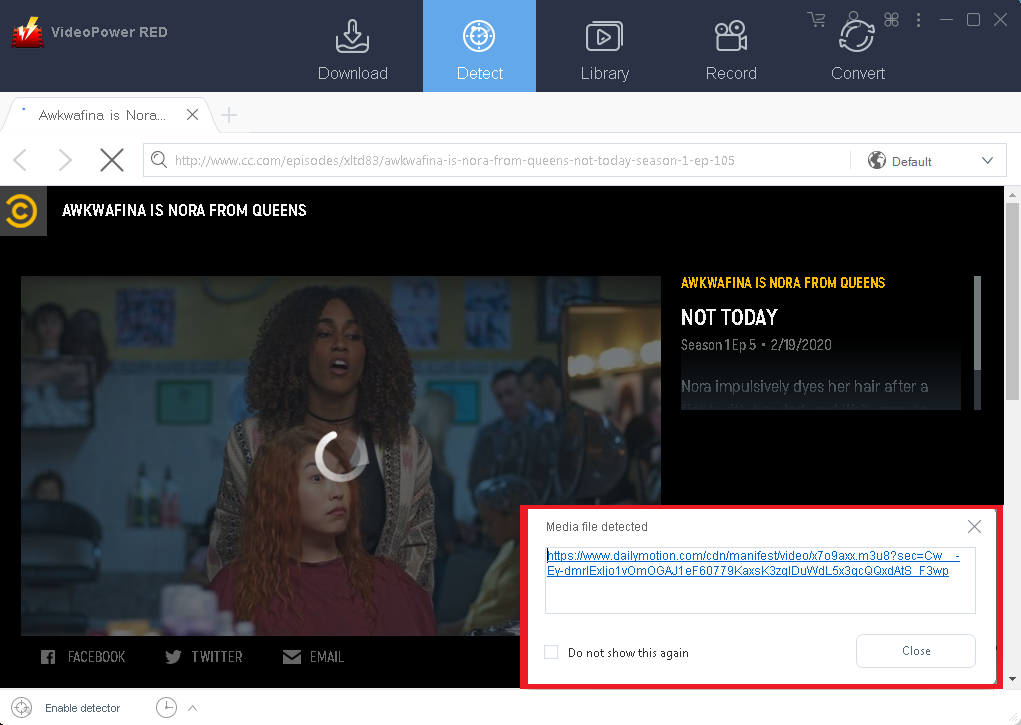
Step 1: Open the video page via an embedded browser
If the program supports the site, the video will be downloaded automatically after the “Media File Detected” notice appear.
For YouTube site:
A “Download” button will automatically pop-up at the bottom of the streaming video. Click the link to start downloading.

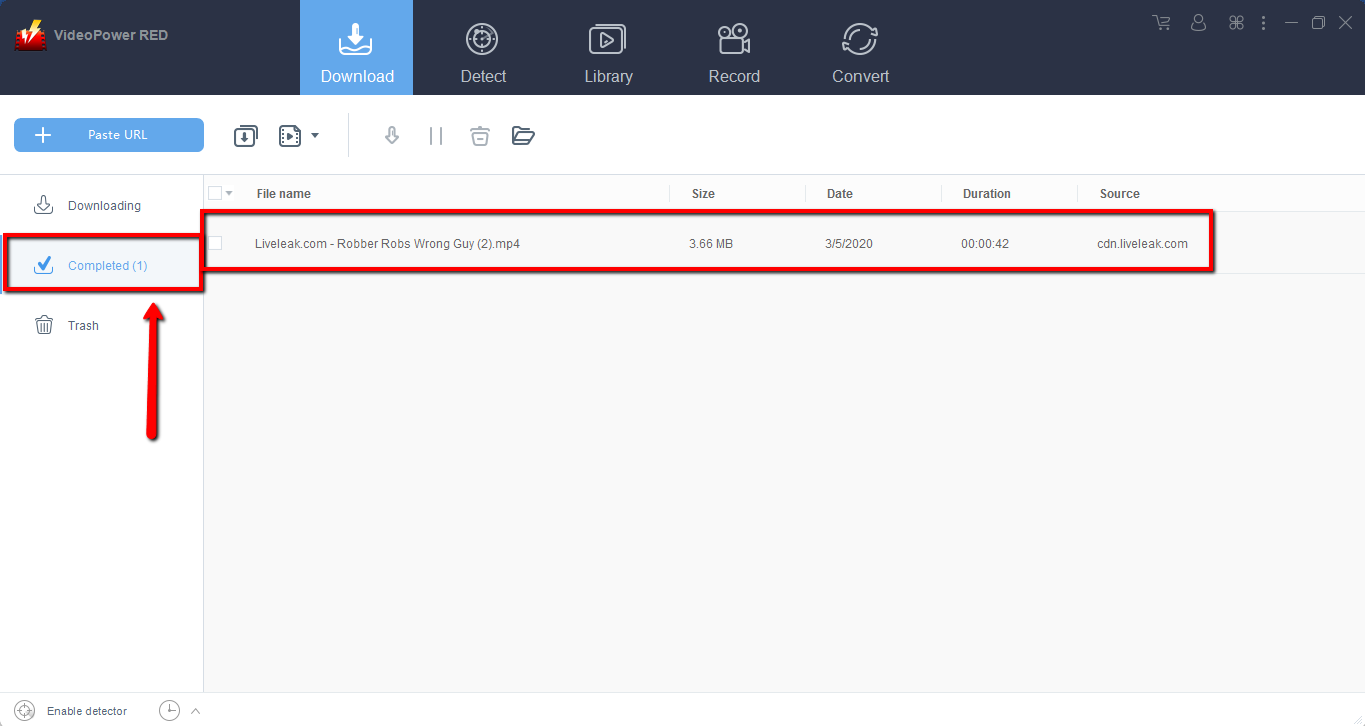
Step 2: Check Downloaded File
Wait for the download to finish, and then go to the “Completed” section to find the downloaded video. Right-click to do more operations and double-click to preview.
Method 3: External Detector
Step 1: Enable Detector in Settings.
Activate the “Enable detector” and start downloading the desired file.
Detect videos being played in any sites through an external browser and download it automatically after activating the “Enable Advanced Detector” on the download settings window.

Step 2: Enable Detector on the Interface.
Enable the detector by clicking “Enable Detector” located on the lower left of the software.

After done enabling the detector, you can now go-ahead to play the video you want to download and then the software will detect it and download it automatically.
Method 4: Screen Record Video from a Website
In some cases, because of slow internet connection, downloading would be problematic. To continue saving the desired video file, use a screen recording feature.
Select the recording mode and start screen recording.
Record the desired screen through five different modes; Region, Fullscreen, Around mouse, Web camera, Only audio. Select one and the recording will start automatically.

Conclusion:
VideoPower RED is an amazing and hassle-free application software that is best in downloading online videos. This product also has various useful professional features like converting, recording, and detecting multimedia files.
Download speed is fast and flexible with a built-in video editor that will enable you to edit videos, apply watermarks, effects, and other basic video editing options such as trimming or cropping. Moreover, it has a conversion tool that supports many video and audio formats for conversion without losing quality.


