





Tips Index
CNN is a popular news channel in the world because of its reliability and trustworthy news. It has sister channels around the globe in multiple countries like the Philippines, Spain, Brazil, and more.
By expanding its broadcast, CNN decided to create a website so anybody who wants to catch up with the news can browse and surf videos online. Its official site varies from several news articles and video clips, featuring videos about current events.
However, an unstable internet connection will not permit a smooth and continuous watching of news videos. Fortunately, VideoPower RED can download CNN videos, that will enable you to enjoy offline watching.
VideoPower RED is the ultimate solution to download videos easily. This is a great software if you prefer offline playback on your phone, tablet, iPhone, iPad, or PC. It’s possible to download from more than hundreds of sites. It supports download video from a website on various browsers such as Internet Explorer, Google Chrome, Firefox, Safari, Opera, etc.
Method 1: Copy and Paste URL to Download
Step 1: Copy and Paste URL and download video.
Go to the CNN website and search for your favorite program or TV show that you want to save for offline playback.
Copy the link of the video that you want to download and then paste it into the program by clicking the “Paste URL” button. See to it that the format is set to “audio” before pasting the link. After that, you will see the video is downloading in the download control panel.
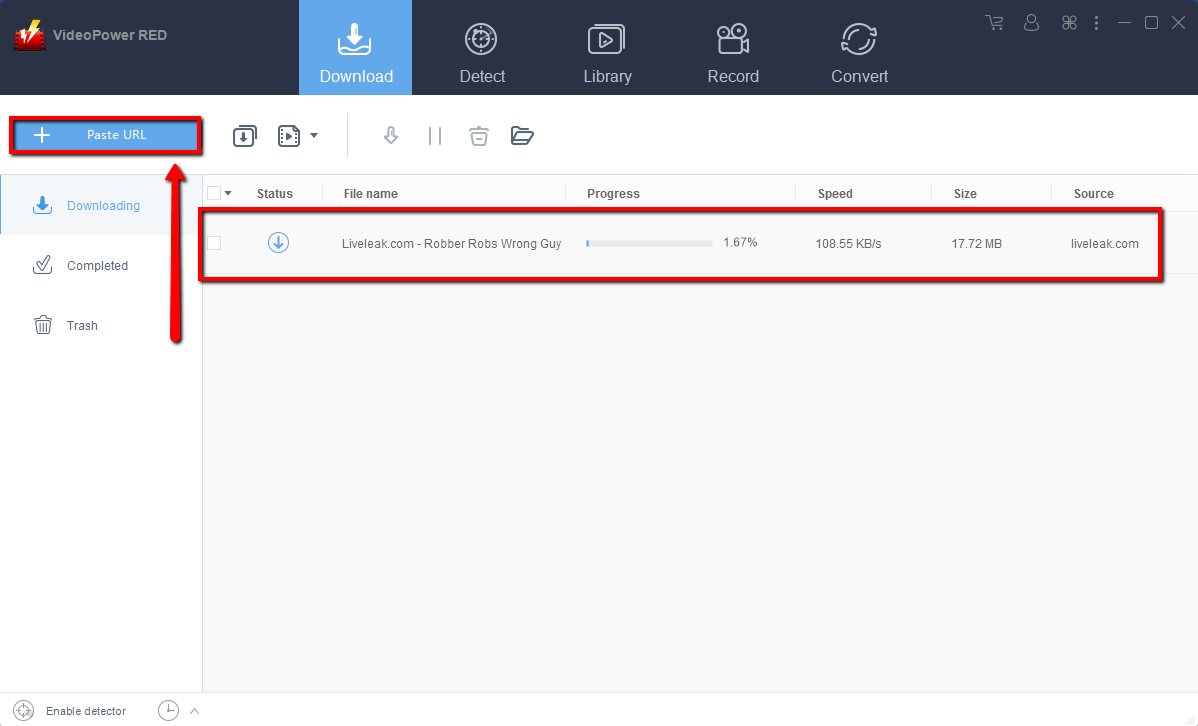
Step 2: Check the downloaded file
Wait for the download to finish, and then go to the “Completed” section to find the downloaded video.
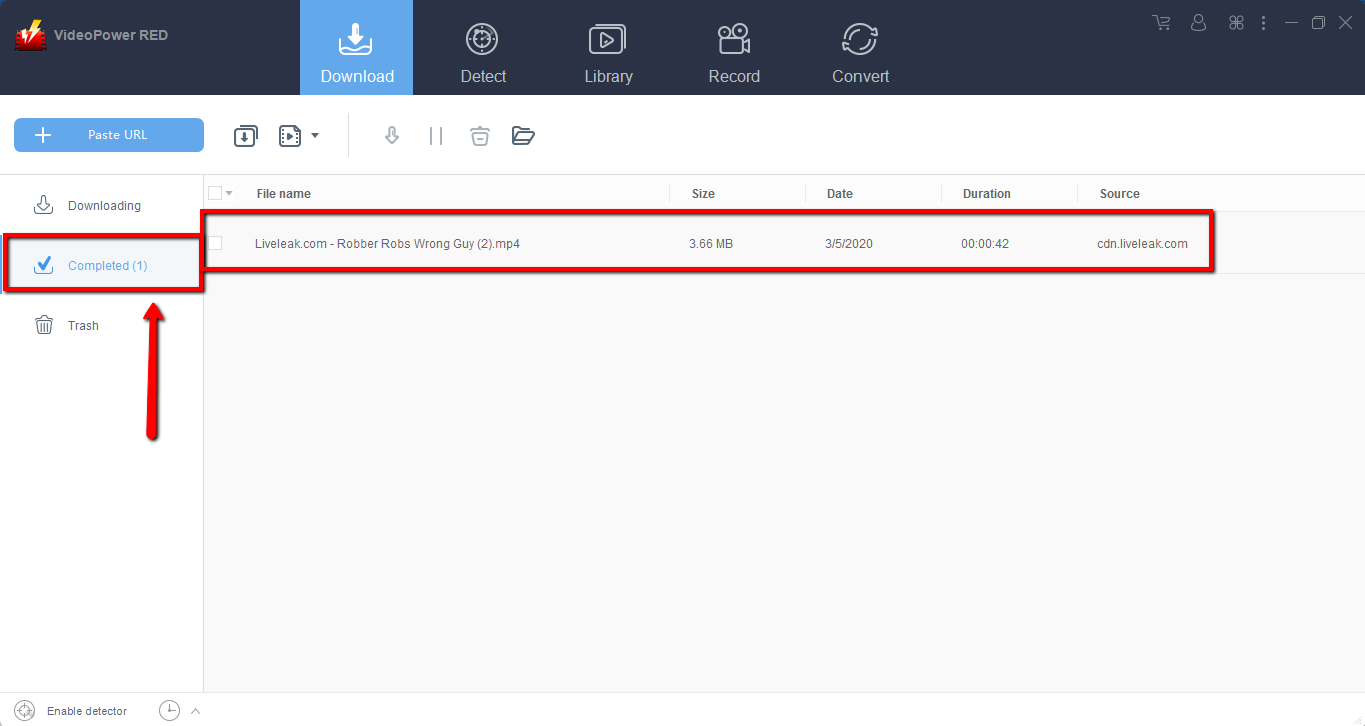
Method 2: Use the Embedded Browser
Step 1: Open the video page via an embedded browser
If the program supports the site, the video will be downloaded automatically after the “Media File Detected” notice appear.

Step 2: Check Downloaded File
Wait for the download to finish, and then go to the “Completed” section to find the downloaded video. Right-click to do more operations and double-click to preview.
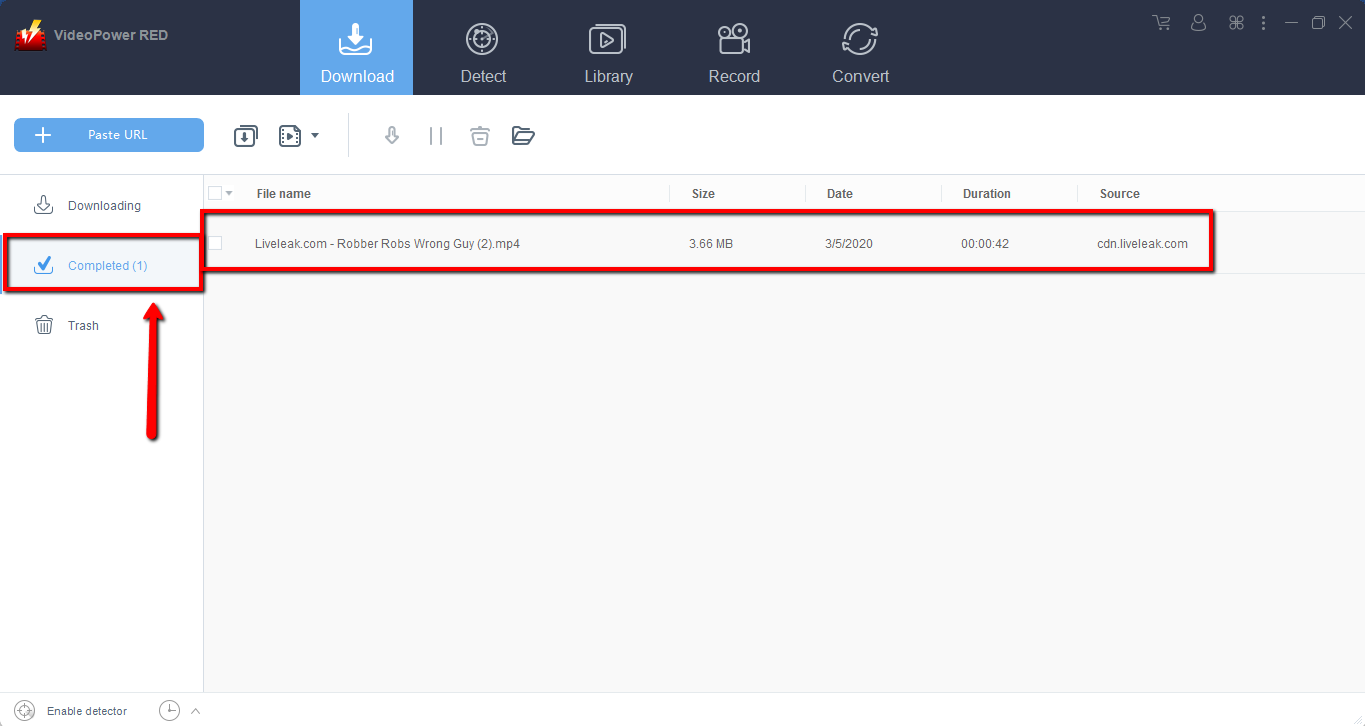
Method 3: Screen Record video
Sometimes because of the web update or slow internet connection, the program can’t download the video anymore but you can still save the video by using the recording function.
Step 1: Record video
Click the “Record” tab to open the record window and select among the following recording modes such as “Region, Fullscreen, around mouse, and Web camera” to capture the exact and desired range of your screen. Click the preferred one and start recording.
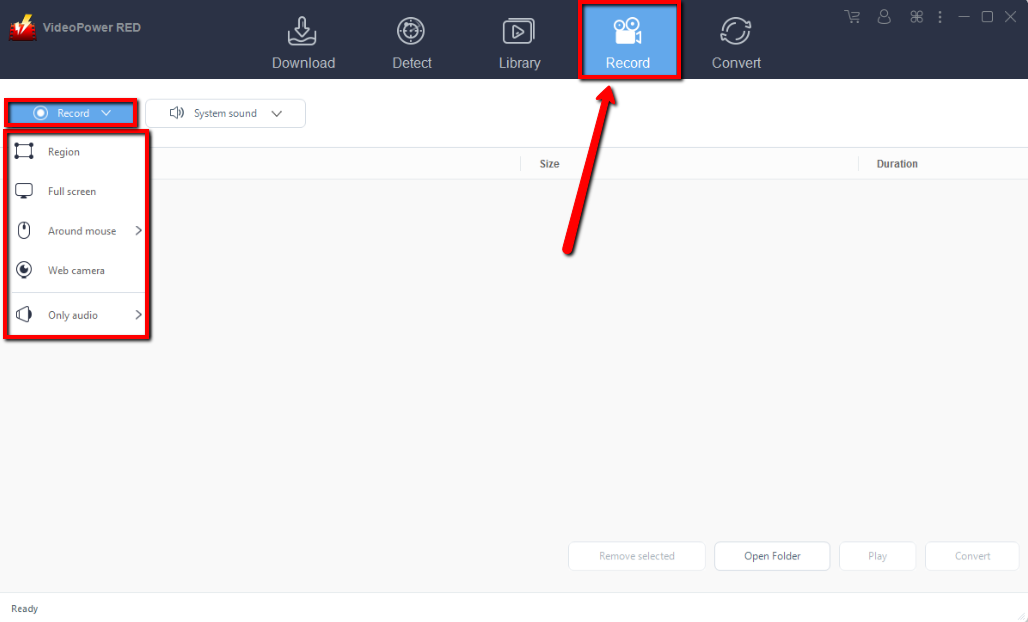
Step 2: Check the recorded video.
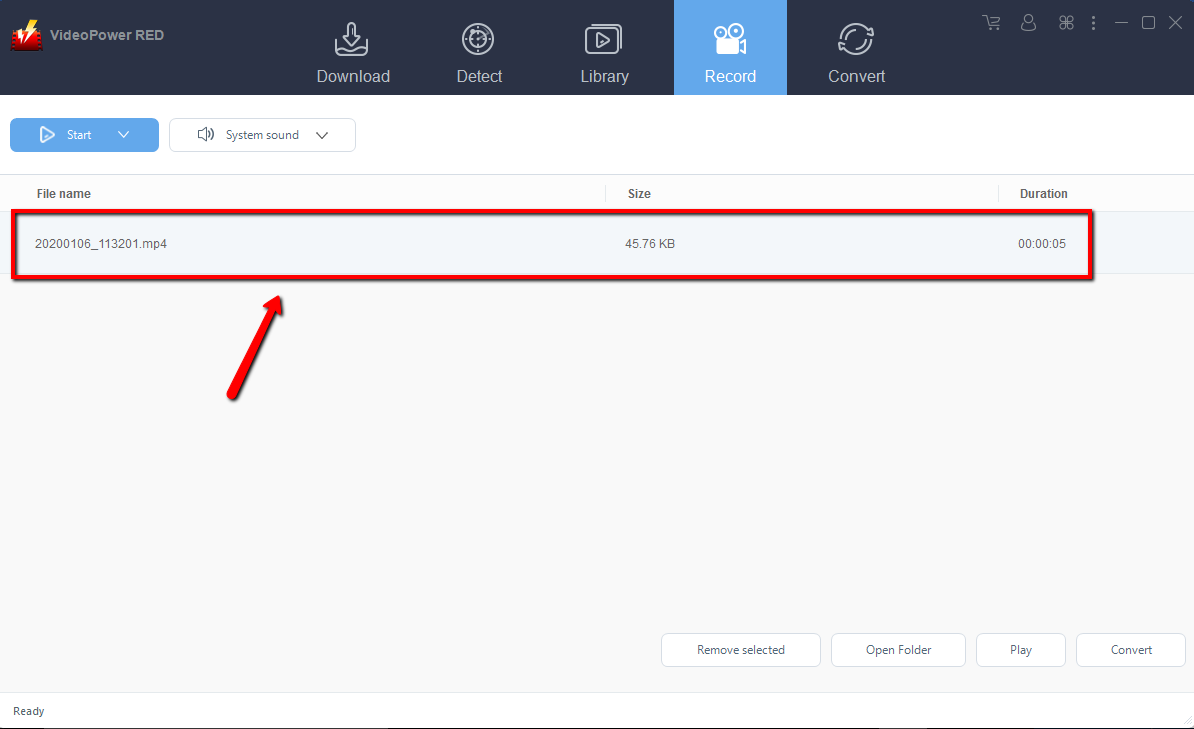
After recording, the recorded file can be seen in the record interface.
Conclusion:
Whether you want to download CNN videos or audios for personal consumption or professional use, VideoPower RED is definitely perfect for you. Unlimited offline watching that you can enjoy without worrying about video quality because this software is proven and tested.
It’s fast and flexible with a built-in video editor that will enable you to edit slideshows or videos, apply watermarks, effects, and other basic video editing options such as trimming or cropping. Moreover, it has a split-screen tool for your photos and videos and a screen recorder which allows you to capture any on-screen activity on your computer.


