





Tips Index
Nowadays, traffic is getting more and more natural or normal. Thus, more and more people don’t mind going to work from a place far away from home. They may have to take a bus or subway for an hour on the way.
How do they spend the time?
Most of these people are young and often have a video or movie on the go saved in their devices. And most of them have higher quality standards for video and like to watch a high-definition video.
So is it possible to convert SD video to HD quality?
The answer is yes if with the help of VideoPower BLUE, a powerful video converter, which is capable of converting file format and resolution.
VideoPower BLUE is a multi-faceted software that has a lot of functions. These functions include recording screen activity, basic video and audio editing, and file conversions. This program can convert Video to HD Quality in a few minutes.
Get this software now and convert Video to HD Quality.
Step 1: Add the video to VideoPower BLUE
Run VideoPower BLUE if you have installed it successfully on your PC.
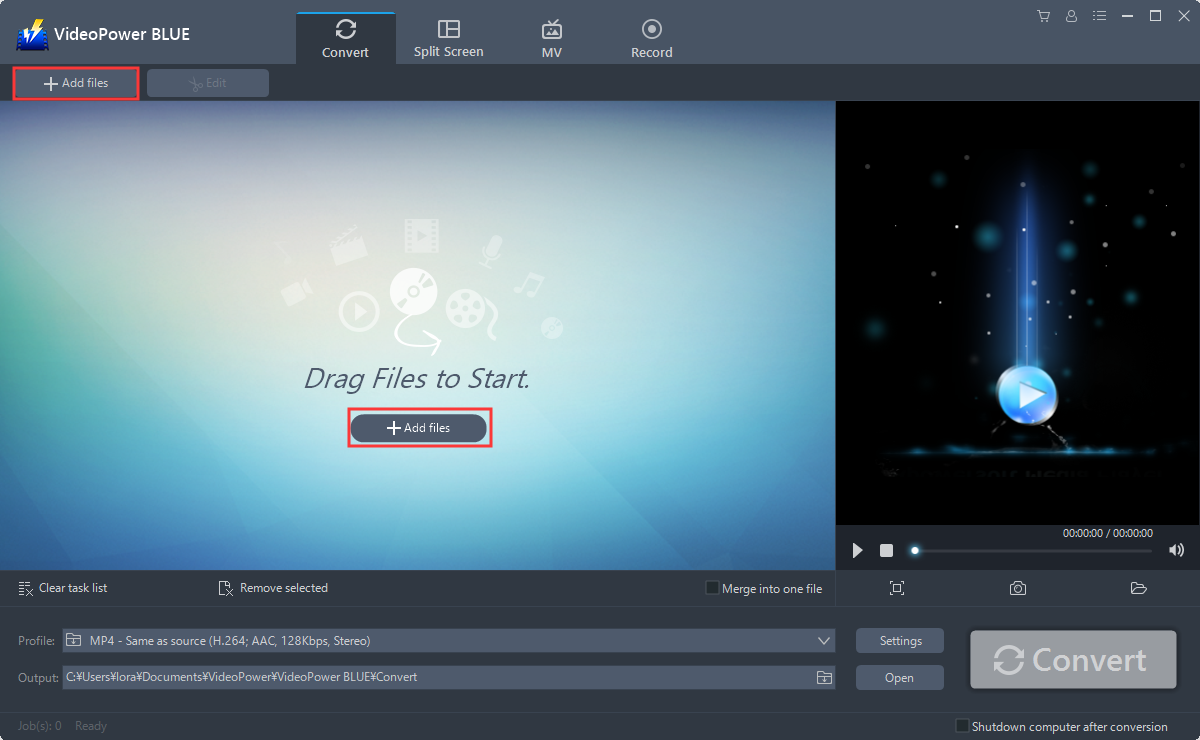
You can directly import videos to the program for conversion. Click the “Add files” button to select files from your PC, or directly drag-and-drop the video files to the interface.
Step 2: Edit the video file
If you want to edit the file first before converting, just follow the instructions below.
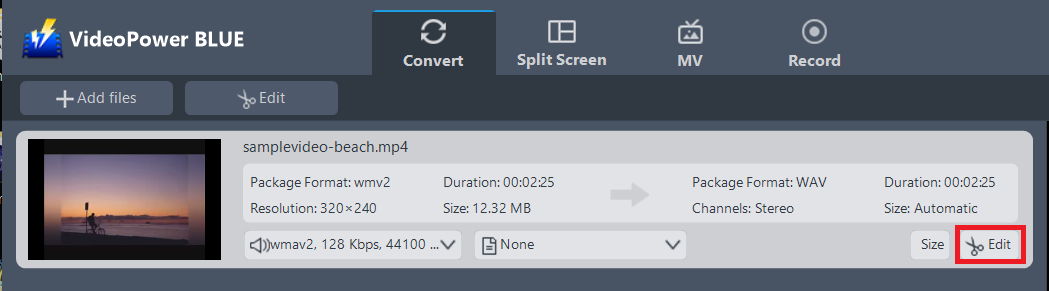
Click the “Edit” button at the right side of the added video file to enter the Edit window so you can do some changes to your Video.
Step 3: Convert Video to HD Quality
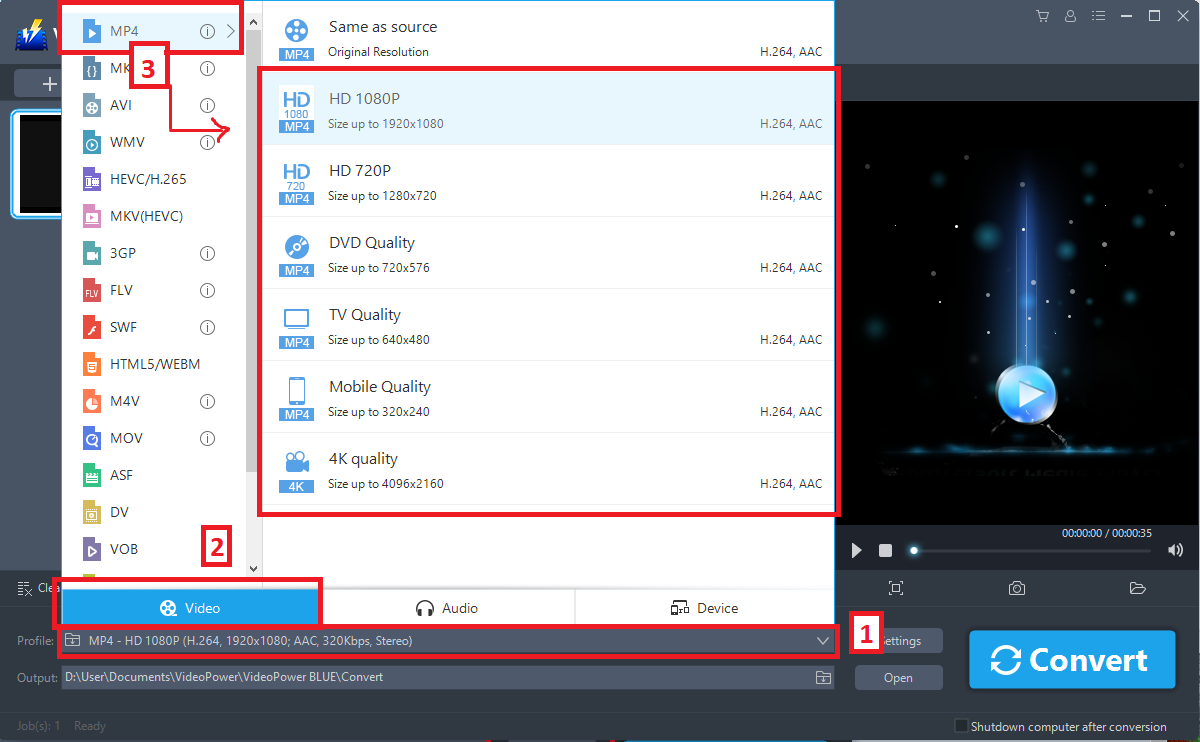
Before conversion, you should set the output format and folder first as the default output format is MP4.
1.) Click the “Profile” bar
2.) Choose “Video”.
3.) Set the format to “MP4-HD Quality”.
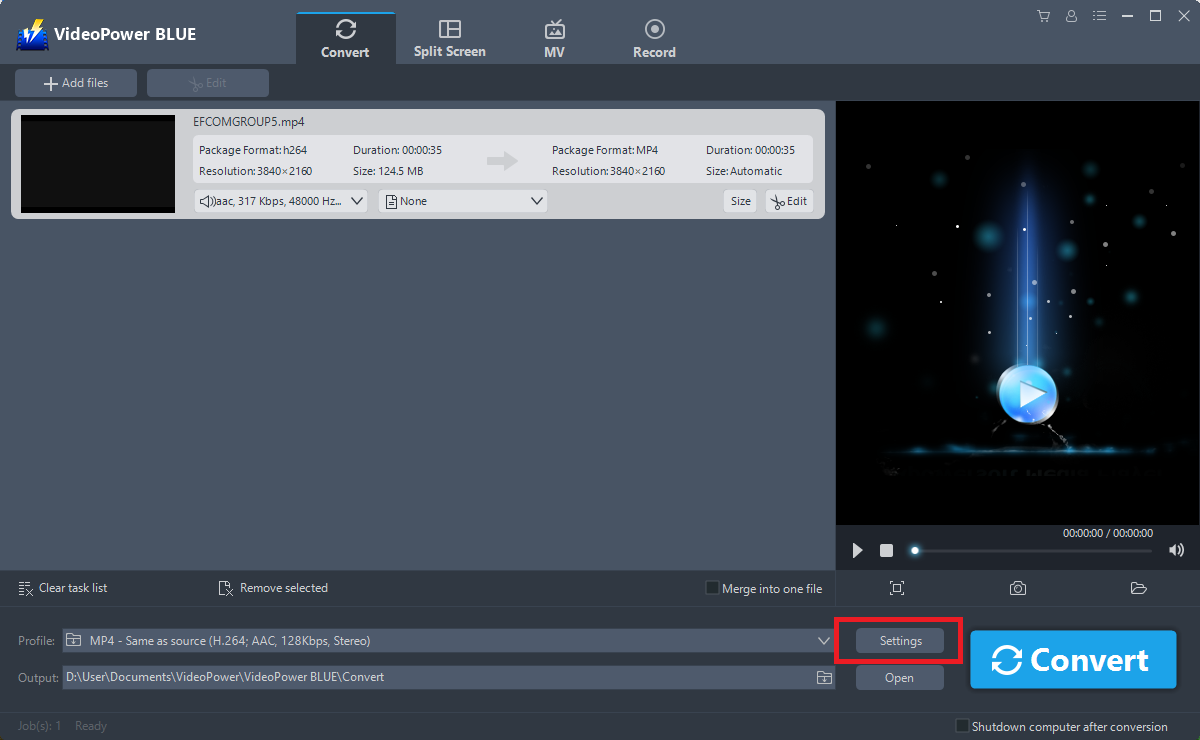
You can also customize frame rate, bitrate, codec, etc. manually. Just click the “Settings” button to enter the “Preset editor” window, then you can change the value and click “OK” to save the settings.
Now click the big blue “Convert” button to start the conversion process.
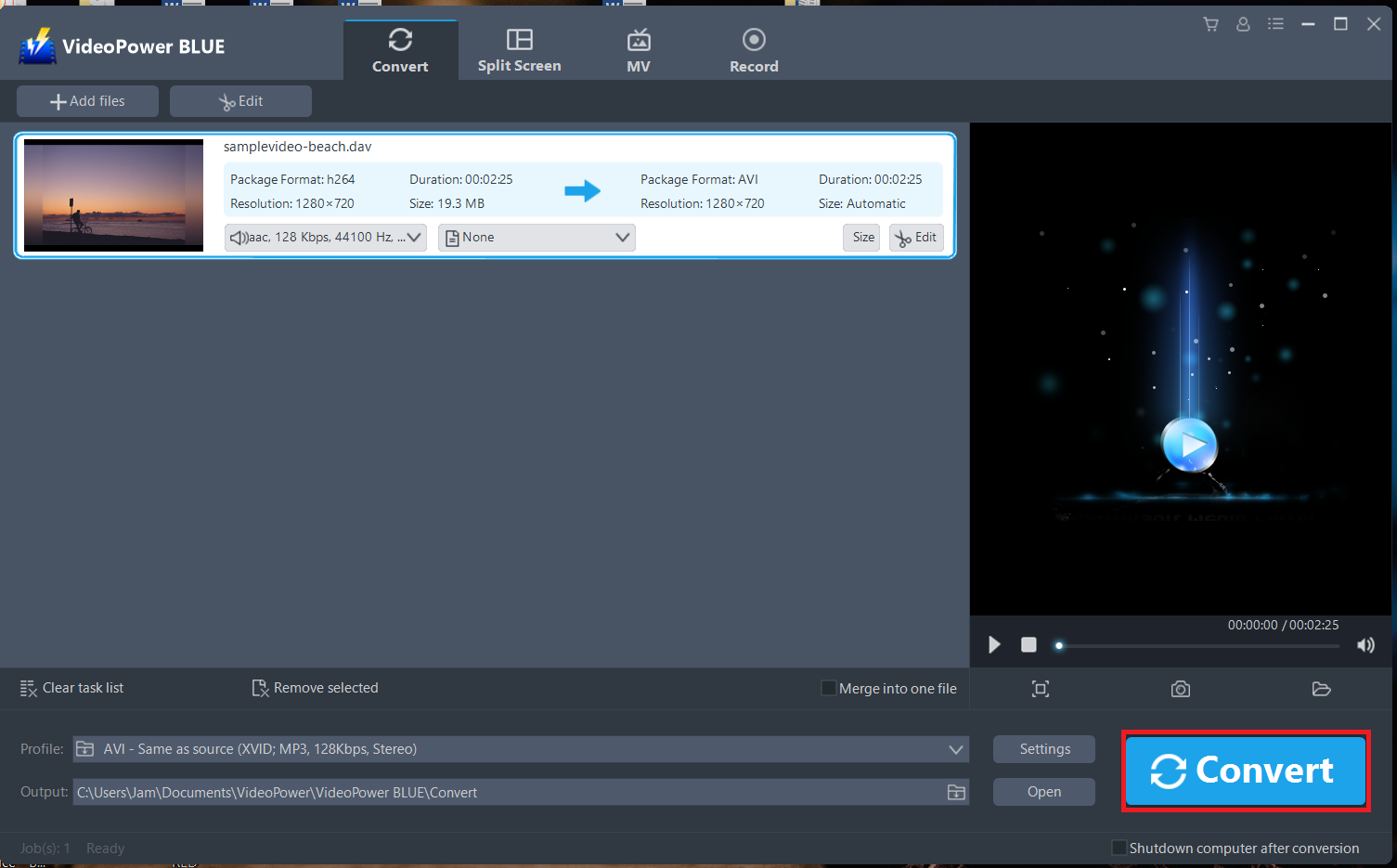
A pop-up window from the program will appear informing you that the conversion is complete. Click “OK” to open the folder of your saved converted video files.
Conclusion:
A video image shows a little unclear and the size is too small to fit the screen of your device? Wait no more, VideoPower BLUE is a reliable and fast converter. Following the guide above, converting videos to HD quality has never been easy as 123.
VideoPower BLUE is a multi-faceted software that is a simple, easy-to-use and straightforward interface. It could convert files to various file formats, has a built-in video editor that will enable you to edit slideshows or videos, apply watermarks, effects, and other basic video editing options such as trimming or cropping. It also has a split-screen tool for your photos and videos and a screen recorder which allows you to capture any on-screen activity on your computer.


