





Tips Index
Magical moments come each and every day, moments that we would want to remember for a long time. Although there are memories we would always want to remember for years, there are also those we’d love to hold eternally. One of those is the memories on your wedding day.
After the wedding, you might want to create a slideshow with all of your wedding photos. A slideshow is an ideal video to watch when you want to look back on you and your partner’s memories, and let them watch all of the good times you’ve spent together. Imagine being able to watch your memories again and again with just a click of the play button. Thanks to the power of the slideshow.
Slideshows aren’t just an excellent way of conserving and remembering our best memories, but also an entertaining way of spicing up the event. No wonder they have become very famous, especially at weddings. The question now is, how to make a slideshow for a wedding? What is the best way to make a slideshow for a wedding?
There is no doubt that you discovered this page because you are keen to learn how to create a wedding slide show. Let’s start by telling you that, having the best wedding slideshow software like VideoPower BLUE enables you to make a perfect slideshow in just minutes.
Just click the link below to download this free app and follow through the guide on How to Create a Stunning Wedding Slide Show. You can also try to use the software for free by downloading its trial version below.
Step 1: Add Photos or video files to VideoPower BLUE
Run the program if you have installed the software successfully on your PC. You can directly import the photos and videos to the program by clicking “MV” at the middle-top of the interface and click the “Add files” button or drag-and-drop the file to the interface. Choose a theme style you like most to start your slide show making.

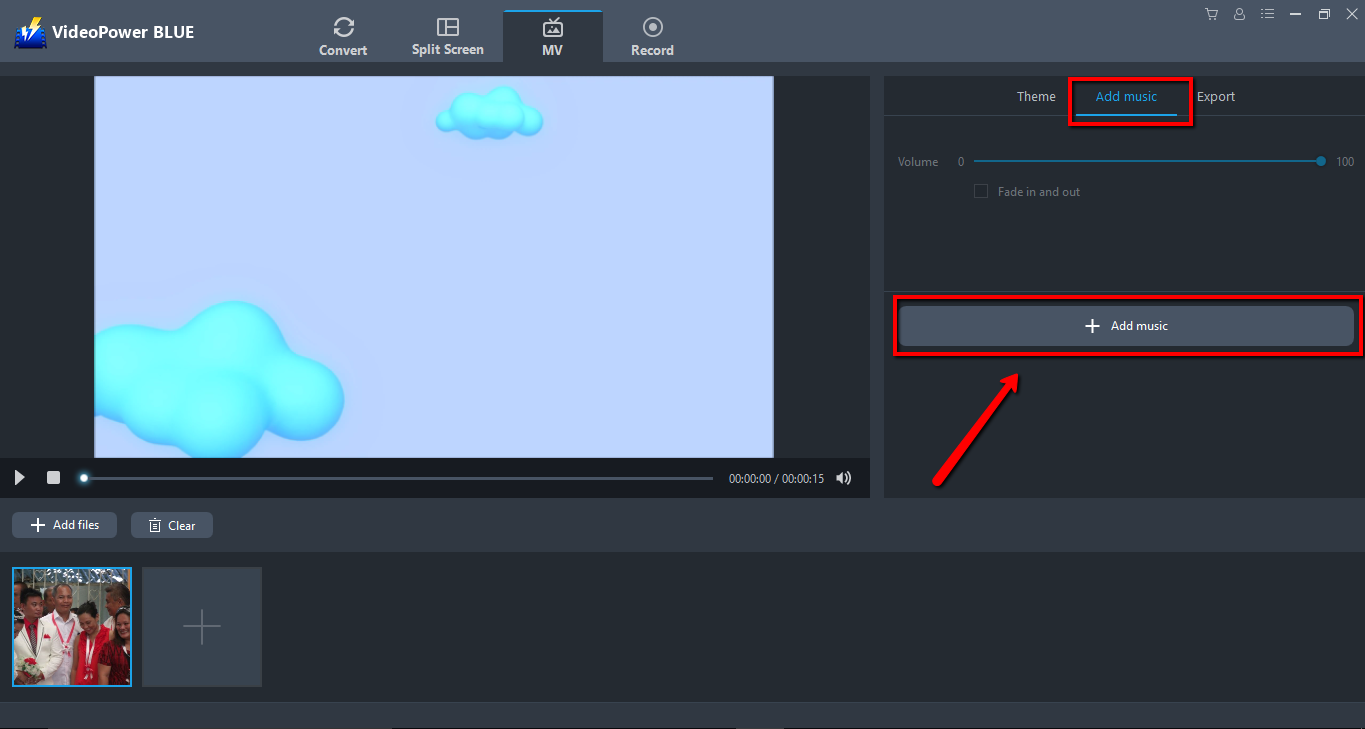
Step 2: Add background music
You can also add background music to the slideshow for the improvement and beautification of your slide show. Click the “+ Add Music” button to add music from your locally saved audio.
Step 3: Set Resolution
Before exporting, you should select the resolution of your slideshow to be exported among 360P, 720P, or 1080P. Choose the one you deem appropriate.

Step 4: Export Slide Show
You can now click the “Export” button to start exporting the slide show. You can then choose where to save your file after exporting.

Conclusion:
VideoPower BLUE is a free wedding slide shows maker that is meant to be enjoyed while on the making. The app is also capable of converting videos and audios in different kinds of format like MP4, MKV, MWV, AVI, 3GP, FLV, VOB, MP3, M4A, FLAC, and many more. Lastly, once you’re content with the wedding slideshow that you have made, VideoPower BLUE gives you numerous ways to save and share your work. Or you can just make it an invitation to your wedding as well.


