





Tips Index
Everyone has music in their household from your mom to your youngest sibling, even until your last neighbor on the block it’s almost impossible not to hear it. It’s a commodity consumed on a daily whether you use it for entertainment or just for your daily dose of therapy. It’s ancient that has changed over time and the way we access it is also perpetually shifting whether played by yourself through instruments or utilizing a faster one like your smartphone or through other devices.
The music industry has evolved drastically over time to reach such a pinnacle today. Before we still had to access physical stores just to buy albums, switching on the radio to listen on random ones, but now through many innovations users already have the command on which music to listen through numerous music services online just like Amazon Music Download or even the mainstream YouTube Music.
There are several ways to grab your favorite genres, it could either be through online subscription, online download or have a trusty software that could do both and more! VideoPower BLUE is a powerful software that could grab music wherever the web may bring you one. It is packed with multi-functionalities that specializes in audio downloads.
Step 1: Add the F4V file
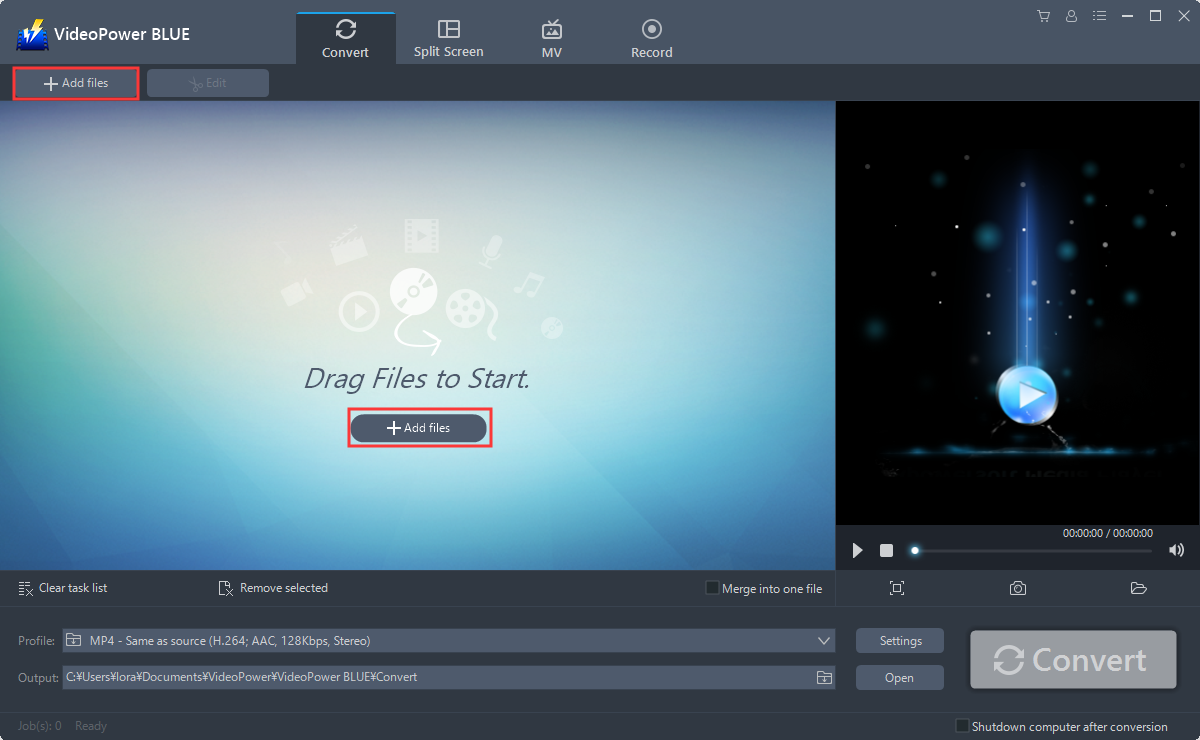
Run the program if you have installed VideoPower BLUE successfully on your PC.Add your F4V audio into the program that you want to convert.The program supports multiple tasks.Click the “Add files” button to select one or more files from your PC, or directly drag-and-drop the selected files to the interface.
Step 2: Edit the F4V file
If you want to edit the file first before converting, just follow the instructions below.
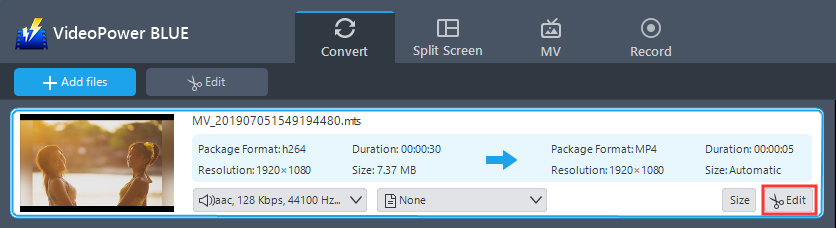
Click the “Edit” button at the right side of the added F4V file to enter the Edit window so you can make adjustments to your F4V now.
Step 3: Convert F4V video to MP4 format
1) Select the output format that you need.
2) Click the “Profile” bar
3) Choose “Video”
4) Set the format to “MP4 – Same as source, HD 1080, HD 720, DVD Quality, TV Quality, Mobile Quality, and 4K Quality”
Note: even if the default is MP4, you can set your quality the way you want.

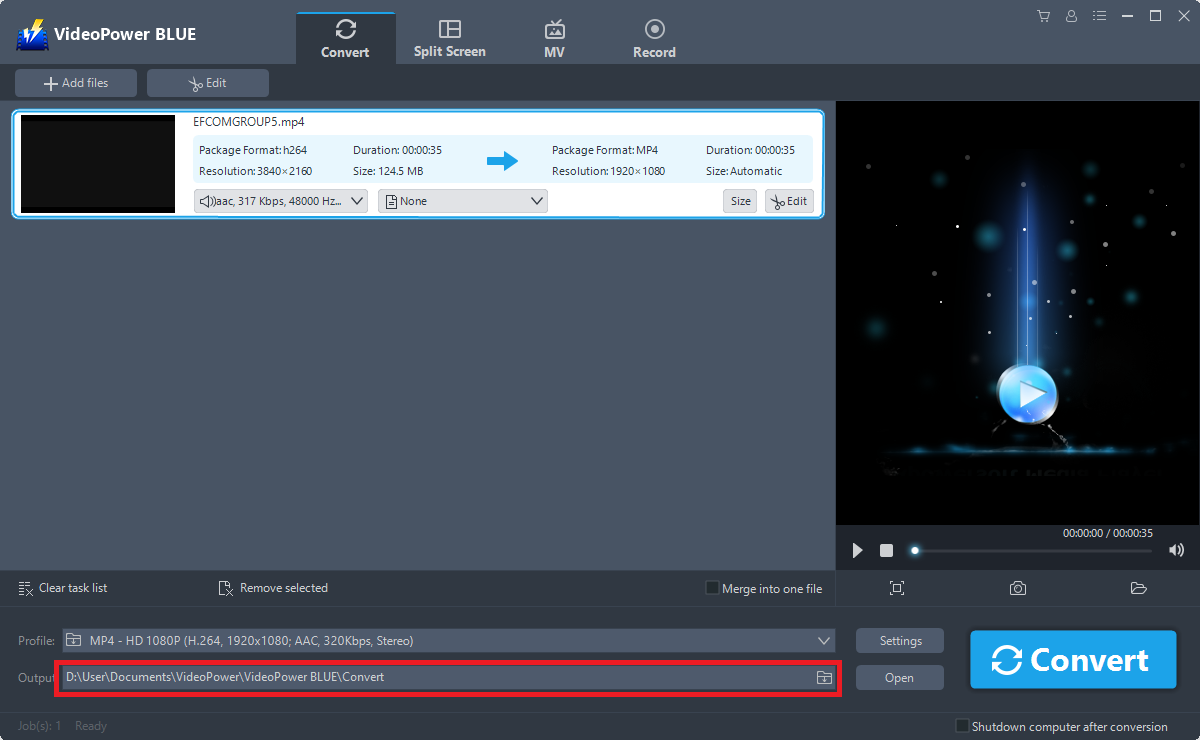
Choose a storage location to save the converted files. Click the “Output” icon and select the destination wherever you want to store the file.
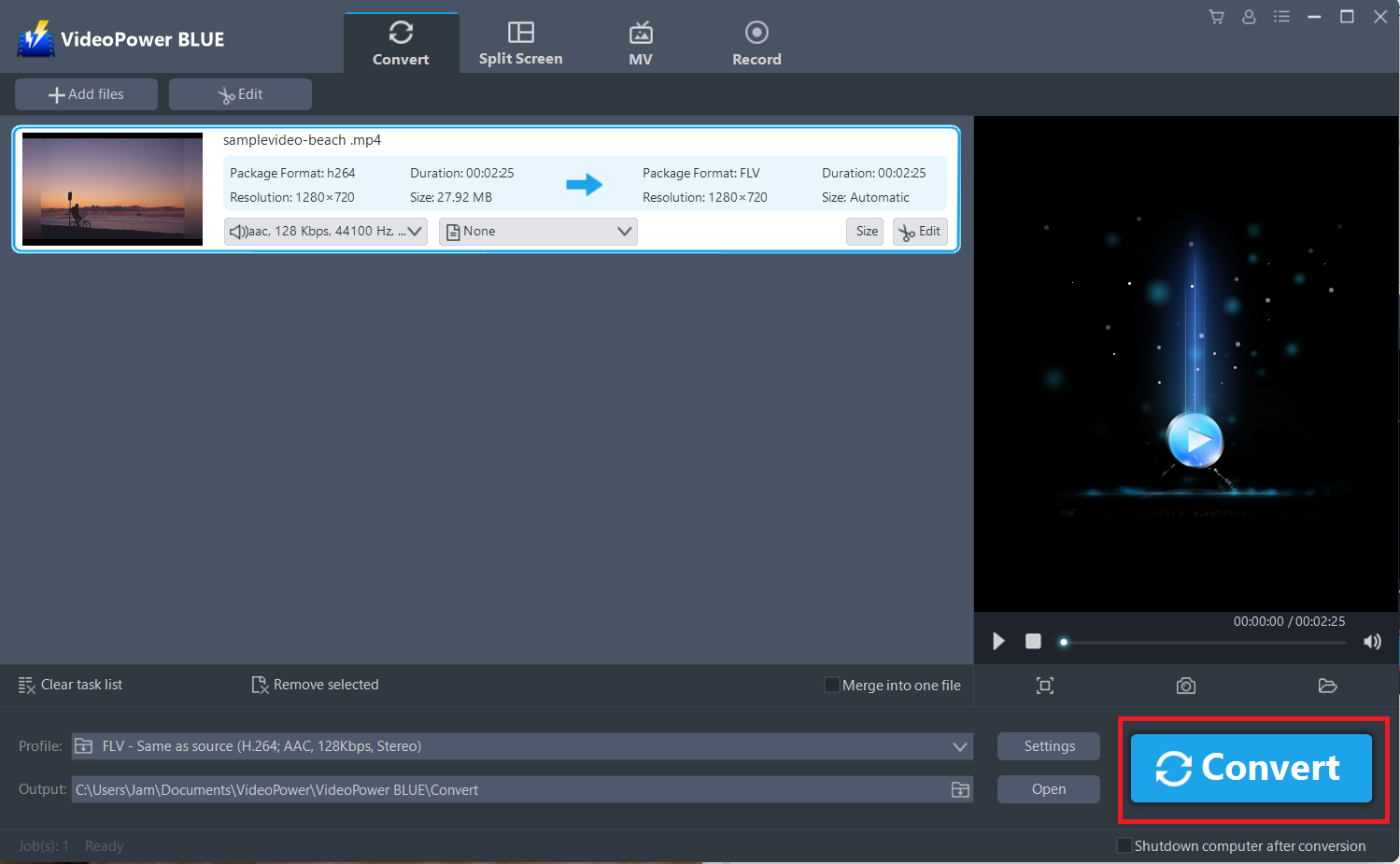
After setting the output location, click the “Convert” button, then the software will start to convert and save the edited video in MP4 format.
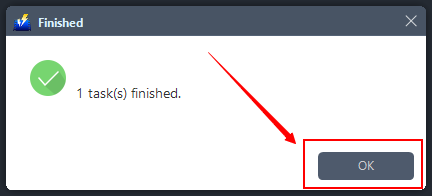
The program will pop up a window to inform you once the conversion is completed. Click “OK” to open the folder of your saved converted MP4 files.
Conclusion:
File conversion is easy peasy; however, the real struggle is choosing the appropriate tool that won’t waste your time. In this case, it is preferable to use only those programs that are proven to be effective and safe. VideoPower BLUE is tested and proven to be efficient and has zero malware and viruses.
VideoPower BLUE, a powerful converter that supports any conversion of video and audio formats with video editing function, enables adding subtitles, apply watermarks, make MV and split-screen videos. More importantly, it can record screen activity in many different ways, offline and online.


