





Tips Index
Final Cut Pro is a professional video editing software introduced by Apple. The latest version of Final Cut Pro X includes all the functions required for post-production. Importing and organizing media, editing, adding effects, improving sound effects, color grading, and delivery – all operations can be done in the application.
For Mac users, Final Cut Pro is indeed the best video editing software, but how about those Windows users?
Editing a video is a very crucial task to deal with. You have to have the right tool in cutting scenes, merging clips, editing audios, adding subtitles and many other things you need to do properly. So having a great video editing software like the Final Cut Pro for PC is heaven sent to users.
With a great video editing tool, you can not only edit adjustments out of your clip, but also make it more professional looking. If you are searching for a great video editing tool, the Internet will give you thousands of results.
Here we are going to introduce an awesome alternative for PC which is called VideoPower BLUE It is very useful video editing software bundled with a variety of features such as screen recording, capture, slideshow making, and conversion.
Download and install the program on your PC with the below link to start the conversion.
Step 1: Add the Video file to the program.
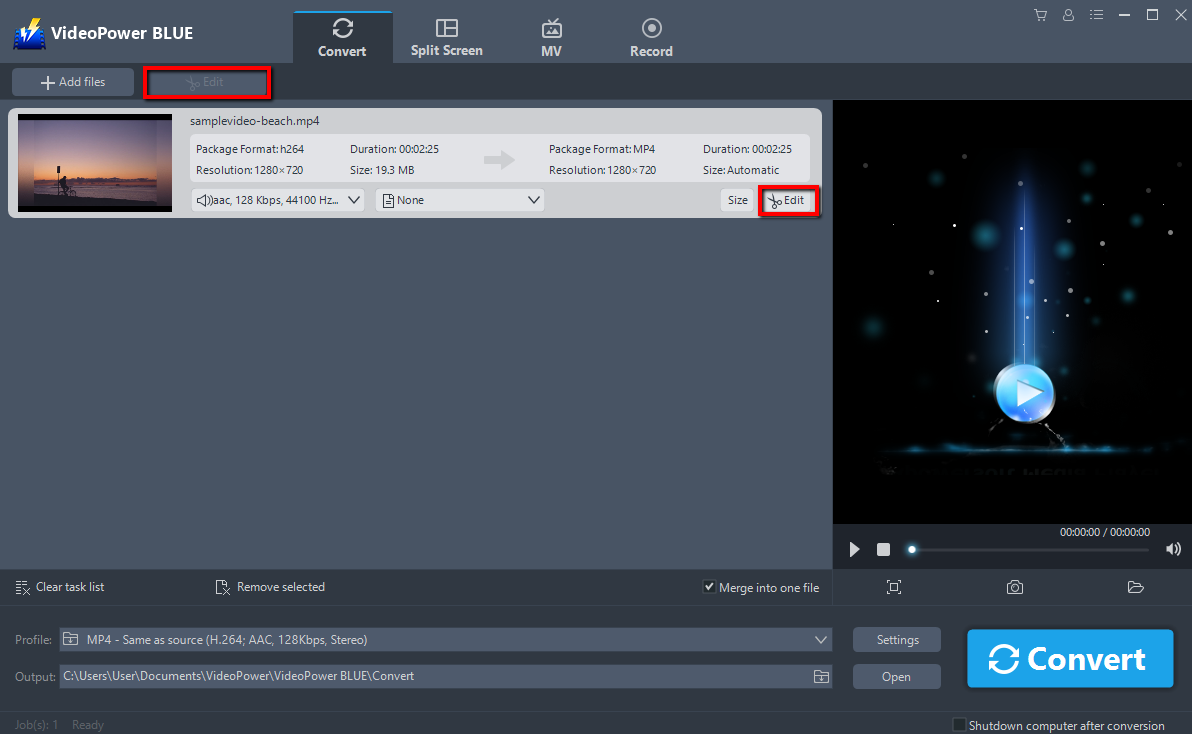
Run the program if you have installed the video converter software – VideoPower BLUE successfully on your PC. You can directly import the file to the program by clicking the “Add files” button or by drag-and-drop the file to the interface.

Step 2: Edit the Video.
If you want to edit the video first before converting, just follow the instructions below.
The imported Video file is displayed in the list.
Click the “Edit” button on the right side of the file.
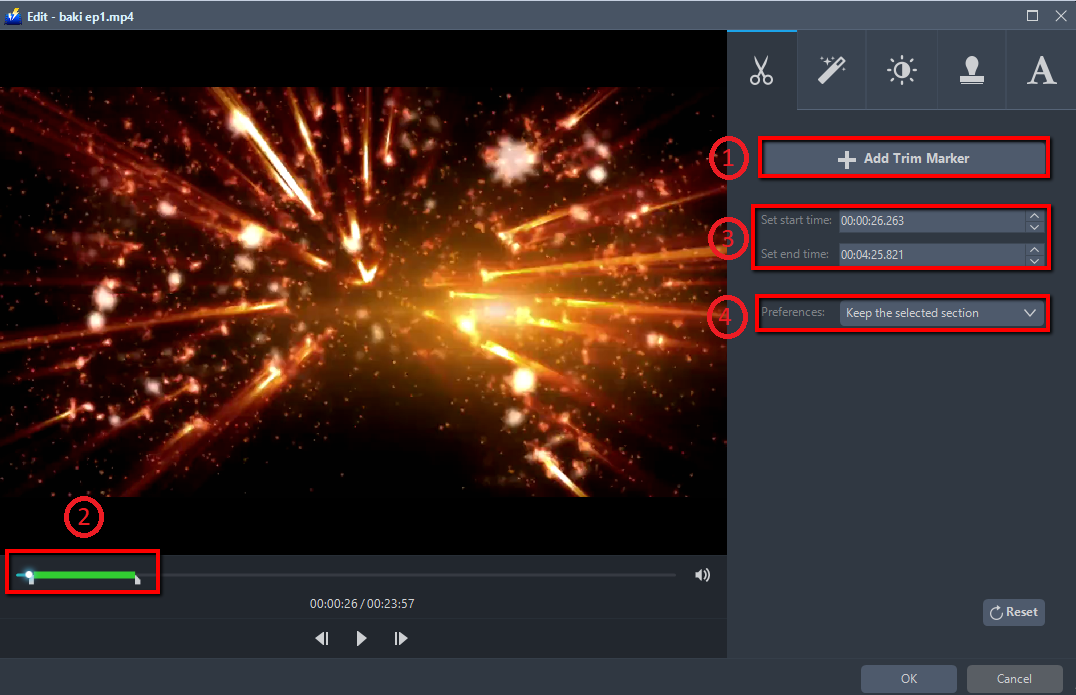
You can do the following steps to cut your video:
1) Click “Add Trim Marker” to add a trim marker to the progress bar, you can also add multiple trim markers by clicking this button multiple times.
2) Drag the slider to select the part you want to hold.
3) You can click the up or down button to set the start and end time as well.
4) Now you can choose to keep or delete the selected section.
Click “OK” to save it.
Step 3: Convert video.
Before conversion, set up the output profile. In the “Profile” option, select the video format to be converted. Each video format also has a variety of sizes and quality options to choose from.
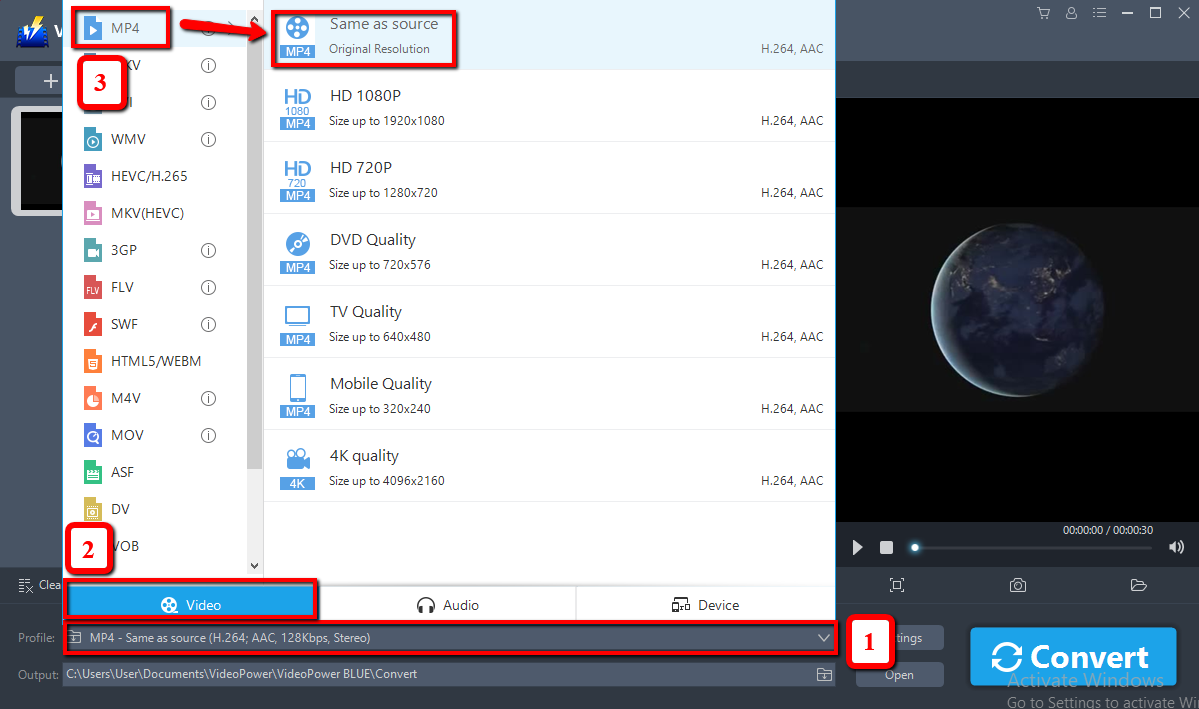
Set the video save directory in the “Output”. After finished, click the big blue “Convert” button to start converting the video.

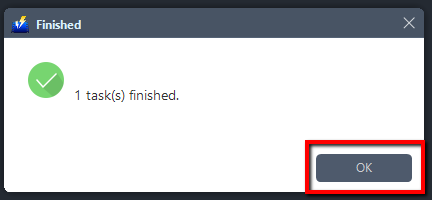
After the conversion is completed, a prompt window pops up to indicate that a file has been successfully converted. Click “OK” to confirm and then the software will automatically open the video saving folder. Find the video just converted and exported in the folder, and then preview the video.
Conclusion:
VideoPower BLUE can be regarded as the best alternative for Final Cut Pro for PC because it’s fast and flexible with a built-in video editor that will enable you to edit slideshows or videos, apply watermarks, effects, and other basic video editing options such trimming or cropping. Moreover, it has a split-screen tool for your photos and videos and a screen recorder which allows you to capture any on-screen activity on your computer.


