





Tips Index
Windows Movie Maker is a video editing software that is almost available on every PC years ago. It is included as a standard program in every Microsoft Windows. So that you can create an image animation, which can then be used for information exchange or distance learning. You can also watch the produced movie on your own computer, email it to others, or upload it on a website for sharing.
It allows you to quickly produce a customized movie that includes video clips, photos, background music, and narration. Users can choose to customize the movie by adding titles, transitions, and video effects.
Over the years, Movie Maker has been the epitome of editors but later on, Microsoft discontinued it to be a part of the standard program. The simplicity and the functionality of it have always been its advantage among other editors.
As you carry on reading, you’ll realize that VideoPower BLUE if not similar to Windows Movie Maker, then even better.
Step 1: MV Making
For MV making, you can make a slideshow with your beautiful pictures, videos, and background music. Let your photos no longer be static and quiet, but vivid and melodic.
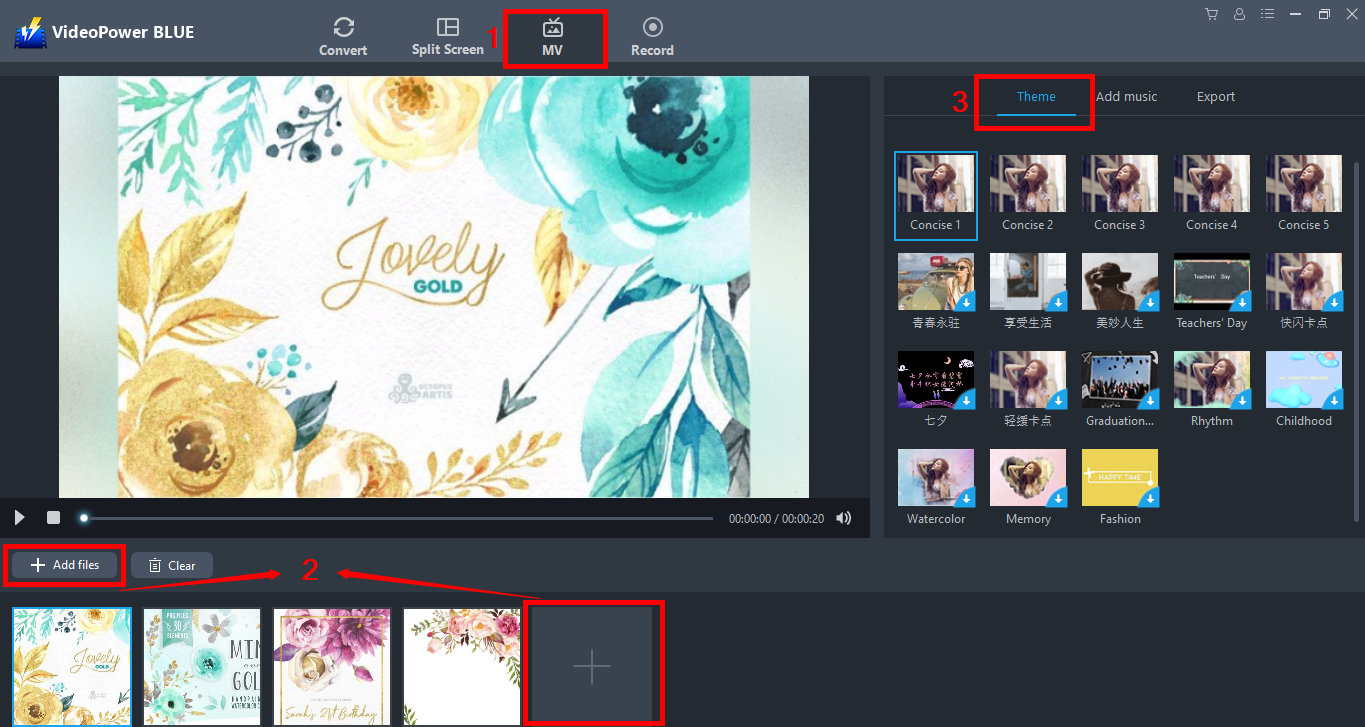
1.1 Open MV
1) Click MV at the top of the interface.
2) Click “Add files” or the + button below
3) Then choose the theme for your slideshow
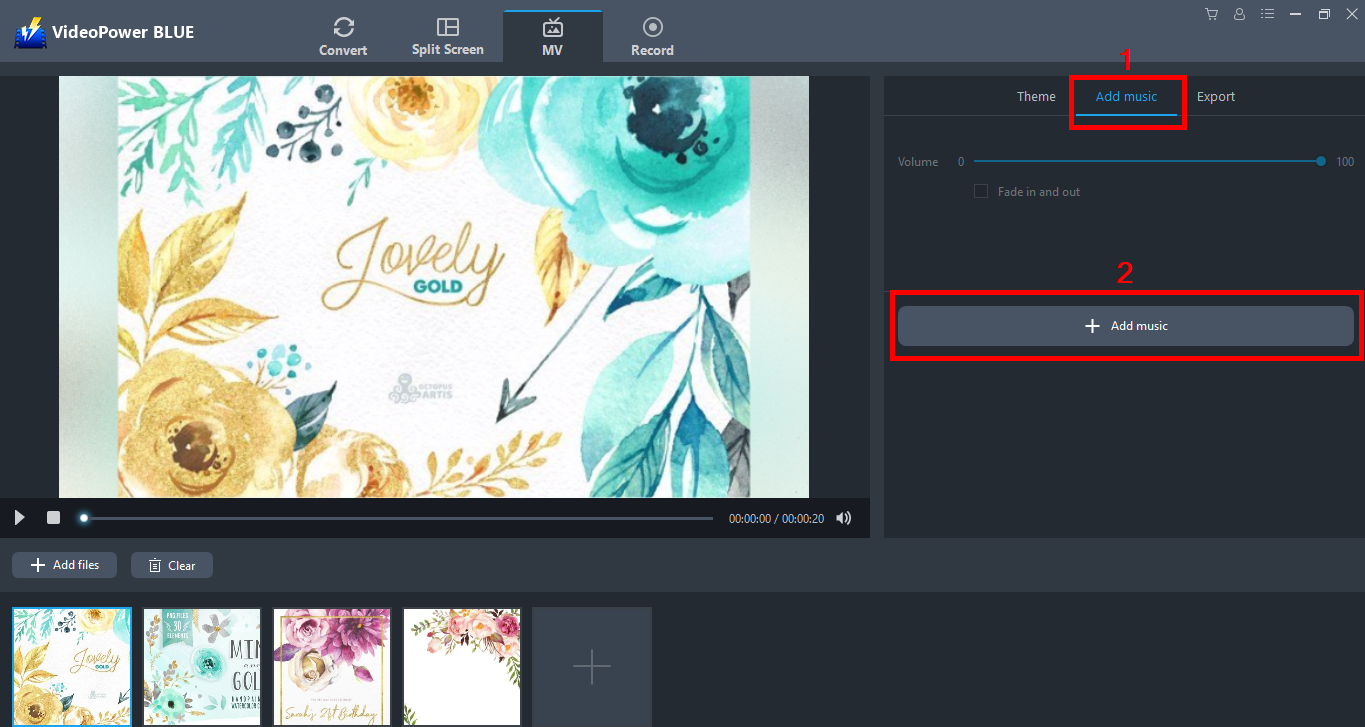
1.2 Add music
1) Click “Add music” from the features
2) Add music to your slideshow from your local storage
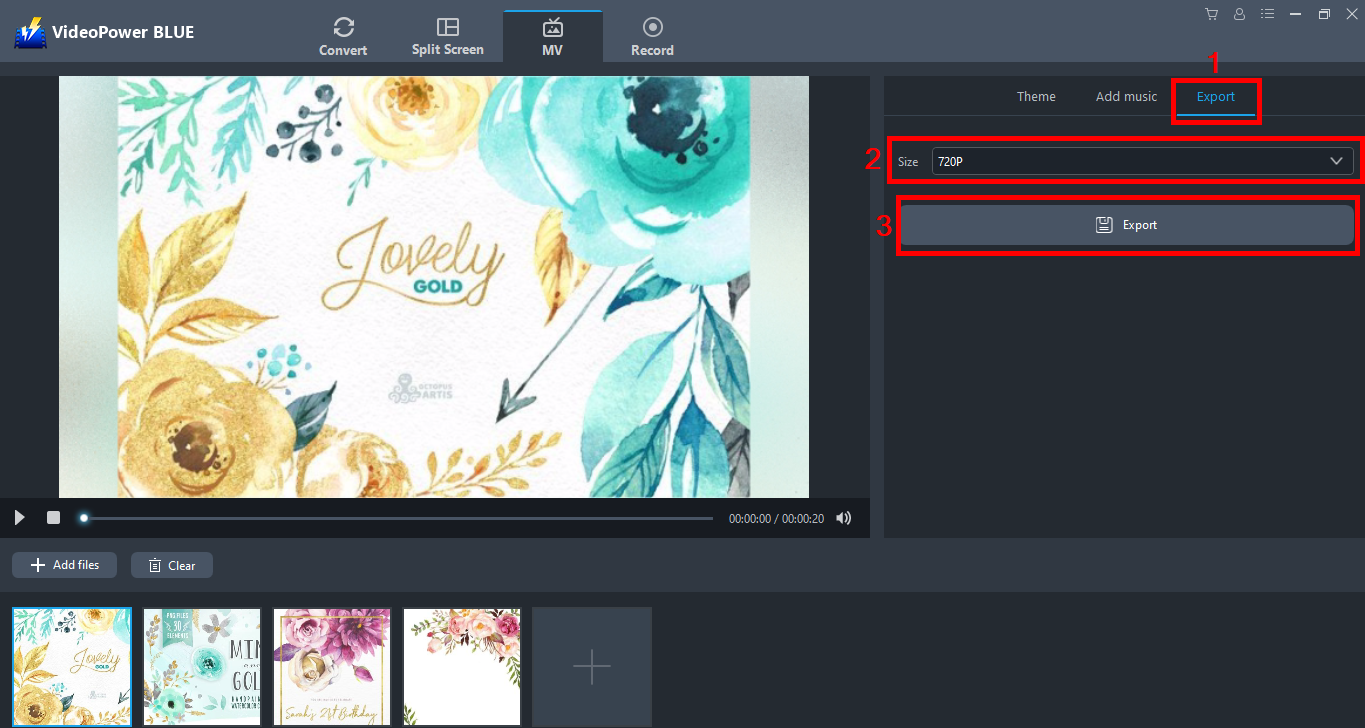
1.3 Export
1) Choose your desired quality from”360p, 720p, 1080p”
2) Then click “Export”
Step 2: Convert/ Save MV
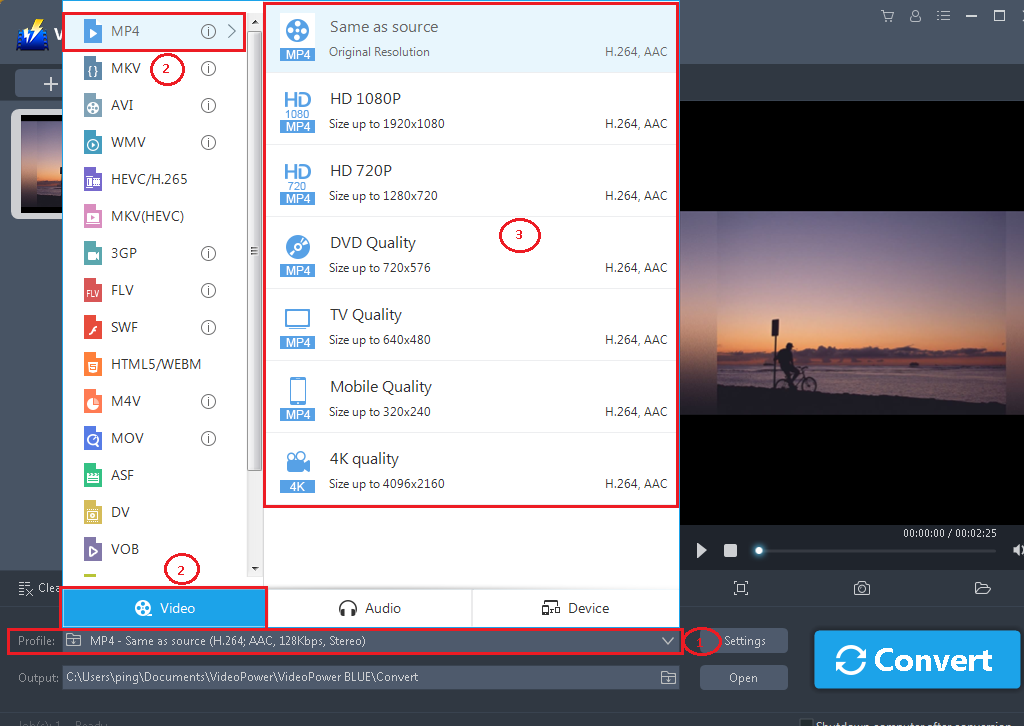
2.1 Set the output format
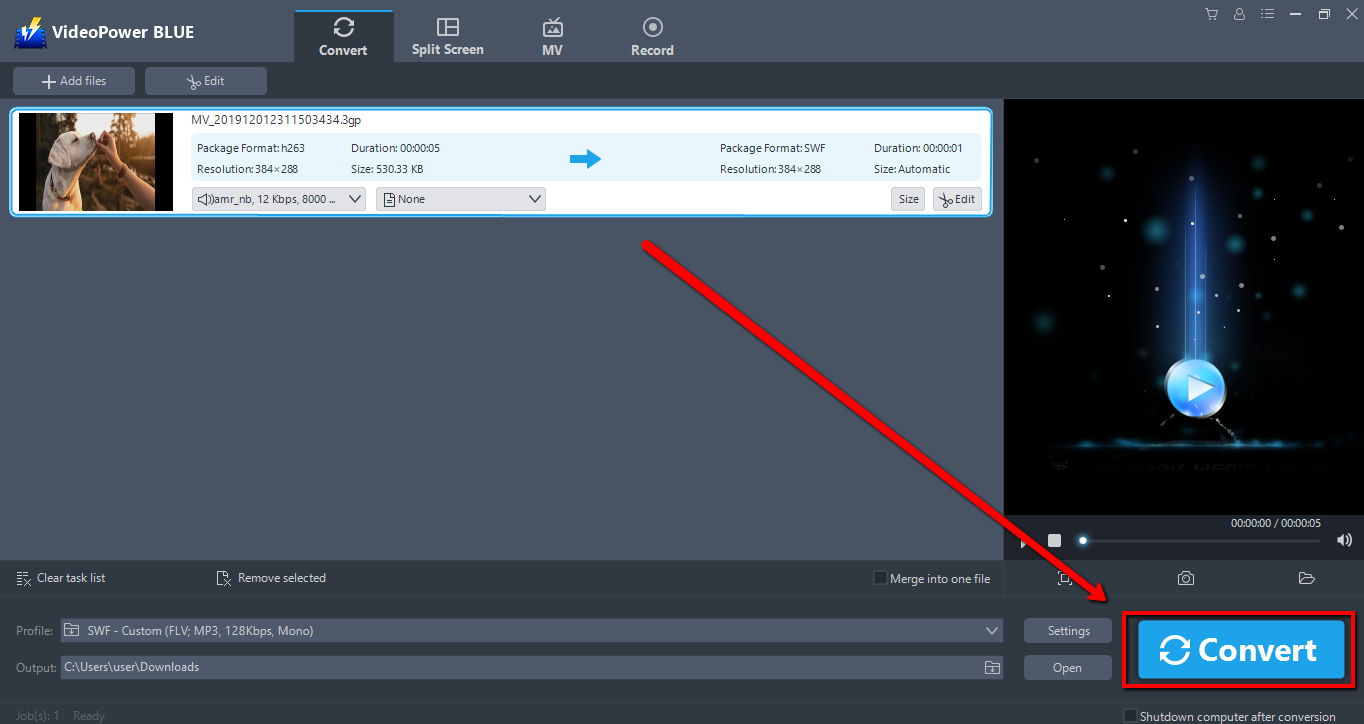
Click to open the “Profile” drop-down menu, then choose the format you want from the profile list. Here choose “Video”, “MP4”, and quality “Same as source” or other options like “HD”, “4K quality” as per your need.
2.2 Start Conversion
Return to the file list.
Click the “Convert” button, then the converted MV or edited video file will be saved in the default output folder.
2.3 Conversion Complete
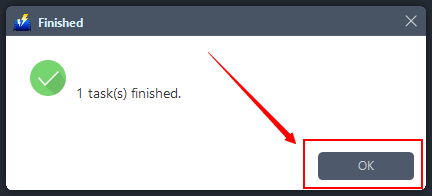
The program will pop up a window to inform you once the conversion is completed. Click “OK” to open the folder of your saved converted MP4 files.
Conclusion:
This is a wonderful software that has far advanced features compared to other means of video editing and movie making software. VideoPower BLUE is a powerful Windows Movie Maker alternative and supports any video format conversion. Video editing function includes trim video, adjust video size, change video effects and add watermarks. Basically it’s a quick and free way to convert and customize your media files.
VideoPower BLUE is more convenient to use because it allows batch conversion and it does not require an Internet connection.


