Tips Index
MP3skull is a website that provides MP3 music searches that support online listening and download.
The website is full of music in great studio quality and many unreleased songs can be found on this website as well.
The music on MP3skull is basically in MP3 format and also lists the resources of different sound quality to choose from.
Users can search for any music download resources in MP3 format and listen online from the website’s database, which has millions of inventories.
Some songs there have download restrictions so the best way to grab a copy is by recording it through VideoPower YELLOW.
To install the software, just click the button below to download the installer.
Step 1: Set the sound source
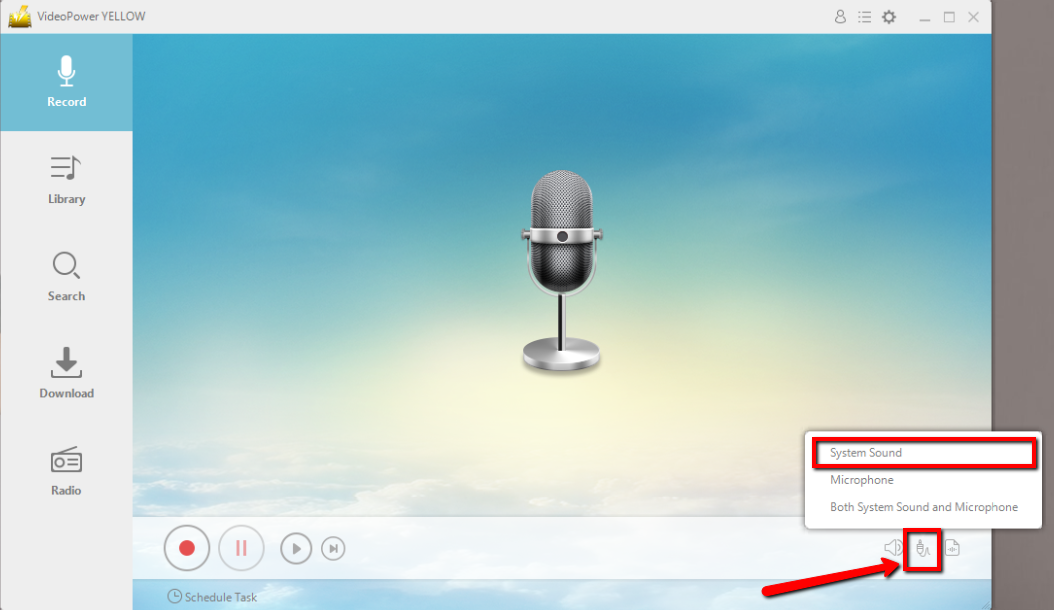
Before recording the track, make sure to set the sound source first. Click the audio jack icon below and choose from the sound sources such as “System Sound”, “Microphone”, “System Sound and Microphone”. In recording MP3skull songs, “System sound” is recommended.
Step 2: Set the file format
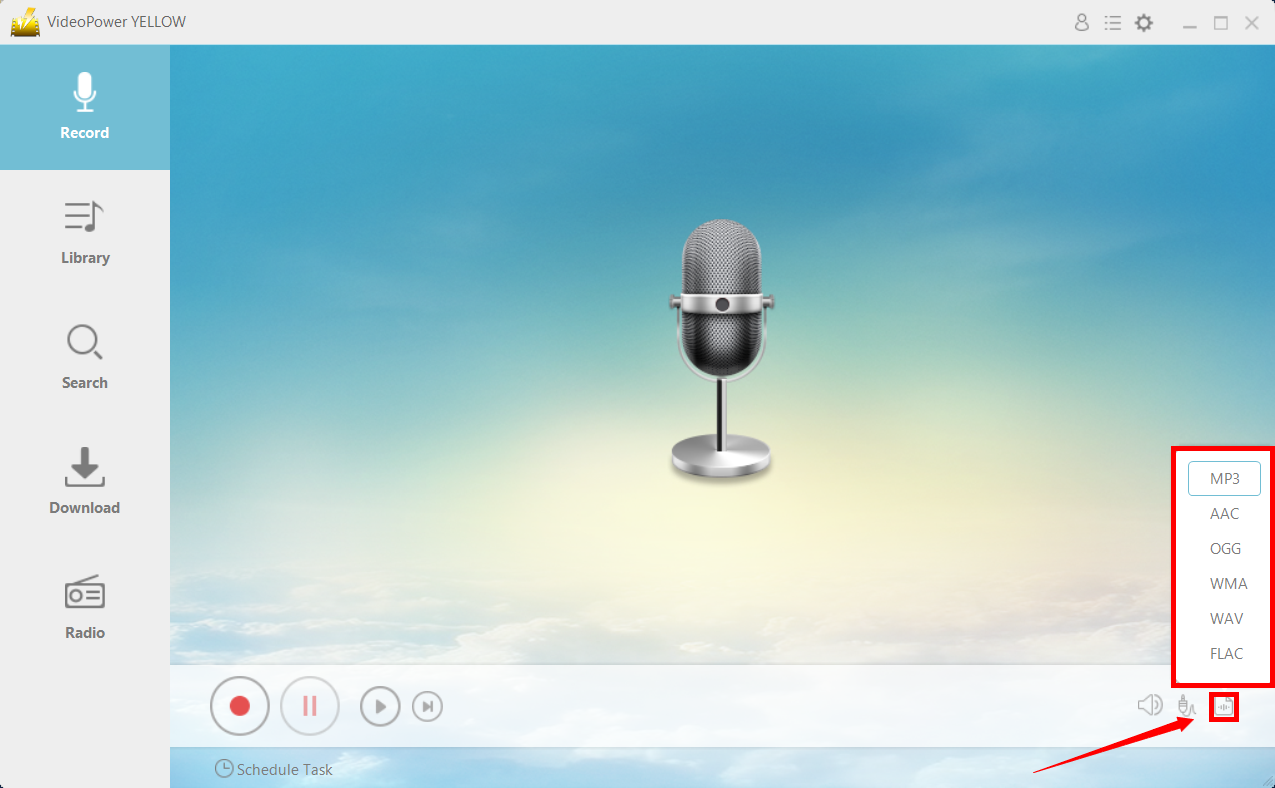
Make sure to set the output file format before recording. Click the button behind the audio jack icon button below and choose from the available formats. In recording MP3skull songs, set the format to “MP3” or whatever format you deem appropriate.
Step 3: Record MP3skull Songs
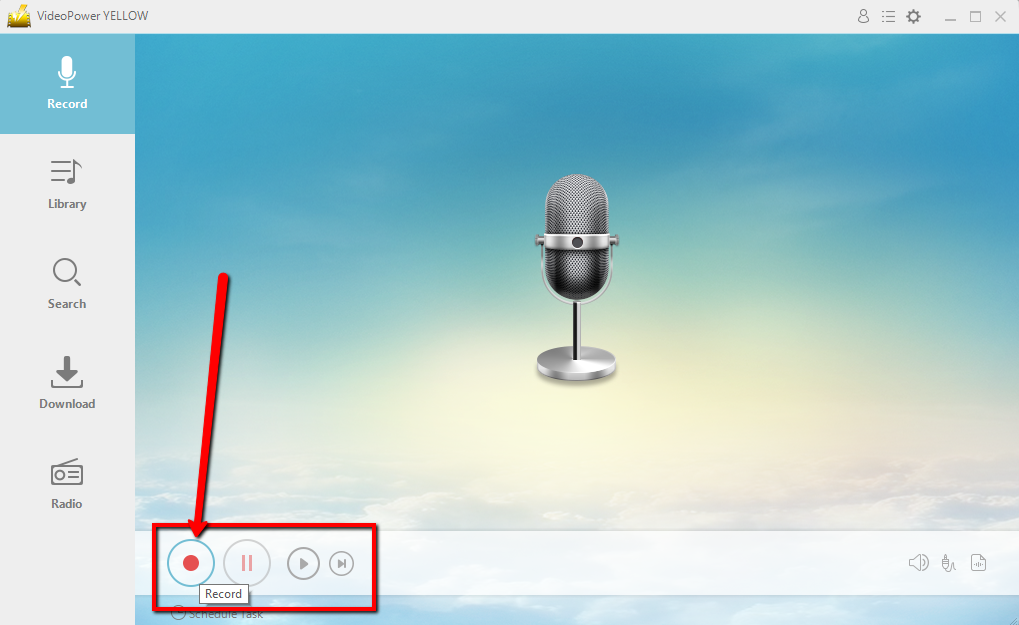
Click the “Record” button to start and stop the recording when you’re finished.
Step 4: Redirect to File Location
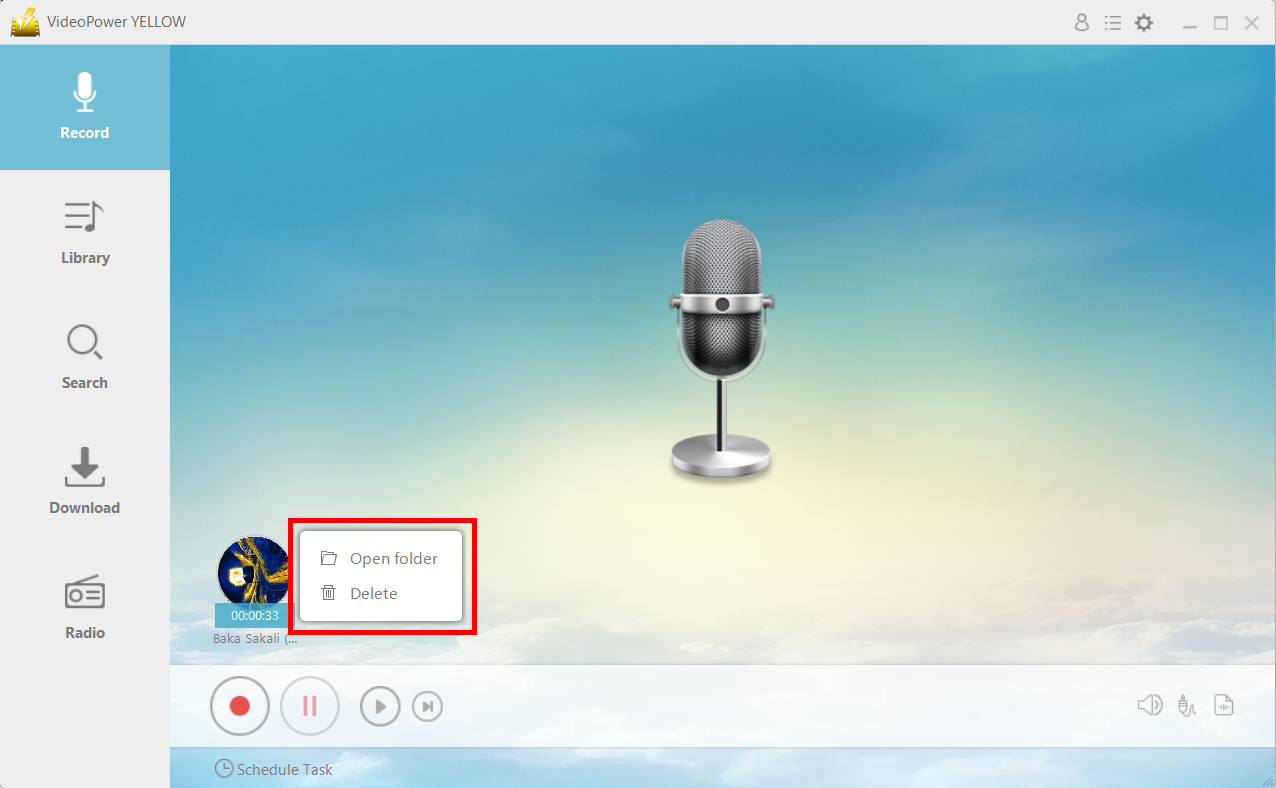
After recording, right-click the recorded track icon and click “Open folder” to open the storage location of the recorded audio file or click “Delete” if you want to delete the file and record again.
Conclusion:
To listen to your favorite MP3skull songs, you can use VideoPower YELLOW to record the song. With it, you can guarantee that the download process is quick and safe, unlike most online converters that may possibly harm your computer.