





Tips Index
MediaCoder is a free universal audio/video batch transcoding tool. It integrates many excellent audio/video codecs and tools from the open-source community into a general solution, which can convert audio and video files between various formats.
Functions of MediaCoder:
– Perform the conversion of various audio and video formats.
– Extremely rich adjustable transcoding parameters.
– Multitask parallel processing.
– Excellent extensible program frame, increasing support for new formats.
This software is totally free to use but a little tricky for newbie and works slowly. So we would like to introduce a more efficient, faster and easier to operate format converting tool in the following section.
VideoPower BLUE has a user-friendly interface that is suitable for anyone. It can perform format conversion, convert audio to iPod, iPhone, iPad, make slideshows, and many other functions.
This article will focus on WAV to iPhone format conversion.
You can try to use the software for free by downloading its trial version below.
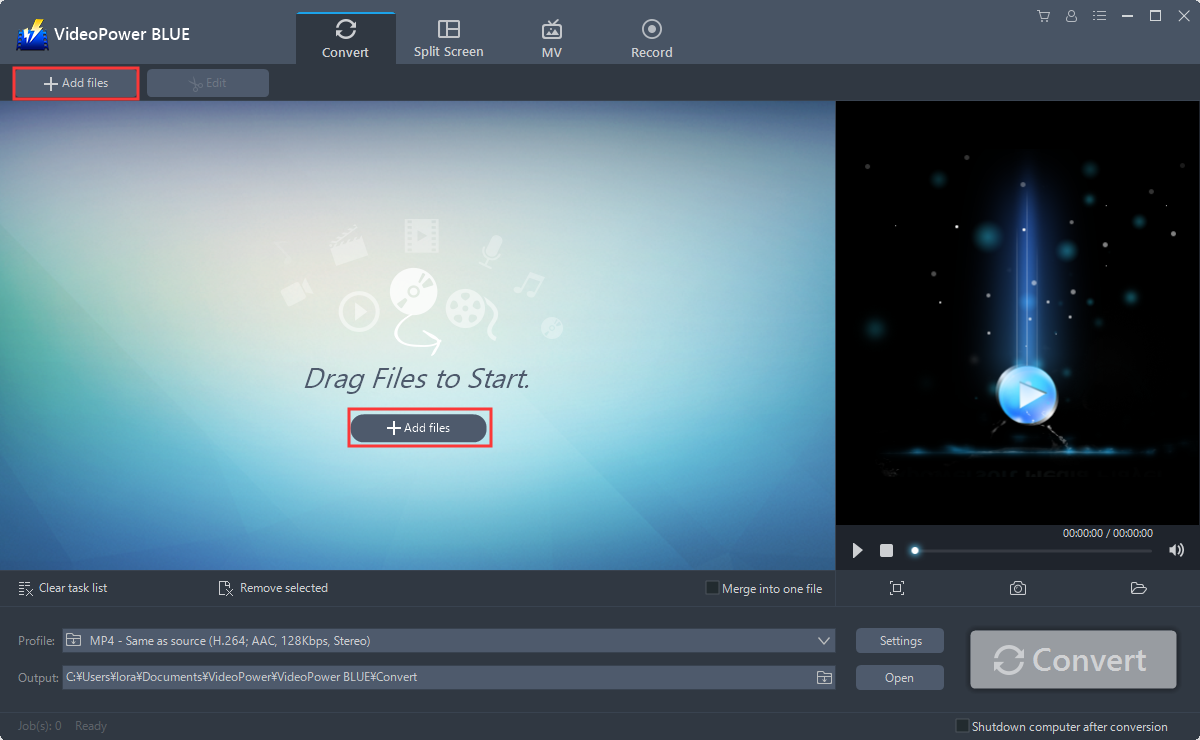
Step 1: Add the file to VideoPower BLUE.
Run the program if you have installed the Video Converter software successfully on your PC. You can directly import the file to the program by clicking the “Add files” button or by drag-and-drop the file to the interface.
Step 2: Edit file before conversion
If you need to edit the file before conversion, follow the instructions below.
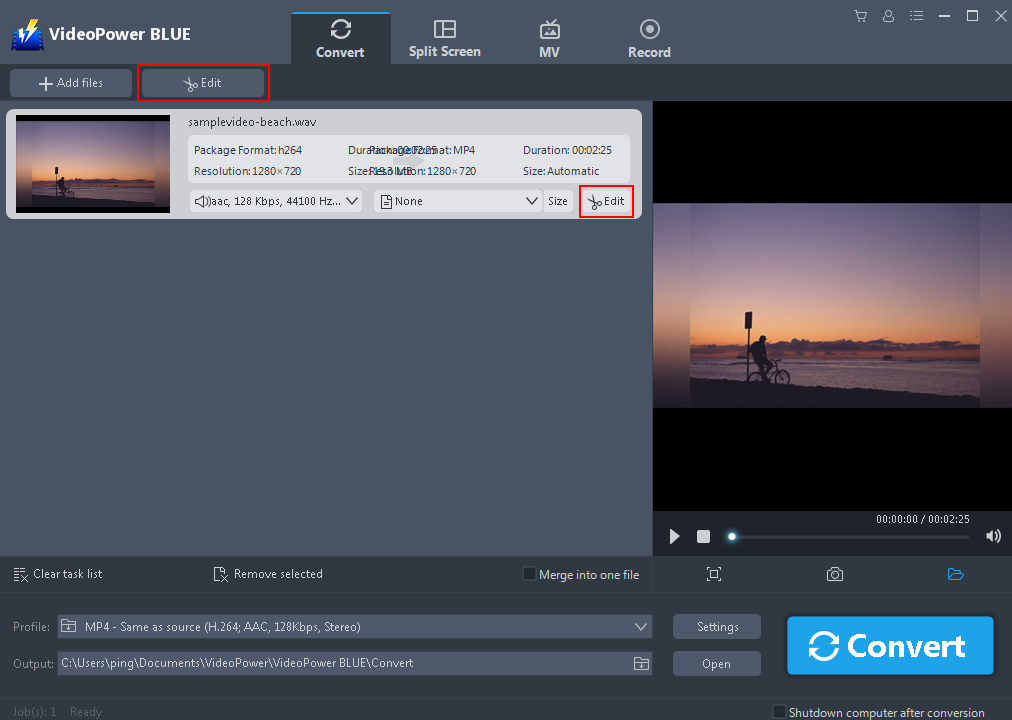
2.1 Open Editing Window
The imported file is displayed in the list. Click the “Edit” button on the right side of the file.
2.2 Start Editing
The built-in editor will pop up. Adjust speed and volume, or add a trim. For example, you can trim your audio as shown below:
1) Click “Add Trim Marker”.
2) Drag the mark as shown below to select the part you want to cut. If you want to select multi-sections, please repeat 1 and 2.
3) Choose “Keep the selected section” or “Delete the selected section” from “Preferences”.
4) Click “OK” to save the setting.

Step 3: Convert WAV to iPhone format.
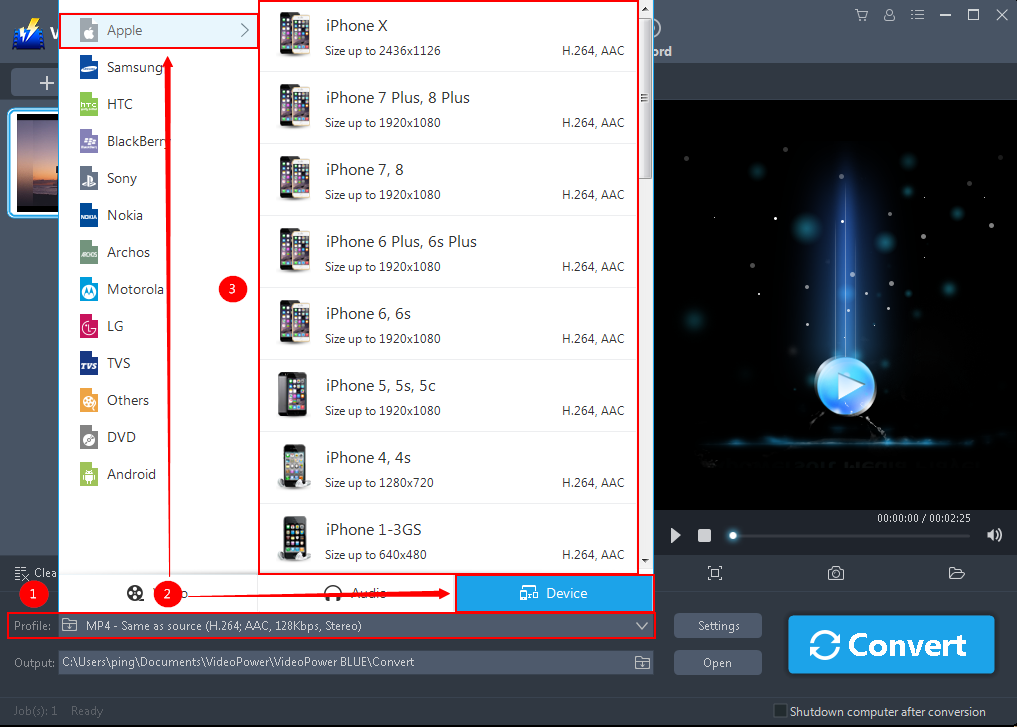
3.1 Set the output format.
1) Click to open the “Profile” drop-down menu, then choose the format you want from the profile list.
2) Here you can directly choose the MP4 format from the list.
3) You may now choose the quality you prefer.
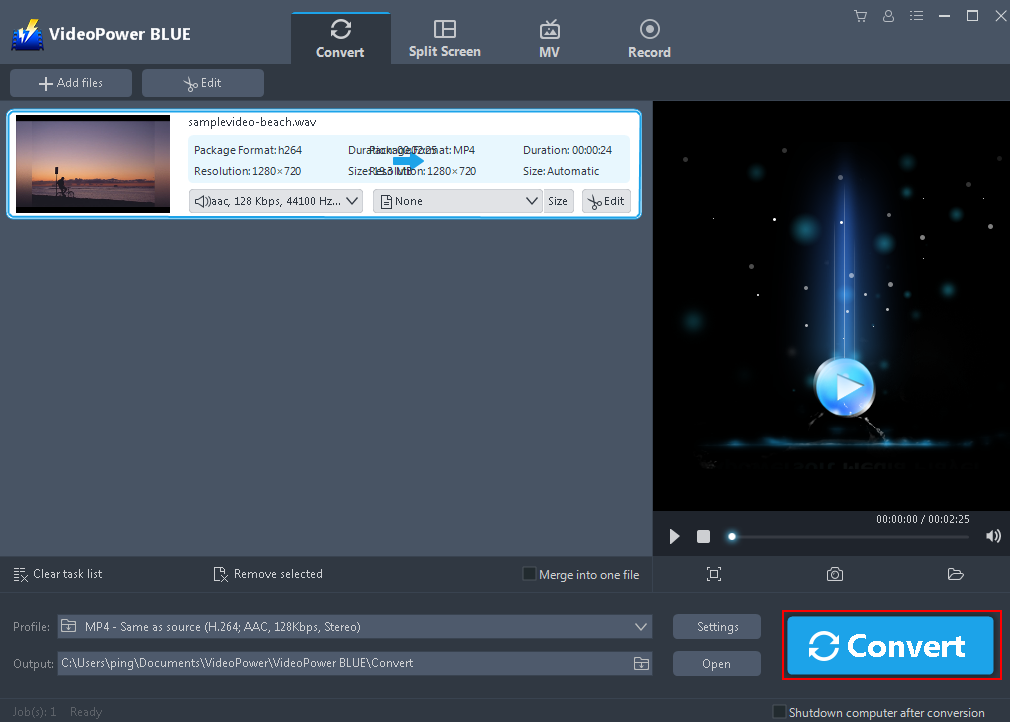
3.2 Start Conversion
Return to the file list. Click the “Convert” button, then the converted MP4 file will be saved in the default output folder.
3.3 Find the Converted MP3 files
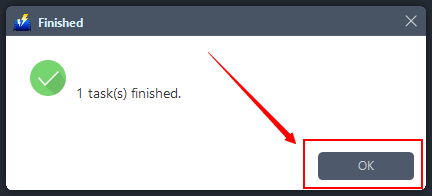
The program will pop up a window to inform you once the conversion is completed. Click “OK” to open the folder of your saved converted files.
Conclusion:
Mediacoder has been a well-known converter in the field of conversion and it wouldn’t stay that long without performing well. However, the time has passed that newer and better software is catching up. VideoPower BLUE can do more compared to what Mediacoder can do.
VideoPower BLUE is a multi-faceted software that has a lot of functions. These functions include recording screen activity, video, and audio conversions, basic video and audio editing such as effects, watermarks, subtitles, trimming and cropping.


