





Tips Index
MP4 is a multimedia format that can store audio and video files. With the development of technology, many users prefer to extract audio content from MP4 files, so as to save more storage space.
A file with the M4R file extension is an iTunes Ringtone file. They can be created and transferred to an iPhone to use as custom ringtone sounds.
Custom iTunes Ringtone files in the M4R format are actually just .M4A files that have been renamed to M4R
M4R is an audio format developed independently by Apple, known for its lossless sound quality, low memory capacity and it’s able to discard data with minimal loss of quality.
Therefore, the conversion of MP4 to M4R format is undoubtedly convenient for some users. If you’re one of them and would want to convert your MP4 to M4R files then I highly suggest VideoPower BLUE.
VideoPower BLUE is a great program that allows users to edit videos, record screen activity, capture screenshots and convert files that can convert MP4 to M4R.
You can try this software for free by downloading its trial version below.
Step 1: Add the MP4 file to convert it to M4R format
Run the program if you have installed the converter successfully on your PC.
You can directly import the MP4 files to the program for conversion. Click the “Add files” button to select files from your PC, or directly drag-and-drop the MP4 files to the interface.

Step 2: Edit the MP4 file before conversion
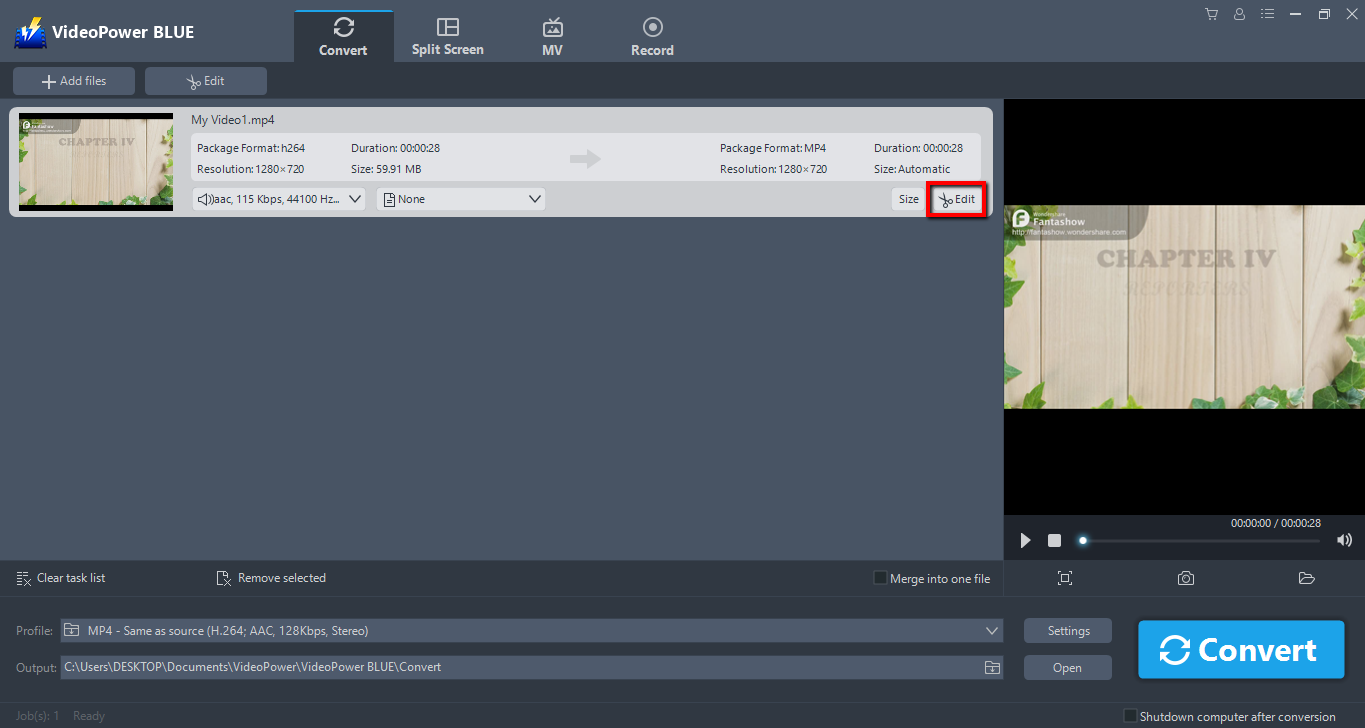
If you need to edit the file before converting, click the “Edit” button on the right side of the file.
Step 3: Convert MP4 to M4R
Before conversion, you should set the output format and folder first as the default output format is MP4.
1) Click the “Profile” bar.
2) Choose “Audio”.
3) Set the format to “M4R – Same Source”.

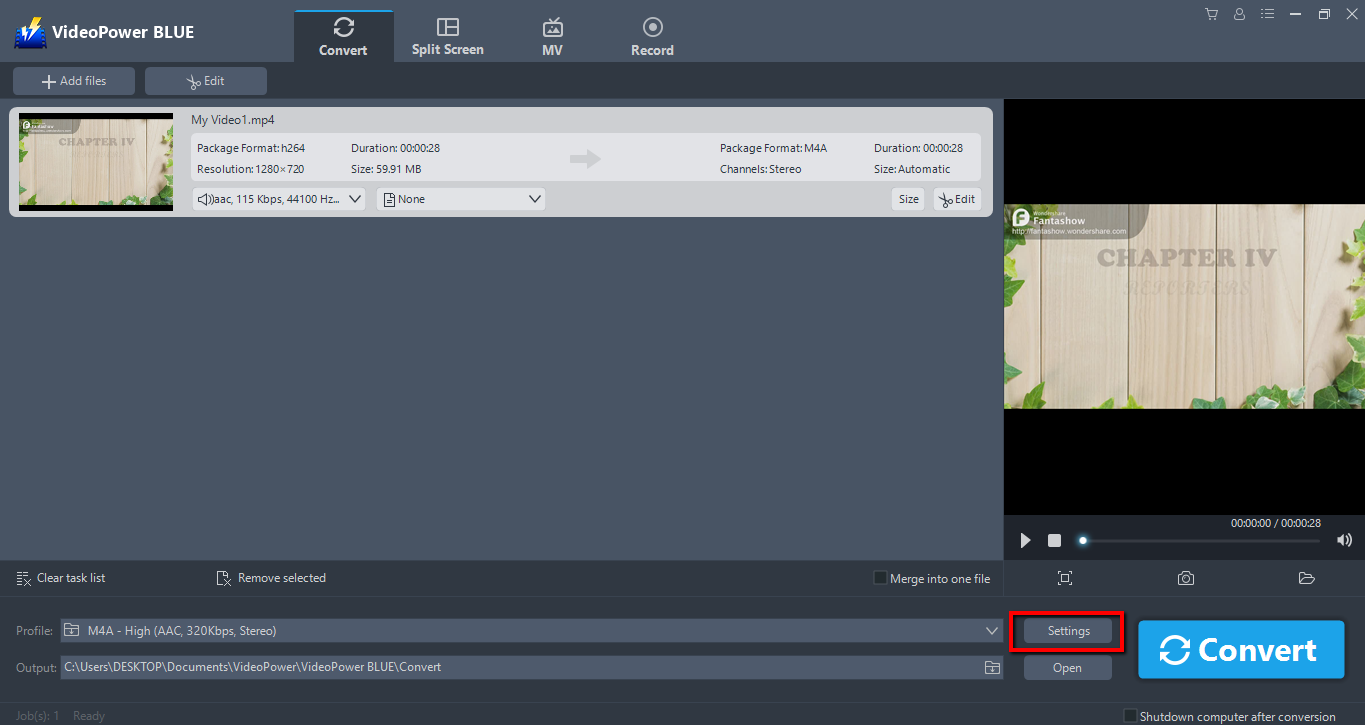
You can also customize frame rate, bitrate, codec, etc. manually. Just click the “Settings” button to enter the Preset editor window, then you can change the value and click “OK” to save the settings.
Set a storage location to save the converted files. Click the “Output” icon and choose a destination as you like.

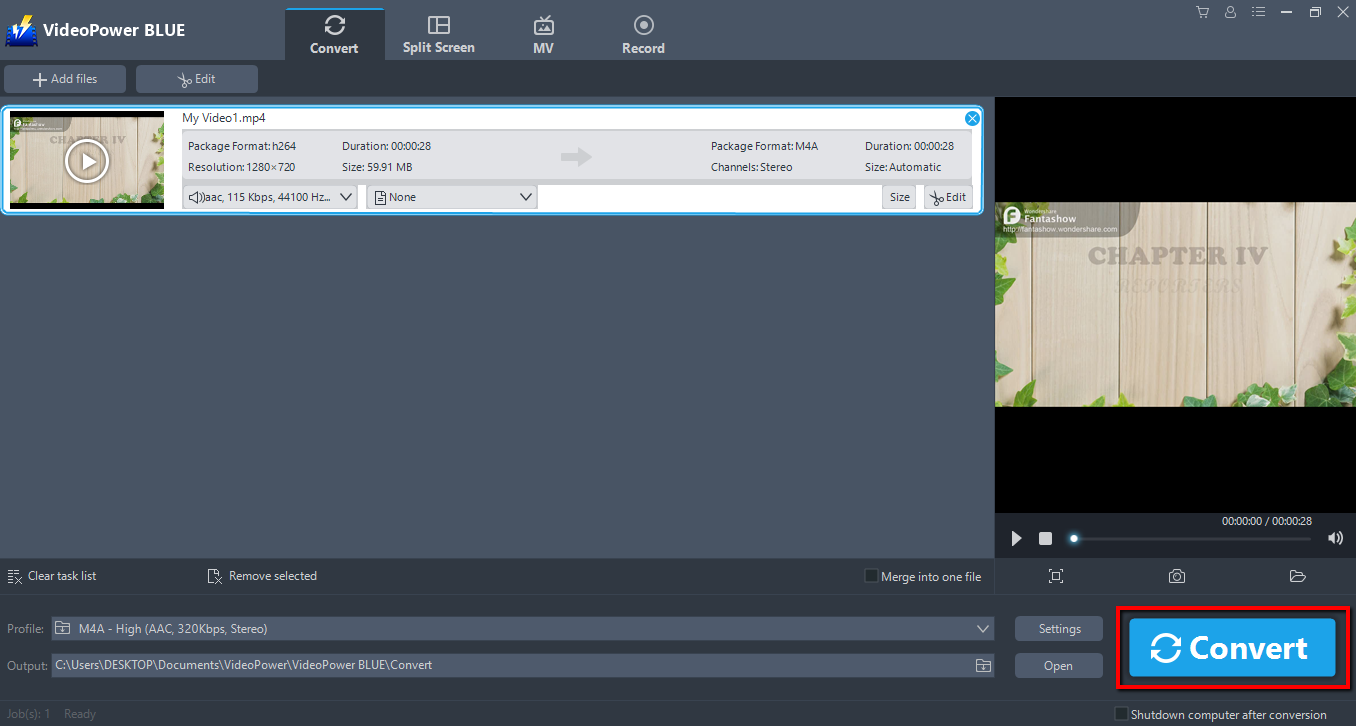
Now click the big blue “Convert” button to start the conversion process.
A pop-up window from the program will appear informing you that the conversion is complete. Click “OK” to open the folder of your saved converted M4R files.

Conclusion:
Following this guide, you now have a personalized ringtone for your iPhone. VideoPower BLUE is the most effective way to convert MP4 to M4R. VideoPower BLUE software can convert all video and audio files into common formats and devices easily. It’s handy and reliable that you can even convert in batches simultaneously.
This software will allow you to edit slideshows or videos, apply watermarks, effects, and other basic video editing options such as trimming or cropping. Moreover, it has a split-screen tool for your photos and videos and a screen recorder which allows you to capture any on-screen activity on your computer.


