





Tips Index
M4B format is an audio file format called “Audio Reader” that can be played exclusively on iPod, iPhone, and iPad.
M4B is a format specially designed for audiobooks. Support for bookmarks is its main feature – it allows you to pause and resume playback at any point where it was stopped. Because audiobooks are long, this feature is very helpful for the user. M4B is often used in audiobooks and podcasts due to the duration of these types of files.
Apple is known for its incompatibility with other devices and this is no exception. Android users are excluded from using this format. Therefore, Android users and the likes opt to convert M4B into more compatible formats such as MP3.
VideoPower BLUE is a powerful software bundled with multiple features such as download, screen recording, music, capture, and conversion. This software can convert M4B to MP3.
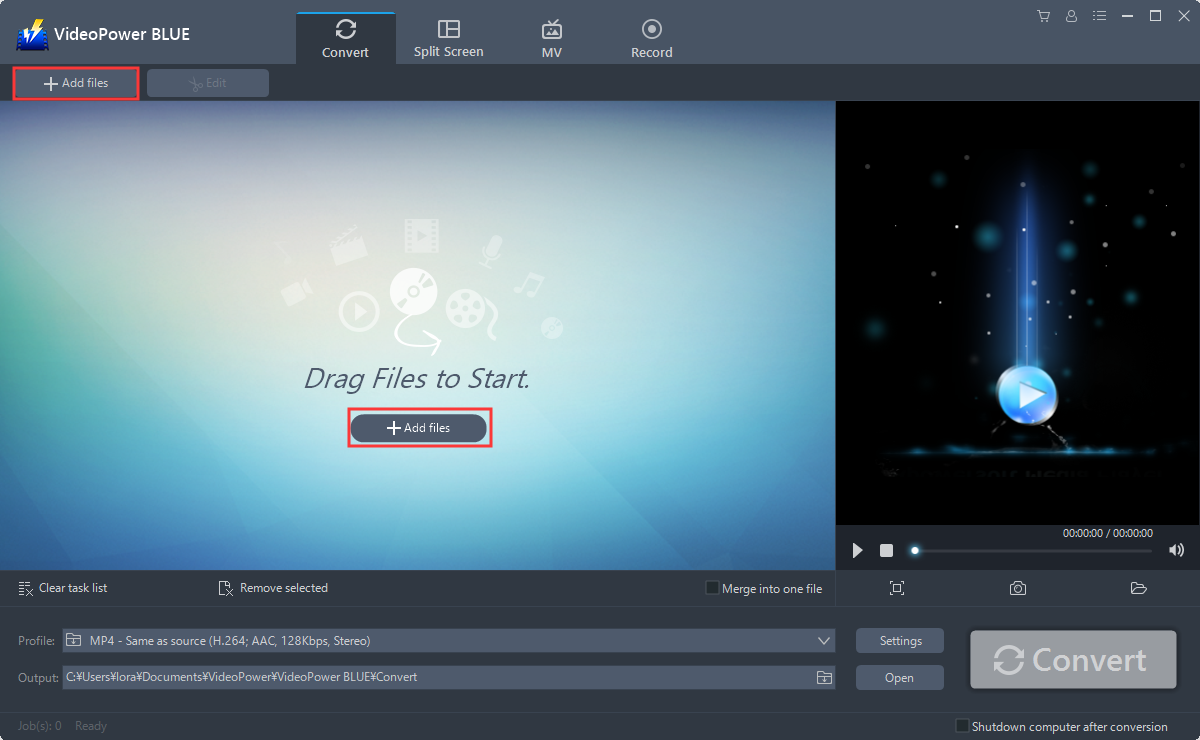
Step 1: Add the M4B file to VideoPower BLUE
You can directly import the M4B file to the program by clicking the “Add files” button or by drag-and-drop to the interface.
Step 2: Edit file before conversion
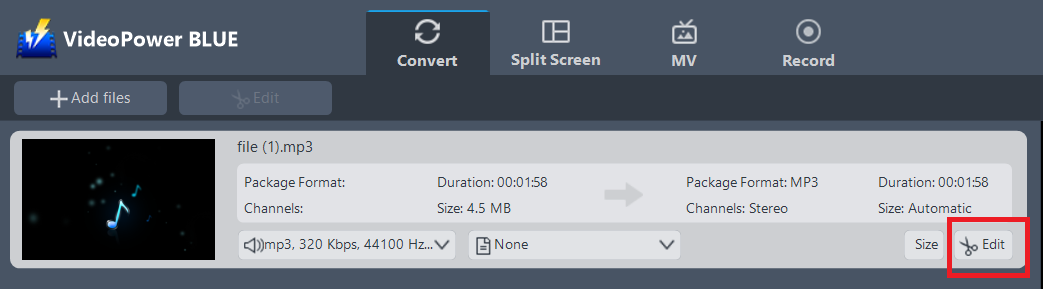
If you need to trim your audio, you can use the edit function provided by the software. Do the following steps to edit your audio file.
The imported file is displayed in the list.
Click the “Edit” button on the right side of the file.
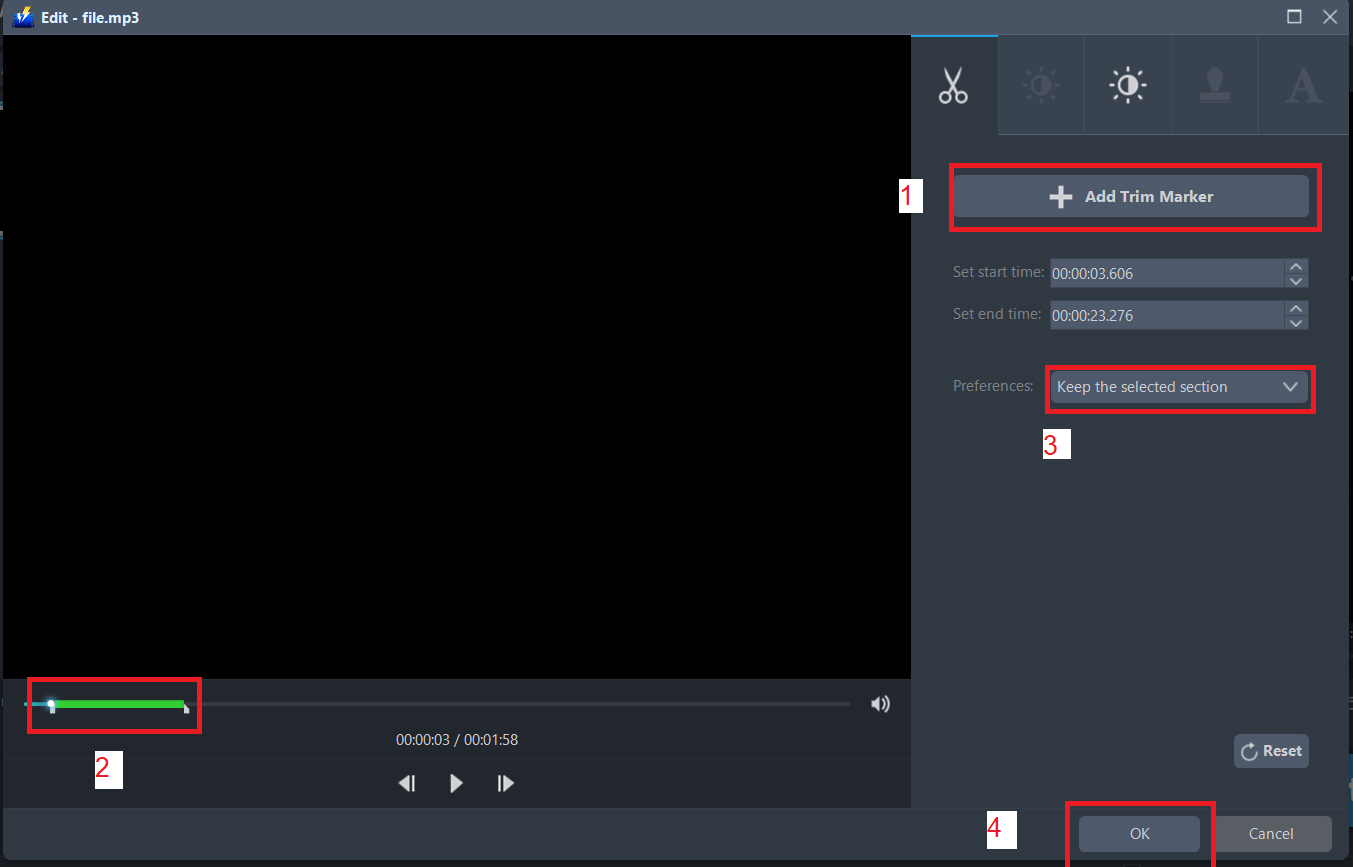
The built-in audio editor will pop up. Adjust speed and volume, or add a trim.
For example, you can trim your audio as shown below:
1) Click “Add Trim Marker”.
2) Drag the mark as shown below to select the part you want to cut. If you want to select multi-sections, please repeat 1 and 2.
3) Choose “Keep the selected section” or “Delete the selected section” from “Preferences”.
4) Click “OK” to save the setting.
Step 3: Convert M4B to MP3 format
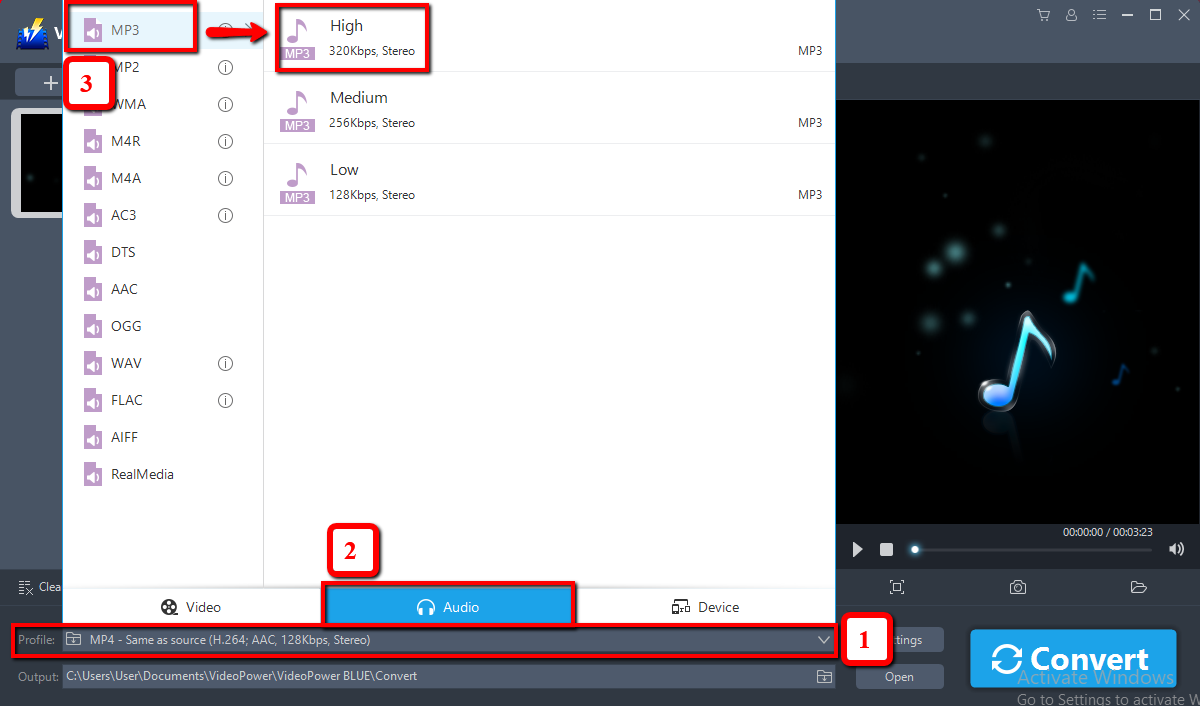
3.1 Set the output format
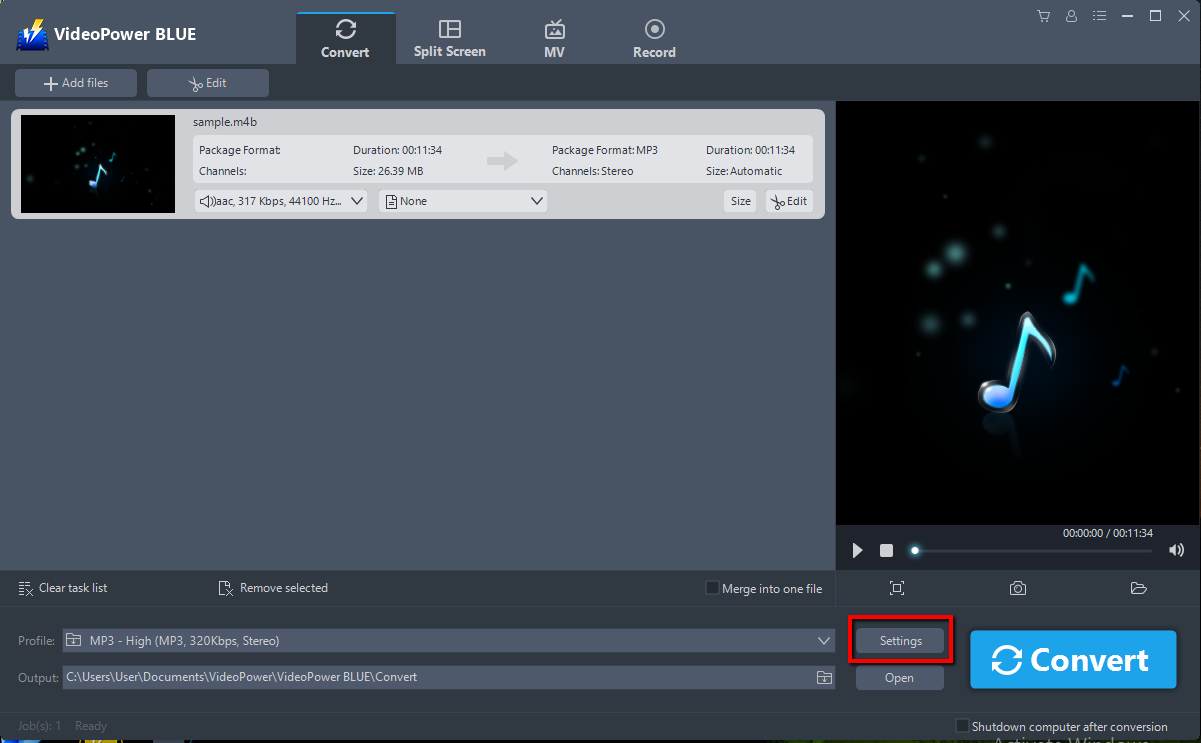
1) Click to open the “Profile” drop-down menu, then choose the format you want from the profile list.
2) Here you can click “Audio” and then “MP3”.
3) Choose the quality “High, Medium or Low” as per your need.
3.2 Start Conversion
Return to the file list.
Click the “Convert” button, then the converted M4B file will be saved in the default output folder.
3.3 Conversion Complete
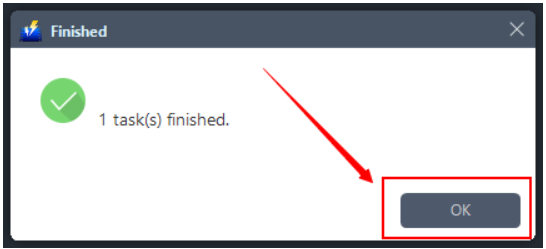
A pop-up window from the program will appear informing you that the conversion is complete.
Click “OK” to open the folder of your saved converted M4R files.
Conclusion:
With this guide, you can now convert M4B to MP3. VideoPower BLUE software is a multi-faceted software that is a simple, easy-to-use and straightforward interface. These functions are built-in video editor that will enable you to edit slideshows or videos, apply watermarks, effects, and other basic video editing options such as trimming or cropping.
It could convert various files in batches and merge multiple files into one.


