





Tips Index
FLAC is different from MP3, MP3 is lossy audio compression coding while FLAC is lossless. That means audio will not lose any information after compression with FLAC.
After restoring the FLAC file to the WAV file, the content of the WAV file is the same as before compression.
In recent years, many car players and home audio devices support FLAC. However, iTunes, a free digital media playback application for Mac and PC doesn’t support FLAC format. What if you want to play FLAC on your portable Apple device?
In this case, you can use VideoPower YELLOW. This tool can help you make it in two ways.
To install the program, you must first download the software by clicking the link below.
Part 1: Convert Flac to MP3
Step 1: Import FLAC file that you want to convert to MP3
1.1 Open the converter tool
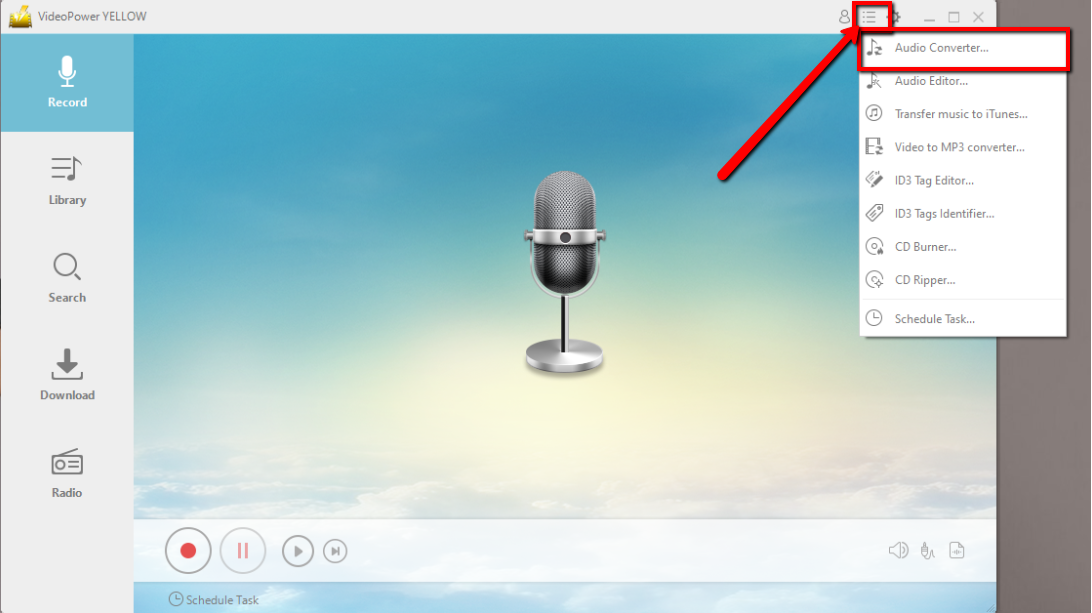
Run VideoPower YELLOW if you have installed it on your PC. Click the menu tab at the upper right part of the main interface and click “Audio Converter”.
1.2 Import FLAC file
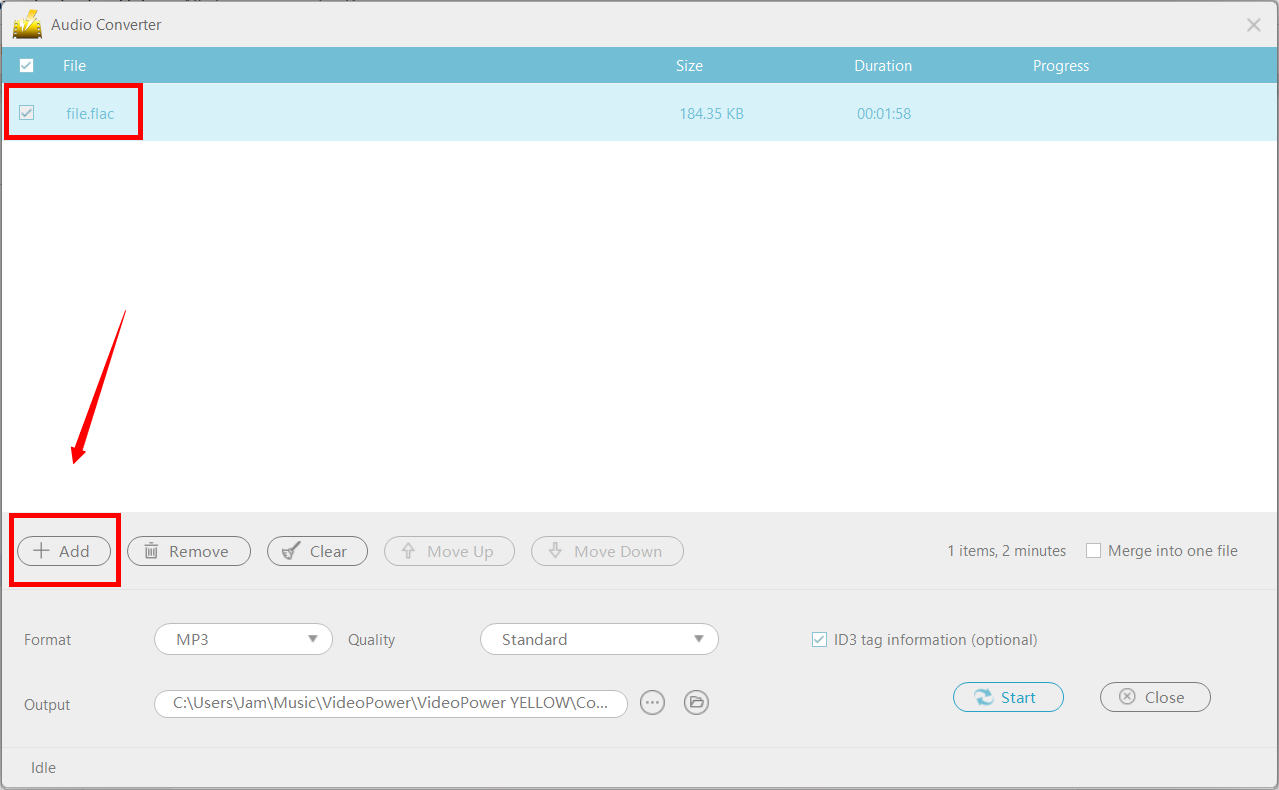
Click “Add” to import the FLAC file. You can also add a bunch of files as preferred.
Step 2: Convert FLAC to MP3
2.1 Set output format
The default output format is MP3 but you can also set another format like M4A, WMA, ACC, etc.

2.2 Start Conversion
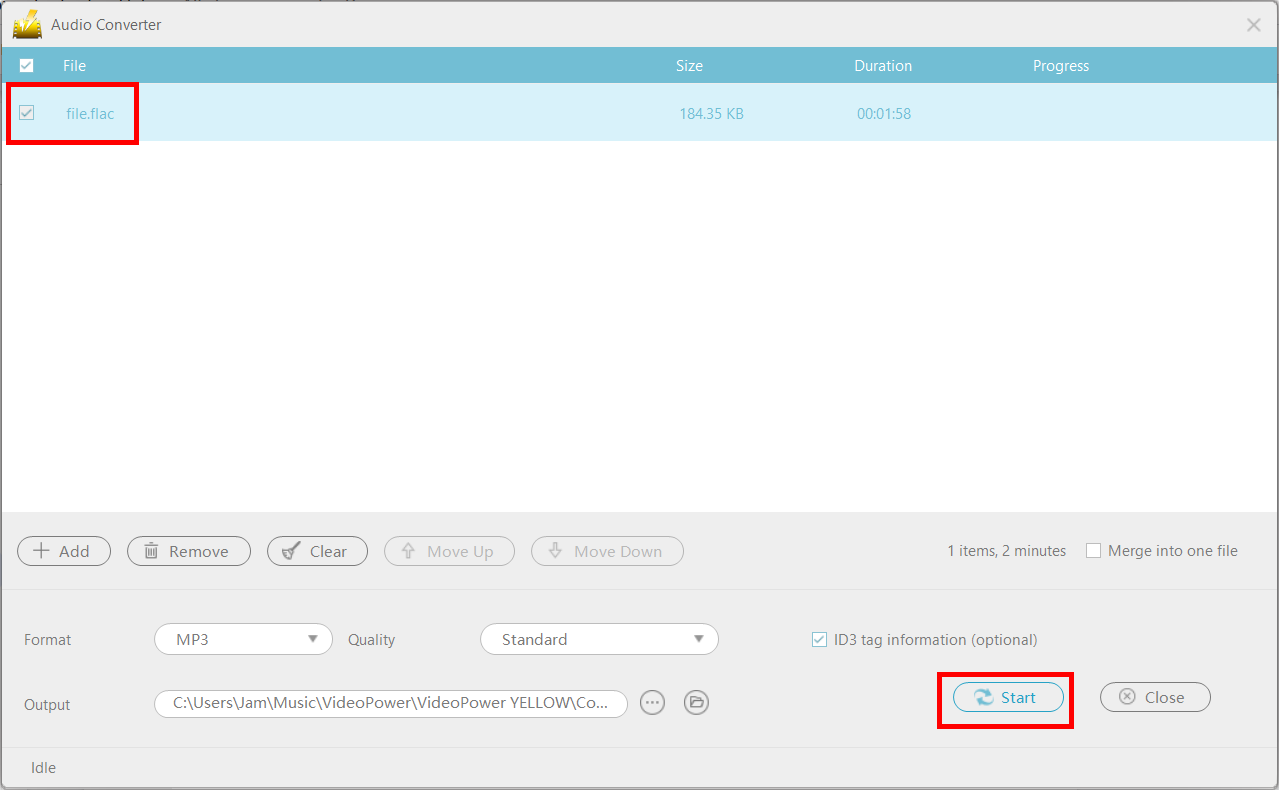
Check the box on the left side of the FLAC file(s) that you want to convert and click the “Start” button at the bottom-right corner of the interface to start conversion.
Step 3: Open file storage location
After the process is finished, a pop-up small window will ask you if you want to check the results in the output folder. Click “Yes” to open the converted and saved audio files. After that, you can add the file to the iTunes library.

Part 2: Add converted file to iTunes
Step 1: Open the transfer tool
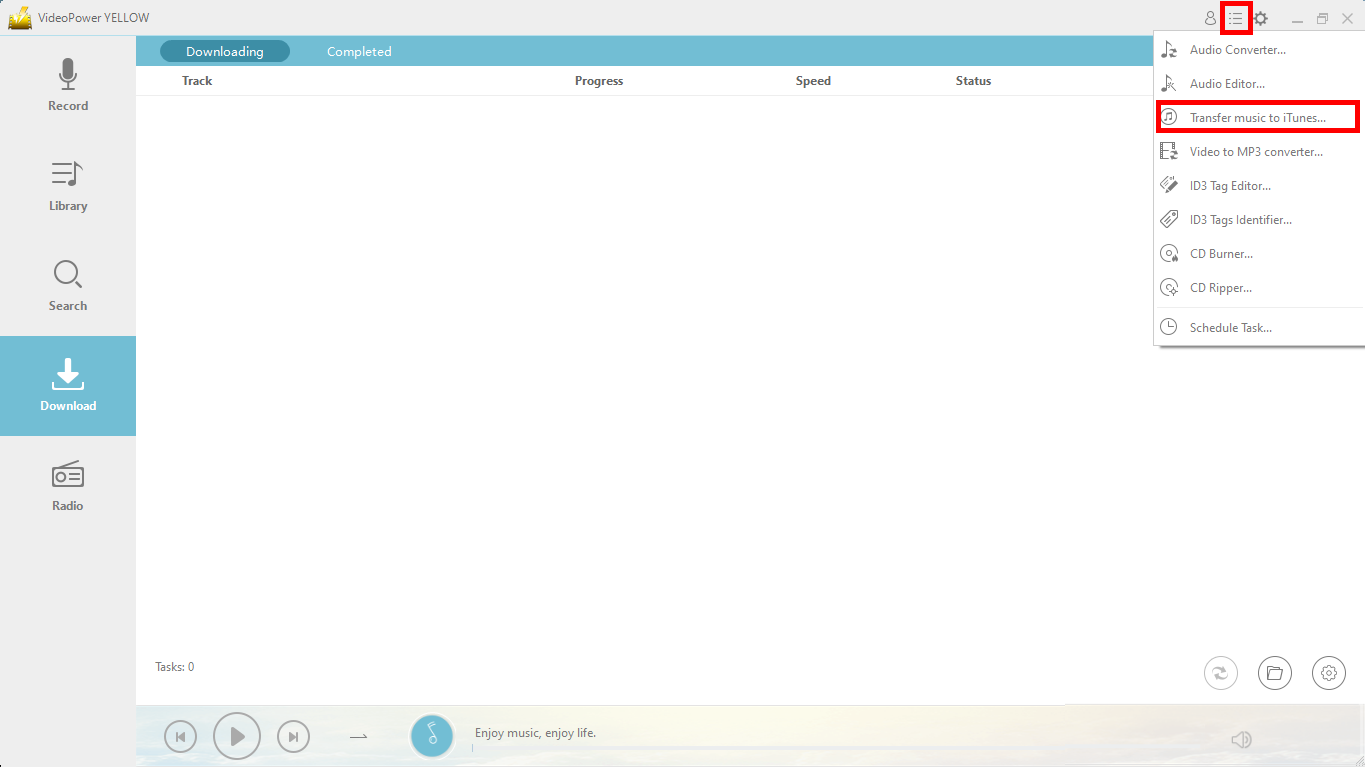
Click the menu tab at the upper right part of the main interface and click “Transfer music to iTunes”.
Step 2: Transfer to iTunes Library
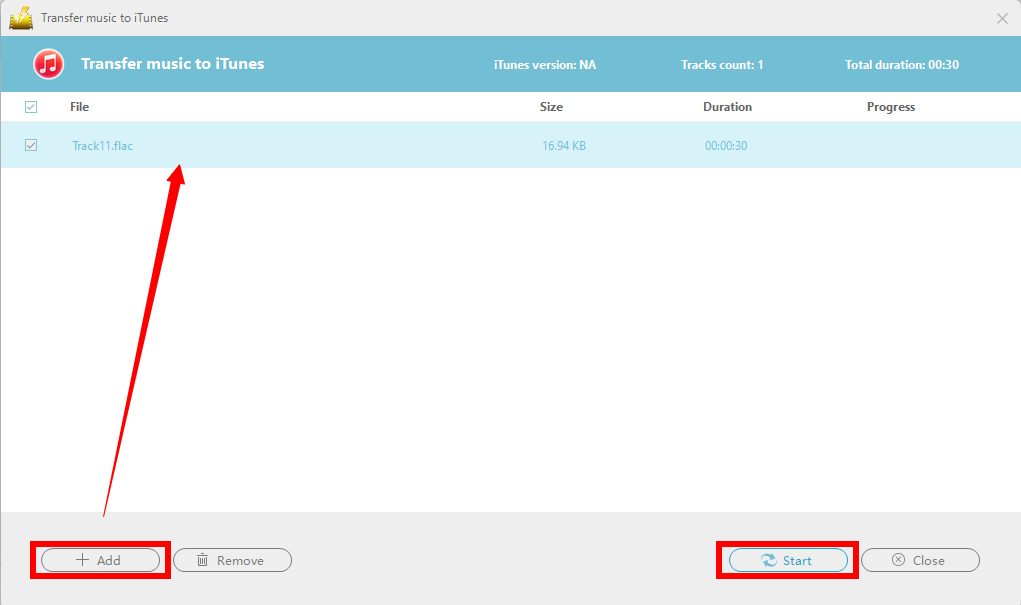
Click “Add” to import the music file that your want to transfer to iTunes. You can also add multiple files if preferred.
Conclusion:
With VideoPower YELLOW, downloading or recording an iTunes audio track becomes easier and hassle-free


