





Tips Index
M4V is a special video format used in VOD (Video on Demand) websites and mobile handheld devices.
The M4V format is developed by Apple which can be used on iOS devices like the iPhone and iPad.
With the growth of Apple users, M4V has become one of the more commonly used formats. But devices that can play this format are still limited. For example, the M4V file cannot be played on Android devices.
Therefore, it needs to be converted into an even more common video format like MP4.
Here is the quickest way to convert M4V to MP4, use a third-party tool called VideoPower BLUE, which allows you to set parameters arbitrarily and has the fastest conversion speed without quality loss. The software has a very friendly user interface.
VideoPower BLUE is the most recommended M4V to MP4 converter for both Windows users and Mac users. It can convert M4V to MP4 or other video formats with video editing features like trimming, cropping, editing subtitles, etc. No matter what kind of M4V videos you have, VideoPower BLUE can help you convert with super-fast speed and full quality output.
Download and install the program on your PC with the link below to start the conversion.
Step 1: Add the M4V file to the program.
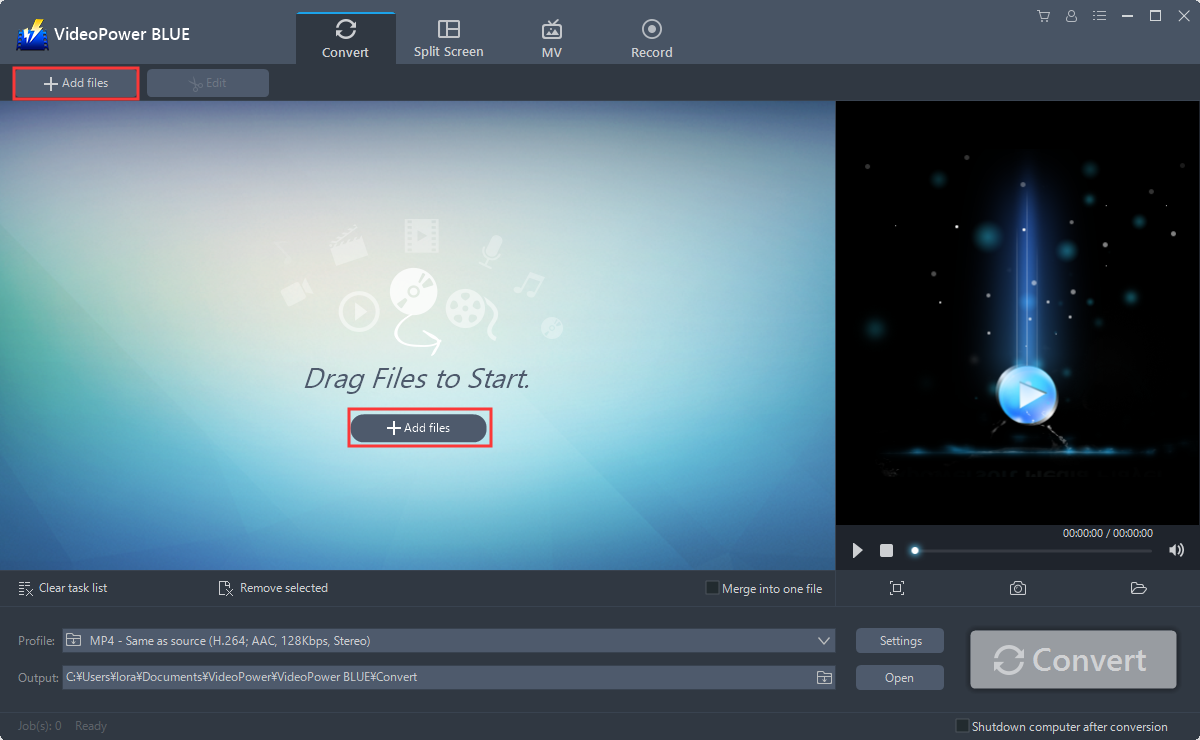
Run the program if you have installed the video converter software – VideoPower BLUE successfully on your PC. You can directly import the file to the program by clicking the “Add files” button or by drag-and-drop the file to the interface.
Step 2: Edit the M4V video.
If you need to edit the file before converting, just follow the instructions below.
2.1 Open Editing Window
The imported M4V file is displayed in the list. Click the “Edit” button on the right side of the file.

2.2 Start Editing
The built-in video editor will pop up, with its help, you can make the perfect movie. Adjust speed and volume, trim, cut, crop, rotate or flip videos. Add effects, subtitles, and watermark while adjusting brightness, contrast, and saturation that will make editing conveniently easier.
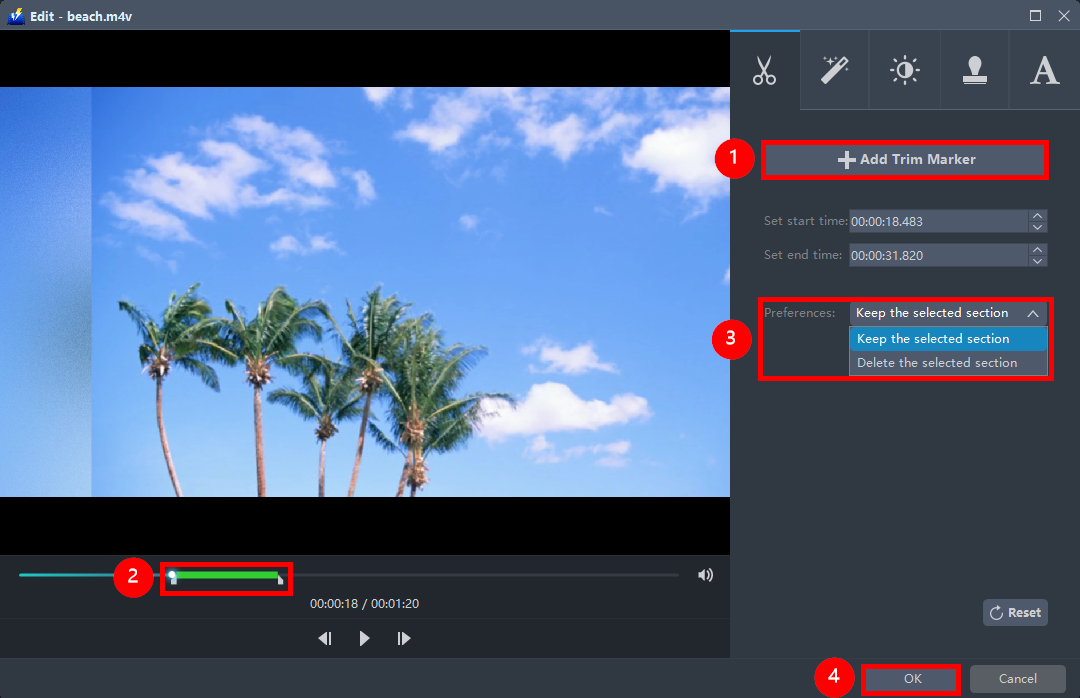
For example, you can trim your video as shown below:
1) Click “Add Trim Marker”.
2) Drag the mark as shown below to select the part you want to cut.
If you want to select multi-sections, please repeat 1 and
3) Choose “Keep the selected section” or “Delete the selected section” from “Preferences”.
4) Click “OK” to save the setting.
Step 3: Convert M4V to MP4 format.
3.1 Set the output format.
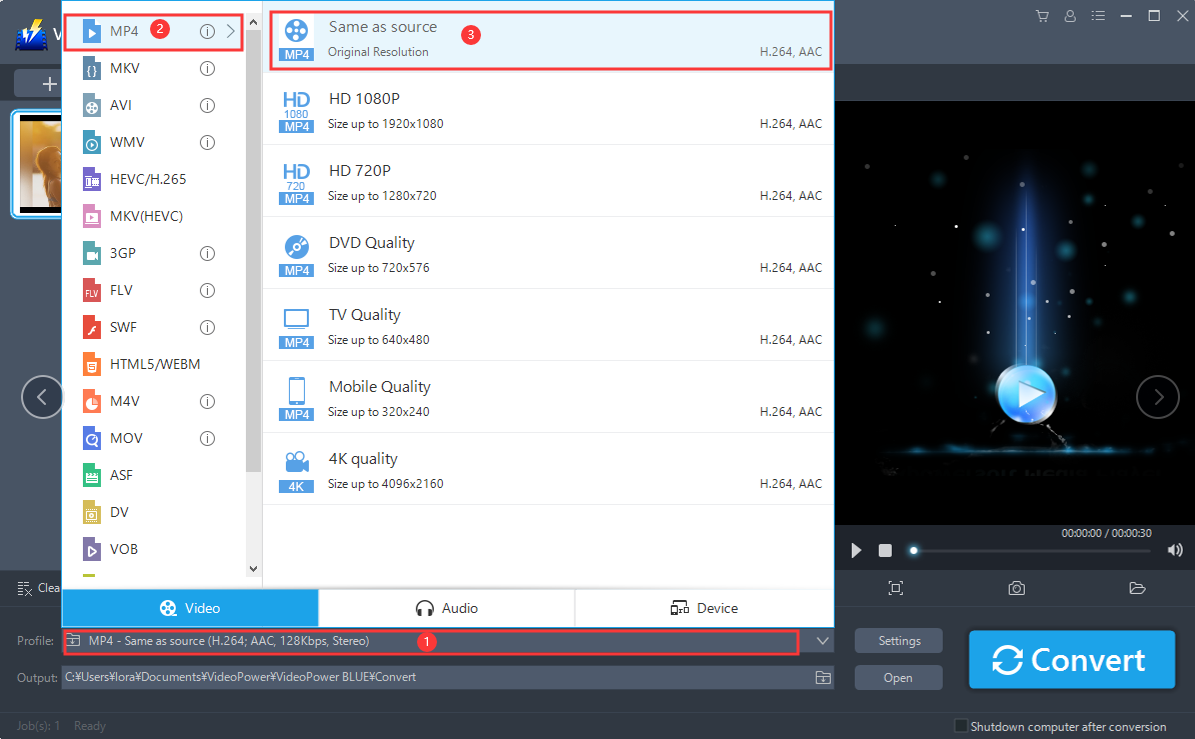
1) Click to open the “Profile” drop-down menu, then choose the format you want from the profile list.
2) Choose “Video”, “MP4”.
3) Chose quality “Same as source” or other options like “HD”, “4K quality” as per your need.
3.2 Costumize Format Settings
You can also customize frame rate, bitrate, codec, etc. manually. Just click the “Settings” button to enter the “Preset editor” window, then you can change the value and click “OK” to save the settings.

3.3 Start Conversion
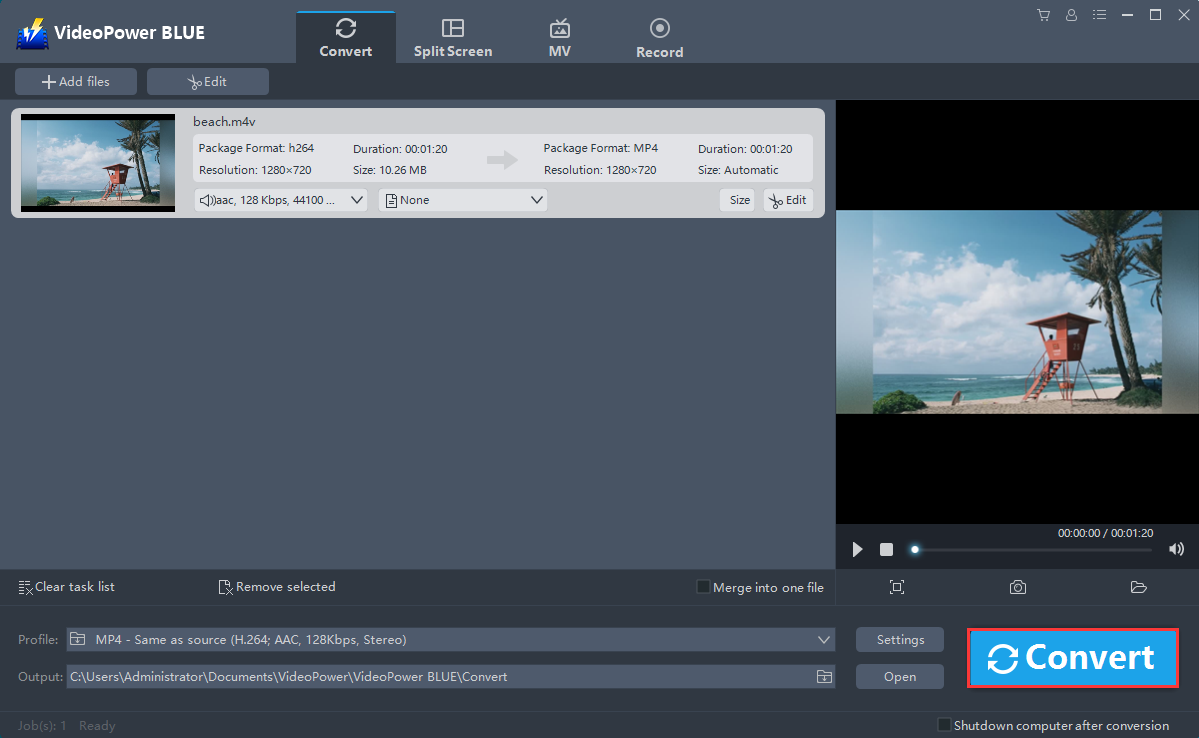
Return to the file list. Click the “Convert” button, then the converted MP4 file will be saved in the default output folder.
3.4 Complete Conversion
A pop-up window from the program will appear informing you that the conversion is complete. Click “OK” to open the folder of your saved converted MP4 files.
Or you can click the “Open” button to find the mp4 file.

Conclusion:
Most third-party software like VideoPower BLUE comes with better-enhanced functions. Converting a large number of M4V files to MP4 with this software is easy as 123.
It is quite simple to use with an easy-to-understand interface. the conversion speed is very high. One of its most highlighted features is it supports nearly all types of video/audio files to be converted here. Batch conversion, basic video editing, and quality modification are available on it.


