

Tips Index

Load More Posts

Vevo is a music video website and the second largest video site after YouTube.

It is a joint venture of Sony Music Entertainment, Universal Music, Abu Dhabi Media, and EMI to provide dividend-free licensed content.

There are tons of music videos for your entertainment on the Vevo website. Besides, you can save your favorite videos on the page for later viewing.

Most online streaming sites such as Vevo, do not feature a download option for offline viewing. Using VideoPower YELLOW, you can convert Vevo videos to MP3.

To download the free software, just click on the link below.

You can try to use the software for free by downloading its trial version below.

FREE DOWNLOAD

Windows 7 / 8 / 8.1 / 10 supported

Step 1: Open “Video to MP3 Converter” Window

After you run the program, click the settings tab on the upper-right corner of the product interface and navigate to “Video to MP3 Converter” window.
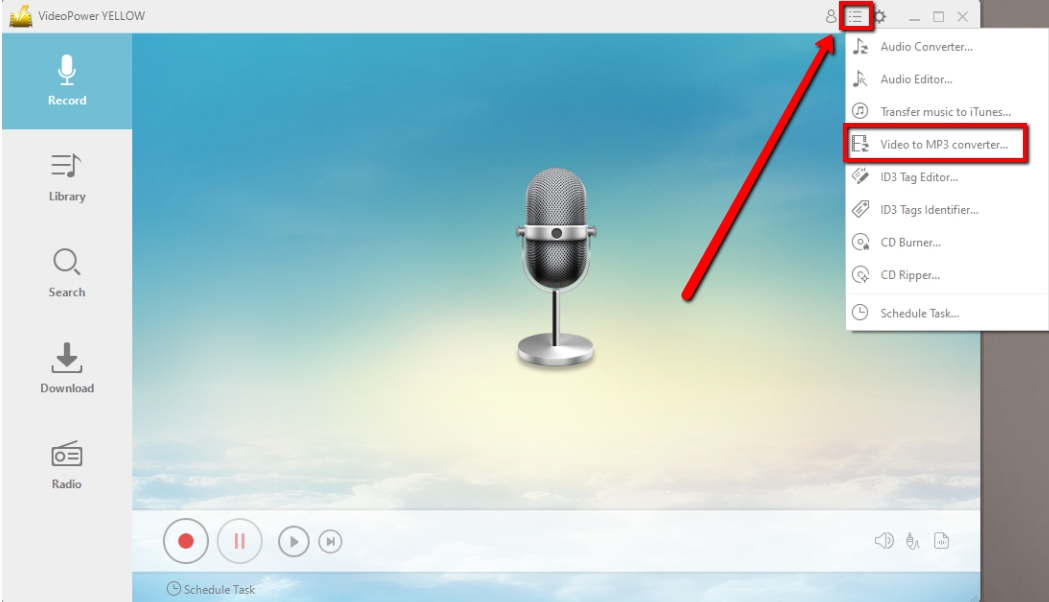
convert Vevo videos to MP3, VideoPower YELLOW

Step 2: Download Vevo Video to be converted to MP3

2.1 Copy Video URL

The built-in “Video to MP3 Converter” window will pop up, copy and paste the Vevo video URL that you want to convert.
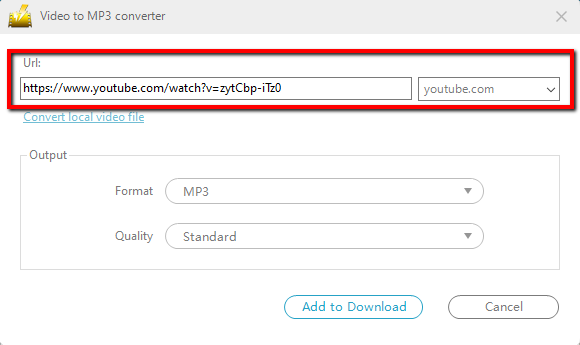
convert Vevo videos to MP3, VideoPower YELLOW

2.2 Set Output Format

You can set up the output format and quality in the “Output” portion, and then click the “Add to Download” button to start the conversion.
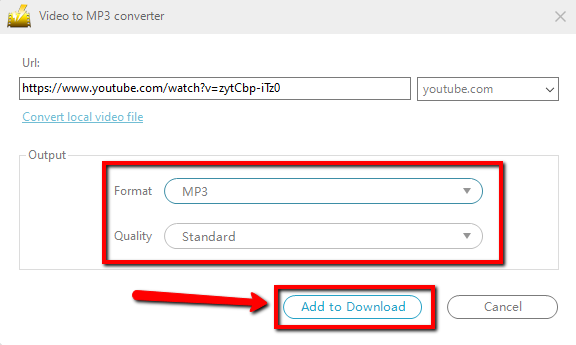
convert Vevo videos to MP3, VideoPower YELLOW

Step 3: Check the downloading and converting process.

Navigate to the “Download” feature. You will see the “Downloading” control panel has a task displaying on it. If complete downloading, find it in the “Completed” list.

convert Vevo videos to MP3, VideoPower YELLOW

Step 4: Task Completed

After the track has been downloaded, it will be transferred to the “Completed” downloads list. Click on the folder icon to locate the file folder destination of the track.

music downloader, how to download music from youtube to computer, Amazon Music download, Youtube Music Download, VideoPower YELLOW, Download

Conclusion:

Using VideoPower YELLOW is the easiest method to download videos to audio from sites that do not provide download features. Because of the emergence of online streaming sites, offline viewing has now become a thing of the past – but for some people that still opt to listen to their favorite music offline, using VideoPower YELLOW is a great choice.

Related Posts

Video Download
Record
Convert

VIDEO POWER

RED

  • Download video and audio from over 1000 video site
  • Batch download YouTube playlist
  • Record screen and audio with real-time annotation
  • Trim, crop, rotate video with a strong video editor
  • Windows 7, 8, 8.1, 10 (32/64bits)
> DOWNLOAD <
LEARN MORE

Schedule Recording
Annotation
Video Edit | Convert

VIDEO POWER

GREEN

  • Record screen and audio with real-time annotation
  • Create a scheduled task to record screen and webcam
  • Enrich your recorded video by powerful Video Editor
  • Capture and annotate your screen in the picture
  • Windows 7, 8, 8.1, 10 (32/64bits)
> DOWNLOAD <
LEARN MORE

Video Convert
Record
Slideshow Maker

VIDEO POWER

BLUE

  • Convert video and audio to various formats at super fast speed without quality loss
  • Make your own video clips or movies with fantastic themes
  • Transform multiple videos and photos in one frame as a collage
  • Trim, crop, rotate, effect, watermark, subtitle, etc. in video editing
  • Windows 7, 8, 8.1, 10 (32/64bits)
> DOWNLOAD <
LEARN MORE

Music Search
Download
Record

VIDEO POWER

YELLOW

  • Records music and audio from various sources in lossless

  • Search and download music

  • Auto-add music ID3 tags for recorded music

  • ID3 Tag Identifier and Editor, Audio Editor/Converter, CD Ripper/Burner, Transfer to iTunes, etc

  • Windows 7, 8, 8.1, 10 (32/64bits)

> DOWNLOAD <
LEARN MORE

Whatever fits your needs, it's here.
Which one would you choose?

> Video Power Series Comparison <