





Tips Index
VOB (Video Object) is a container format used in DVD video discs, storing digital video, audio, subtitles, DVD menu and navigation contents.
The size of a VOB file is very large, usually about 1GB. If you want to copy VOB files to your computer, it requires a large enough space on your hard drive. Besides, only a few media players support the playback of this file format. For example, VLC Media Player, MPlayer, Media Player Classic, ALLPlayer, and GOM Player. If you don’t have the above mentioned Media Players installed on your computer, I’m afraid that you have to transfer VOB to MP4.
VideoPower BLUE enables you to convert VOB to MP4 with high quality and smallest possible file size. Get this powerful VOB to MP4 Converter and transfer your VOB file to a more compatible format within a few minutes.
VideoPower BLUE is one of the best video format converters by offering a handy approach of converting video files from one format to another format. It converts the video files to most formats.
Download and install the program on your PC with the link below to start the conversion.
Step 1: Add the VOB file to VideoPower BLUE
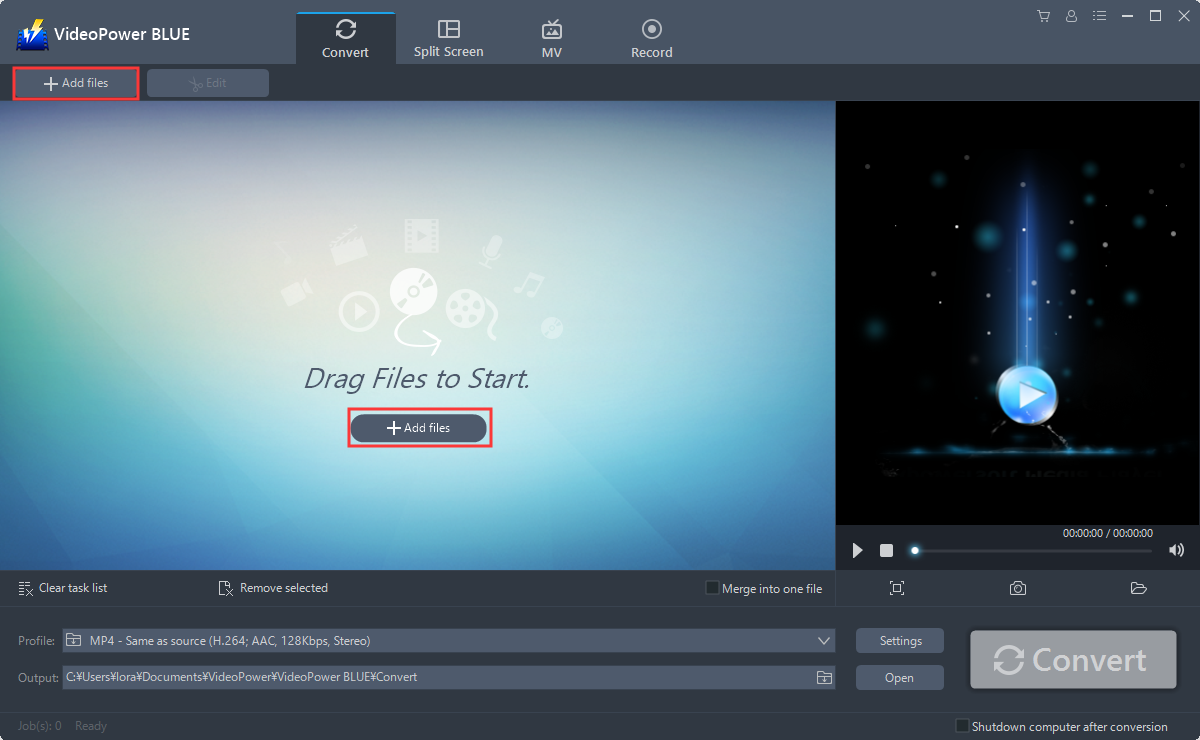
Run the program if you have installed the Video Converter software successfully on your PC. You can directly import the VOB file to the program by clicking the “Add files” button or by drag-and-drop the file to the interface.
Step 2: Edit the VOB video.
If you need to edit the VOB video before conversion, just follow the instructions below.
2.1 Open Editing Window
The imported VOB file is displayed in the list.
Click the “Edit” button on the right side of the file.

2.2 Start Editing
The built-in video editor will pop up, with its help, you can make the perfect movie. Adjust speed and volume, trim, cut, crop, rotate or flip videos. Add effects, subtitles, and watermarks while adjusting brightness, contrast, and saturation that will make editing conveniently easier.
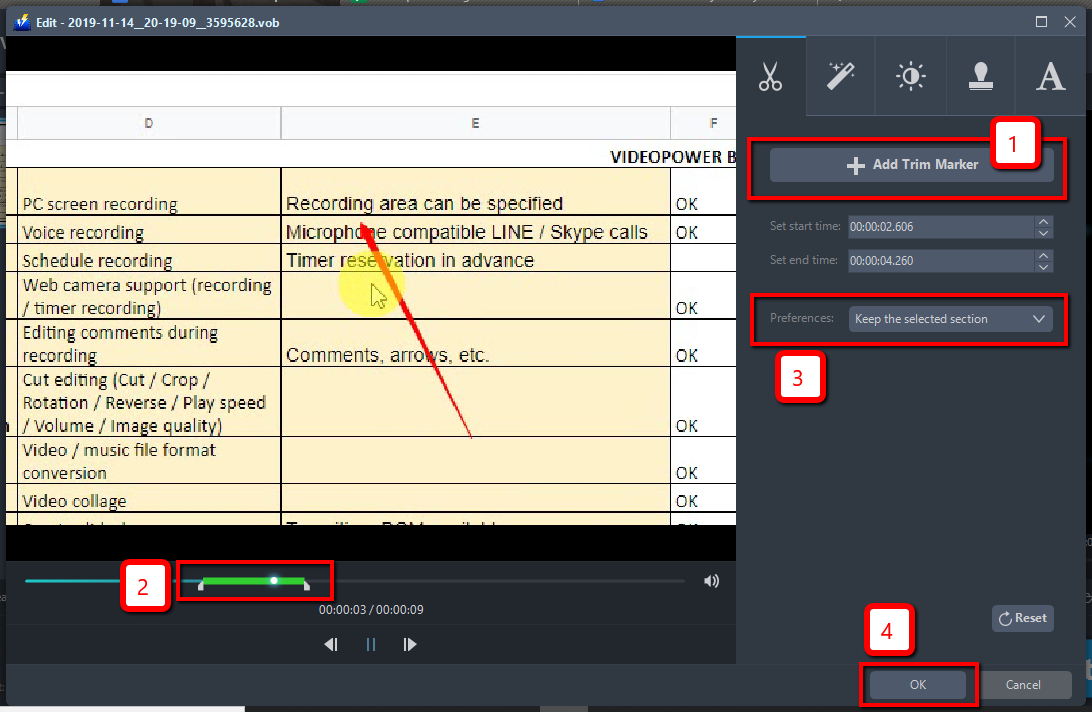
For example, you can trim your video as shown below:
1) Click “Add Trim Marker”.
2) Drag the mark as shown below to select the part you want to cut. If you want to select multi-sections, please repeat 1 and 2.
3) Choose “Keep the selected section” or “Delete the selected section” from “Preferences”.
4) Click “OK” to save the setting.
Step 3: Convert VOB to MP4 format.
3.1 Set the output format.
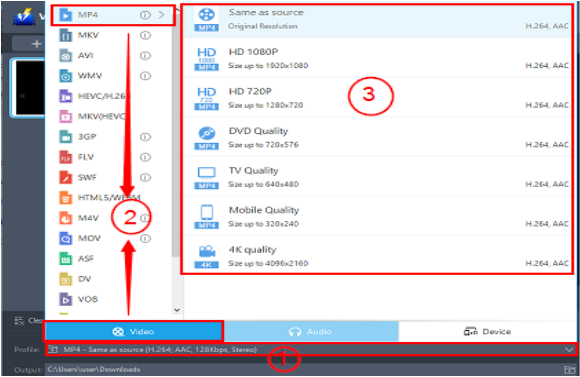
Set the desired output file format for a better output file quality. Follow the steps below.
1) click the “Profile” drop-down menu
2) on the “Video” tab, choose the desired format; select “MP4”,
4) set the quality as “Same as source”, “HD”, “4K quality” or etc.
3.2 Start Conversion
Return to the file list. Click the “Convert” button, then the converted MP4 file will be saved in the default output folder.

3.3 Find the Converted MP4 files
A pop-up window from the program will appear informing you that the conversion is complete. Click “OK” to open the folder of your saved converted MP4 files.
Or you can click the “Open” button to find the MP4 video.

With these steps, you can now convert your VOB files to MP4 or to any desired format without quality loss.
Conclusion:
VideoPower BLUE, a powerful converter that supports any conversion of video and audio formats with video editing function, enables adding subtitles, apply watermarks, make MV and split-screen videos. More importantly, it can record screen activity in many different ways, offline and online.
A wise choice because of its user-friendly and satisfactory interface and fast conversion speed. It preserves original quality while converting and that is the reason why most people like to use it.


