





Tips Index
There are some times that you’ll need to record your own actions along with the activities on your laptop screen. But then, how will you do it without having trouble doing some screenshots one after another?
Recording your own activities captured by a laptop camera is a little bit of a nuisance. But then, it’s not entirely impossible with the use of a hassle-free, trusted and professional recording application software called VideoPower Green.
VideoPower GREEN is recording software that is not difficult to use and the format generated is suitable for uploading to the internet. This product can perfectly let you record on-screen activities on your laptop camera through your own way with professional results.
Check out this article to learn more and click the link below to download and install this app.
Use the software for free by downloading its trial version below.
Step 1: Record camera activities in laptop.
Run VideoPower GREEN if you have installed it on your PC.
1) Choose a sound source.
You can choose “System sound, Microphone, System sound, and microphone or None.” In recording camera activities in laptop, “System sound and microphone” sound source is recommended.

2) Select a recording area.
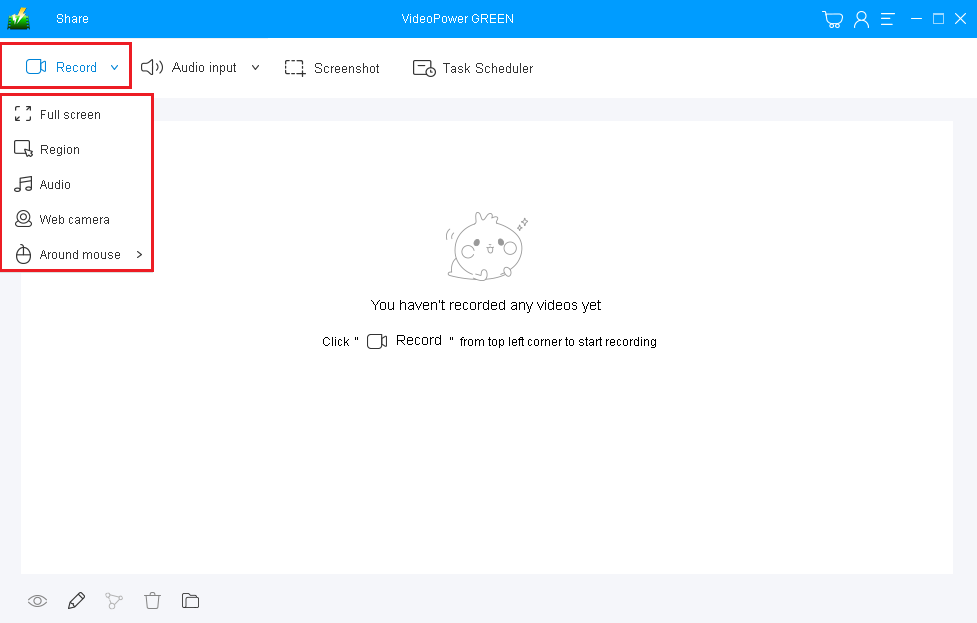
Click on the “Record” button to choose the recording mode from “Full screen, Region, Audio, Web camera, Around mouse”. If you are going to record both a webcam and screen, you need to select a screen. And then open a webcam after starting recording.
Step 2: Start recording activities in laptop.
The pop-up window will ask whether you are ready to start recording, click “OK” to confirm when you are ready to record.

Click the webcam icon on the toolbar to open a webcam window in the recording area.

Step 3: End the recording.
Click the “Stop” button to end the recording. After that, the recorded file will be saved in the output folder.

Aftre stoping the recording;
1) Your recorded file will be seen in the main interface. You can right-click the file and do more operations if you like.
2) Click the folder icon to view it in the output folder.

Conclusion:
Recording external motions or activities captured by a laptop camera is a little bit of a hassle. But then, sometimes we need to capture it along with the things we’re doing in our laptop screen for some purpose.
It can be possible with the use of a simple, easy to use, hassle-free and trusted recording application software with professional features called VideoPower GREEN. Moreover, this product doesn’t only have a powerful recording feature but it also has editing and task scheduler features that can improve your recorded video as well as can help you save time and effort.


