





Tips Index
Ever had the difficulty of capturing your computer screen for a task or a cause? There are still some who don’t know how to and try to find ways on how to screenshot a task on the screen.
Snagit is one of the most familiar tools for this, it has been household stuff for creative reporting or project making when it involves several computer navigations. Although a built-in key for screenshot like the print screen is already in some computers, navigating to another app just to highlight objects on a screen capture can be too tacky and time-consuming. Snagit specializes in such functions since more than it can capture the screen, it has some extra tools that can be very useful without going out yet to the app just to highlight stuff in the captured screen, but these tools can only be accessed if premium membership will be available.
Camtasia is a software that was made and created by TechSmith, for making screen tutorials and video projects directly through the screencast, or through a run recording annexation to Microsoft PowerPoint. The display size to be video-documented can be selected exactly, and the auditory or other media features can be recorded simultaneously or integrate it differently from other multimedia sources. But Camtasia’s webcam video-produce is a bit sloppy, said one user.
VideoPower GREEN – is the best desktop tool for awesome video and audio recording and screen capturing, it has the best features of Snagit and Camtasia combined. It has multiple functions and is easy to use with no tech knowledge required at all. It enables you to record movies, video tutorials, games, live streams, calls, and more.
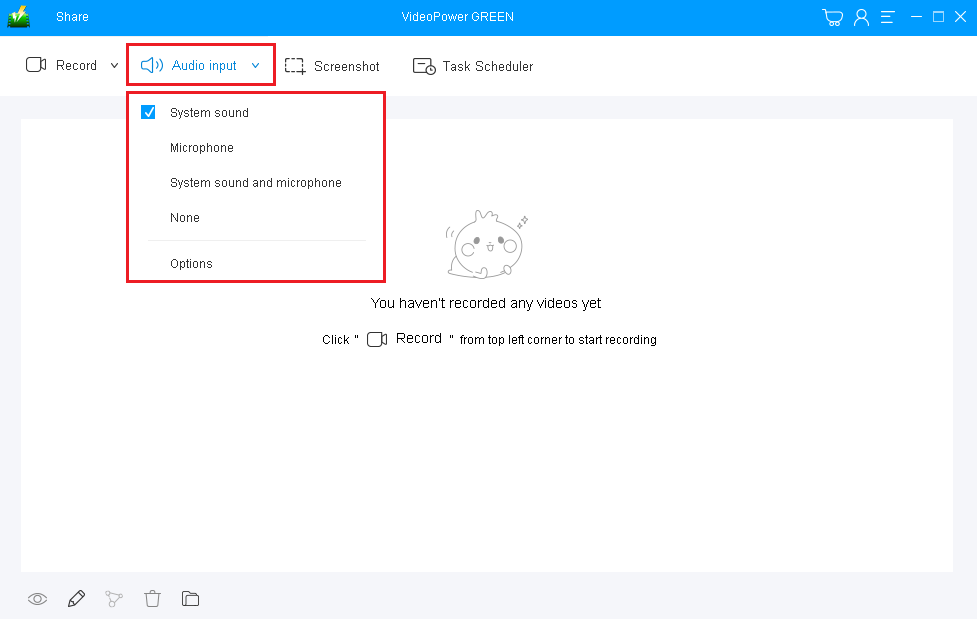
Step 1: Choose a sound source.
If audio is needed in recording, choose the desired sound source among “System sound, Microphone or System sound and microphone” on the “Audio Input” menu. If audio isn’t needed, just choose “None”. In recording streaming videos, select “System sound”.
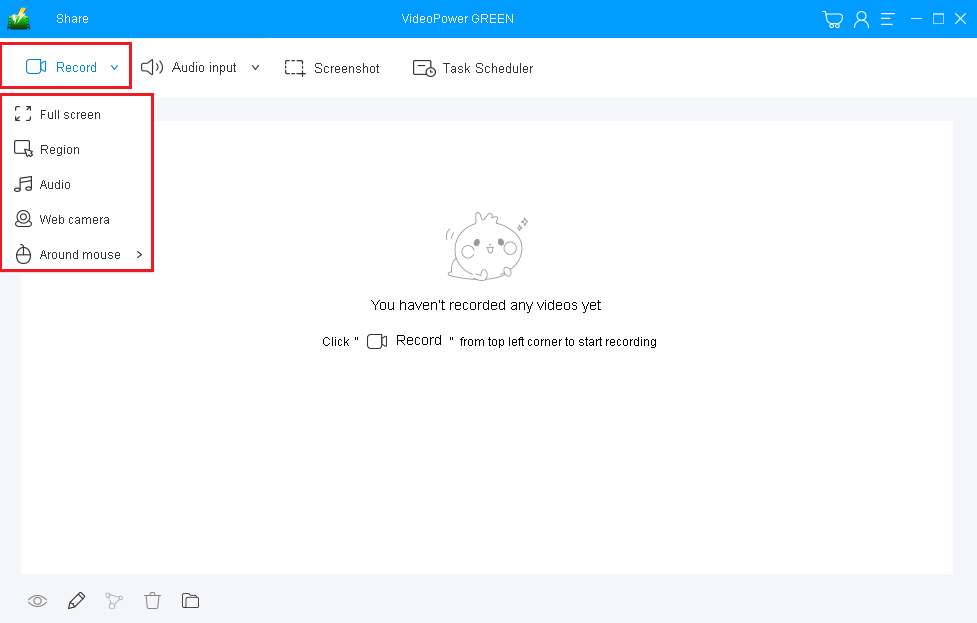
Step 2: Select a recording area.
Click on the “Record” button to choose the recording mode among “Full screen, Region, Audio, Web camera, and Around mouse” and then select the area you are going to record.
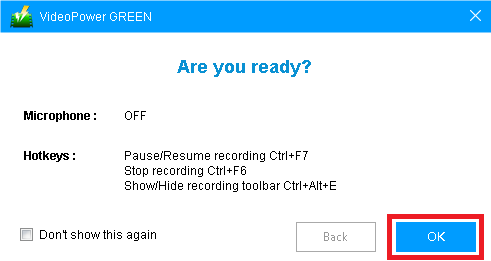
Step 3: Record Screen Activities.
A pop-up window will show to confirm whether to start the recording or not. Click “OK” to start the recording.
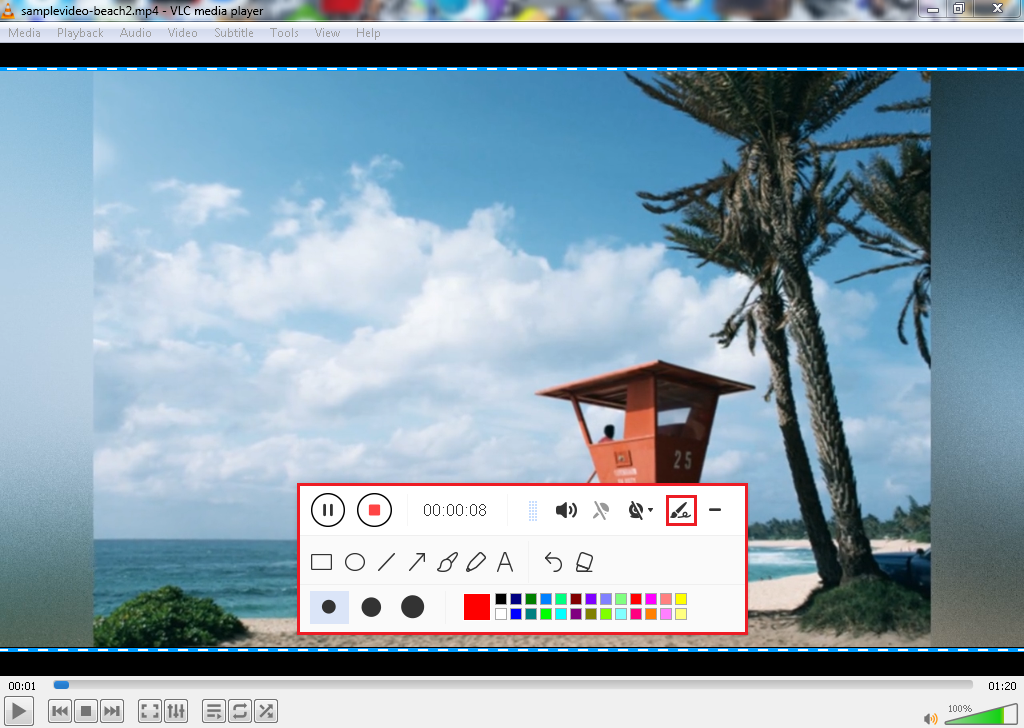
Step 4: Annotate video while recording.
While recording, adding lines, arrows, shapes, texts, highlight, blur, etc. is possible. Just click the edit button to show the editing toolbox.
Step 5: End the recording.
Click the “Stop” button to stop or end the recording.

Step 6: Redirect to Recorded File List
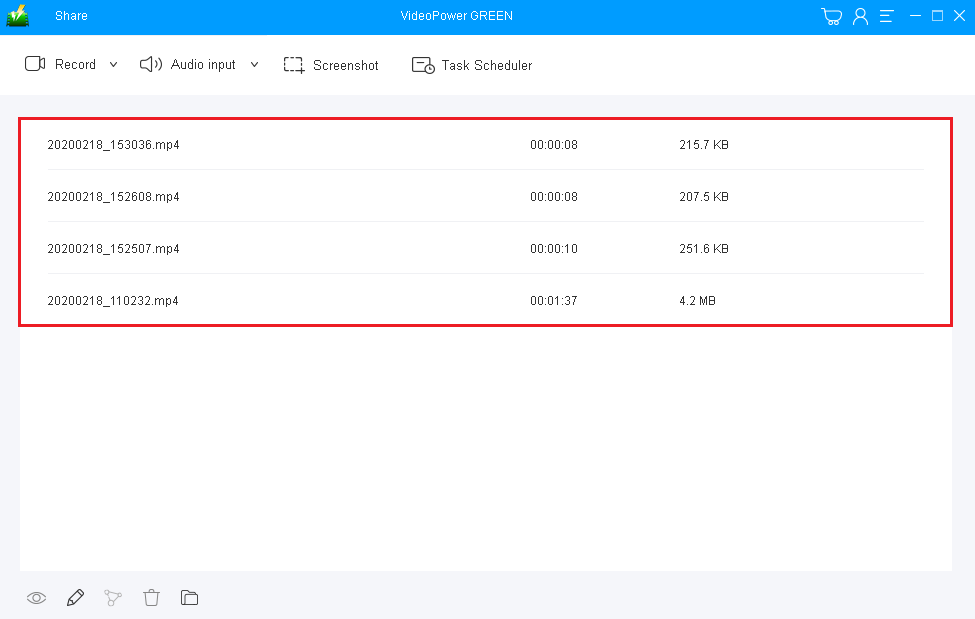
After recording, the screen will automatically redirect to the recorded file list on the main interface window. Right-click the file and do more operations if necessary. Double click the file to play or view it.
Conclusion:
Screen recording and products from it like short to long clips have been a companion for us to show a new window of learning or just to watch something out of entertainment. We always need something to assist our ideas all the way through. VideoPower GREEN is a very powerful screen recording software for both video and audio, with dedicated tools like adding highlighters and annotations to support whatever project we have. Additional features like webcam recording during video tutorials, adding texts in our screenshots, and even recording only a particular region of the screen is more than possible in the soft widths of VideoPower GREEN. Try it now!


