Tips Index
Google Voice is a telephone service launched by Google, which aggregates all of the contact numbers into one number while providing many value-added services.
Basically, the service of Google Voice is to integrate all the contacts you will have in your life, such as home, office, cell phone, etc., with a toll-free phone number provided by Google or your paid number.
A video clip was provided on the official website: When someone calls you, they do not have to consider the number of home, office number, or cell phone. And with the Google number, you can decide which phone should ring.
Some users have the need to record Google Voice calls. In this case, you can use VideoPower YELLOW. With this software, you can record on Google Voice easily and review your calls.
To install the software, just click the link below to download the installer.
Step 1: Set the sound source
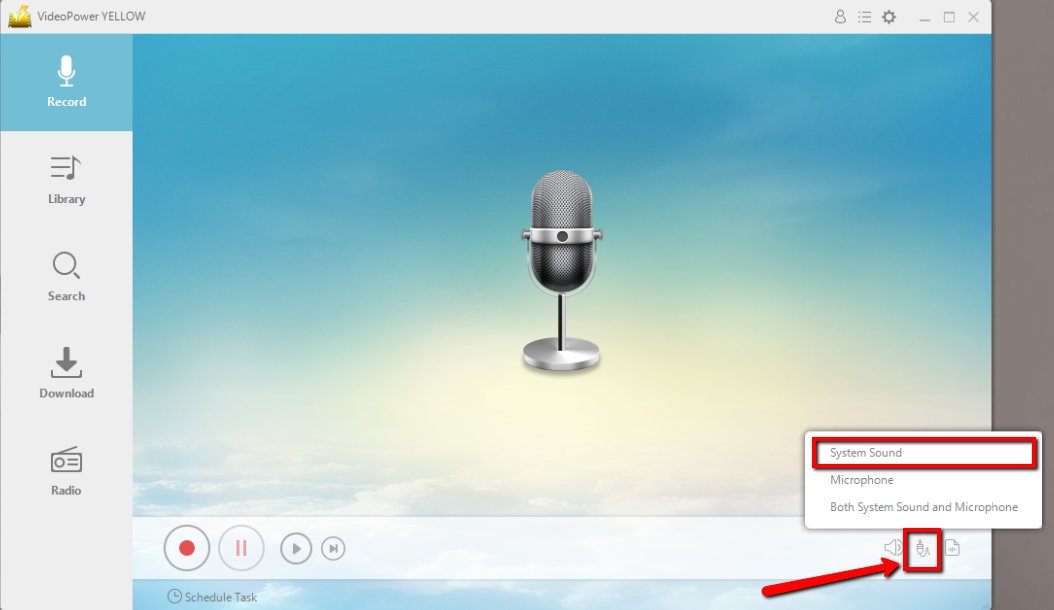
Before recording, make sure that the sound source is set. Choose among the given sound sources which are “System sound”, “Microphone”, and “System sound and Microphone”.
Step 2: Set the file format
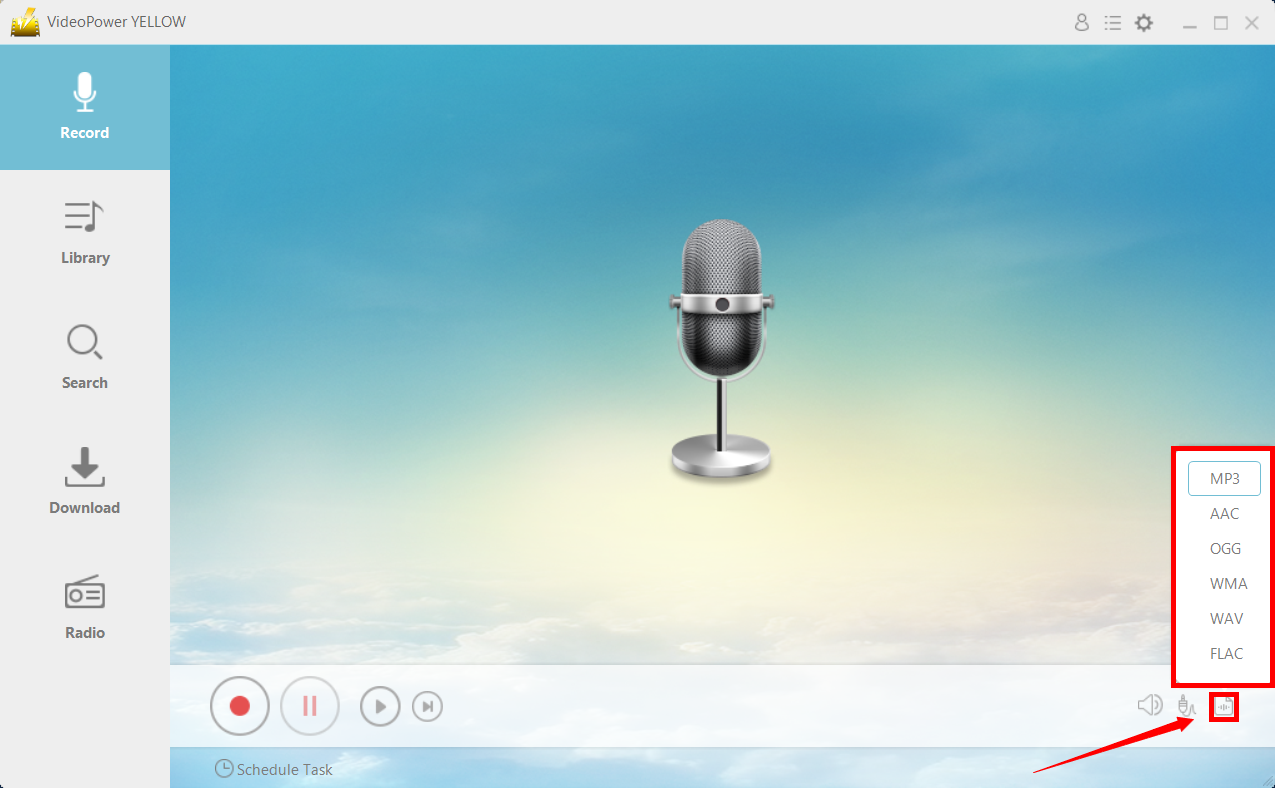
Make sure that the output file format is set before recording after setting the sound source. Select MP3 or whatever format you deem appropriate.
Step 3: Start Recording
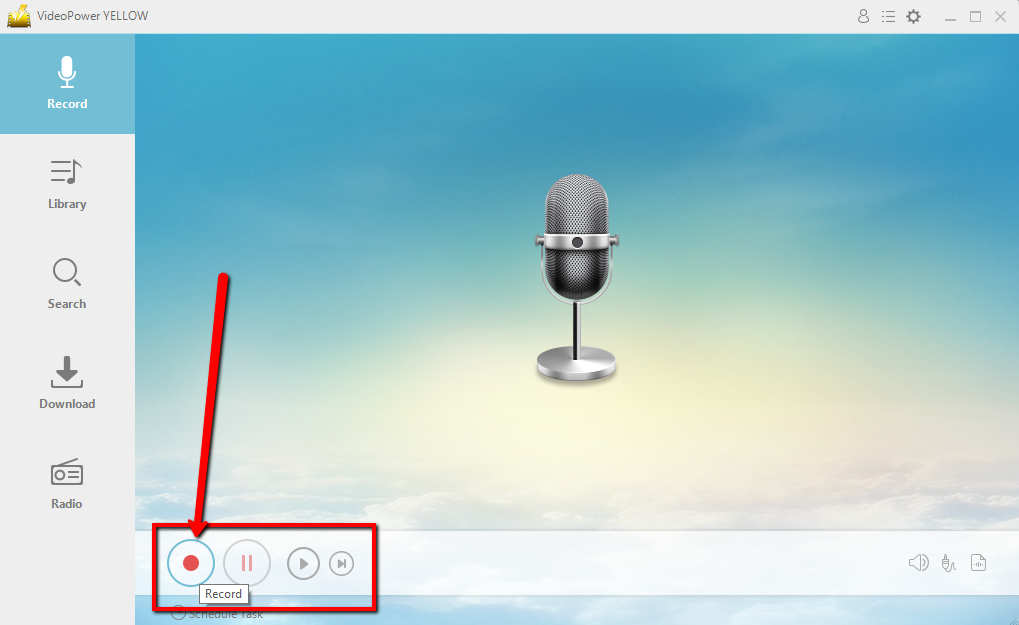
Click the “Record” button to start recording and click the same button to stop.
Step 4: Navigate to the Output File Location
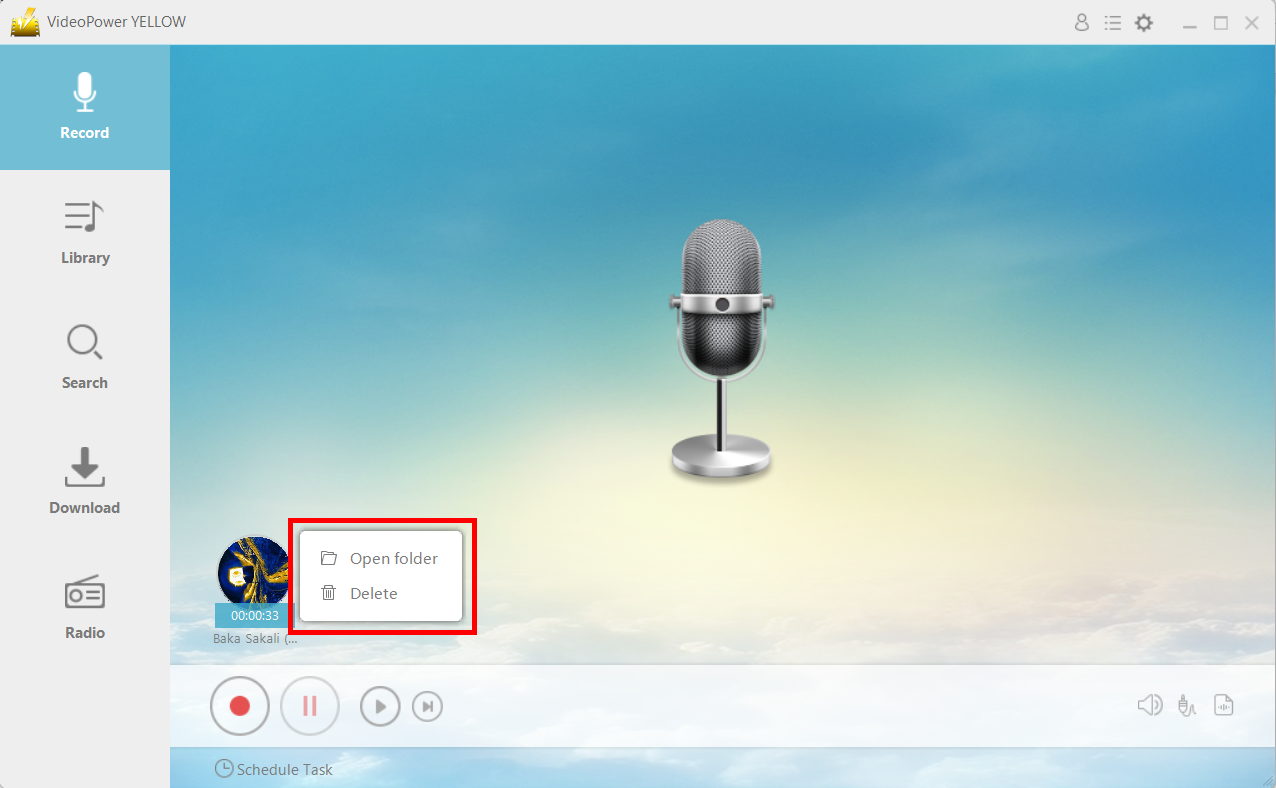
After recording, right-click the recorded track icon and click “Open folder” to open the storage location of the recorded audio file or click “Delete” if you want to delete the file and record again.
Conclusion:
Google Voice is a great tool that people use a lot nowadays for meetings and conferences. However, for some people, that can mean missing out on a lot of details because while they’re in a meeting, they may be taking notes. To solve that, it’s highly recommended you use VideoPower YELLOW to record the meeting.